Configure Policy Settings
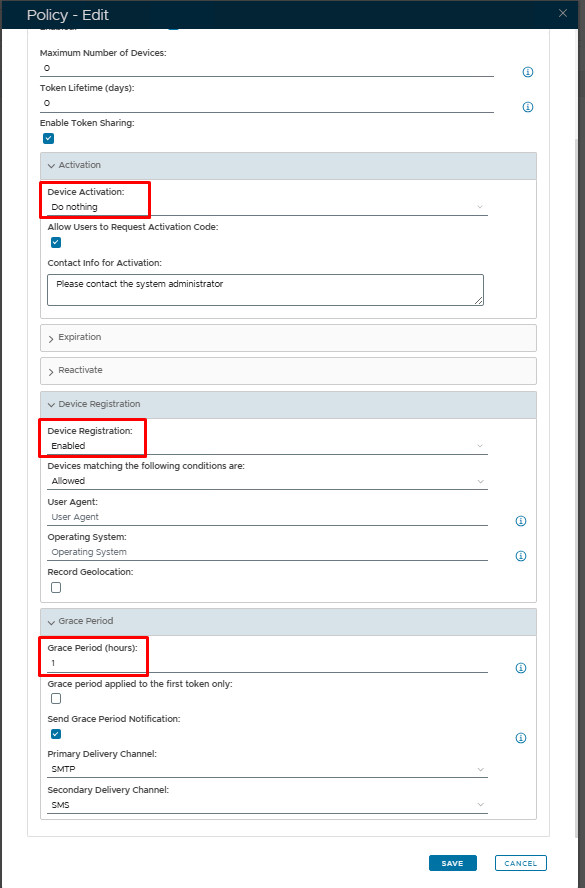
If you plan to review every newly registered device and activate or reject it manually, then you need to configure the DevcieID policy as suggested below.
| Option | Value | Explanation |
|---|---|---|
| Device Activation | Do Nothing | No activation code will be sent to end users, preventing them from activating their device. |
| Device Registration | Enabled | This is a default option so that a DeviceID token will get created and dropped into quarantine until such time as it is activated by the DualShield Administrator |
| Grace Period | Optional | The end user will still be able to receive emails to their device for the duration of the grace period set after which email will be blocked until the token has been activated. (0 = No grace period set, therefore email blocked immediately until the token is activated.) |
Customize Message Template
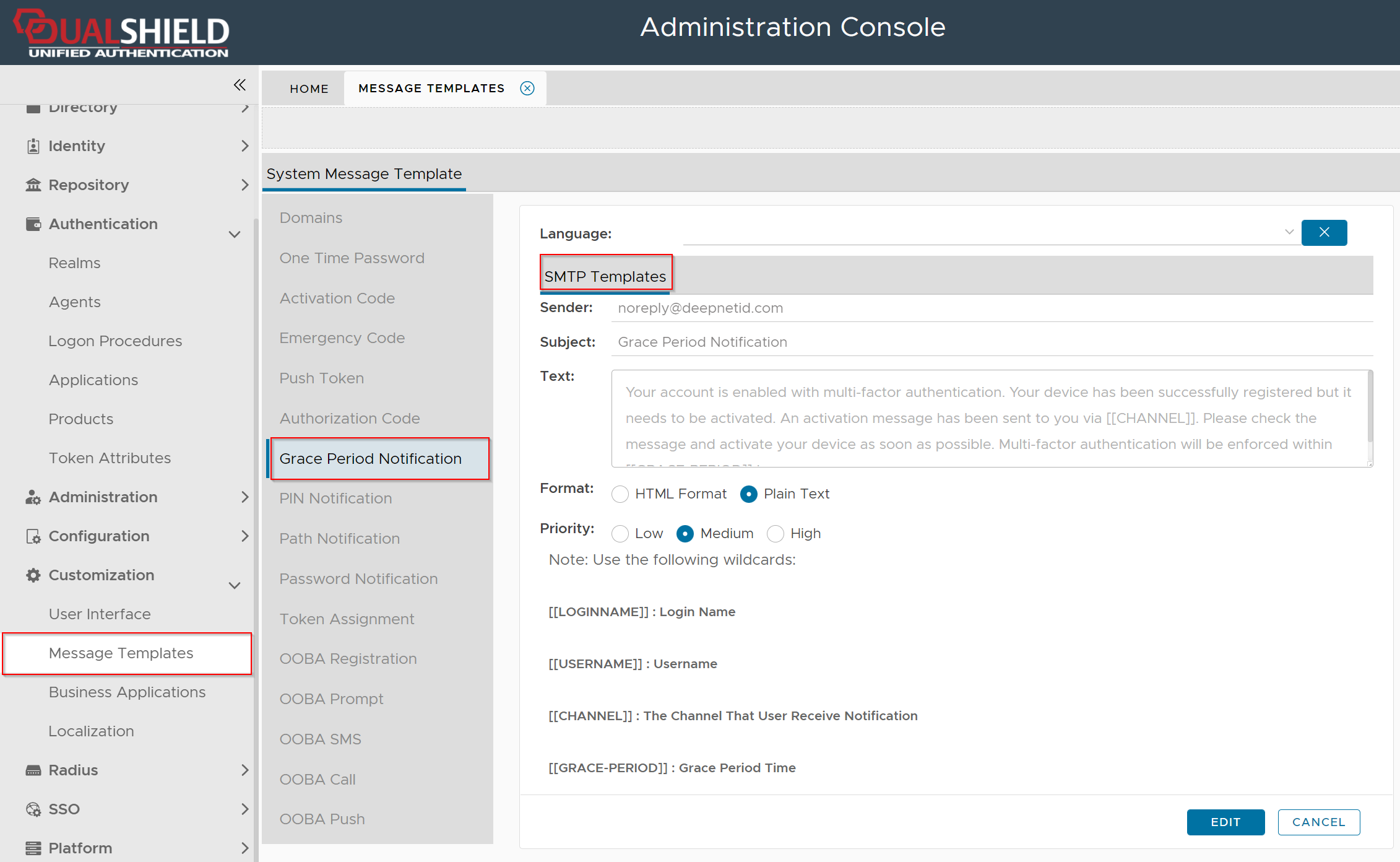
If you want to give users a grace period immediately after the user's device is put in quarantine, then you need to customize the message template for the grace period.
Activate Device
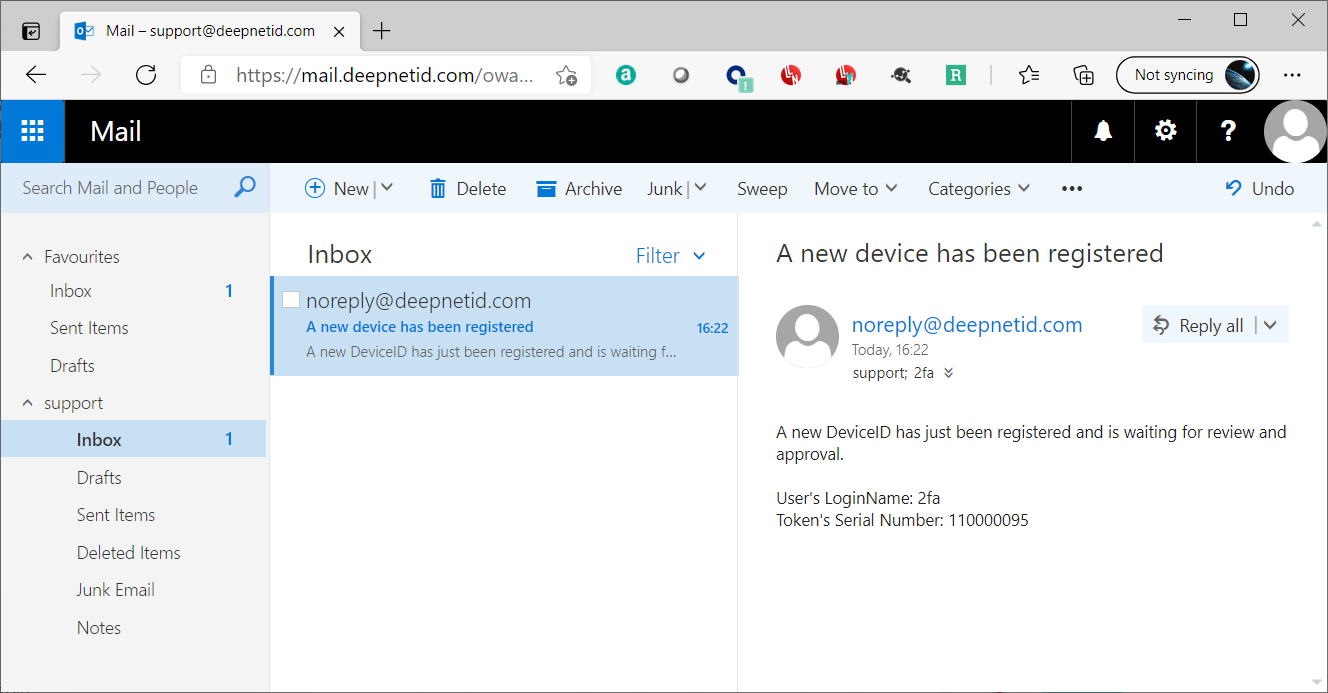
If you have set up the DeviceID registration alert, then you will receive an email or text message when a new device has been registered
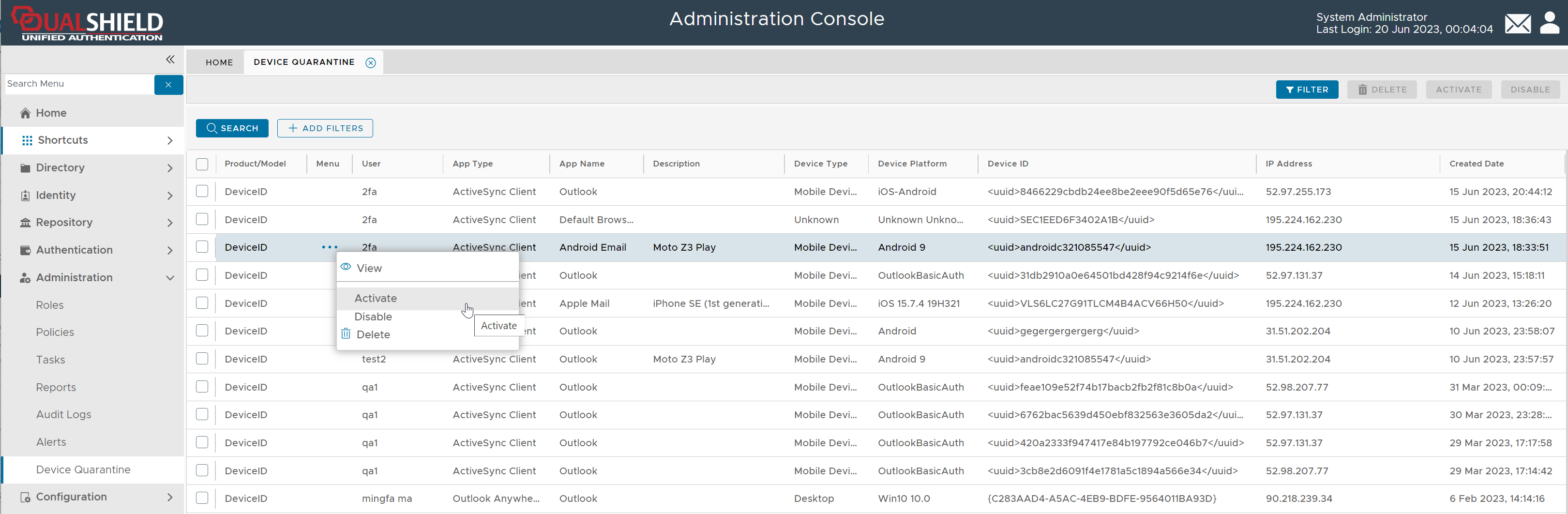
In the Admin Console, navigate to Administration \ Device Quarantine
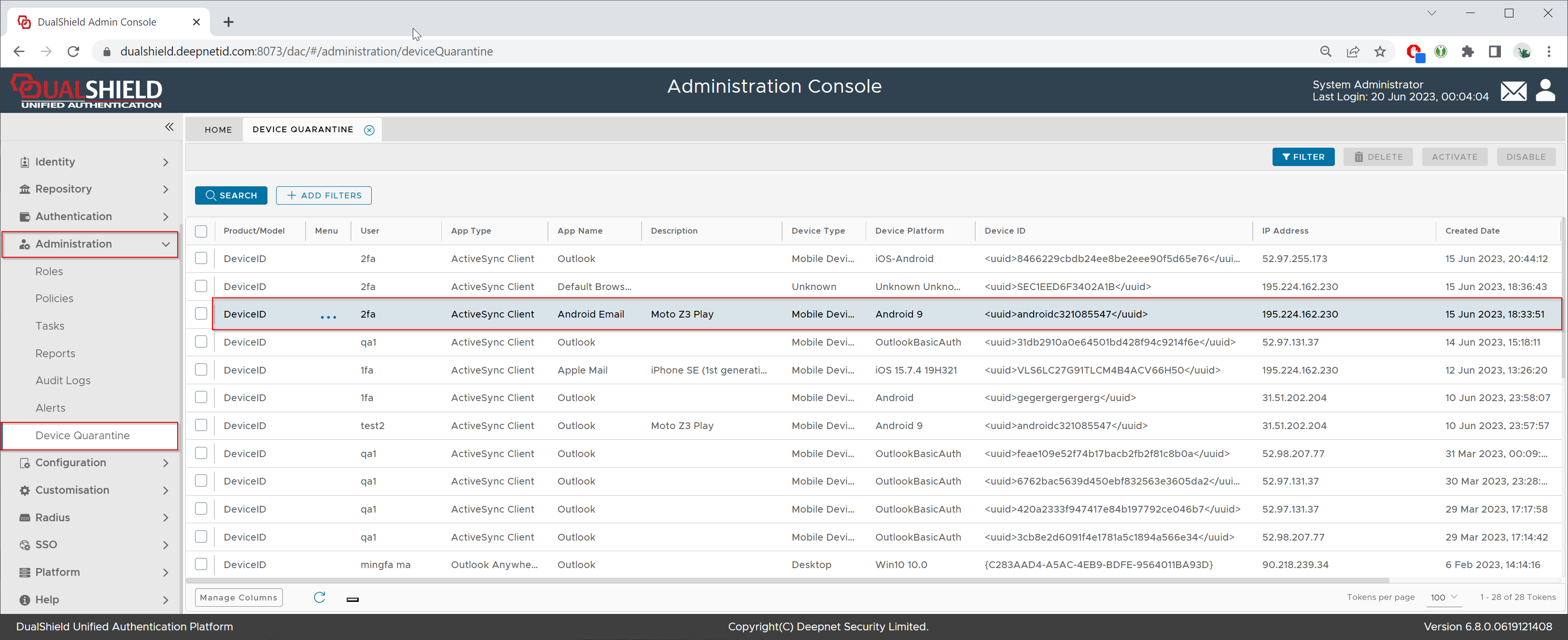
Click "..." to bring up the device's context menu

To view the device's properties, select "View" from the context menu

You can check the device type, OS, model etc. You can also check the device ID which is unique on every device.
To activate the device, select "Activate" from the context menu.