Create Local accounts on the Stand Alone PC
Make a note of the host name of the computer. In this case it is 'ABC'

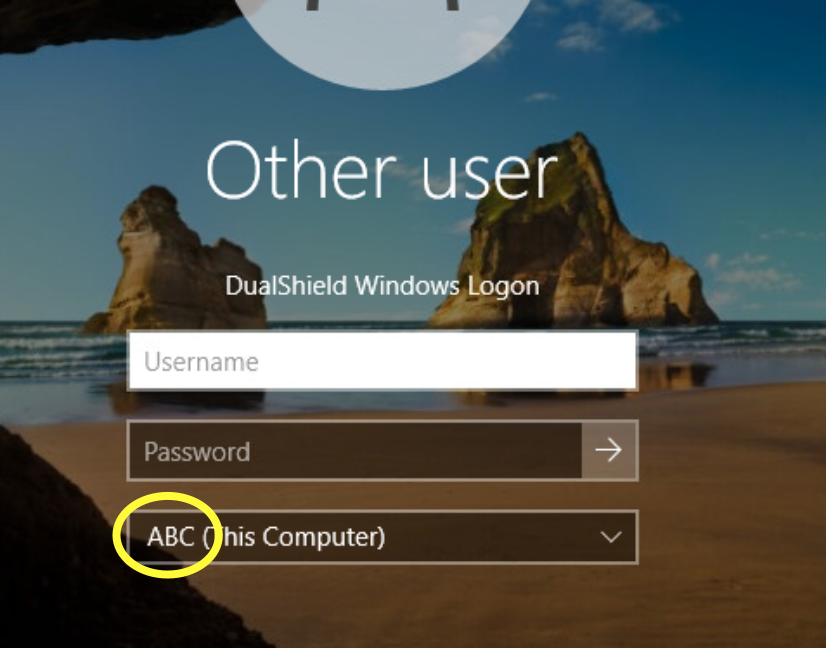
Create some local user accounts and make sure the Administrator account is active.

Create a Virtual Domain on the DualShield Administration Console
(This is required as the Stand-alone machines' host name will act as it's own domain.)
Login to the DualShield Administration Console and go to Identity>Identity Sources
Click on  on the top right.
It is recommended to specify the hostname of the Non-Domain joined machine as the friendly name of this identity source.
Also, make sure the Type is set to SQL
Click Finish

Go to Directory>Domains
Click on on the top right.
In the 'Domain-New' Dialogue box, select the Identity Source that you have just created from the drop-down
It is recommended to match the Name, DNS Name and NetBIOS Name with the hostname of the Stand-alone machine
Click Save
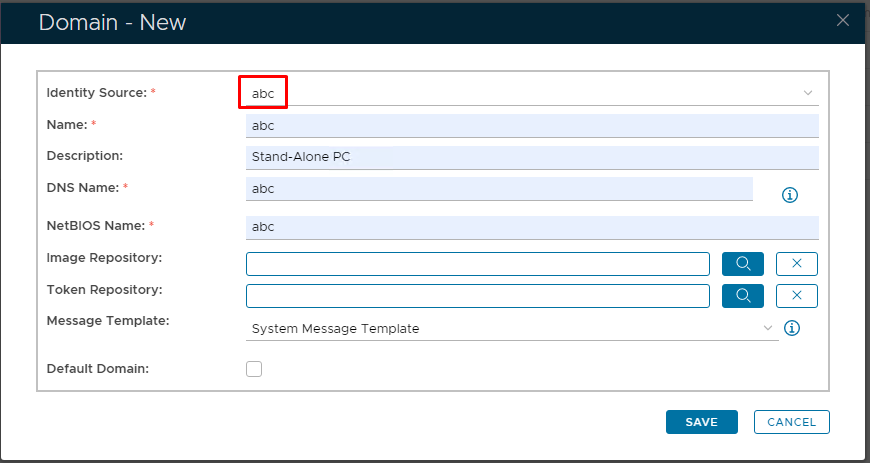
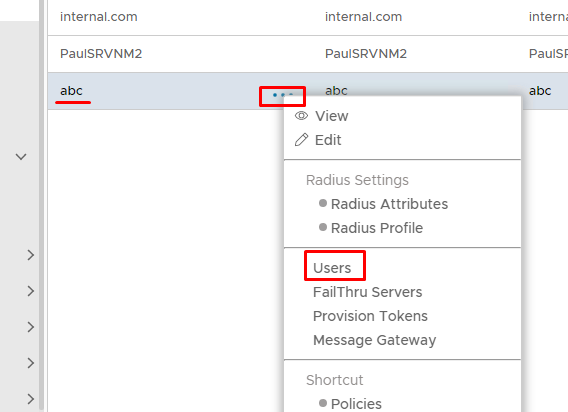
The Virtual domain will now be listed under Domains.
Click on the corresponding ellipses and select Users from the menu
Create Virtual User Accounts on the DualShield Administration Console
(These will correspond with the local accounts set up on the PC)
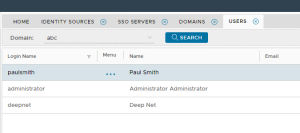
You will now need to create Virtual user accounts that match the local user accounts on the PC
Click on on the top right.
Make sure the account details match including the password.
Click Save

Repeat the process until the list of Virtual Users match the list of local users on the PC

Now please move on to the next stages..