Launch Mobility Client on the end-user device, and click Connect.
Mobilty Client Graphic
You may get a prompt regarding Device Certificate Logon. This is covered on another page
For User Authentication click I do not have a valid certificate
Certificate Logon Graphic
Add Logon Steps
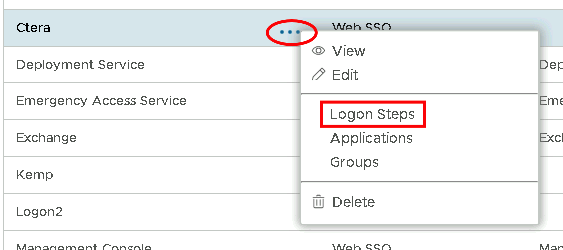
Select the drop down menu corresponding to the Logon Procedure you will be using and click on Logon Steps.
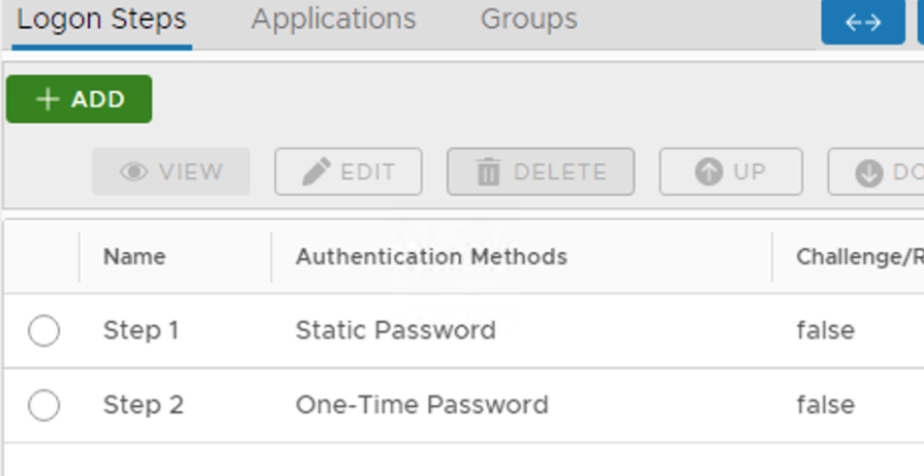
In the Logon Steps Dialogue box, click the  button.
Tick the desired authentication method, e.g. Static Password

Click Save.
Repeat to add extra steps.
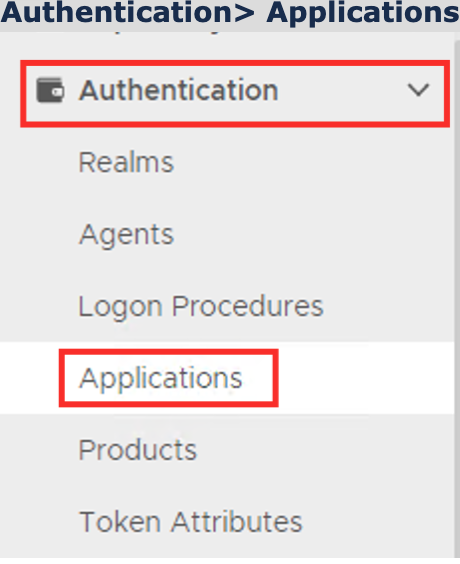
Create an Application:
Authentication> Applications
Click on  on the top right.
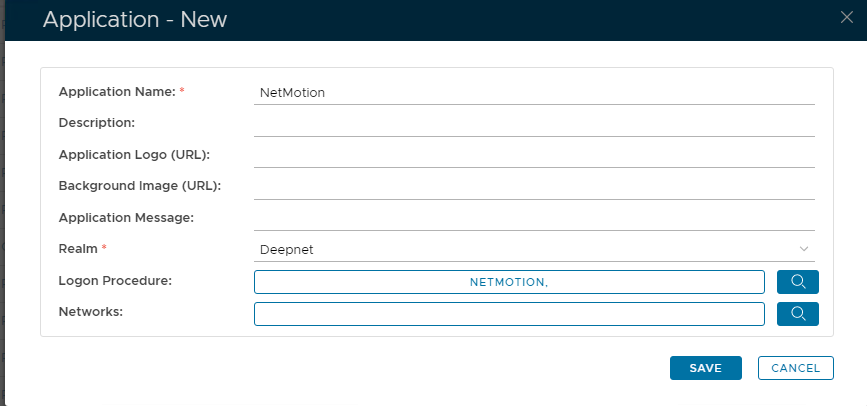
In the new Application window, please enter the following information:
| Option | Value |
|---|---|
| Name: | Enter a friendly name |
| Realm: | Select your Realm |
| Logon Procedure: | Select the Logon Procedure you had created in the previous step |
Click: Save
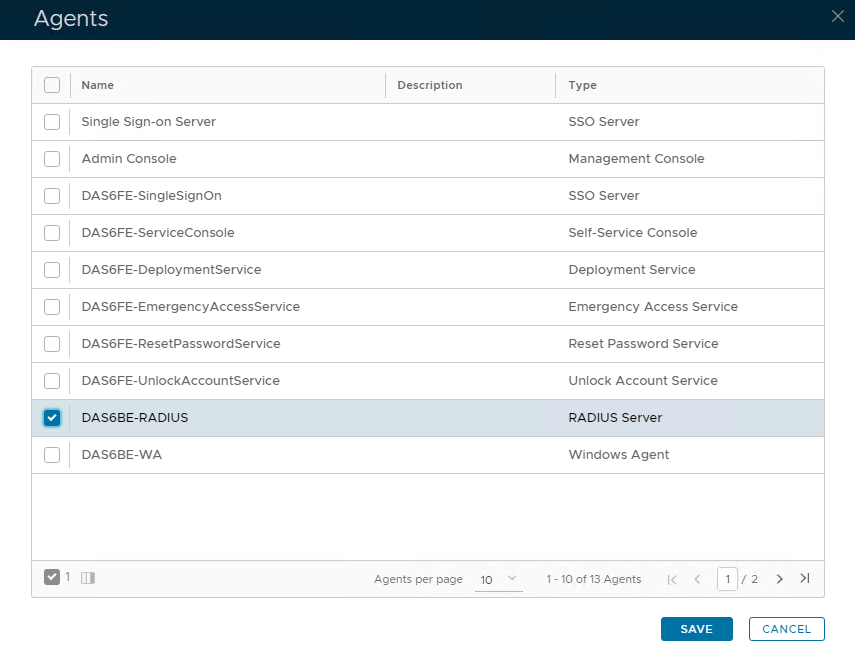
Bind the Application to a RADIUS Server Agent
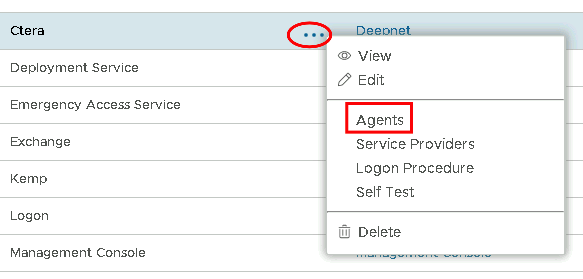
Select the drop-down menu corresponding to the Application you will be using and click on Agents.
Tick the box of the Radius Server you will be using and click Save below.