First, locate the MobileID token in the user's account
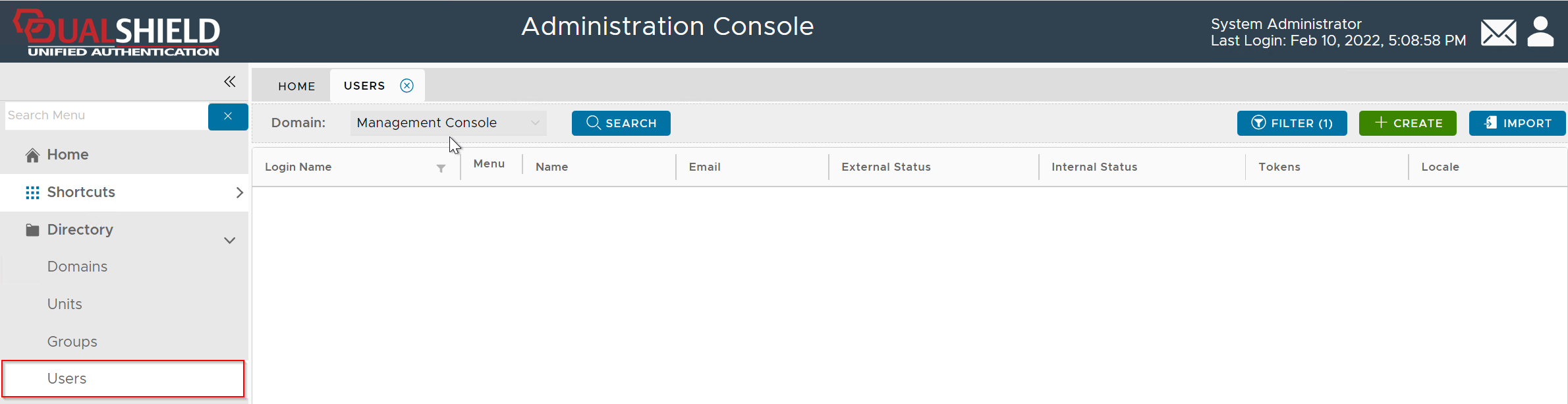
In the Domain list, select the domain that you want to work on, e.g. DeepnetMFA.com
If you click the "Search" button, it will list all users in the entire directory up to the query limit.
To narrow down your search, click the "Filter" button
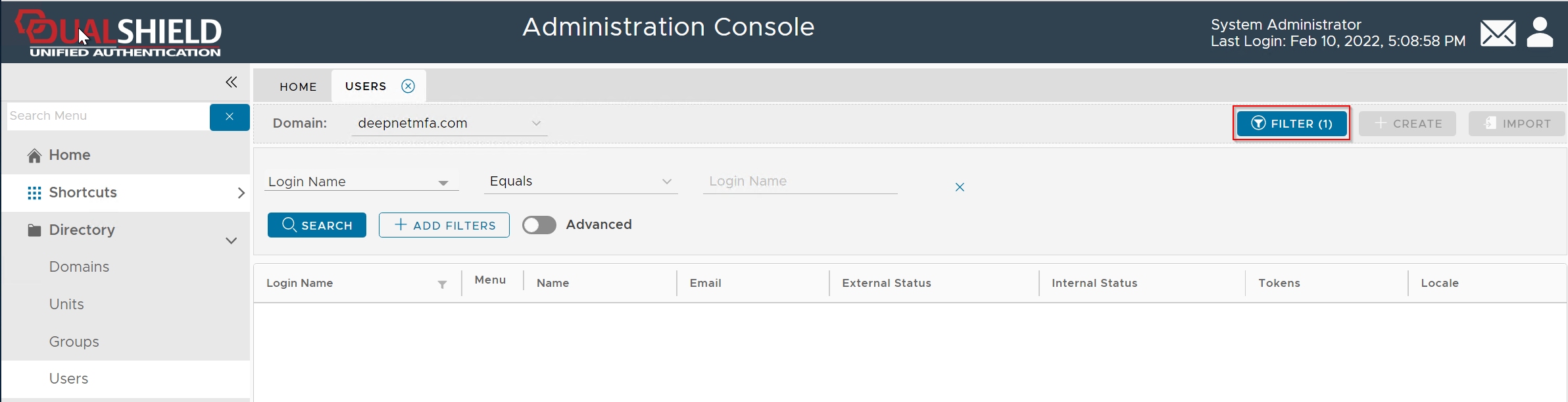
Enter the user's login name, e.g. 2FA, then click the "Search" button (You can change the search filter or add more filters)
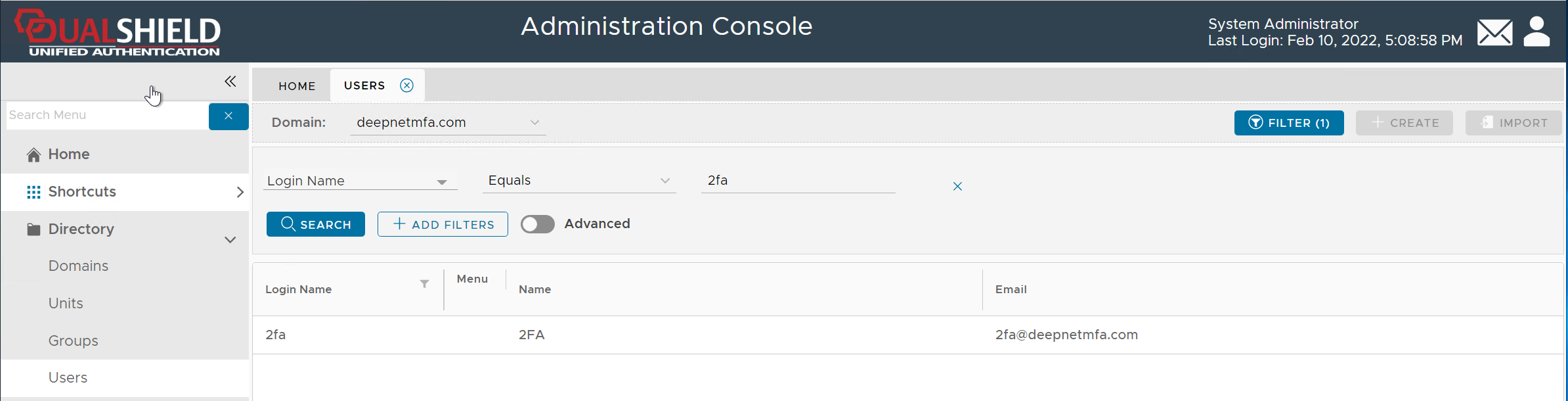
Once you have found the user account, click on its context menu icon "..." to bring up the context menu:
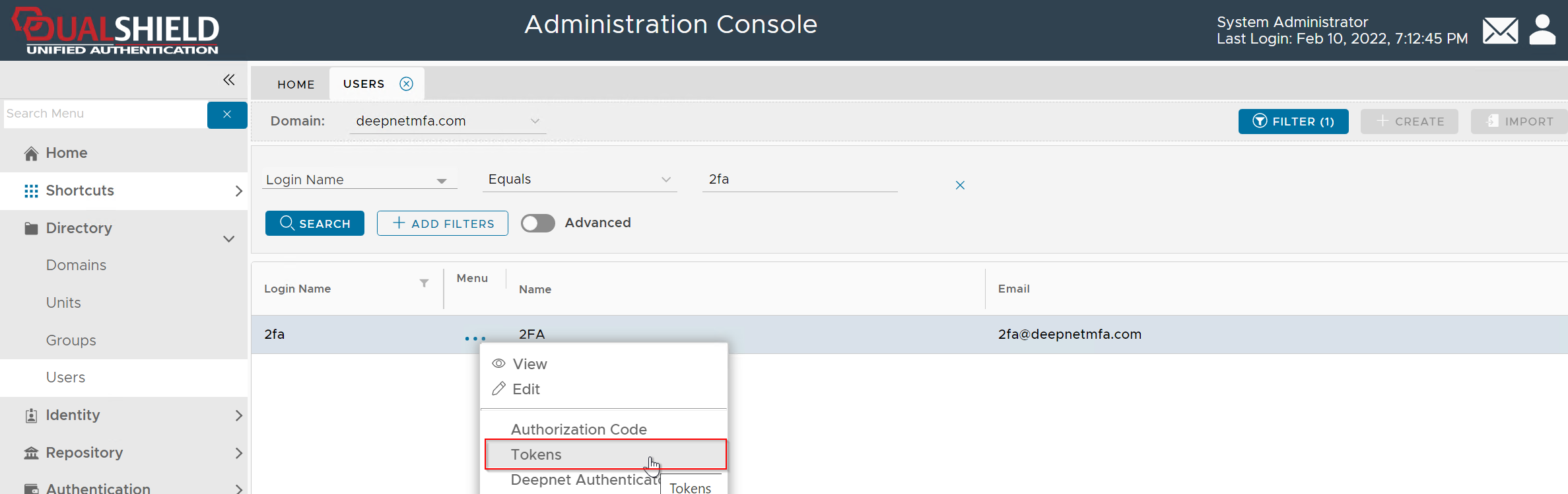
Click "Tokens" from the context menu
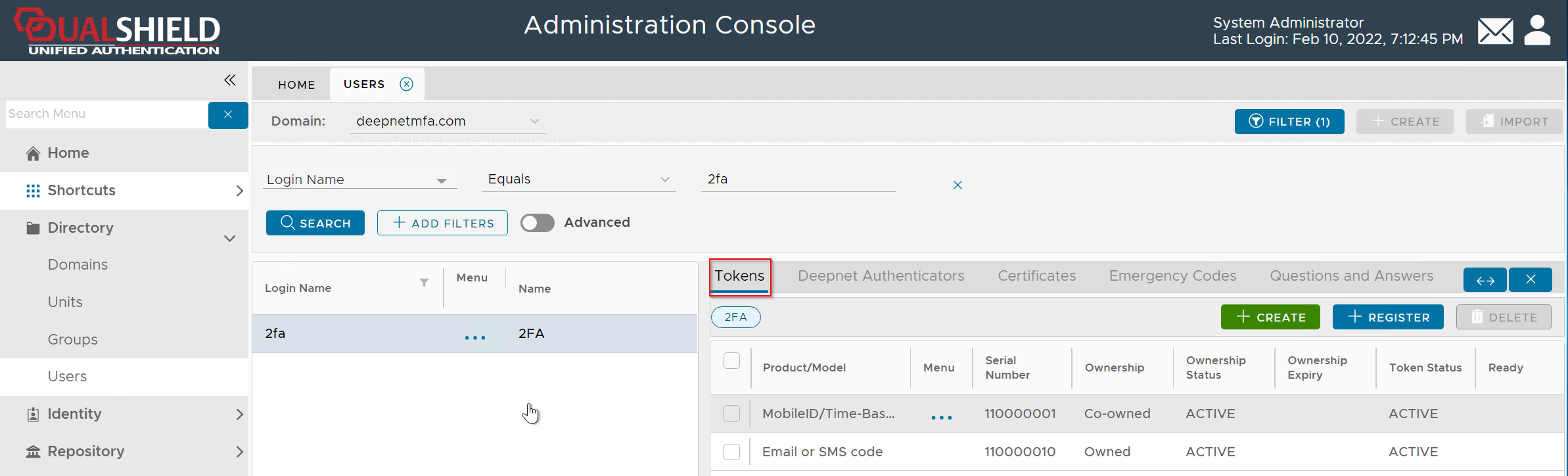

Now, click the token's context menu icon "..." to bring up its context menu:
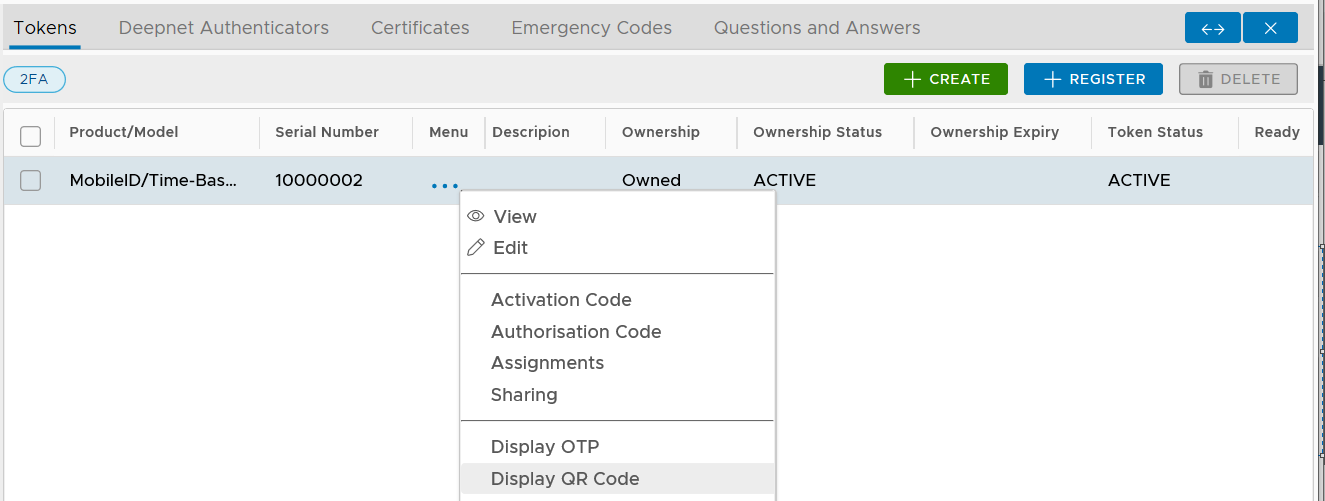
Select "Display QR Code"
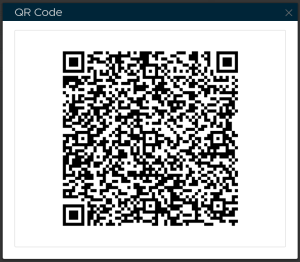
Now, open the MobileID app on your smart phone
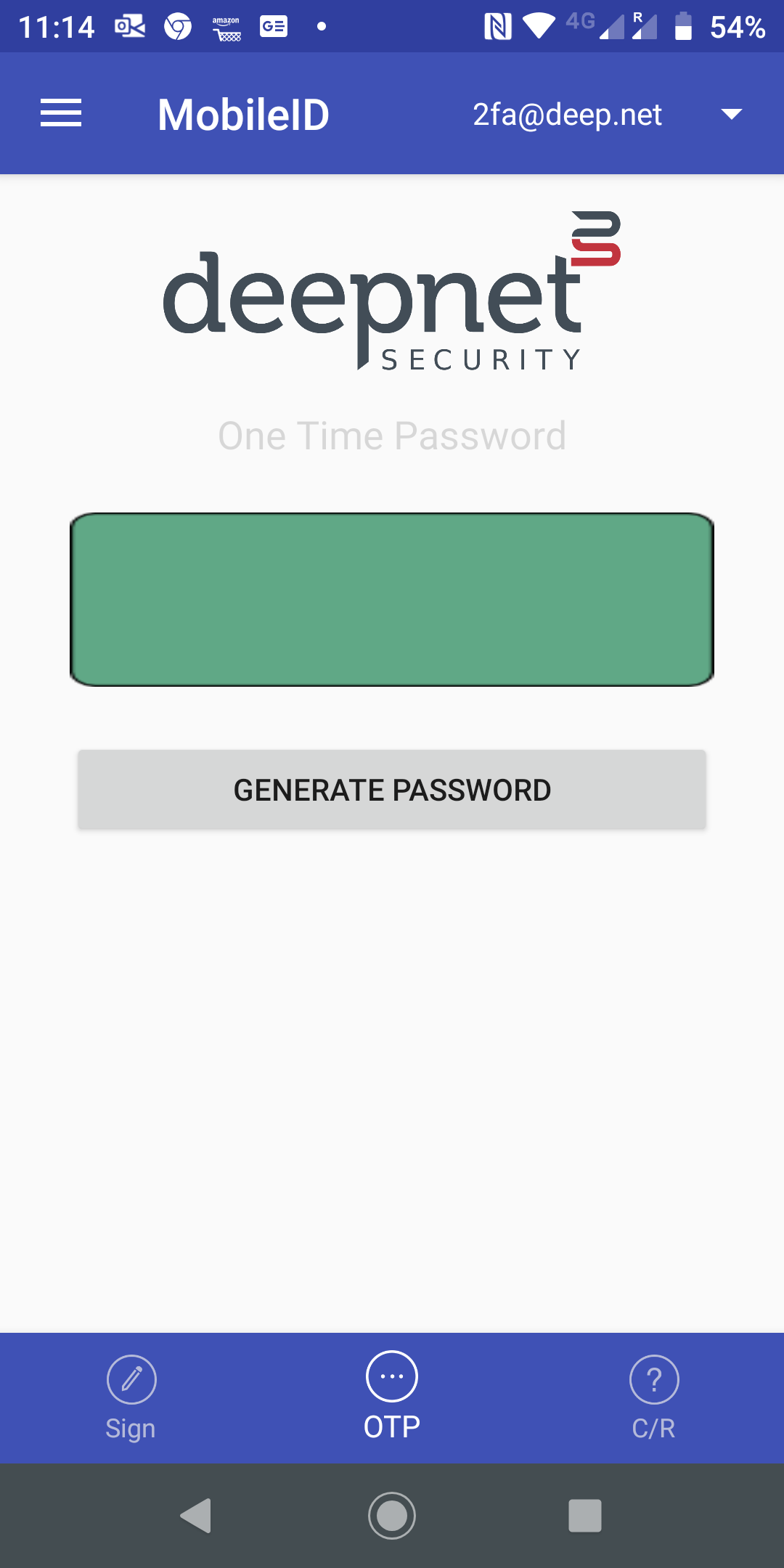
click the menu icon on the top-left corner
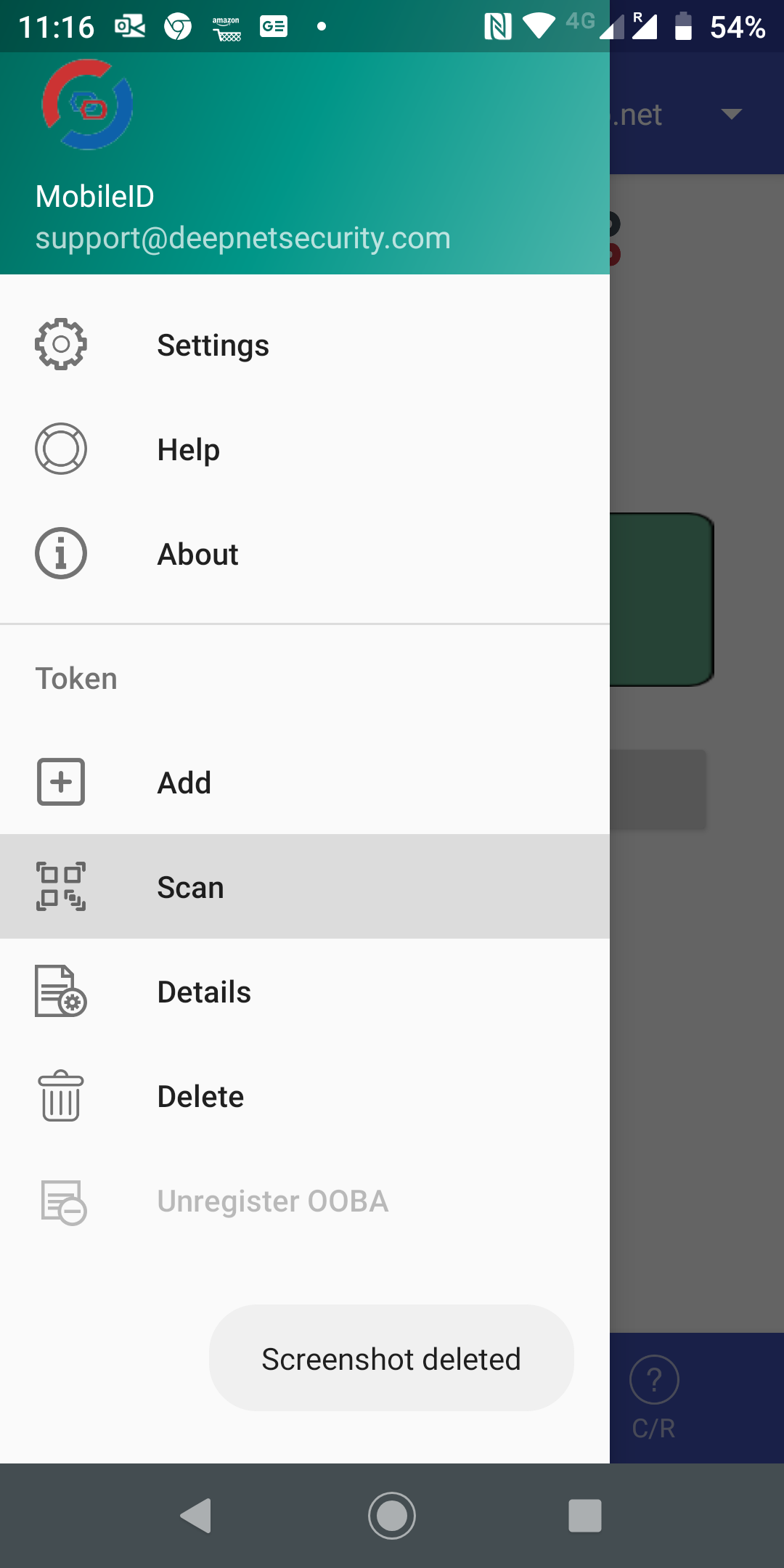
select Scan to start the QR code