The Computer Logon Modern Authentication solution consists of many components, including:
- Computer Logon Client
- Authentication Service
- Policy Service
- Token Service
The client needs to connect to various services. But how does the client know the address/endpoint of those services?
The answer lies in a service called the Autodiscover Service, which provides the endpoints of those services to the clients in a JSON document.
The Autodiscover Service can be a part of an MFA Server. For instance, the DualShield MFA server includes the Autodiscover Service for Computer Logon MA.
If you are not using the DualShield MFA server, such as Entra MFA, then you need the Computer Logon Management Portal, which also includes the Autodiscover Service.
Finally, how does the client find the Autodiscover Service URL?
The answer depends on the computer's domain membership. There are 3 types of PCs:
- On-Prem AD joined
- Entra ID joined
- Hybrid joined
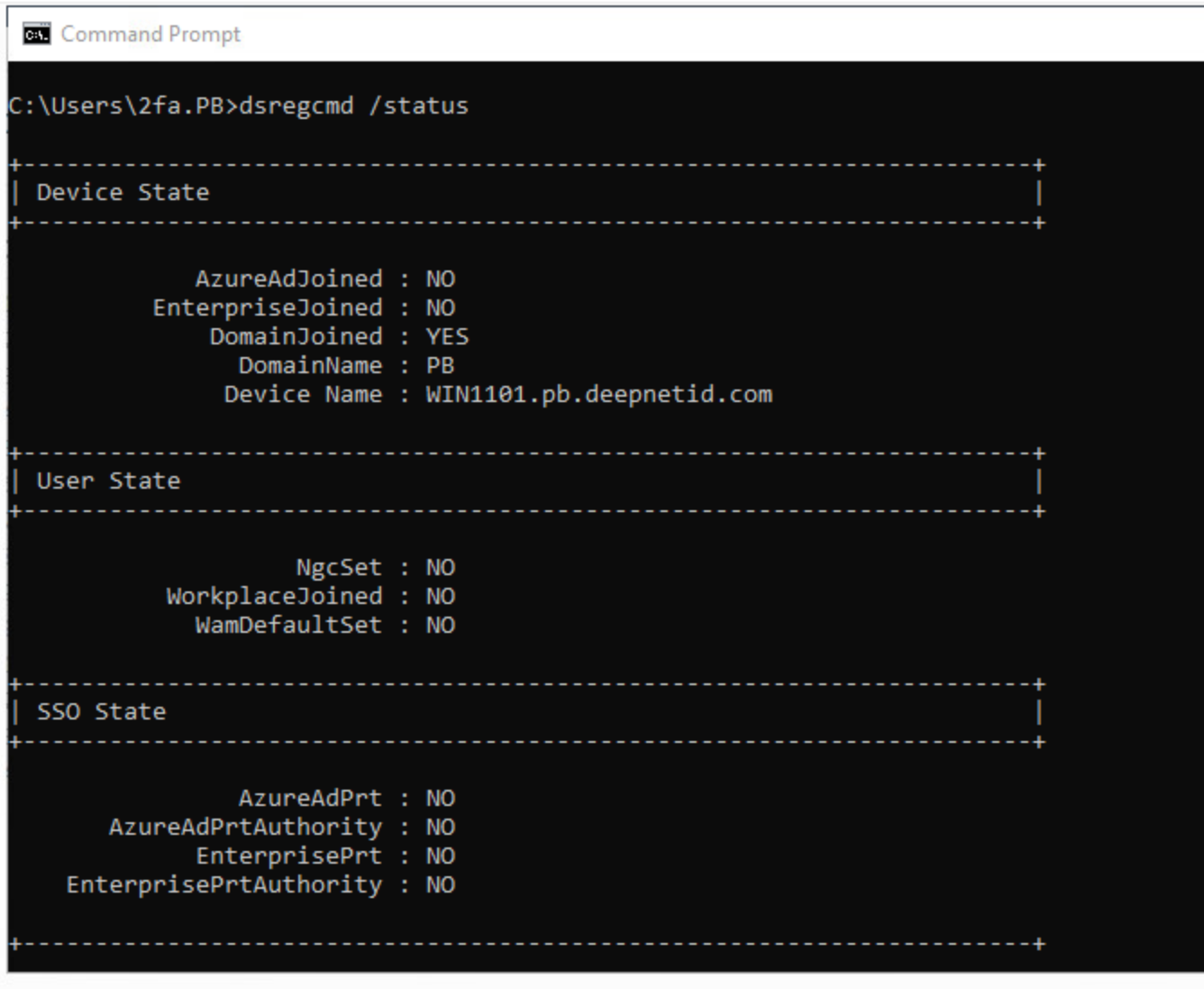
Scroll up to the top of the output block and locate the Device State section. Check the following key lines:
DomainJoined:YES= The PC is joined to a traditional on-premises Active Directory (AD) domain.NO= The PC is not joined to an on-premises AD domain (it may be a workgroup or pure cloud-joined device).
AzureAdJoined:YES= The PC is joined to Microsoft Entra ID (formerly Azure AD).NO= The PC is not joined to Entra ID.
EnterpriseJoined:YES= The PC is joined to an on-premises Device Registration Service (Workplace Join).NO= Not workplace joined.
Common Combinations:
- Traditional On-Prem AD Domain Joined:
DomainJoined : YES|AzureAdJoined : NO - Hybrid Entra ID Joined (Domain + Cloud):
DomainJoined : YES|AzureAdJoined : YES - Pure Microsoft Entra ID Joined:
DomainJoined : NO|AzureAdJoined : YES - Workgroup PC:
DomainJoined : NO|AzureAdJoined : NO