For users to self-enroll their tokens, sign in: https://mysignins.microsoft.com
Navigate to: Security Info
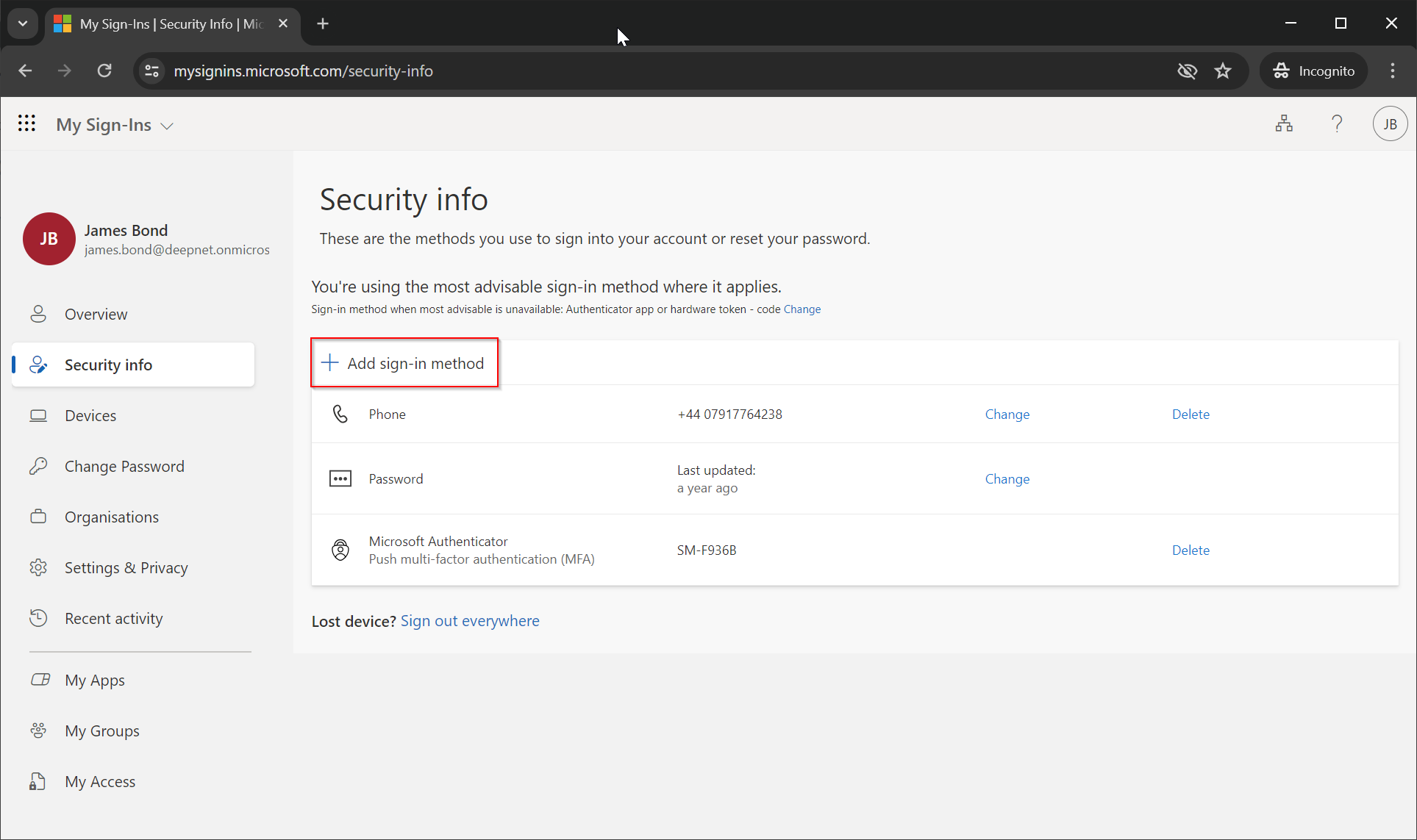
Click "Add sign-in method"
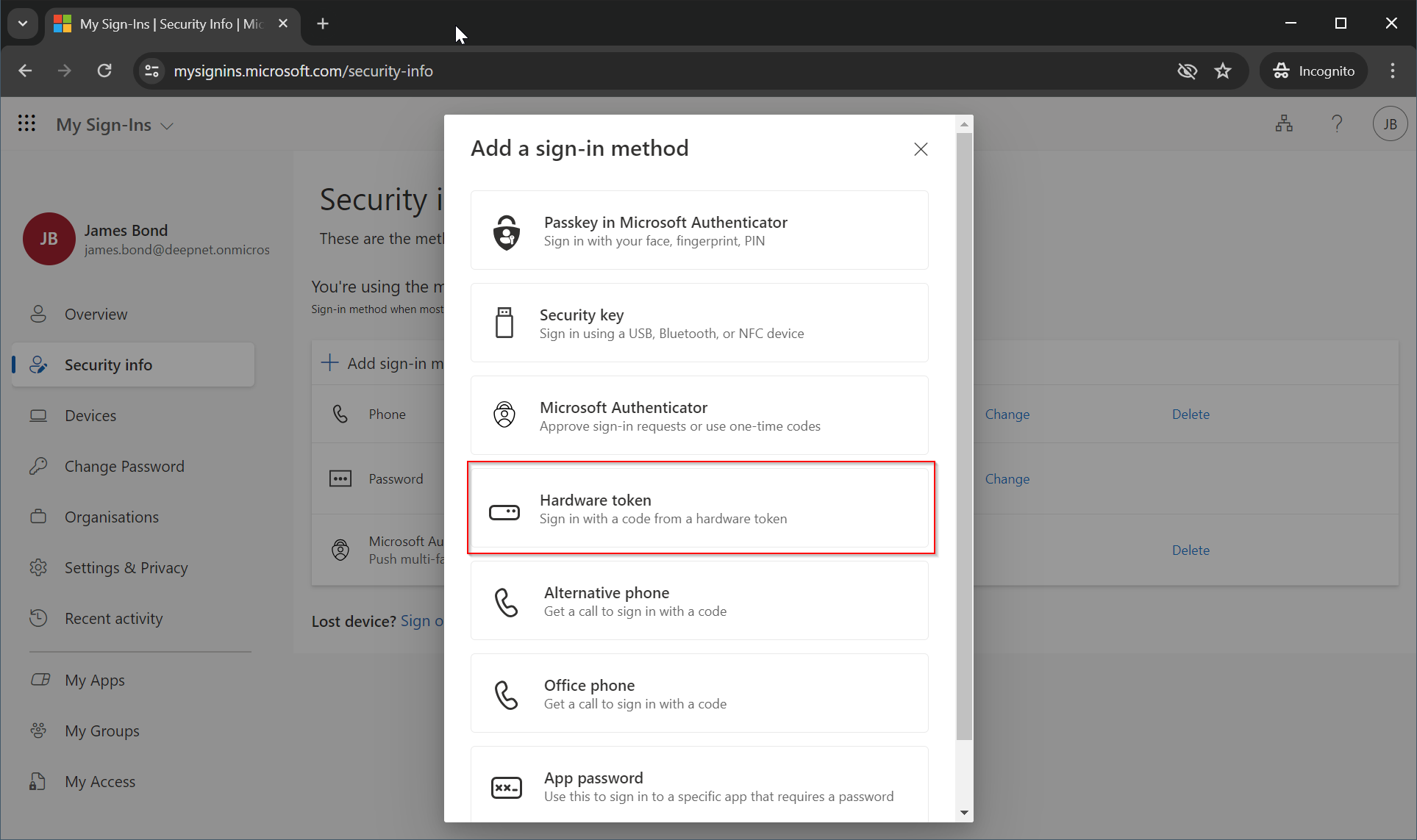
Select the "Hardware token" method from the available options.
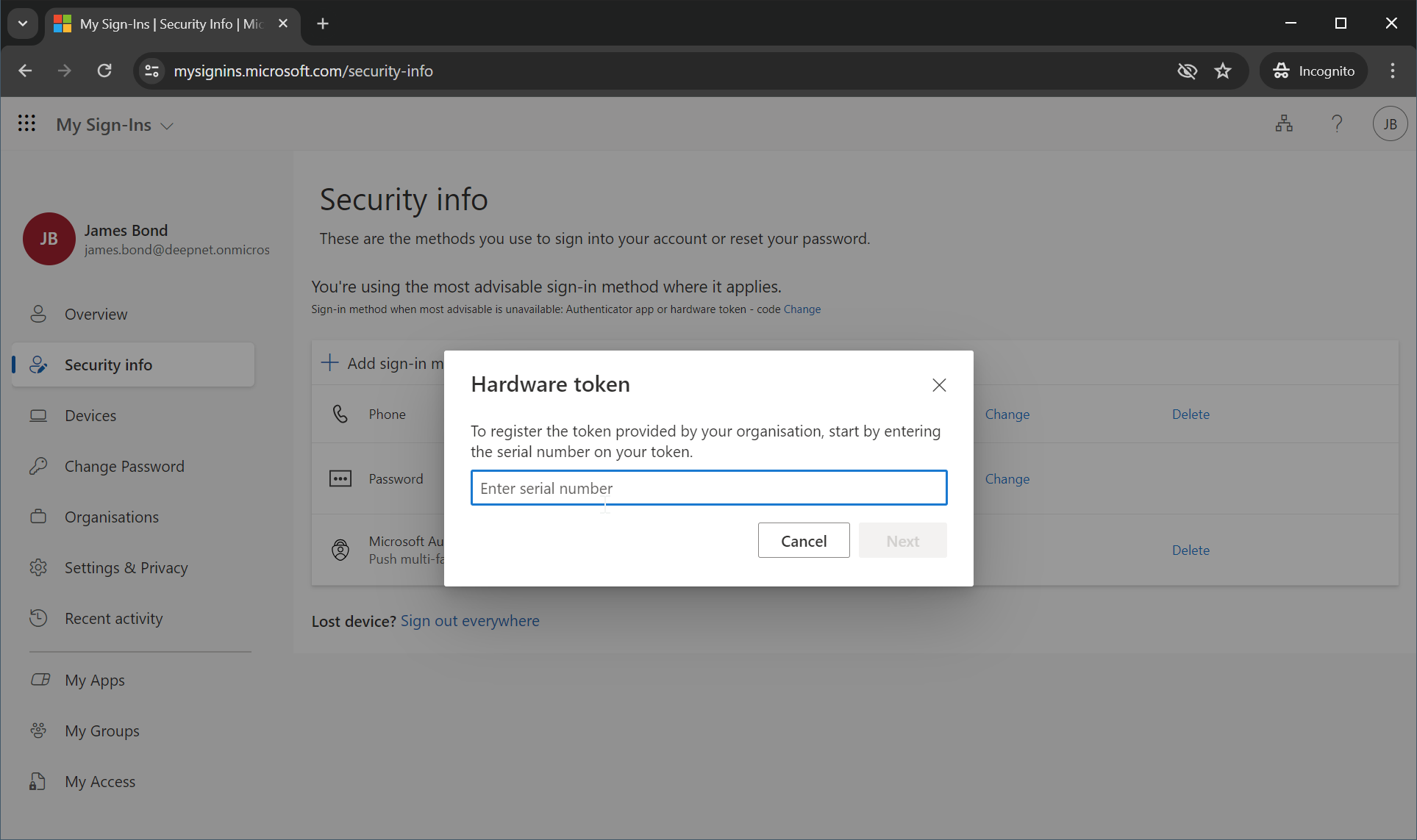
The user will be prompted to enter the serial number of the hardware token.
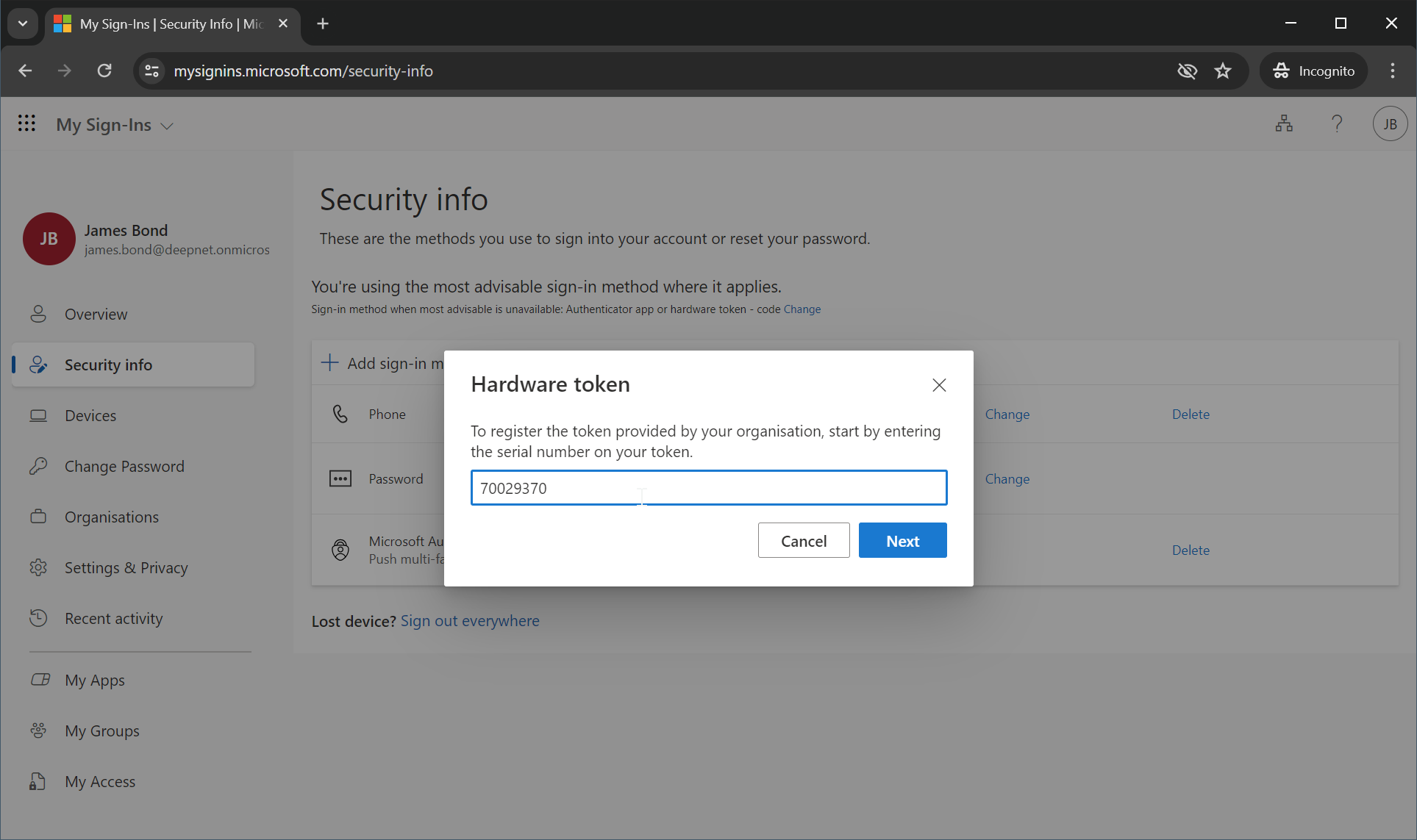
Enter the token's serial number, e.g. 70029370
Click "Next"
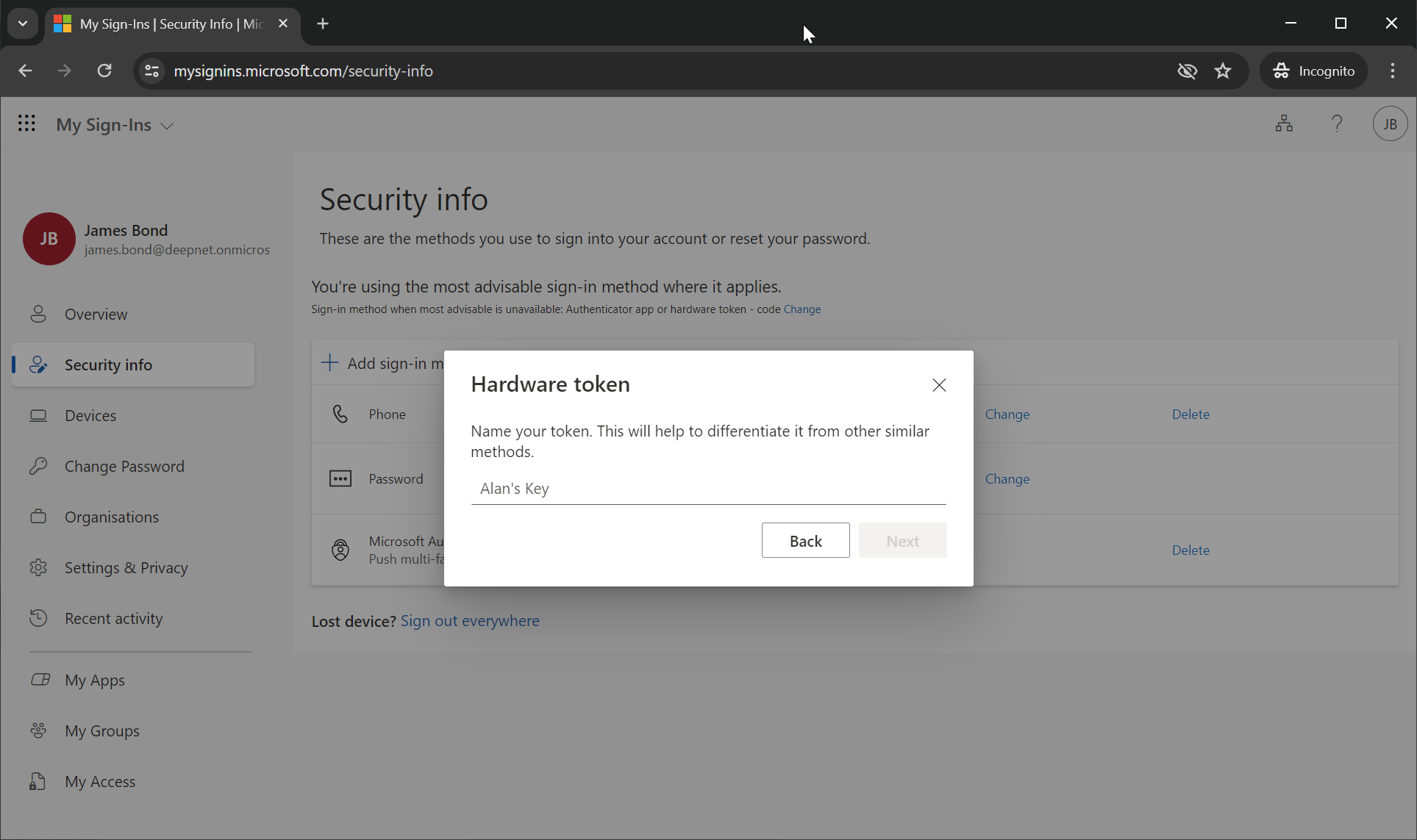
The user is now prompted to enter the name of the hardware token.
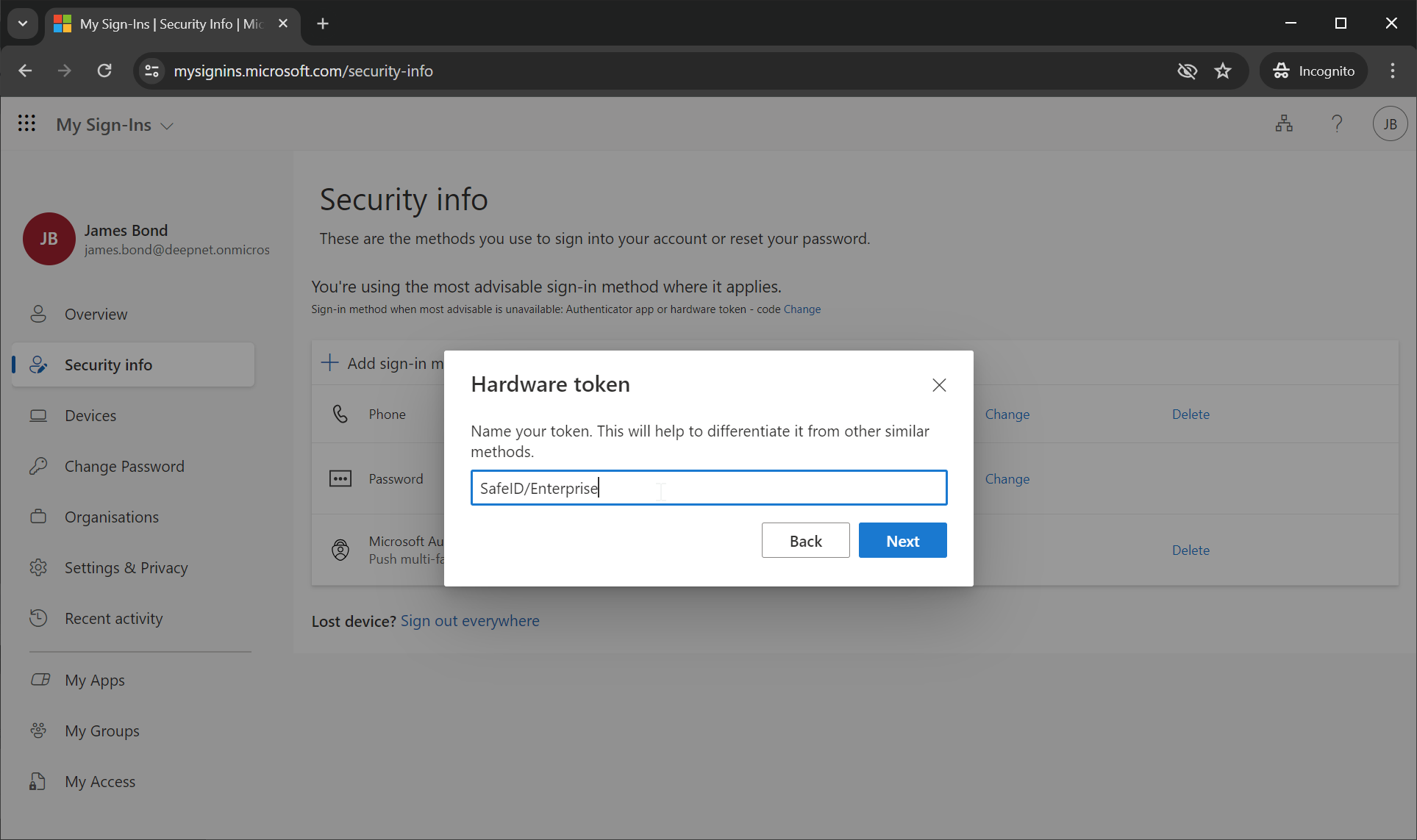
Enter the token's name, e.g. SafeID/Enterprise
Click "Next"
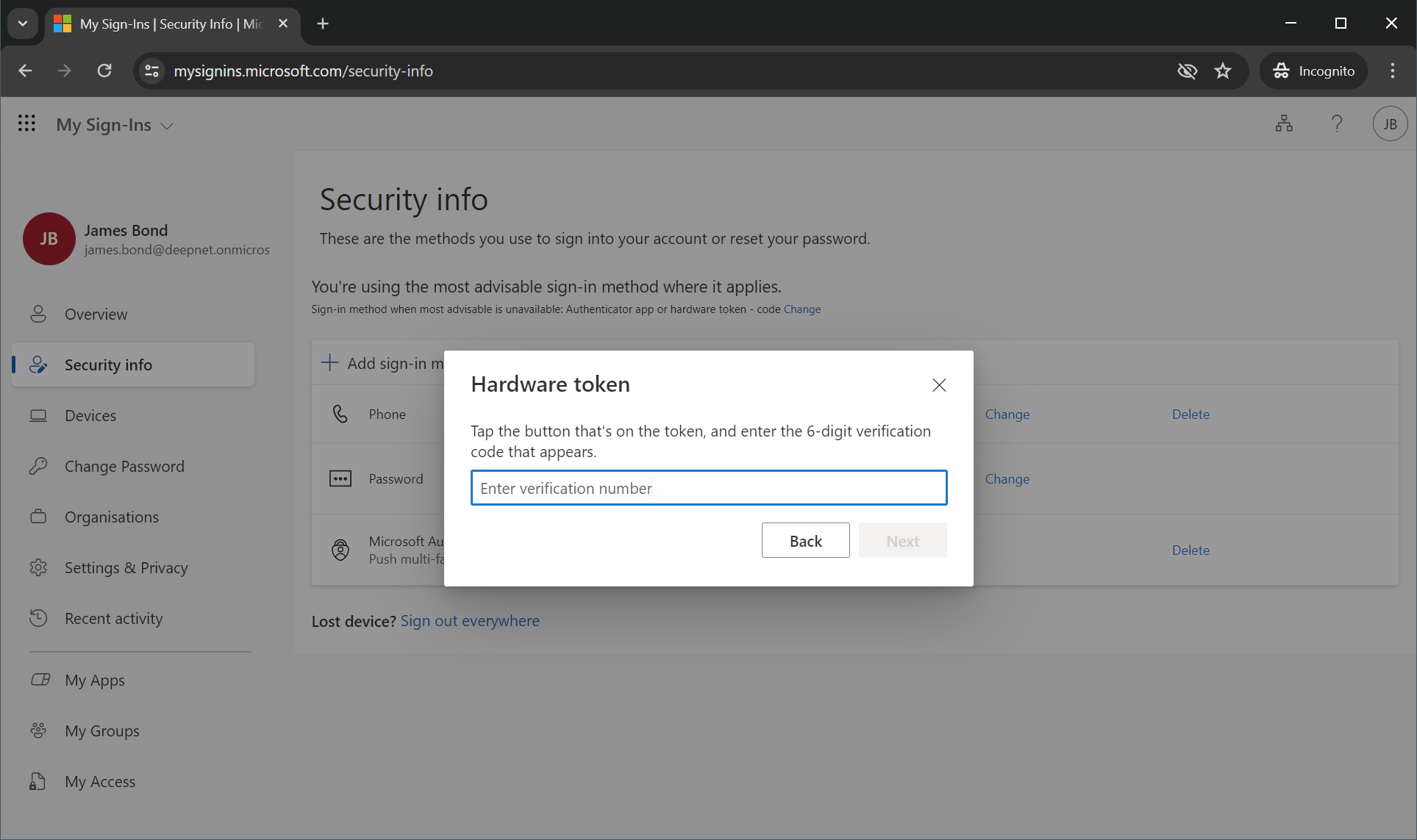
The user is now prompted to enter a verification code generated from the hardware token.
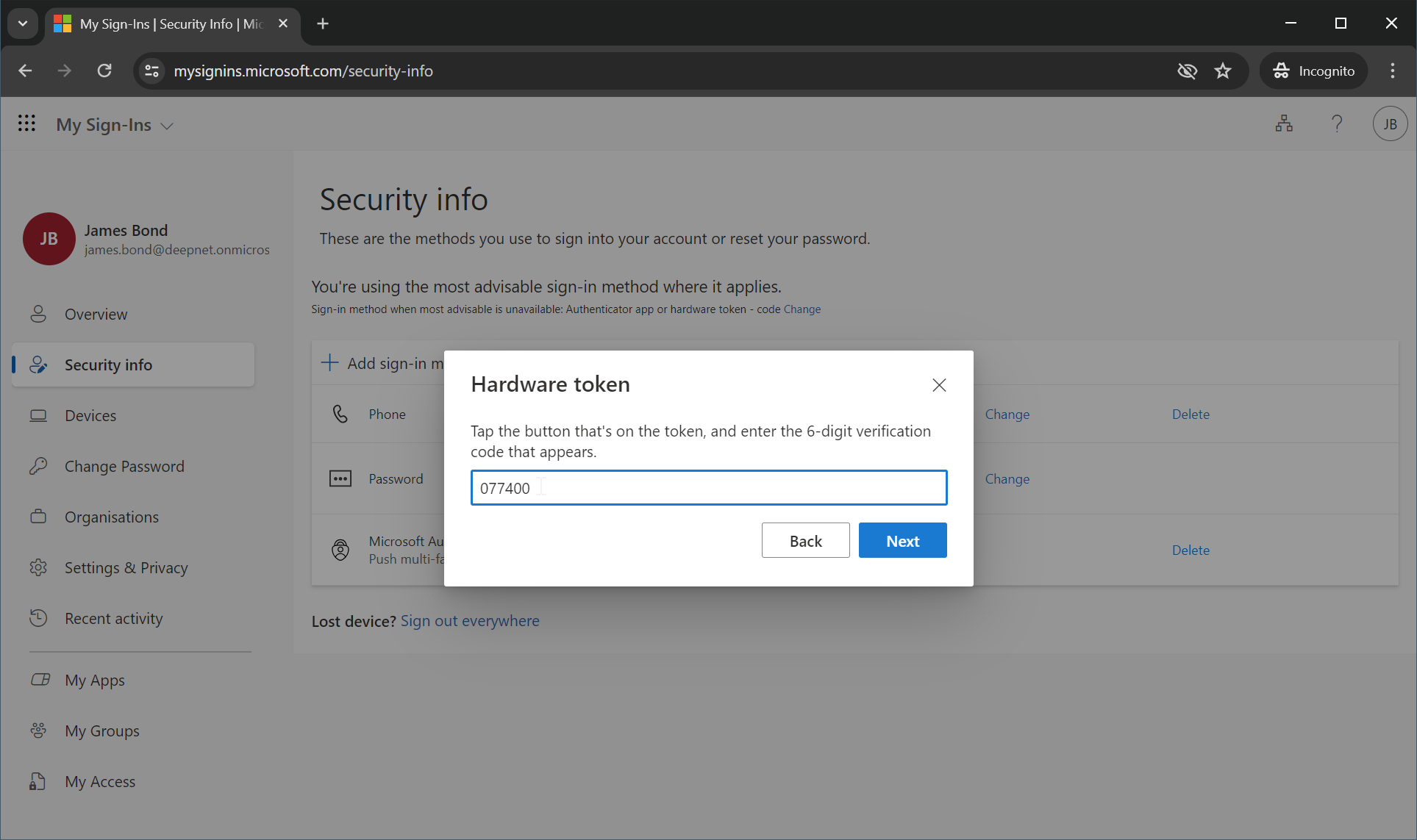
Enter the code generated from the hardware token, e.g. 077400
Click "Next"
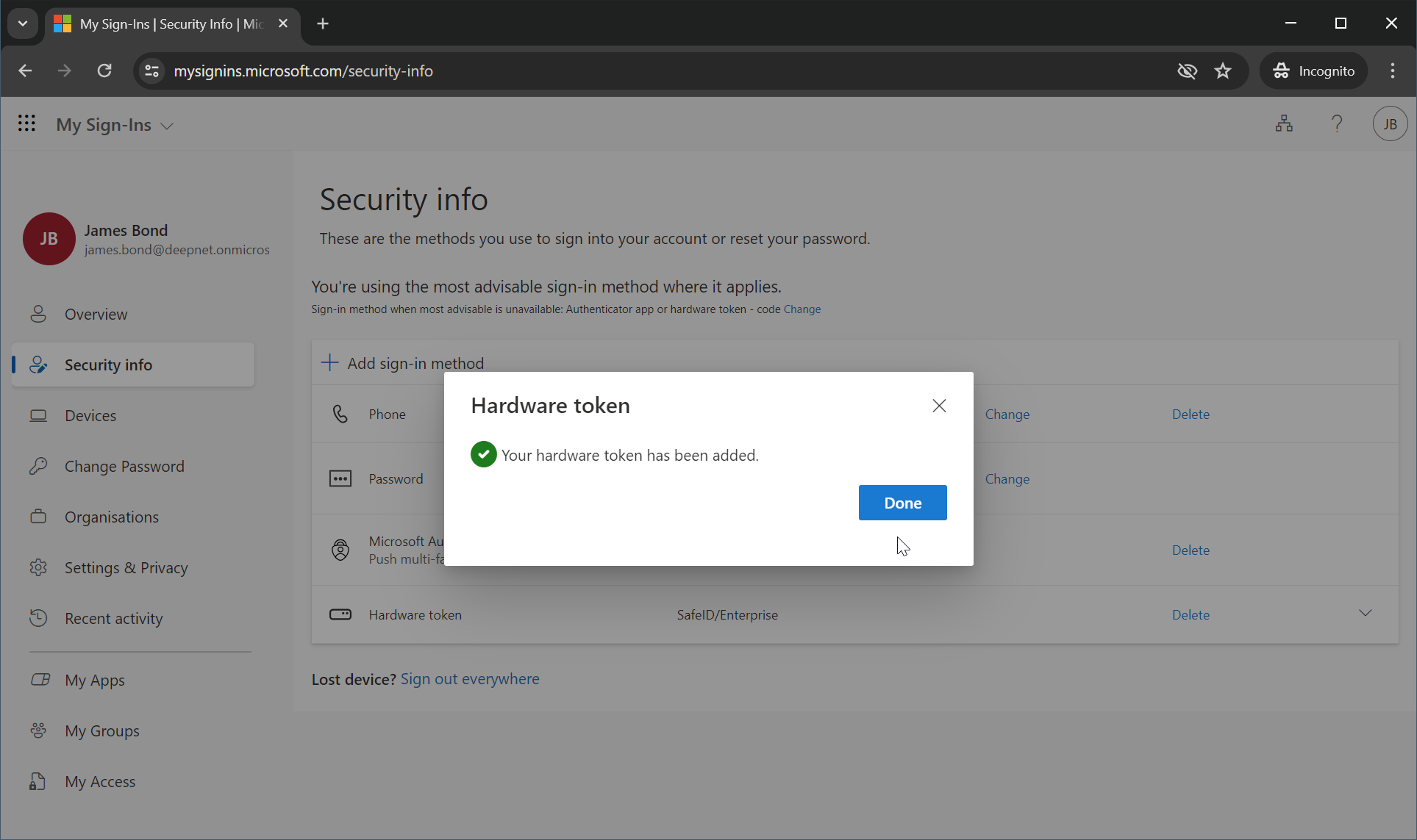
If the code entered is correct, the hardware token has been successfully added to the user's account.
Click "Done"
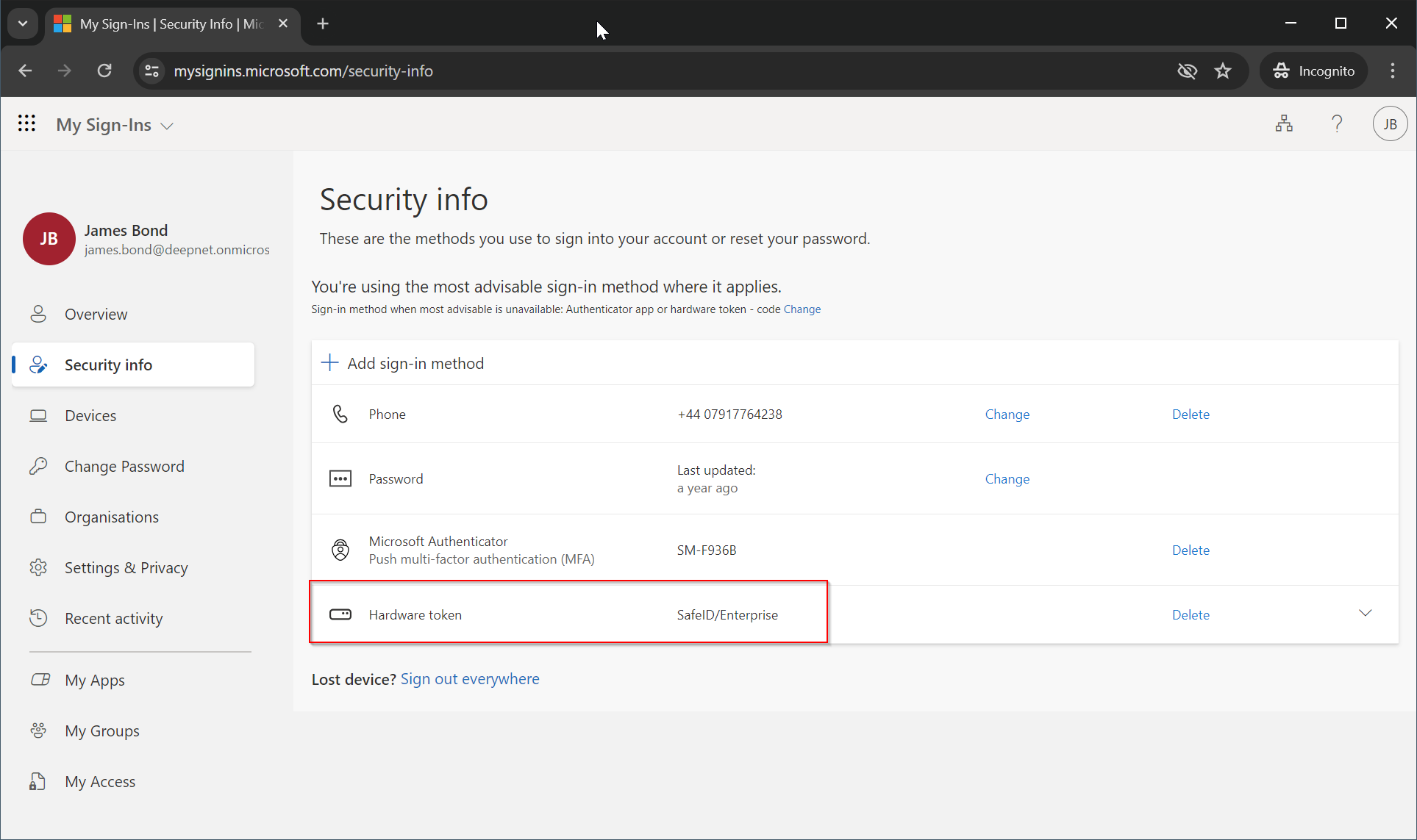
The hardware token is now ready to be used for verifying the user at the next login.