There may be a requirement to protect a PC that is not joined to the domain or even connected to the same network. We have a solution for this. It is fairly easy to set up, but there are a few extra prerequisites needed in order to get this working
Prerequisites
...
| border | true |
|---|
| Column |
|---|
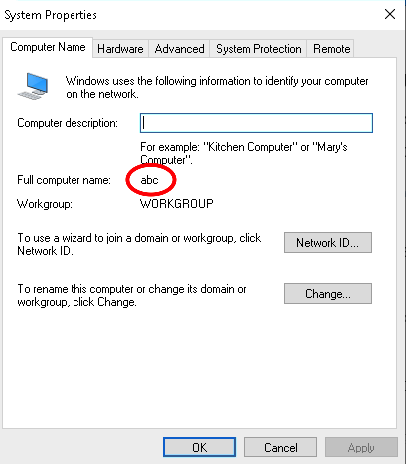
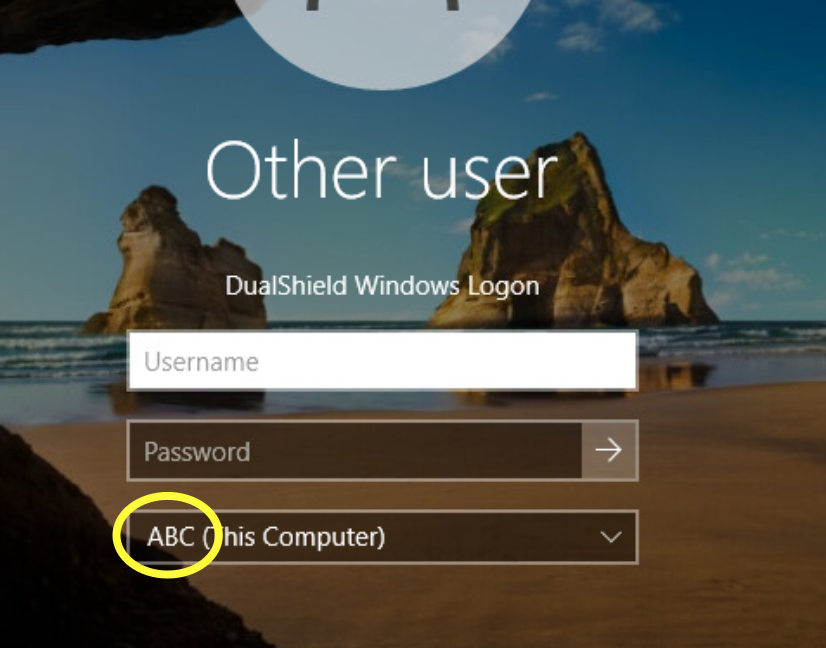
Make a note of the host name of the computer. In this case it is 'ABC' |
...
| width | 60% |
|---|
| Panel | ||||||
|---|---|---|---|---|---|---|
| ||||||
|
...
| border | true |
|---|
...
Create some local user accounts and make sure the Administrator account is active.
...
| width | 60% |
|---|
| Panel | ||||||
|---|---|---|---|---|---|---|
| ||||||
|

Create a Virtual Domain
...
| border | true |
|---|
| Column |
|---|
Login to the DualShield Administration Console and go to Identity>Identity Sources Click on It is recommended to specify the hostname of the Non-Domain joined machine as the friendly name of this identity source. Also, make sure the Type is set to SQL Click Finish |
...
| width | 60% |
|---|
| Panel | ||||||
|---|---|---|---|---|---|---|
| ||||||
|

In the Logon Steps Dialogue box, click the  button.
...
| border | true |
|---|
| Column |
|---|
Tick the desired authentication method, e.g. Static Password |
...
| width | 50% |
|---|
| Panel | ||||||
|---|---|---|---|---|---|---|
| ||||||
|
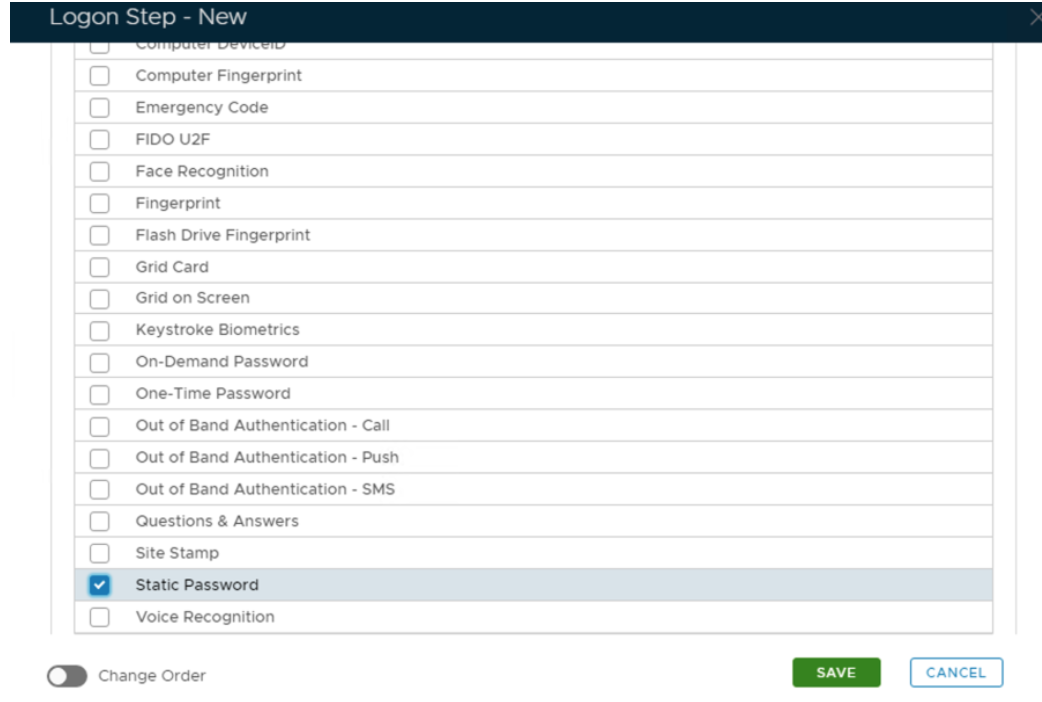
Click Save.
...
| border | true |
|---|
| Column |
|---|
| I have added two steps; Static Password and One-Time Password |
...
| width | 50% |
|---|
| Panel | ||||||
|---|---|---|---|---|---|---|
| ||||||
|

Create an Application
...
| border | true |
|---|
| Column |
|---|
Authentication> Applications |
...
| width | 50% |
|---|
| Panel | ||||||
|---|---|---|---|---|---|---|
| ||||||
|

Click on  on the top right.
...
| border | true |
|---|
...
Please note: For initial set up the machine must be connected to the same network even if it is not joined to the domain.
| Children Display |
|---|
In the new Application window, please enter the following information:
...
Select the Logon Procedure you had created in the previous step
Click: Save
...
| width | 50% |
|---|
| Panel | ||||||
|---|---|---|---|---|---|---|
| ||||||
|

Bind the Application to an SSO Server Agent
...
| border | true |
|---|
| Column |
|---|
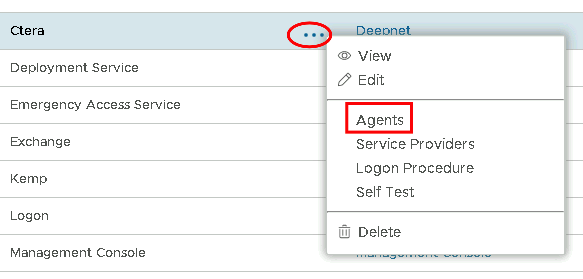
Select the drop down menu corresponding to the Application you will be using and click on Agents. |
...
| width | 50% |
|---|
| Panel | ||||||
|---|---|---|---|---|---|---|
| ||||||
|
...
| border | true |
|---|
| Column |
|---|
Tick the box of the SSO Server you will be using and click Save below. |
...
| width | 50% |
|---|
| Panel | ||||||
|---|---|---|---|---|---|---|
| ||||||
|

Create a Service Provider Profile
...
| border | true |
|---|
| Column |
|---|
Go to SSO>Service Providers |
...
| width | 50% |
|---|
| Panel | ||||||
|---|---|---|---|---|---|---|
| ||||||
|

Click on on the top right.
...
| border | true |
|---|
| Column |
|---|
Fill in the details as per screenshot on right and make sure you select SAML 2.0(Without Metadata) as Type. |
...
| width | 50% |
|---|
| Panel | ||||||
|---|---|---|---|---|---|---|
| ||||||
|

...
| border | true |
|---|
...
Now fill out Entity ID and ACS URL.
...
...
...
| width | 50% |
|---|
| Panel | ||||||
|---|---|---|---|---|---|---|
| ||||||
|

...
| border | true |
|---|
| Column |
|---|
The completed Service Provider dialogue box will look like this: |
...
| width | 50% |
|---|
| Panel | ||||||
|---|---|---|---|---|---|---|
| ||||||
|
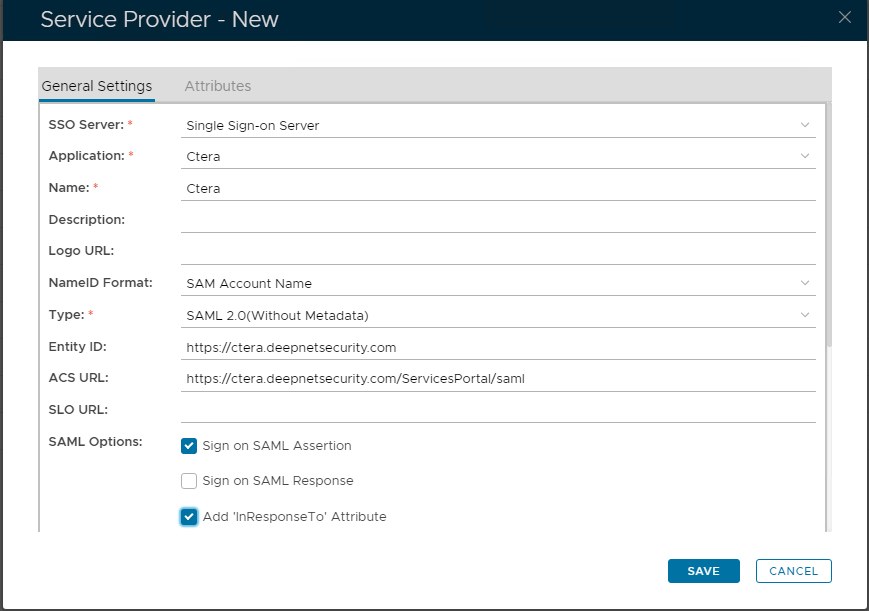
Click Save.
...
| border | true |
|---|
Download the IDP Metadata file.
...
| border | true |
|---|
| Column |
|---|
Go to SSO>SSO Servers |
...
| width | 50% |
|---|
...
| border | true |
|---|
| Column |
|---|
Select the drop down menu corresponding to the SSO server you will be using and click on Download IDP Metadata. |
...
| width | 50% |
|---|
...
| borderColor | #9EBEE5 |
|---|---|
| bgColor | #f0f0f0 |
| borderWidth | 1px |
...