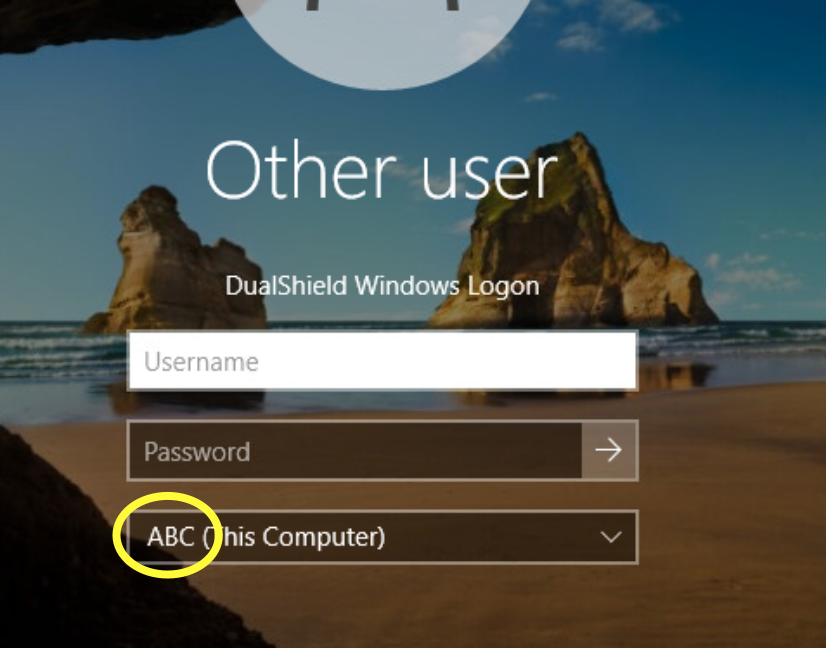
Make a note of the host name of the computer. In this case it is 'ABC'
Column
width
60%
Panel
borderColor
#9EBEE5
bgColor
#f0f0f0
borderWidth
1px
Image Removed
Section
border
true
Column
Create some local user accounts and make sure the Administrator account is active.
Column
width
60%
Panel
borderColor
#9EBEE5
bgColor
#f0f0f0
borderWidth
1px
...
Section
border
true
Column
Go to Directory>Domains
Click on on the top right.
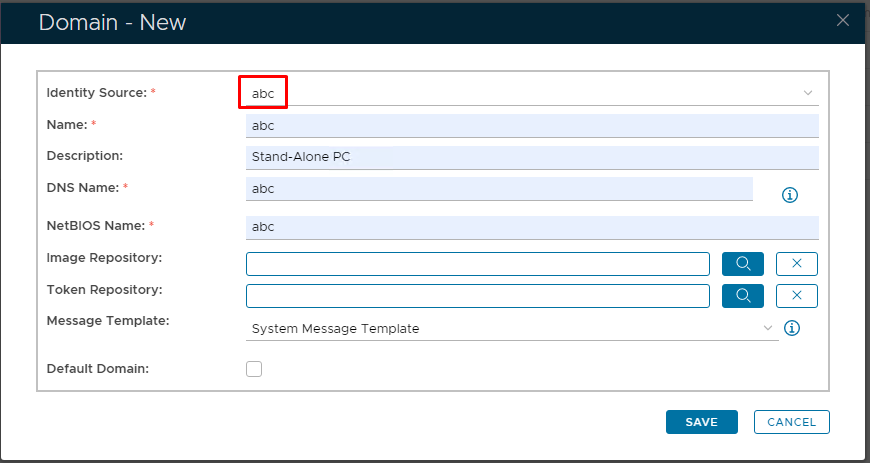
In the 'Domain-New' Dialogue box, select the Identity Source that you have just created from the drop-down
It is recommended to You must match the Name, DNS Name and NetBIOS Name with the hostname of the Stand-alone machine
Click Save
Column
width
60%
Panel
borderColor
#9EBEE5
bgColor
#f0f0f0
borderWidth
1px
...
Section
border
true
Column
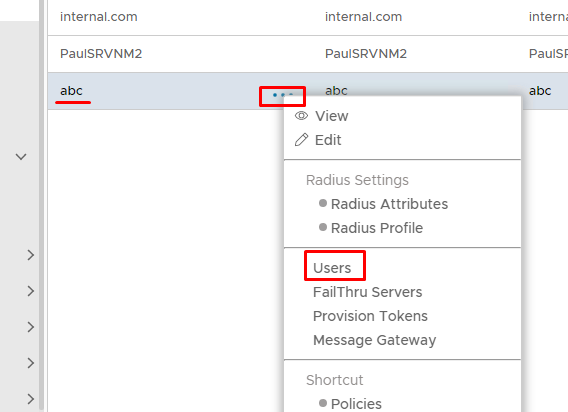
The Virtual domain will now be listed under Domains.
Remember to add this new domain to the realm associated in your Computer/Windows Logon App configuration (see Change domains in a realm)
Click on the corresponding ellipses and select Users from the menu
Column
width
60%
Panel
borderColor
#9EBEE5
bgColor
#f0f0f0
borderWidth
1px
...
Section
border
true
Column
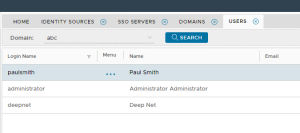
Repeat the process until the list of Virtual Users match the list of local users on the PC
Column
width
60%
Panel
borderColor
#9EBEE5
bgColor
#f0f0f0
borderWidth
1px
Section
border
true
Column
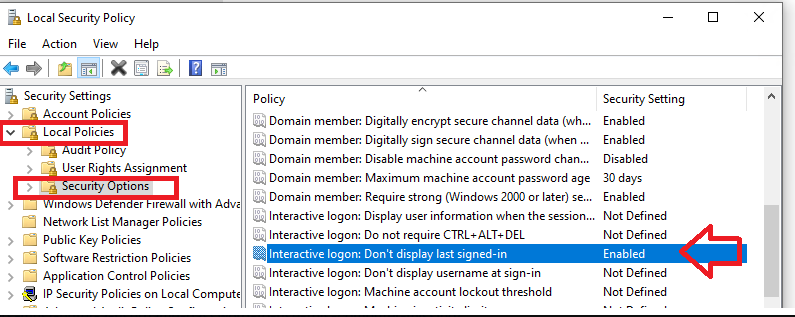
Please Note: This will not work if the native Windows Cred UI is set so end users can click on the account names that appear on the bottom, left-hand side. Therefore the default Windows Cred UI must ask for a username and password, like so...
Column
width
60%
Panel
borderColor
#9EBEE5
bgColor
#f0f0f0
borderWidth
1px
Image Added
Section
border
true
Column
If you need to enforce this, please follow this guide before continuing.