...
| Section |
|---|
|
| Column |
|---|
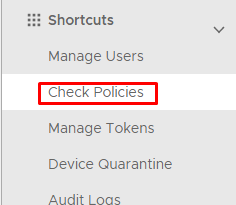
On the Administration Console go to Shortcuts>Check Policies |
| Column |
|---|
|
| Panel |
|---|
| borderColor | #9EBEE5 |
|---|
| bgColor | #f0f0f0 |
|---|
| borderWidth | 1px |
|---|
| 
|
|
|
First, create a domain-held policy Logon Policy to ensure MFA is required for all users on the StandAlone machine
| Section |
|---|
|
| Column |
|---|
Click on  on the top right. on the top right. Set these Values in the Policy - New Window | Option | Value |
|---|
| Category: | | | Holder: | | | Domain: | Enter the virtual domain name | | Name: | Enter a user-friendly name | | Enabled: | True |
|
| Column |
|---|
|
| Panel |
|---|
| borderColor | #9EBEE5 |
|---|
| bgColor | #f0f0f0 |
|---|
| borderWidth | 1px |
|---|
| 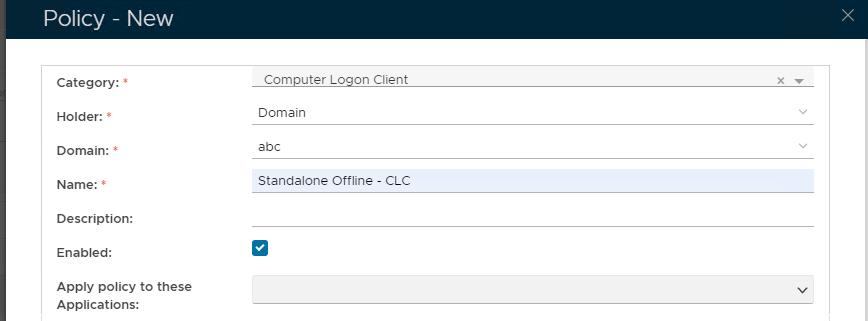 Image Removed Image Removed Image Added Image Added
|
|
|
| Section |
|---|
|
| Column |
|---|
Expand General Authentication and check Enable MFA on local computer logonselect MFA is required for all users from the drop down, |
| Column |
|---|
|
| Panel |
|---|
| borderColor | #9EBEE5 |
|---|
| bgColor | #f0f0f0 |
|---|
| borderWidth | 1px |
|---|
| 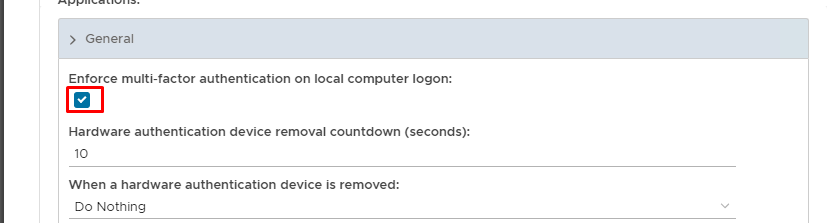 Image Removed Image Removed | 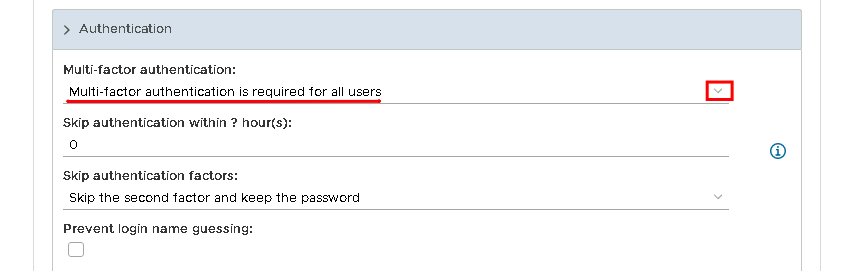 Image Added Image Added
|
|
|
Save the new Logon policy.
It is also recommended to exempt at least one local account from MFA (usually the local administrator account) just in case there is an issue that prevents the end user from being able to log on, the administrator will still have access without being challenged.
| Section |
|---|
|
| Column |
|---|
Click on Image Added on the top right. Set these Values in the Policy - New Window | Option | Value |
|---|
| Category: | | | Holder: | | | Domain: | Enter the virtual domain name | | User: | Enter the name of the account you wish to exempt (e.g Administrator) | | Name: | Enter a user-friendly name | | Enabled: | True |
|
| Column |
|---|
|
| Panel |
|---|
| borderColor | #9EBEE5 |
|---|
| bgColor | #f0f0f0 |
|---|
| borderWidth | 1px |
|---|
| 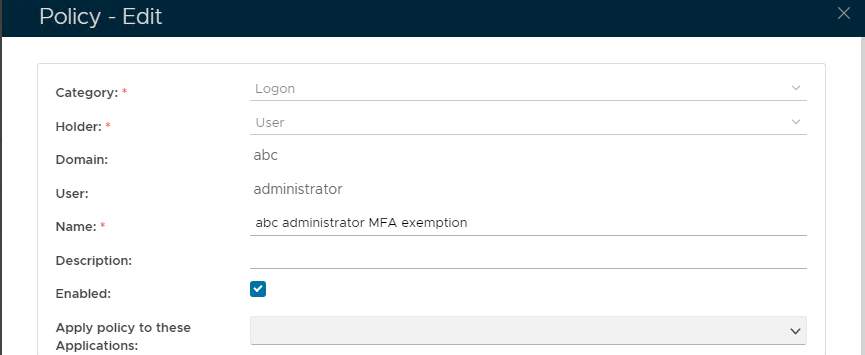 Image Added Image Added
|
|
|
| Section |
|---|
|
| Column |
|---|
Expand Authentication and select MFA is not required for all users from the drop down, Scroll down the policy and expand Offline Logon Check Enforce MFA on Local Computer Logon and Download Offline Tokens Automatically |
| Column |
|---|
|
| Panel |
|---|
| borderColor | #9EBEE5 |
|---|
| bgColor | #f0f0f0 |
|---|
| borderWidth | 1px |
|---|
| 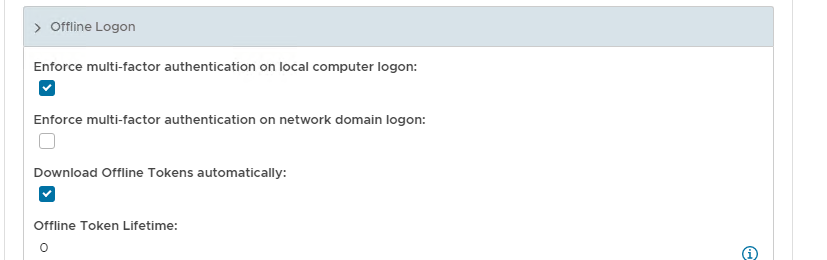 Image Removed Image Removed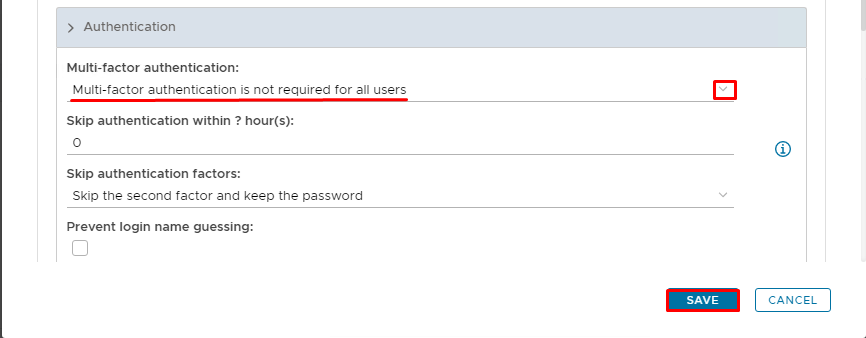 Image Added Image Added
|
|
|
Save the new Computer Logon Client policypolicy.
Now create the offline policies that will be needed once you remove the machine from the network.
| Section |
|---|
|
| Column |
|---|
Click on on the top right. Set these Values in the Policy - New Window | Option | Value |
|---|
| Category: | Windows OfflineComputer Logon Client | | Holder: | | | Domain: | Enter the virtual domain name | | Name: | Enter a user-friendly name | | Enabled: | True |
|
| Column |
|---|
|
| Panel |
|---|
| borderColor | #9EBEE5 |
|---|
| bgColor | #f0f0f0 |
|---|
| borderWidth | 1px |
|---|
| Image Added |
|
|
| Section |
|---|
|
| Column |
|---|
Expand General and check Enable MFA on local computer logon |
| Column |
|---|
|
| Panel |
|---|
| borderColor | #9EBEE5 |
|---|
| bgColor | #f0f0f0 |
|---|
| borderWidth | 1px |
|---|
| Image Added |
|
|
| Section |
|---|
|
| Column |
|---|
Scroll down the policy and expand Offline Logon Check Enforce MFA on Local Computer Logon and Download Offline Tokens Automatically |
| Column |
|---|
|
| Panel |
|---|
| borderColor | #9EBEE5 |
|---|
| bgColor | #f0f0f0 |
|---|
| borderWidth | 1px |
|---|
|  Image RemovedImage Added Image RemovedImage Added
|
|
|
Save the new Windows Offline policyComputer Logon Client policy
Create an additional Computer Client Logon Policy which will exempt the Administrator account from MFA logonIt is also recommended to exempt at least one local account from MFA (usually the local administrator account) just in case there is an issue that prevents the end user from being able to log on, the administrator will still have access without being challenged.
| Section |
|---|
|
| Column |
|---|
Click on on the top right. Set these Values in the Policy - New Window | Option | Value |
|---|
| Category: | | | Holder: | | | Domain: | Enter the virtual domain name | | User: | Enter the name of the account you wish to exempt (e.g Administrator) | | Name: | Enter a user-friendly name | | Enabled: | True |
|
| Column |
|---|
|
| Panel |
|---|
| borderColor | #9EBEE5 |
|---|
| bgColor | #f0f0f0 |
|---|
| borderWidth | 1px |
|---|
| Image Removed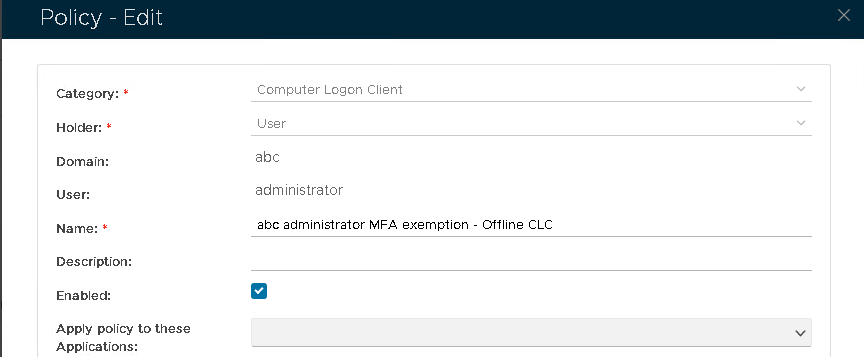 Image Added Image Added |
|
|
| Section |
|---|
|
| Column |
|---|
Expand Authentication and select MFA is not required for all users from the drop down,General. Leave all checkboxes blank. |
| Column |
|---|
|
| Panel |
|---|
| borderColor | #9EBEE5 |
|---|
| bgColor | #f0f0f0 |
|---|
| borderWidth | 1px |
|---|
|  Image Added Image Added
|
|
|
| Section |
|---|
|
| Column |
|---|
Scroll down the policy and expand Offline Logon Leave all checkboxes blank. |
| Column |
|---|
|
| Panel |
|---|
| borderColor | #9EBEE5 |
|---|
| bgColor | #f0f0f0 |
|---|
| borderWidth | 1px |
|---|
| 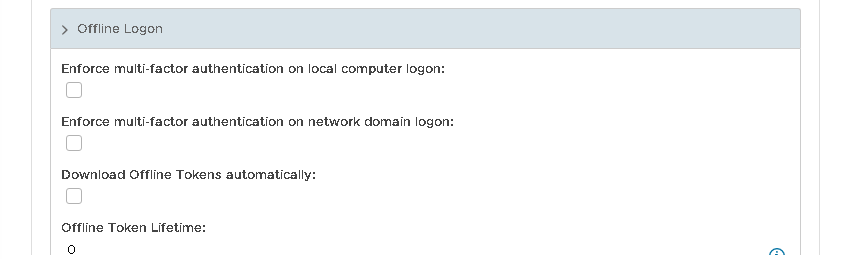 Image Added Image Added
|
|
|
Save the new Computer Logon Client policy
| Section |
|---|
|
| Column |
|---|
Click on Image Added on the top right. Set these Values in the Policy - New Window | Option | Value |
|---|
| Category: | | | Holder: | | | Domain: | Enter the virtual domain name | | Name: | Enter a user-friendly name | | Enabled: | True |
Check Enforce MFA on Local Computer Logon and Download Offline Tokens Automatically
|
| Column |
|---|
|
| Panel |
|---|
| borderColor | #9EBEE5 |
|---|
| bgColor | #f0f0f0 |
|---|
| borderWidth | 1px |
|---|
| Image RemovedImage Added |
|
|
Save the new Logon policy.Windows Offline policy
Create an additional Windows Offline Policy which will exempt the Administrator account from MFA logon.
| Section |
|---|
|
| Column |
|---|
Click on Image Added on the top right. Set these Values in the Policy - New Window | Option | Value |
|---|
| Category: | | | Holder: | | | Domain: | Enter the virtual domain name | | User: | Enter the name of the account you wish to exempt (e.g Administrator) | | Name: | Enter a user-friendly name | | Enabled: | True |
Leave all the enforce MFA checkboxes blank. |
| Column |
|---|
|
| Panel |
|---|
| borderColor | #9EBEE5 |
|---|
| bgColor | #f0f0f0 |
|---|
| borderWidth | 1px |
|---|
|  Image Added Image Added
|
|
|