Adding
...
customisable backgrounds to the Single Sign-On page
The single sign on background can be customised using the "BACKGROUND IMAGE" option of the UI Customisation page.
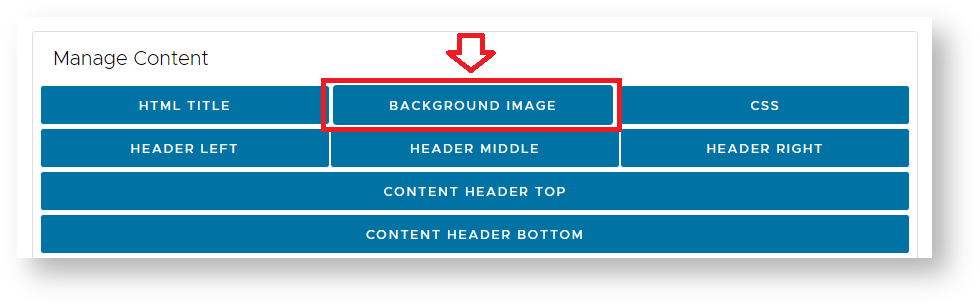
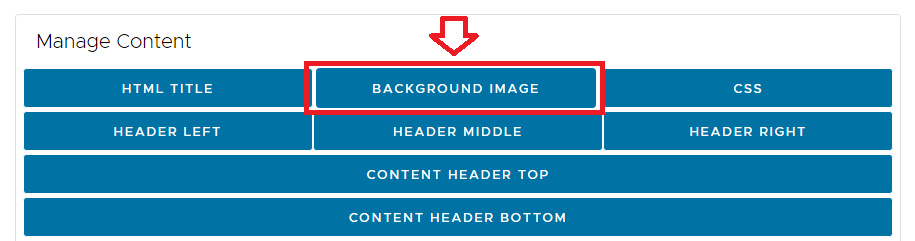
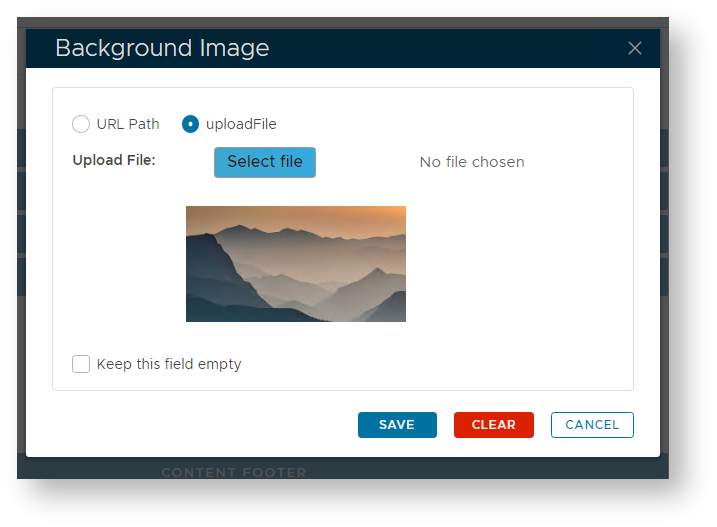
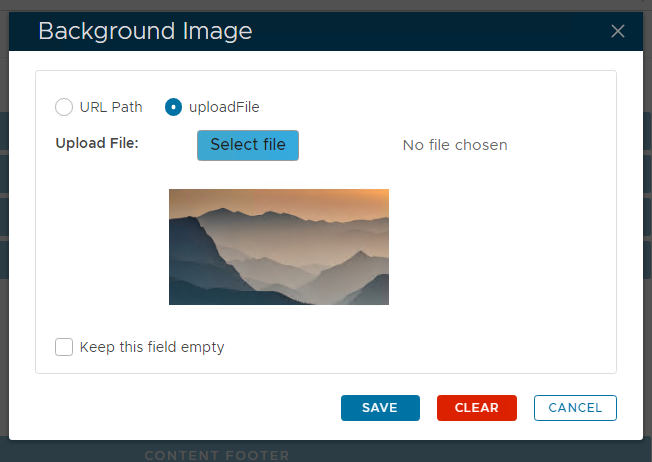
A window will open titled "Background Image", deselect "keep this field empty", then either upload the required background, or point to where the image is hosted;
After clicking "SAVE", then saving your customisation you will find that this image will now become a background image to your single sign-on page;
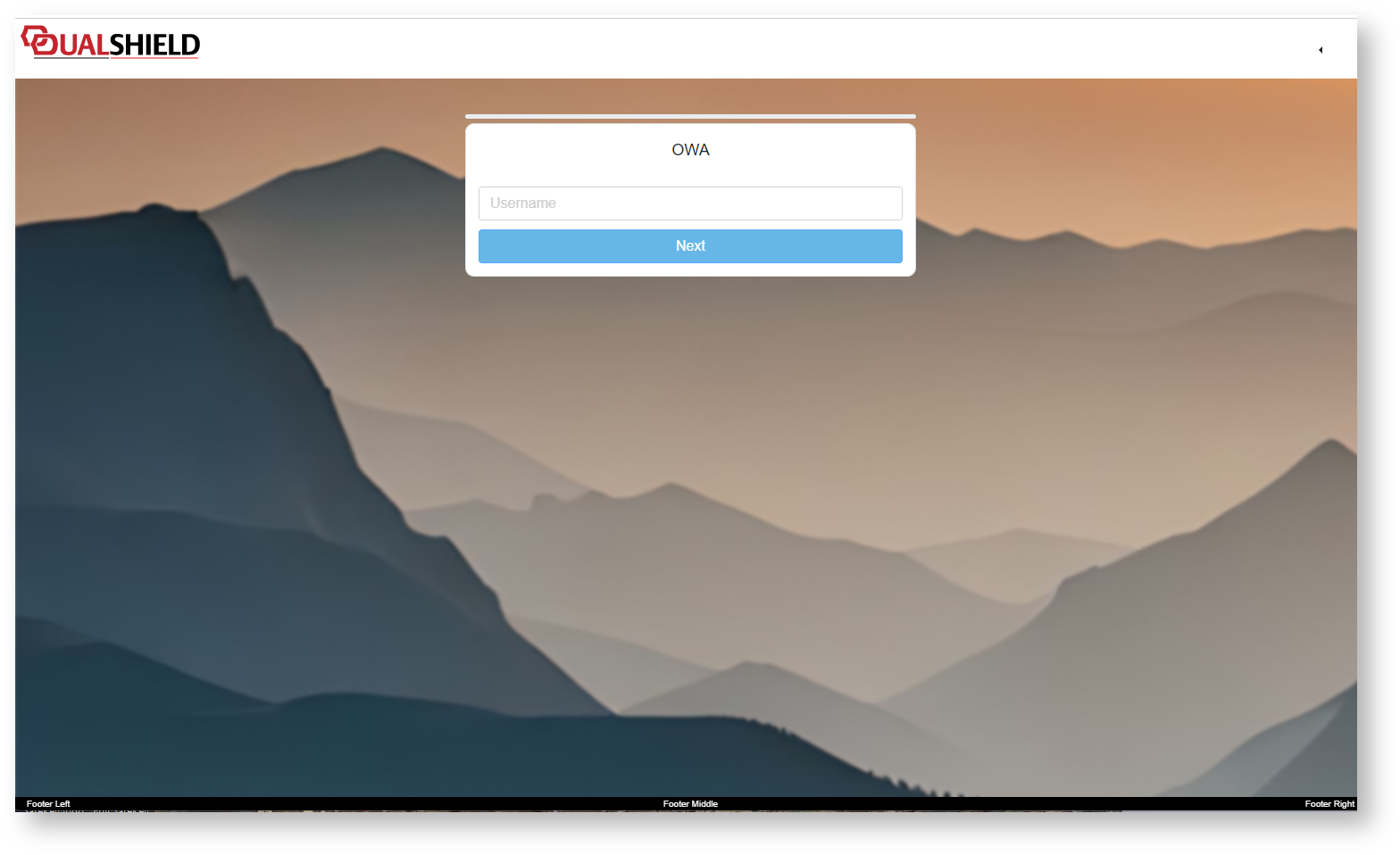
Resizable Backgrounds
Whislt the basic method above will provide background images to your SSO Logon Page, there are a number of limitations to what you can do with the background image, and we have often been requested to offer resizable background images.
If we limit ourselves to the default method of changing backgrouds we will find that any resizing of the input window will not resize the background image (example below);
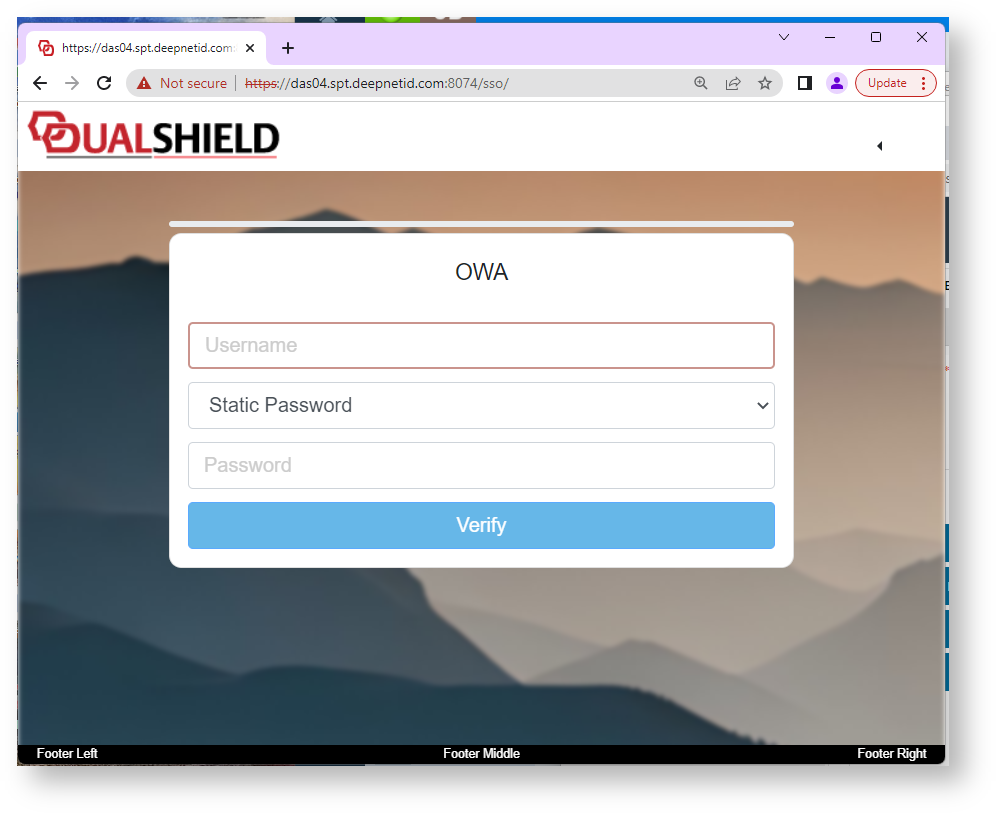
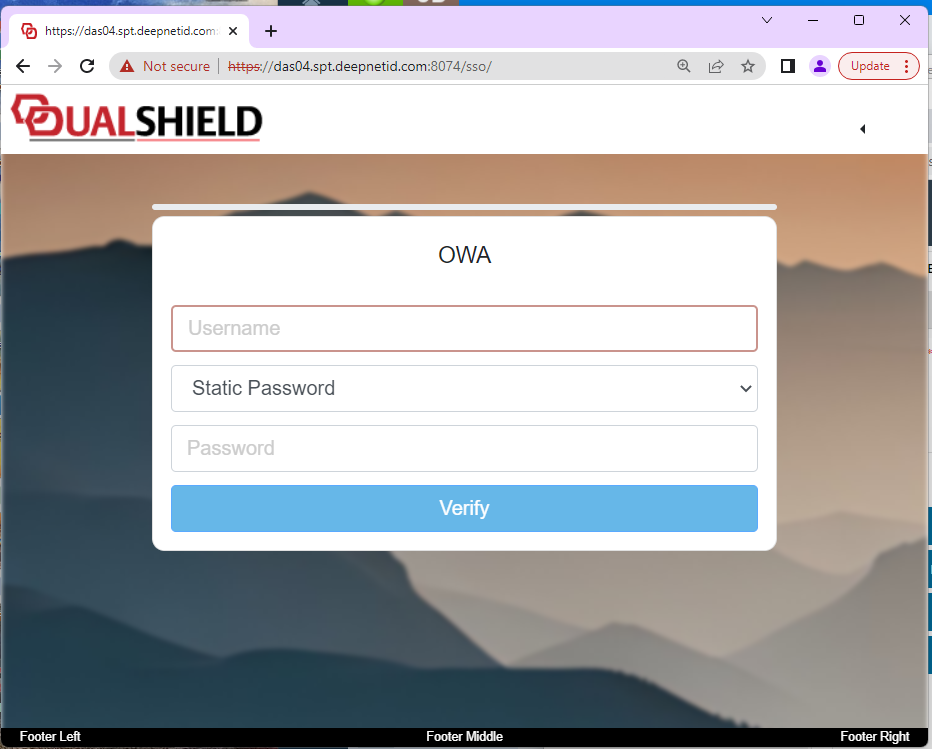
Using this method the background image does not resize to fill the window (notice how in the example below more of the image is revealed to the right of the window);
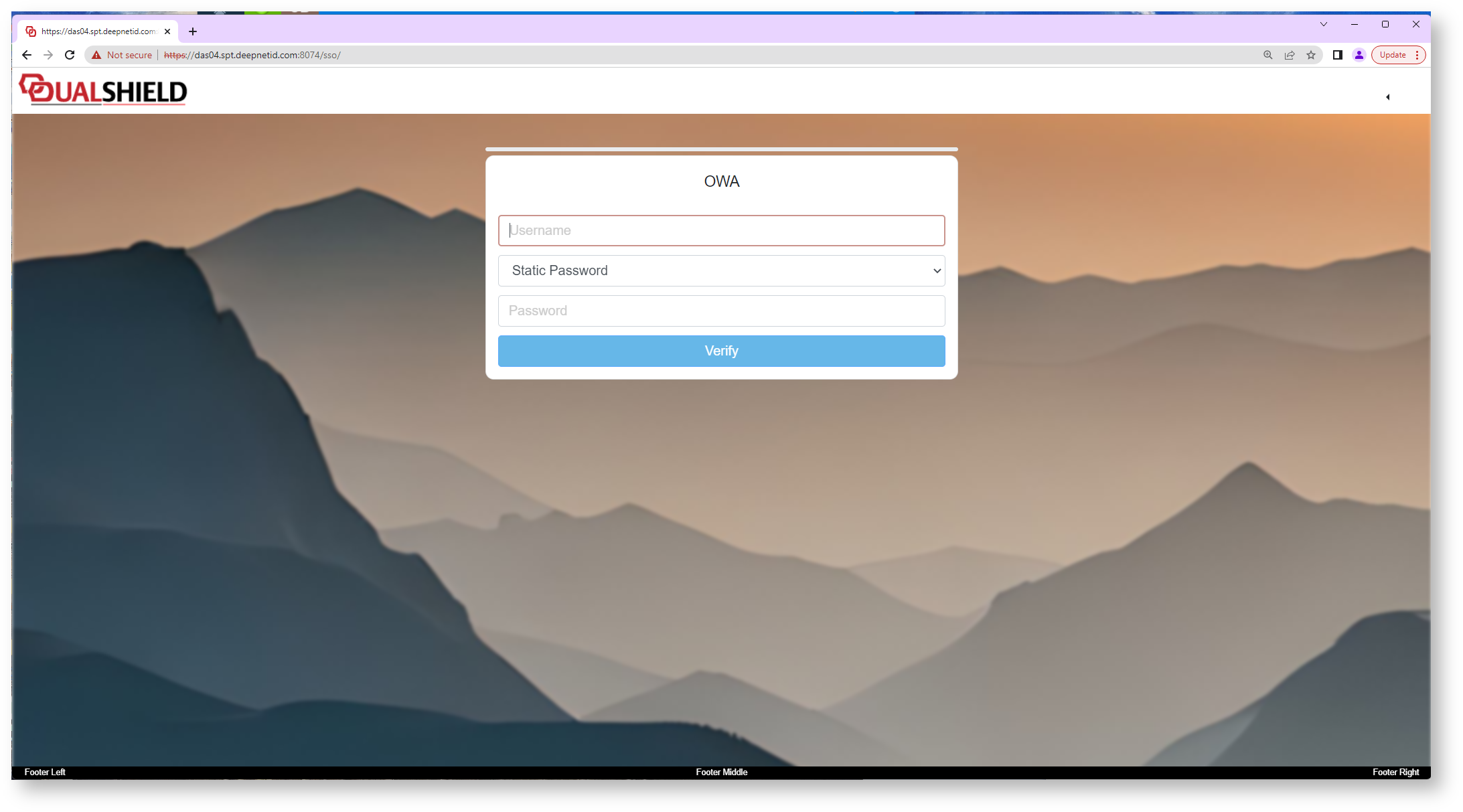
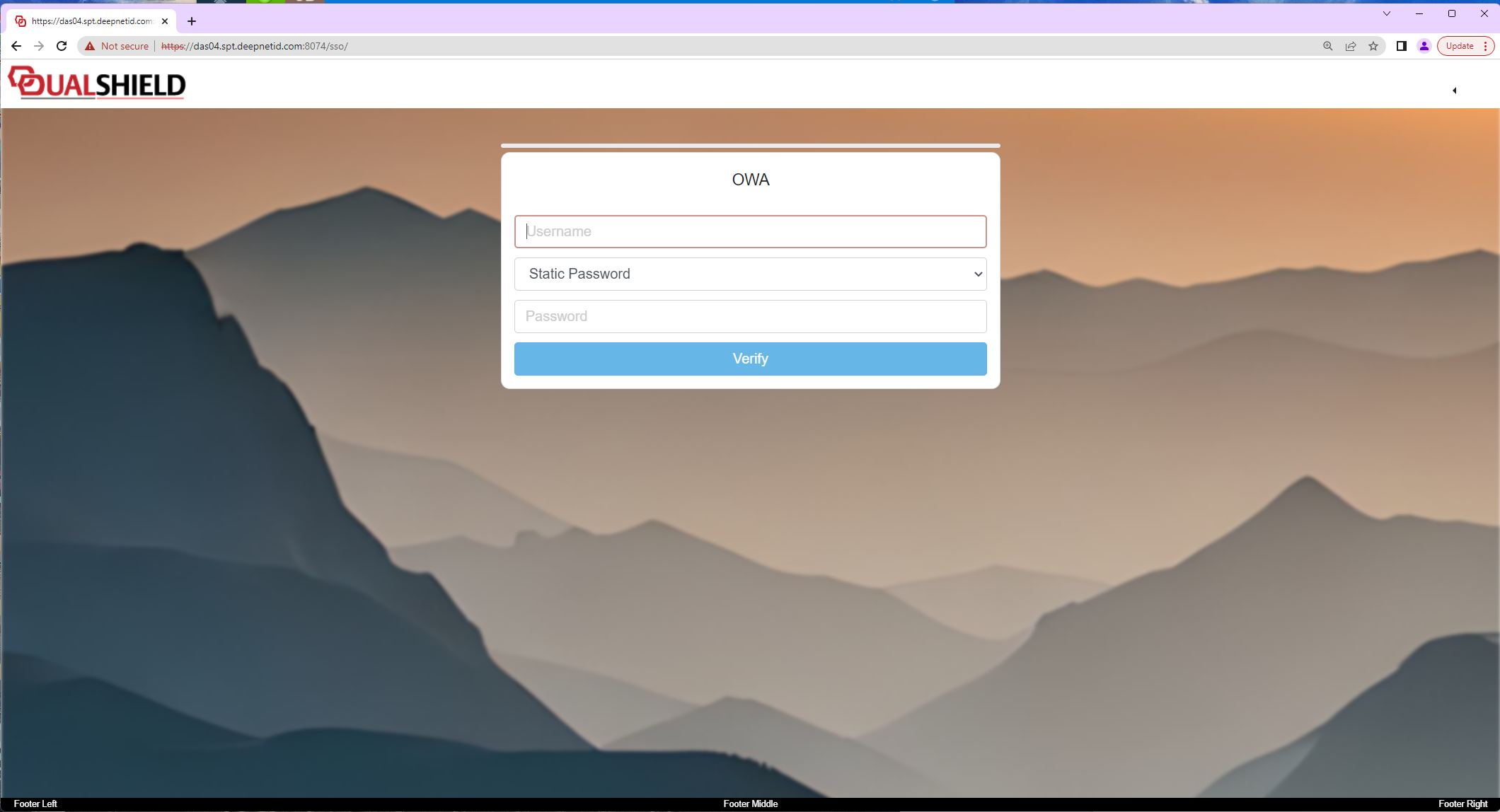
If a resizing background is required then instead of using the "BACKGROUND IMAGE" button to store our background we should place our image against "CONTENT HEADER TOP" and include some CSS script in the section ".content-header-image" using the "CSS" button.
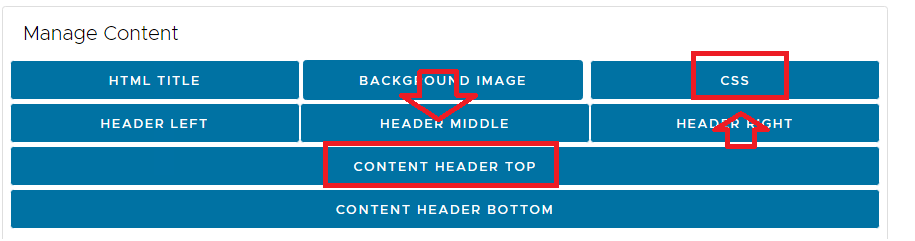
The following is an example of CSS script that will act as provide a resizing background image to our SSO form;
| Code Block | ||||
|---|---|---|---|---|
| ||||
.content-header-image {
margin-top: 0px;
margin-bottom: 0px;
background-size: 100% 100%;
width: 100%;
max-height: 1072px;
} |
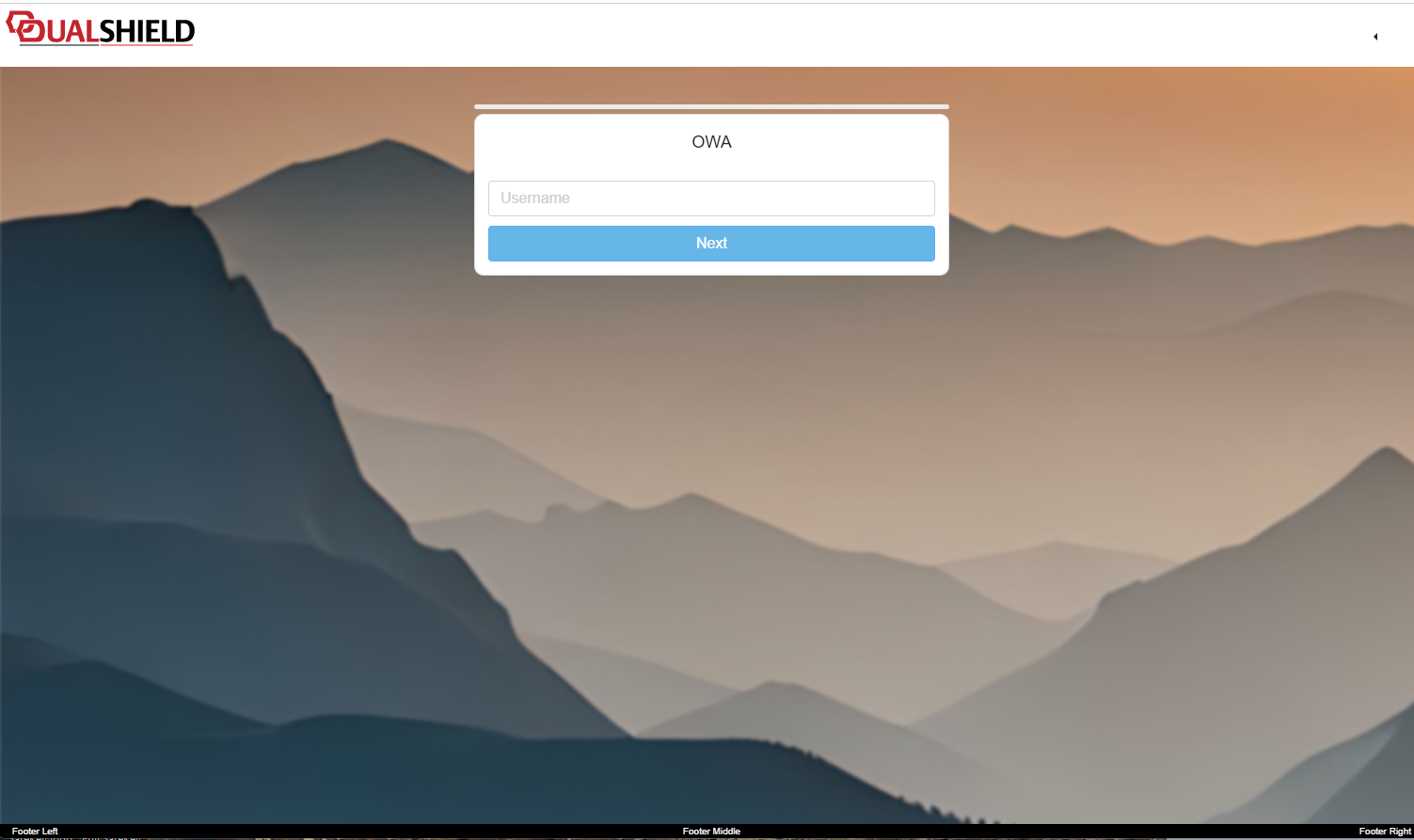
After removal of the old background, adding the image to the content header, and updating our CSS script, we save the customisation (and now when we resize the page we see the backgound resizes with the page);
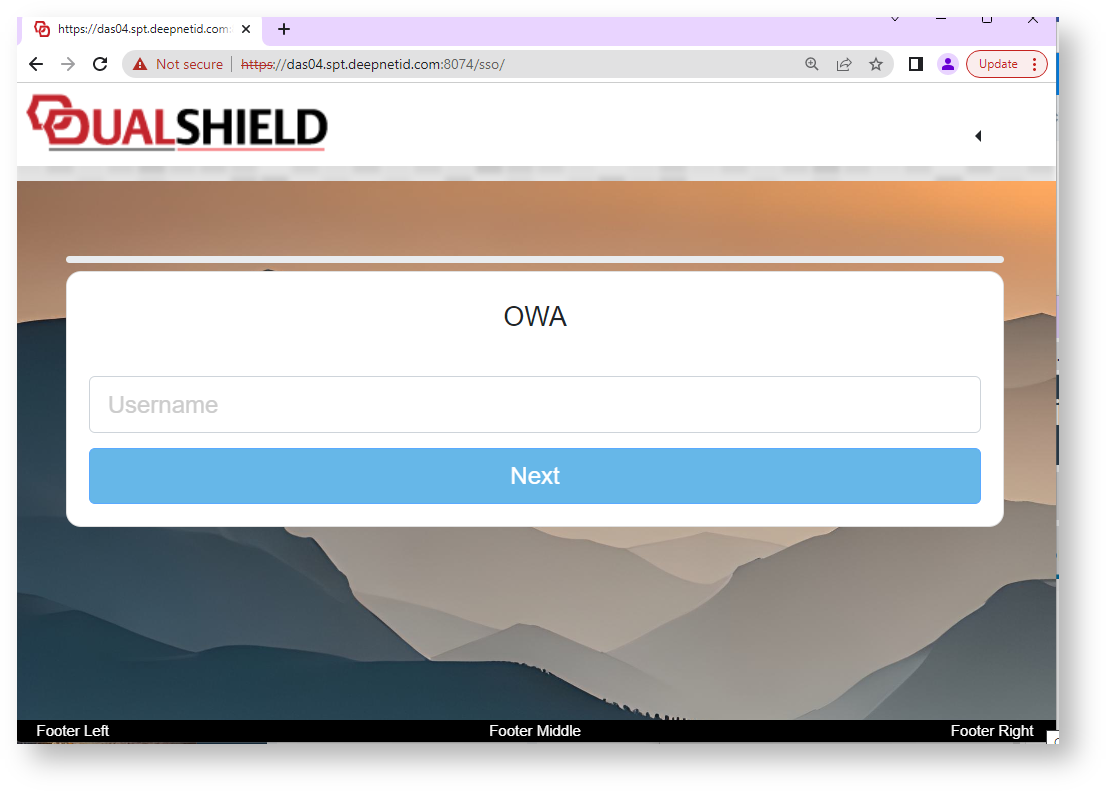
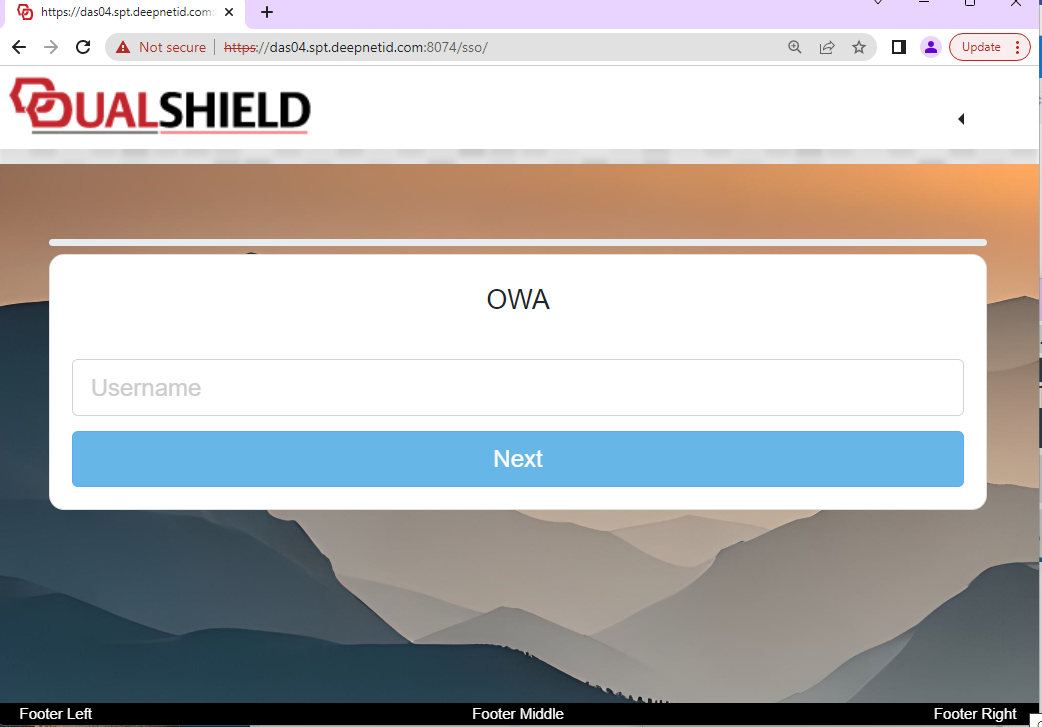
Now when we expand the image you will find that the background image has been resized to fit the new size of the window;
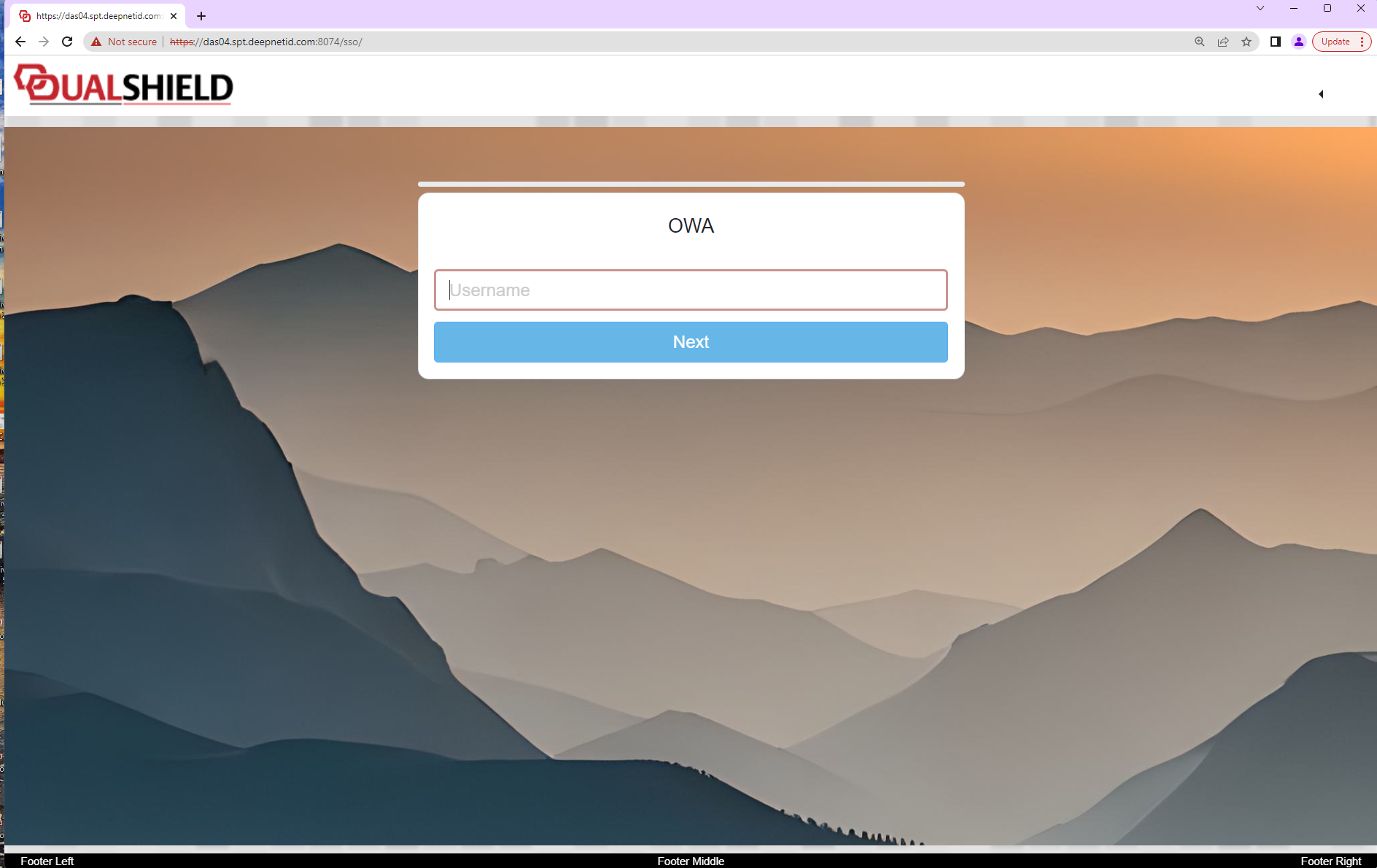
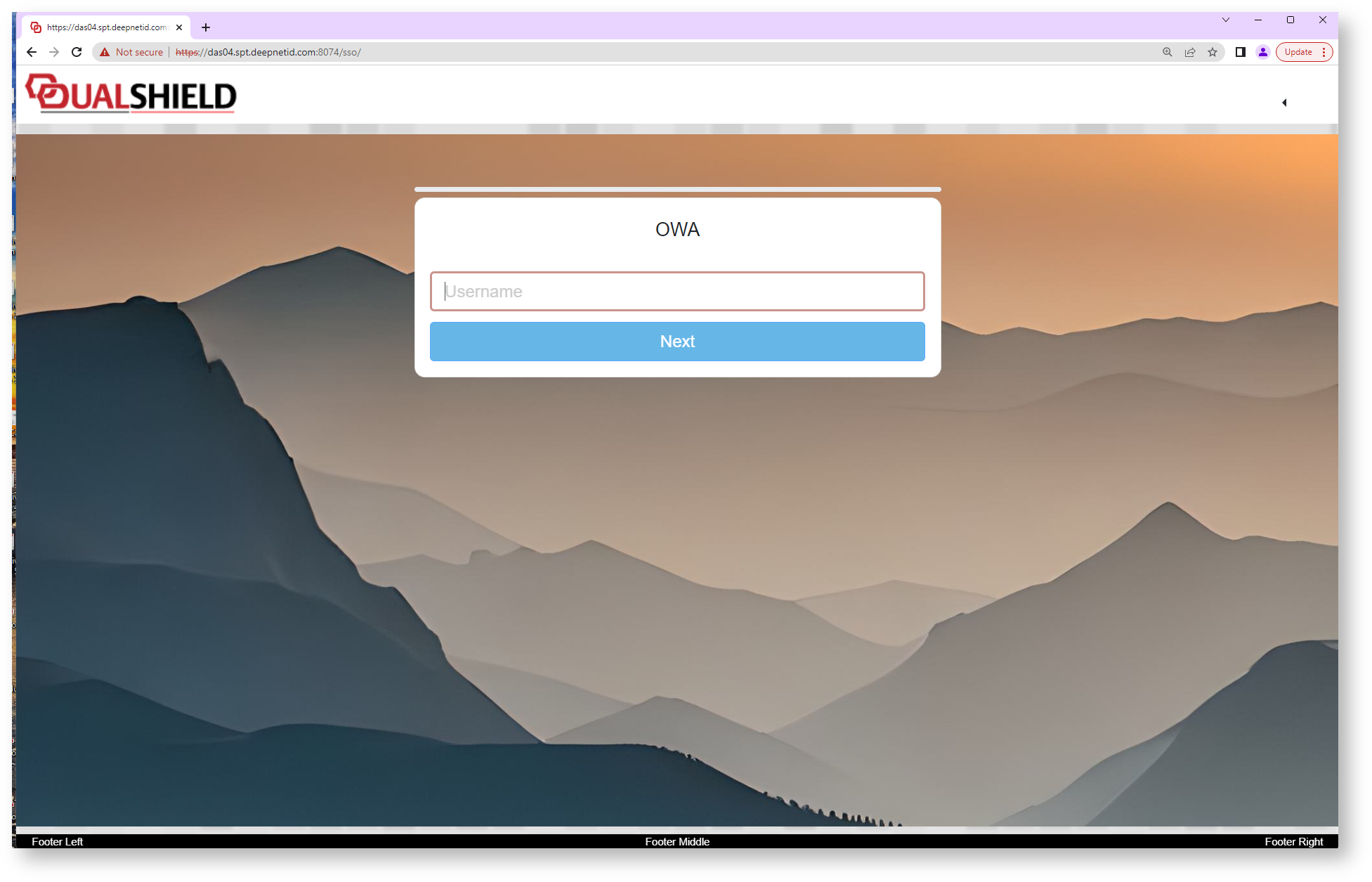
If you want a more interesting effect you could use a transparent image for the content header top, then supply a complementary image background image (using the "BACKGROUND IMAGE" button). By using both images the background could just provide a texture background whilst the transparent re-sizing images would overlay on this background. Additionally you can adjust the "%" and "px" parameters in the CSS script to resize other horizontal and vertical aspects of the page presentation.