Using the Graph API to enroll hardware tokens is a newly introduced feature in Entra ID. Currently, you can use the Graph API to upload tokens into Entra ID, but there is no UI in the Entra Admin Portal for administrators or the help desk team to manage those tokens. Those tokens can only be self-enrolled by the users.
If you need a system that allows administrators or the help desk team to enroll and manage tokens, as well as allows your users to self-enroll their tokens, then check out the SafeID Token Service.
To enroll hardware tokens into Entra ID using the Graph API, follow the steps below.
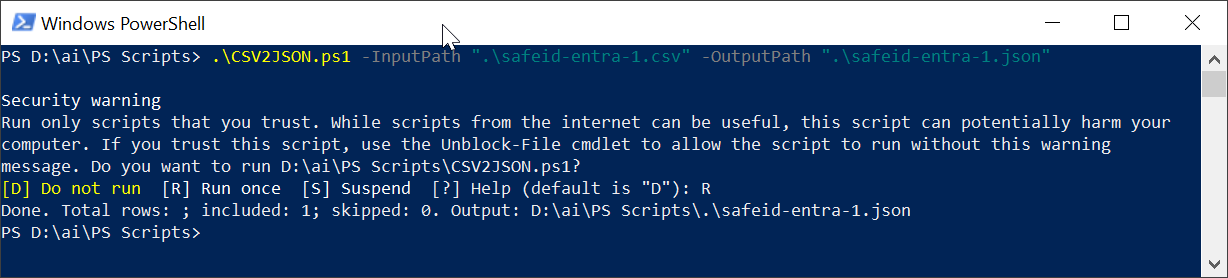
Step 1: Get the JSON file of the hardware tokens
| Expand | ||||||
|---|---|---|---|---|---|---|
|
Step 2: Upload hardware tokens using the Graph Explorer
| Expand | ||||||
|---|---|---|---|---|---|---|
|
Step 3: Check the token repository using Graph API
Optionally, you might want to check the token repository to make sure that the tokens have been successfully uploaded into Entra ID
To access the Graph Explorer, visit: https://developer.microsoft.com/en-us/graph/graph-explorer
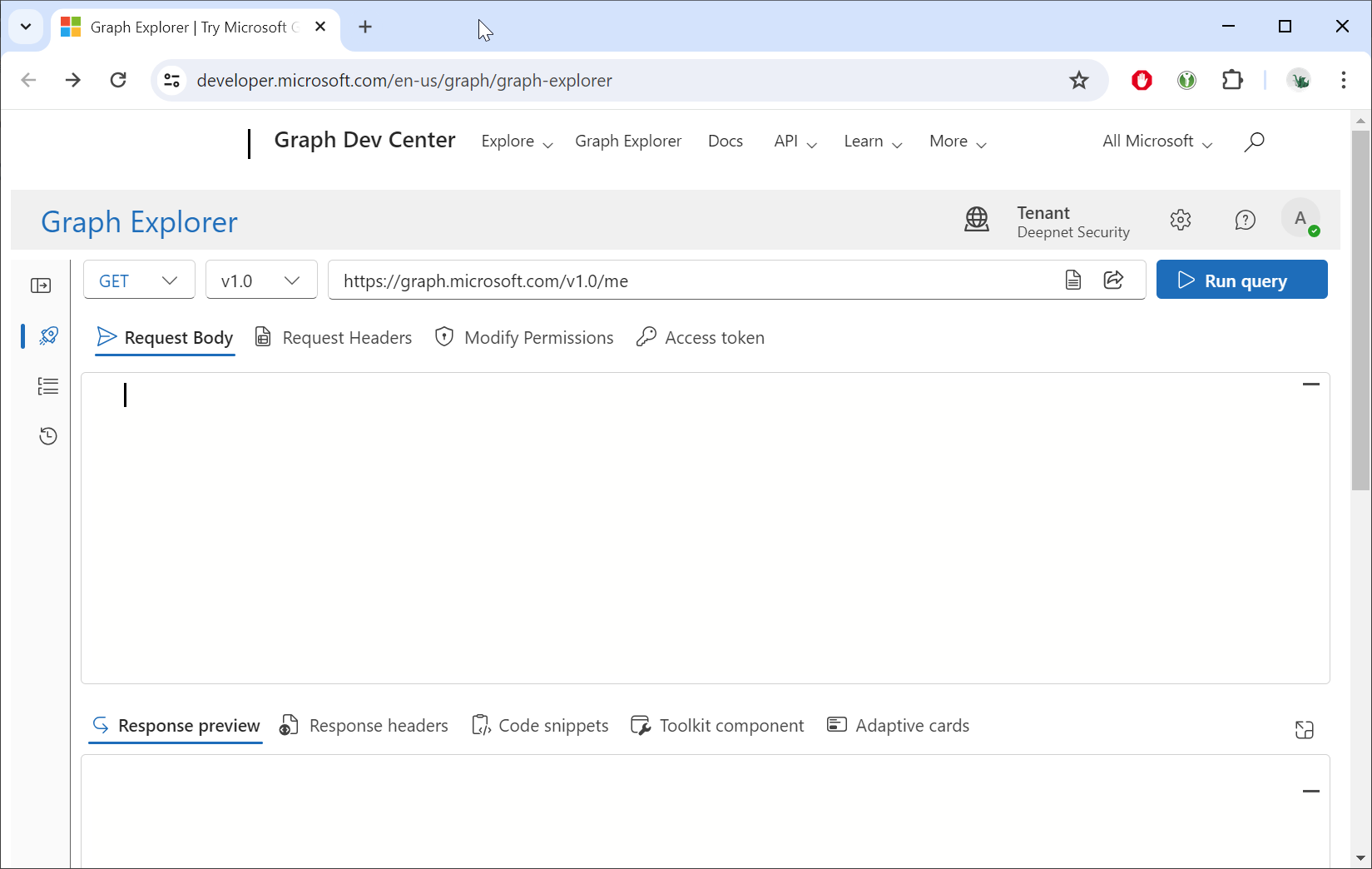
Sign in using your Entra account
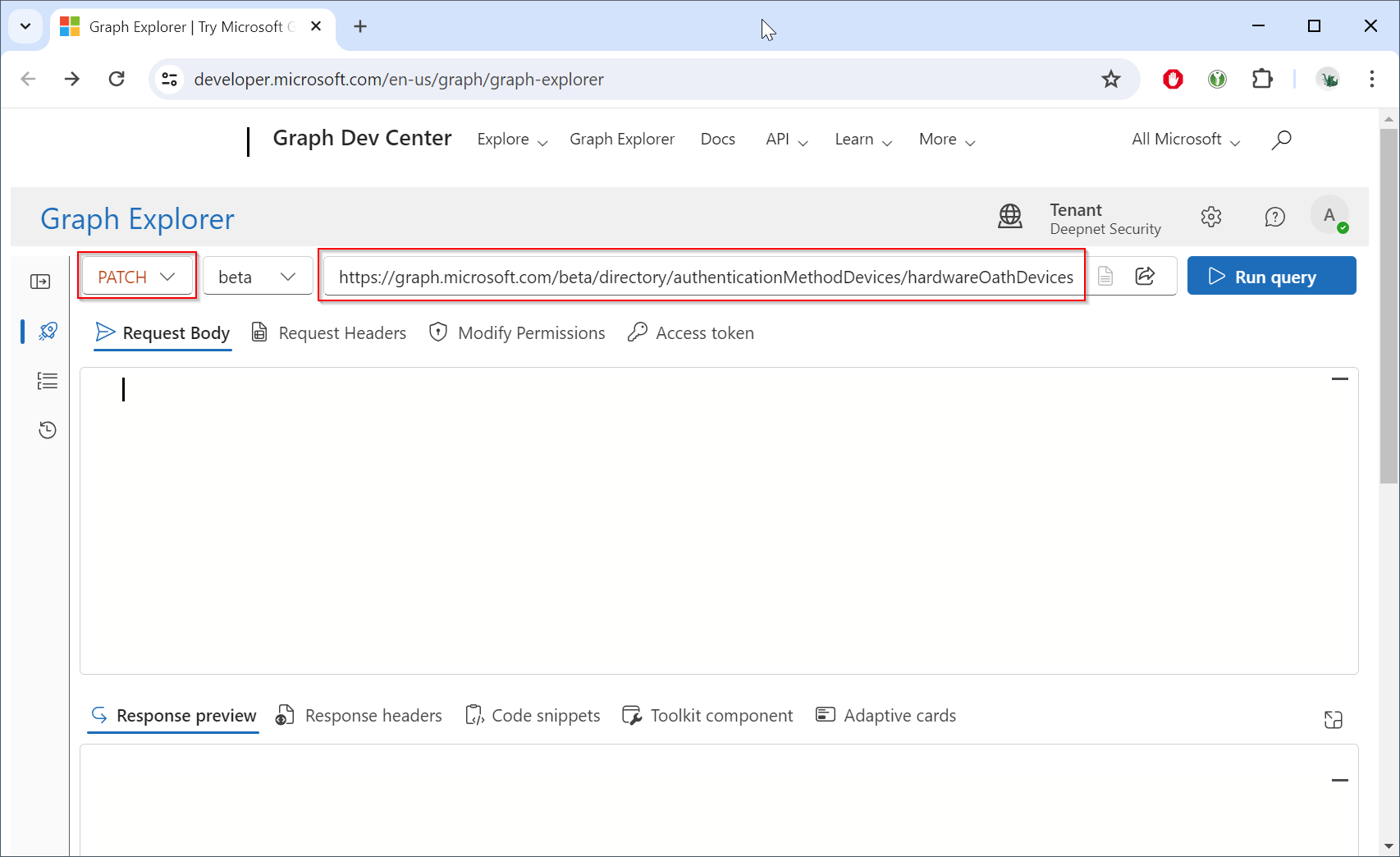
Change the HTTP method from "GET" to "PATCH", and change the endpoint to "https://graph.microsoft.com/beta/directory/authenticationMethodDevices/hardwareOathDevices"
Now, click the "Modify Permissions" to check if you have the "Policy.ReadWrite.AuthenticationMethod" permission
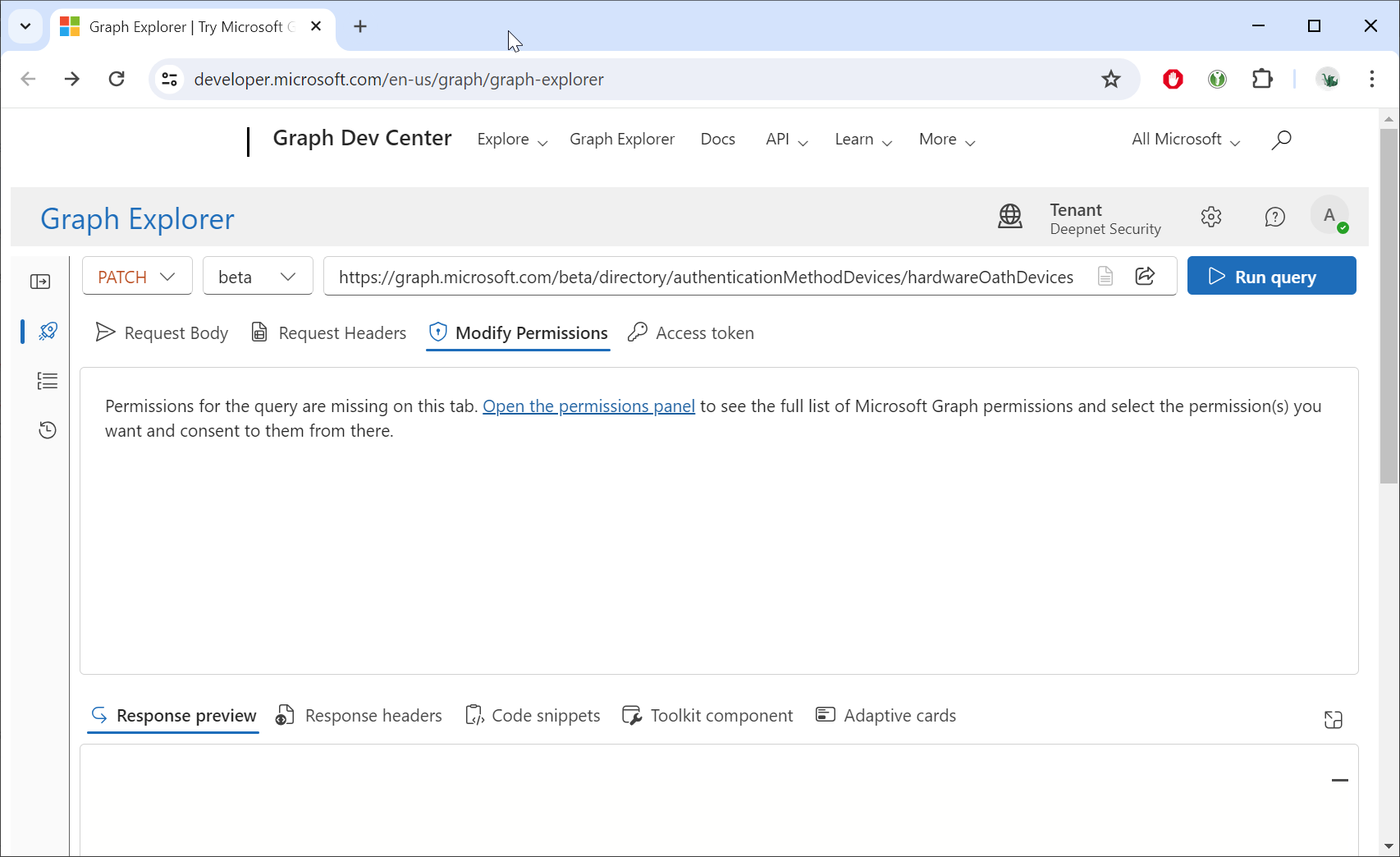
Click "Open the permissions panel" link
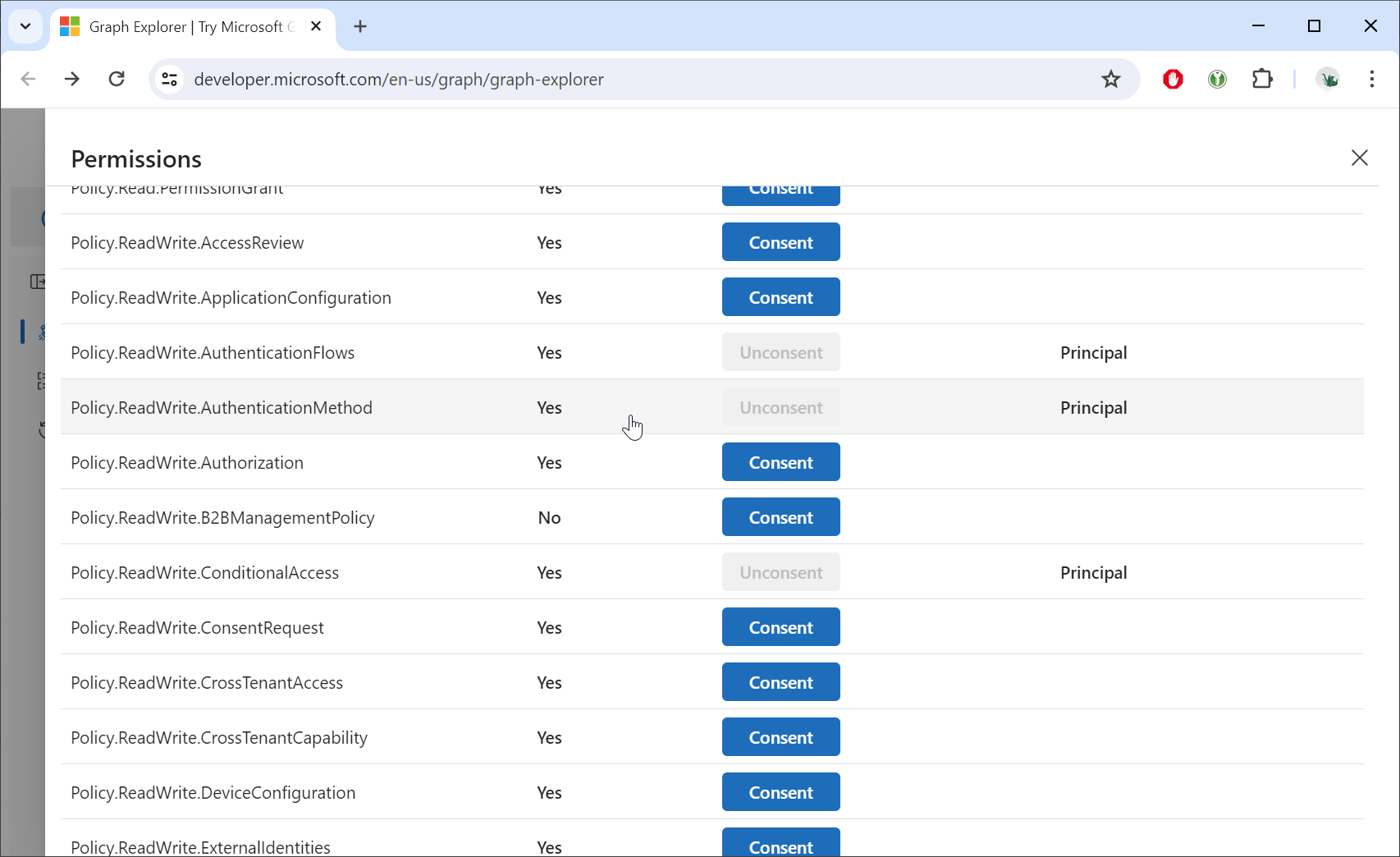
If you have not been granted the consent for the "Policy.ReadWrite.AuthenticationMethod" permission, then you need to admin the global administrator to grant the consent to use the Graph API.
...
Option 1 – Through Graph Explorer (Admin Account)
Have a Global Administrator or Privileged Role Administrator sign in to Graph Explorer.
In the Permissions tab, find Policy.ReadWrite.AuthenticationMethod.
Instead of “Consent on behalf of yourself,” the admin will see an option to Consent on behalf of the entire organization.
Click Consent → approve.
Option 2 – Through Azure Portal (Enterprise Applications)
Go to Azure Portal → Azure Active Directory → Enterprise Applications.
Find Graph Explorer (it’s registered as an Enterprise Application in your tenant).
Under Permissions → Admin Consent, the admin can review pending permissions.
Grant consent for Policy.ReadWrite.AuthenticationMethod on behalf of the organization.
If you have the the consent for the "Policy.ReadWrite.AuthenticationMethod" permission, then you can continue.
Click the "Request body" tab
Open the JSON file in a text editor, copy all the contents, and paste the data into the Request body
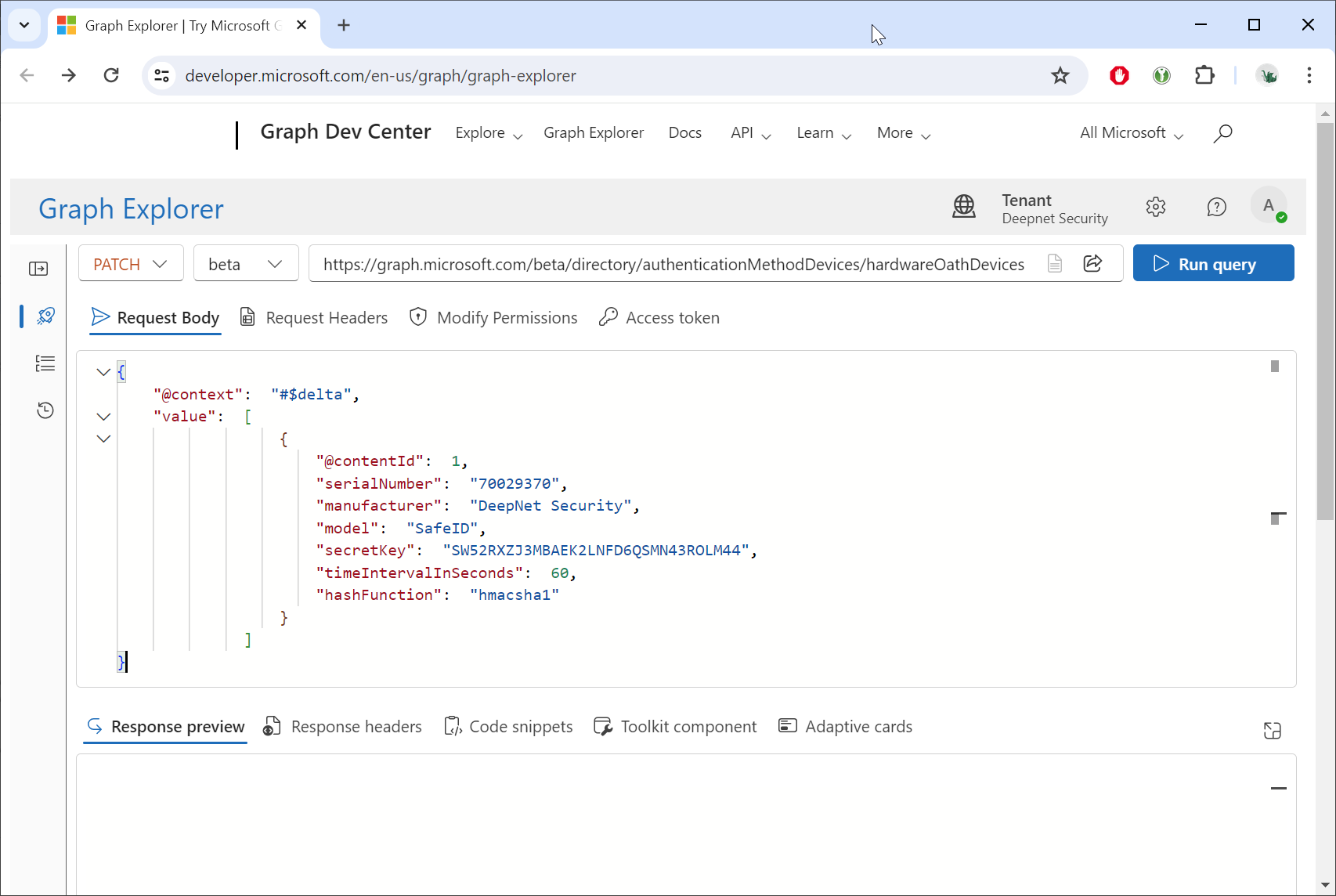
Click the Run query button.
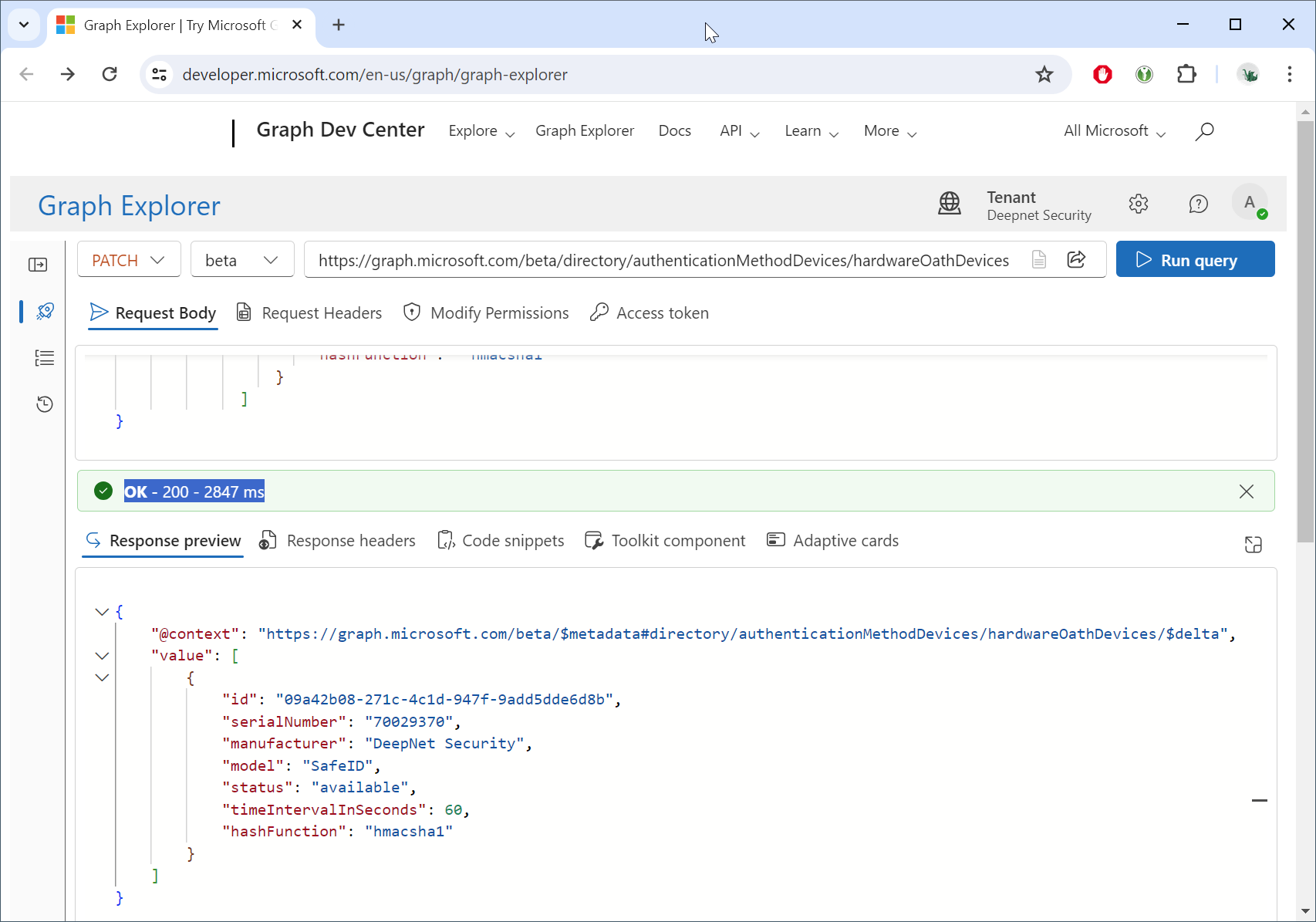
If you see "OK - 200 - ...", then the tokens have been successfully uploaded into the Token Repository in your Entra ID tenant.
To check your Token Repository in Entra ID, you must also use the Graph API.
| Expand | ||||||
|---|---|---|---|---|---|---|
|
Step 4: Self-Enroll hardware tokens into Entra ID
You can now give the tokens to your users and ask them to self-enroll their tokens in Entra ID
...