...
| Section |
|---|
|
| Column |
|---|
Make a note of the host name of the computer. In this case it is 'ABC' |
| Column |
|---|
|
| Panel |
|---|
| borderColor | #9EBEE5 |
|---|
| bgColor | #f0f0f0 |
|---|
| borderWidth | 1px |
|---|
|  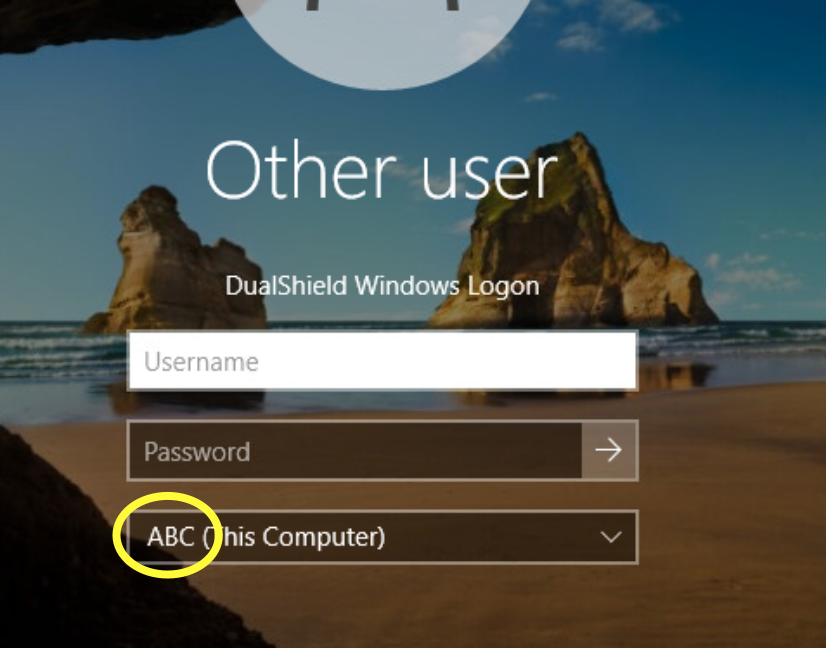 Image Removed Image Removed
|
|
|
| Section |
|---|
|
| Column |
|---|
Create some local user accounts and make sure the Administrator account is active.
|
| Column |
|---|
|
| Panel |
|---|
| borderColor | #9EBEE5 |
|---|
| bgColor | #f0f0f0 |
|---|
| borderWidth | 1px |
|---|
| 
|
|
|
...
| Section |
|---|
|
| Column |
|---|
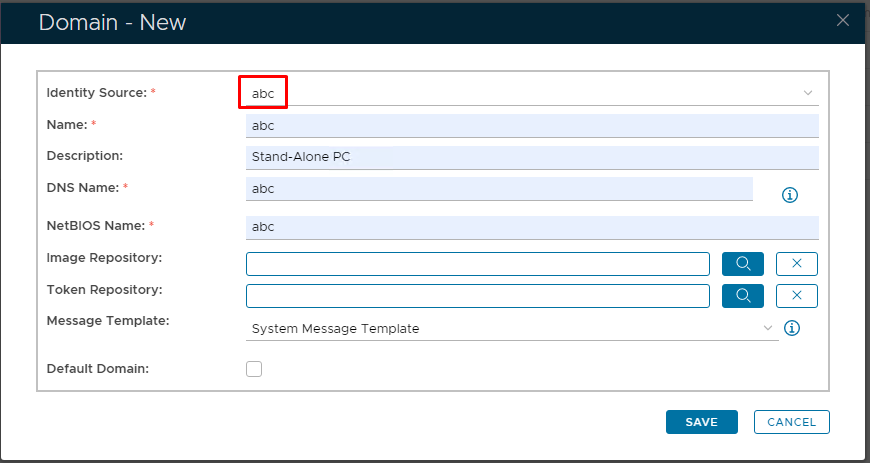
Go to Directory>Domains Click on  on the top right. on the top right. In the 'Domain-New' Dialogue box, select the Identity Source that you have just created from the drop-down It is recommended to You must match the Name, DNS Name and NetBIOS Name with the hostname of the Stand-alone machine Click Save |
| Column |
|---|
|
| Panel |
|---|
| borderColor | #9EBEE5 |
|---|
| bgColor | #f0f0f0 |
|---|
| borderWidth | 1px |
|---|
| 
|
|
|
...
| Section |
|---|
|
| Column |
|---|
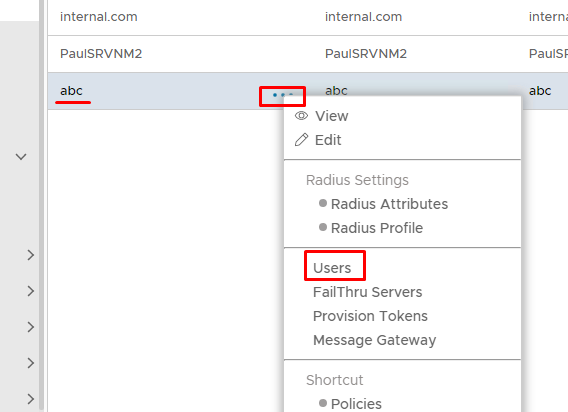
The Virtual domain will now be listed under Domains. Remember to add this new domain to the realm associated in your Computer/Windows Logon App configuration (see Change domains in a realm) Click on the corresponding ellipses and select Users from the menu |
| Column |
|---|
|
| Panel |
|---|
| borderColor | #9EBEE5 |
|---|
| bgColor | #f0f0f0 |
|---|
| borderWidth | 1px |
|---|
|  |
|
|
...
(These will correspond with the local accounts setup set up on the PC)
| Section |
|---|
|
| Column |
|---|
You will now need to create Virtual user accounts that match the local user accounts on the PC Click on on the top right. Make sure the account details match including the password. Click Save
|
| Column |
|---|
|
| Panel |
|---|
| borderColor | #9EBEE5 |
|---|
| bgColor | #f0f0f0 |
|---|
| borderWidth | 1px |
|---|
| 
|
|
|
...
| Section |
|---|
|
| Column |
|---|
Repeat the process until the list of Virtual Users match the list of local users on the PC
|
| Column |
|---|
|
| Panel |
|---|
| borderColor | #9EBEE5 |
|---|
| bgColor | #f0f0f0 |
|---|
| borderWidth | 1px |
|---|
|  Image Modified Image Modified 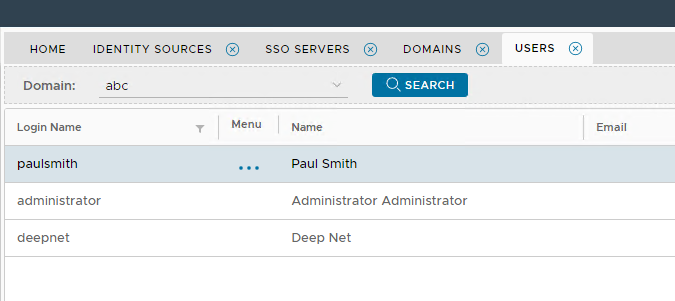 Image Removed Image Removed
|
|
|
...
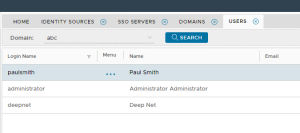 Image Added Image Added
|
|
|
| Section |
|---|
|
| Column |
|---|
Please Note: This will not work if the native Windows Cred UI is set so end users can click on the account names that appear on the bottom, left-hand side. Therefore the default Windows Cred UI must ask for a username and password, like so... |
| Column |
|---|
|
| Panel |
|---|
| borderColor | #9EBEE5 |
|---|
| bgColor | #f0f0f0 |
|---|
| borderWidth | 1px |
|---|
|  Image Added Image Added
|
|
|
| Section |
|---|
|
| Column |
|---|
|
| Panel |
|---|
| borderColor | #9EBEE5 |
|---|
| bgColor | #f0f0f0 |
|---|
| borderWidth | 1px |
|---|
| 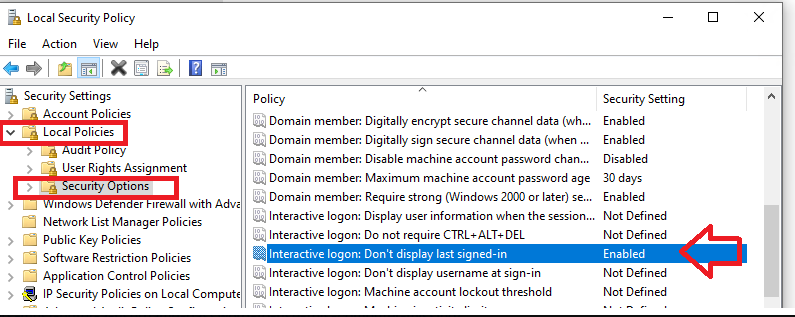 Image Added Image Added |
|
|