In order to configure Ctera for SAML 2 SAML2 authentication, you will need details of the Single Sign-on and Single Logout URLYou will also need to Download the IdP Certificate.
| Section |
|---|
|
| Column |
|---|
Go to SSO>SSO Servers |
| Column |
|---|
|
| Panel |
|---|
| borderColor | #9EBEE5 |
|---|
| bgColor | #f0f0f0 |
|---|
| borderWidth | 1px |
|---|
| 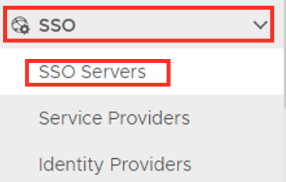 Image Modified Image Modified
|
|
|
| Section |
|---|
|
| Column |
|---|
Select the drop down menu corresponding to the SSO server you will be using and click on View. |
| Column |
|---|
|
| Panel |
|---|
| borderColor | #9EBEE5 |
|---|
| bgColor | #f0f0f0 |
|---|
| borderWidth | 1px |
|---|
| 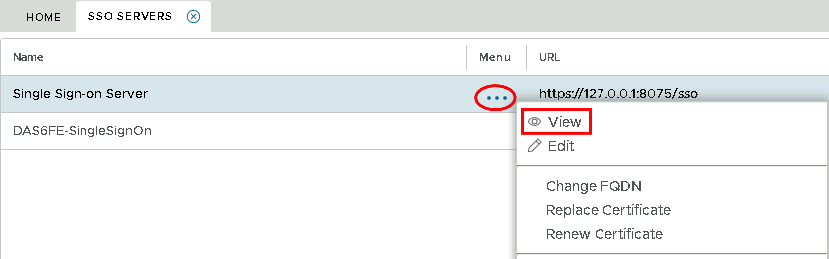 Image Modified Image Modified
|
|
|
| Section |
|---|
|
| Column |
|---|
In the view screen scroll down and click on Display Metadata |
| Column |
|---|
|
| Panel |
|---|
| borderColor | #9EBEE5 |
|---|
| bgColor | #f0f0f0 |
|---|
| borderWidth | 1px |
|---|
| 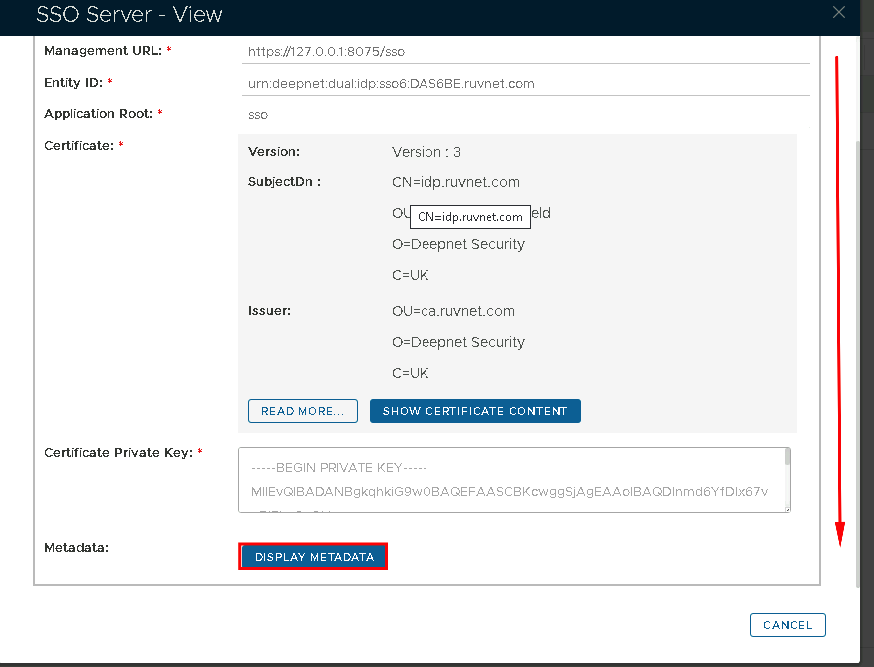 Image Added Image Added
|
|
|
| Section |
|---|
|
| Column |
|---|
Scroll down to where you can see the SingleSignOnService and SingleLogoutService URL. You may want to copy and past this somewhere, ready for the next section. |
| Column |
|---|
|
| Panel |
|---|
| borderColor | #9EBEE5 |
|---|
| bgColor | #f0f0f0 |
|---|
| borderWidth | 1px |
|---|
| 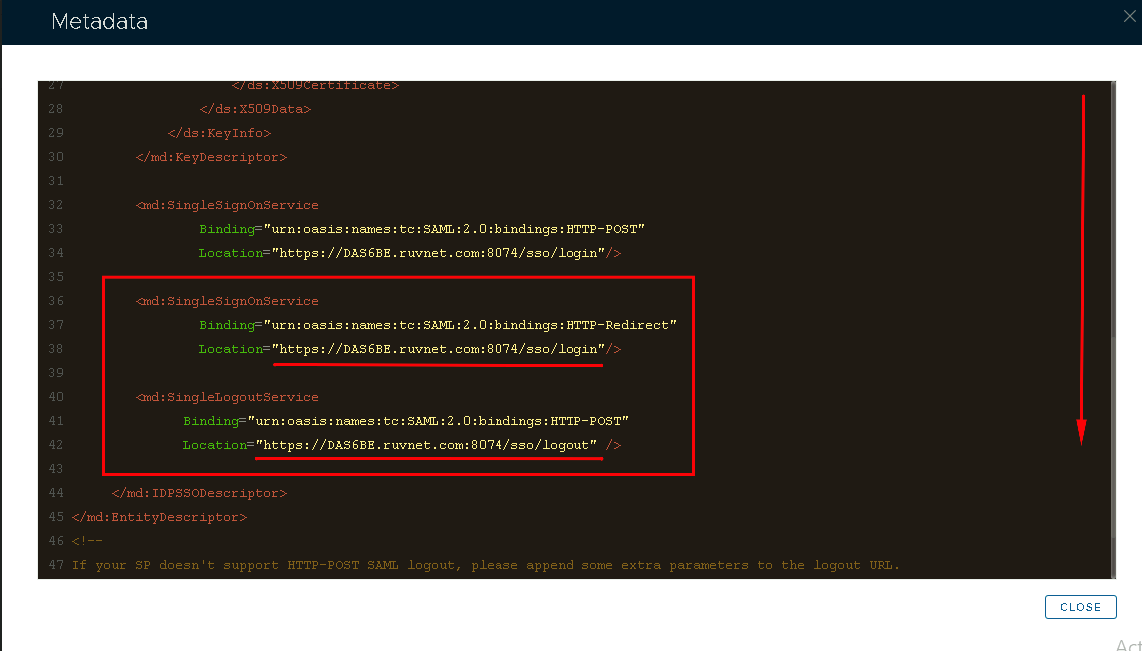 Image Added Image Added
|
|
|
You will also need to download the IdP Certificate
| Section |
|---|
|
| Column |
|---|
Select the drop down menu corresponding to the SSO server you will be using and click on Download IdP Certificate |
| Column |
|---|
|
| Panel |
|---|
| borderColor | #9EBEE5 |
|---|
| bgColor | #f0f0f0 |
|---|
| borderWidth | 1px |
|---|
| 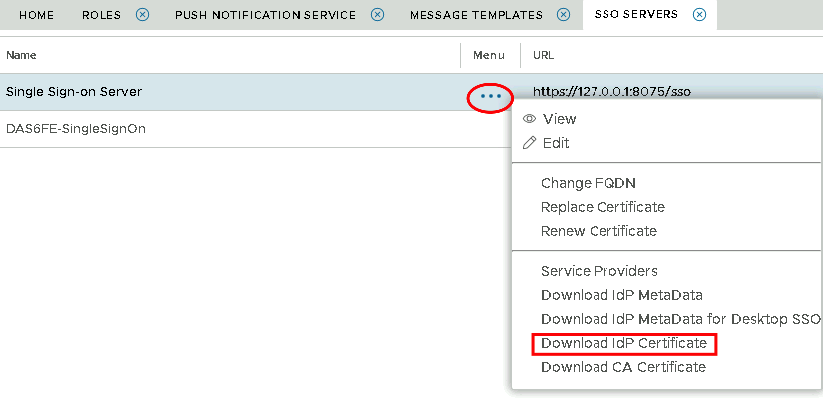 Image Added Image Added
|
|
|