...
If you do not want to expose the DualShield SSO server to the public network, for reasons such as that your DualShield SSO server does not have a public FQDN, or it does not have a commercial certificate, then you can take advanatge advantage of the IIS Reverse proxy function. By using the IIS reverse proxy, to the users, your DualShied SSO seems to be an integrated part of your web application. The IIS Reverse proxy not only saves you from publishing your DualShield SSO server, it alslo also gives better user experience to users.
To enable the reverse proxy function in the IIS server, follow steps below.:
| Table of Contents |
|---|
Enable Proxy in the IIS Manager
Select the web server node (under "Start Page" if it is the first web server) from the list on the left pane in the IIS Manager console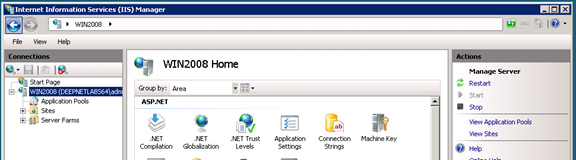

In the "features view" window (the window in the middle), find "Application Request Routing" and double click it

On the right pane, find the "Server Proxy Settings..." link and click it
Back to the middle pane, tick (enable) the first check box, "Enable Proxy"

Click "Apply" to save the change.
Enable Proxy in the DualShield IIS Agent

Click the "DualShield IIS Agent" shortcut to open the IIS Agent Console

In the "SSO Server" section, click the "Change..." button

In the "SSO Server Settings" popup window, enable the option "Enable Proxy"
Click OK to save settings.

Click Apply to apply the changes.