You can invite users in your organization to help manage the portal, and choose exactly what each user is allowed to do. This guide walks you through managing that access.
Before you start
- You're signed in to the management portal.
- You know who you want to give access to, and what they'll need to do.
- That person already has an account in your Entra tenant.
Assign Role
...
To assign a role to a user or user group, click the Assign Role button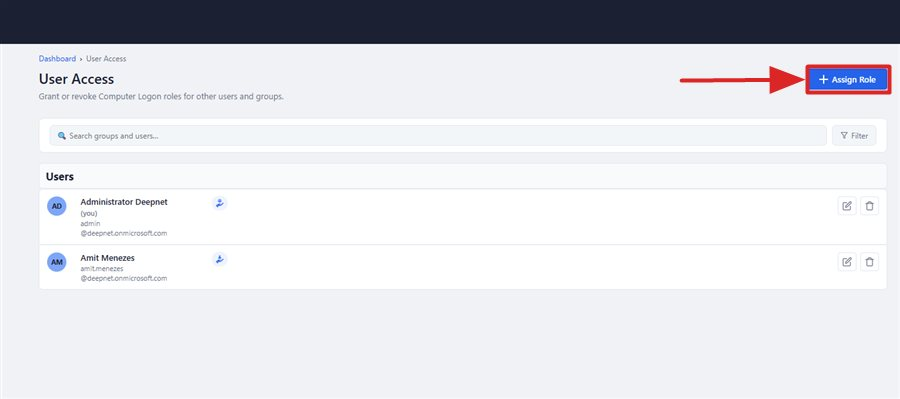
The Assign a role window will pop up
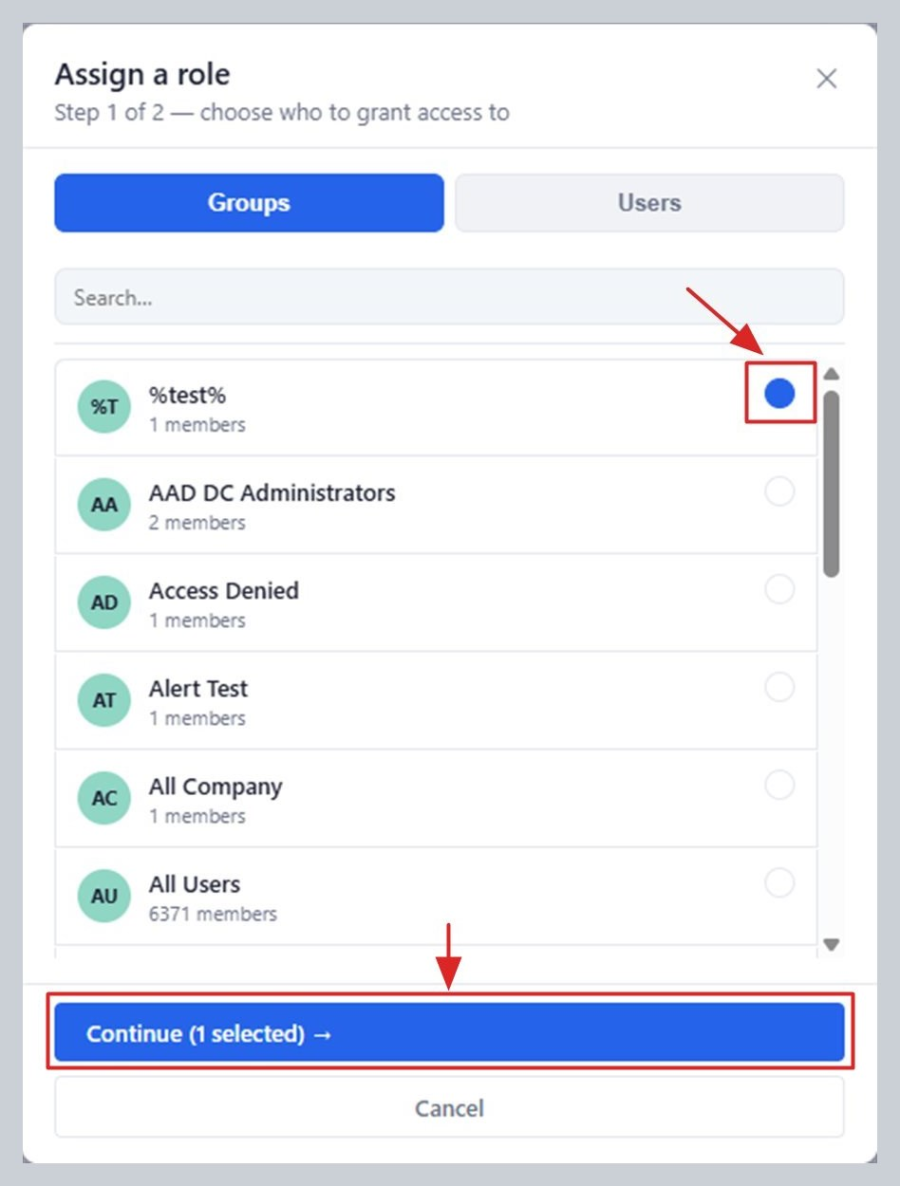
Select the user(s) or user group(s) you want to grant access to, then click "Continue →"
Now, you need to choose the level of access
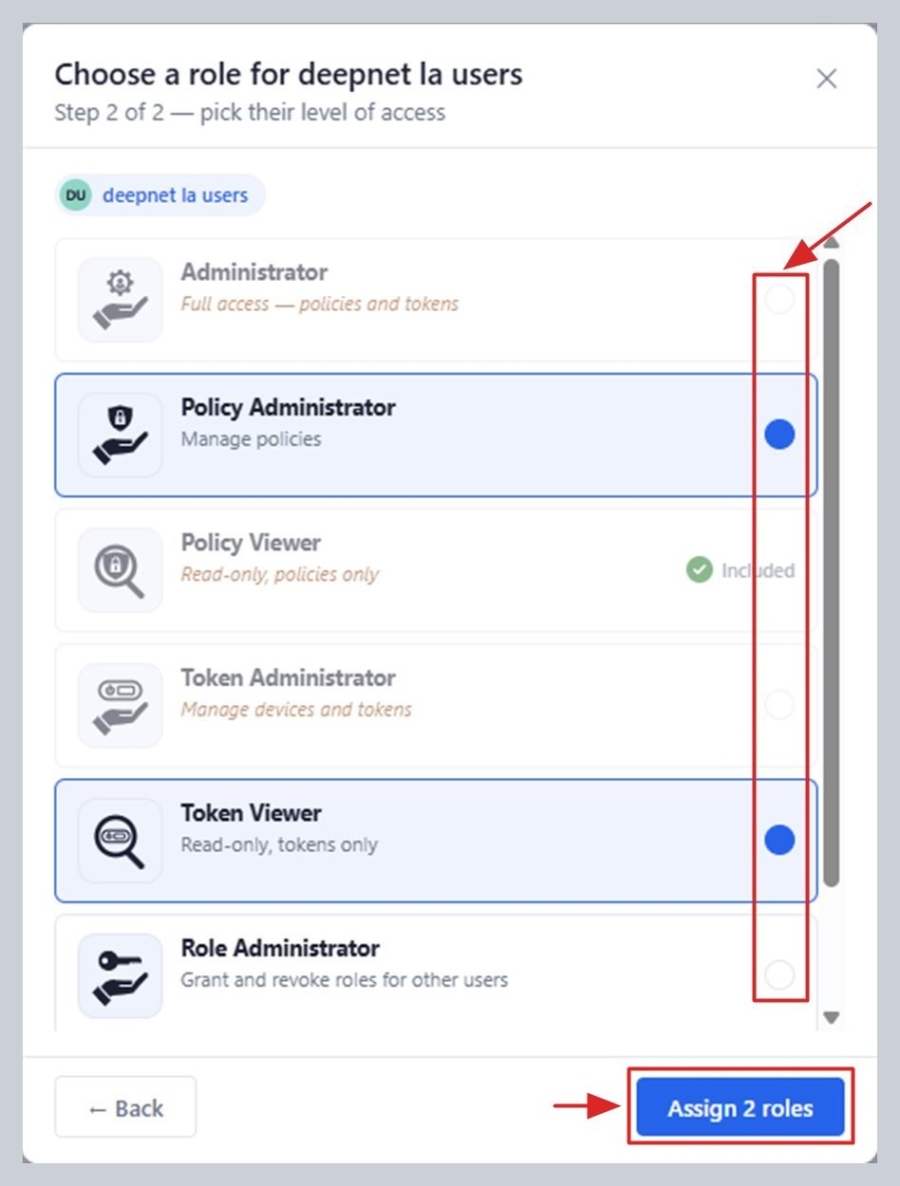
Select one or more roles. Only give someone as much access as they actually need.
Click Assign. That person (or everyone in the group) can now sign in to the portal themselves and use whatever you gave them access to — there's nothing else for them to set up.
...
| title | Click here for details of roles... |
|---|
There are two access portals provided by the management portal — the Administration Portal and the self-service User Portal.
...
 Administrator
Can view and edit the policies and settings, create, assign, resync, and remove managed tokens, and grant and remove any role with other users for Computer Logon in the tenant.
ℹ️ Already includes: Policy Viewer, Policy Administrator, Token Viewer, Token Administrator, Role Administrator
 Policy Viewer
Can only view the policies and settings for Computer Logon.
 Policy Administrator
Can view and edit the policies and settings for Computer Logon.
ℹ️ Already includes: Policy Viewer
 Token Viewer
Can only view all the assigned managed tokens for Computer Logon in the tenant.
 Token Administrator
Can create, assign, resync, and remove managed tokens for Computer Logon in the tenant.
ℹ️ Already includes: Token Viewer
 Role Administrator
Grants the role holder the ability to grant and remove any Policy or Token roles it holds with other users.
ℹ️ Can only grant or remove a role with Role Administrator.
ℹ️ Can only be done to a user with matching Policy and Token management roles already held by the access granting/removing user.
User Portal
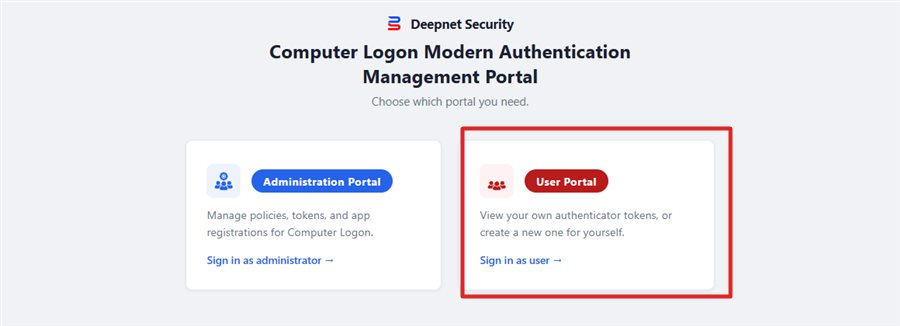
The portal has the following access roles:
...
Change or remove access roles
Back on the User Access page, each row has:
- An Edit button (to see their current roles and add more)
- A Delete button (to remove all of their access at once).
- Groups have an additional Info button to show the members of the group.
ℹ️ Can only grant or remove a role with Role Administrator. Can only be done to a user with matching Policy and Token management roles already held by the access granting/removing user.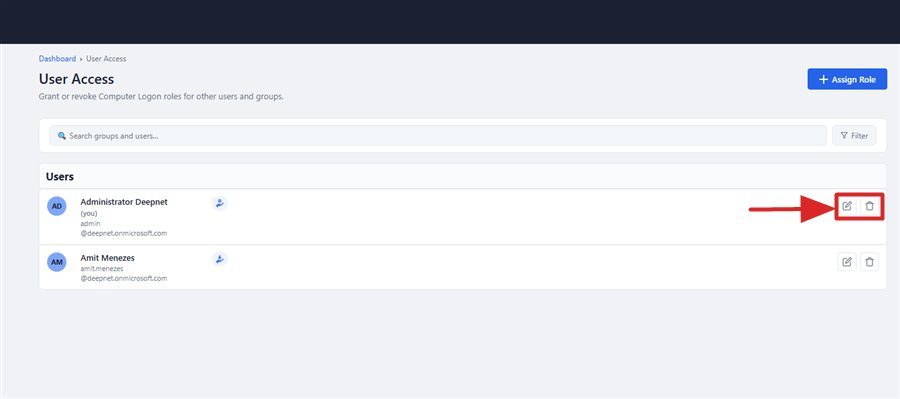
The Edit access and Delete icons on each row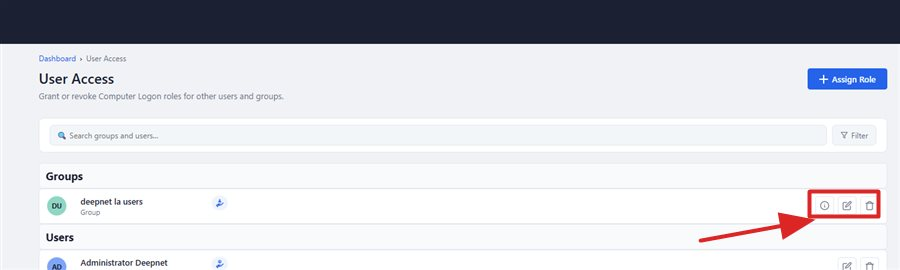
Groups and users are listed in their own sections, each with matching row actions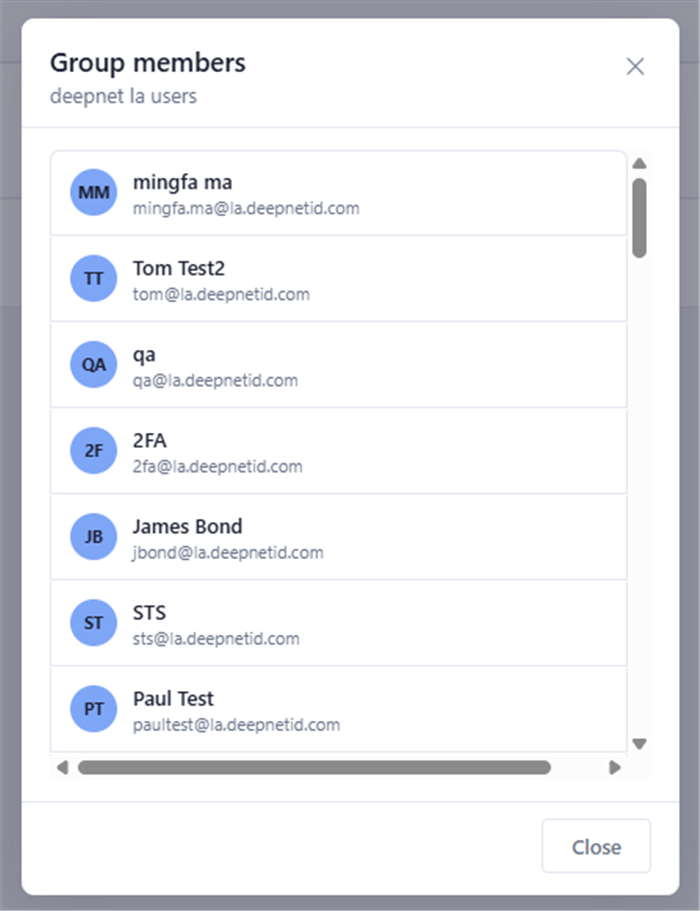
Clicking Info shows the group's real membersChildren Display