If you plan to use DualShield as the management service MFA provider for the computer logon modern authentication solution, then it is assumed that you will also use DualShield as the MFA management service provider.
However, you You can use DualShield as the MFA provider for computer logon in 2 ways. You can use DualShield as the direct MFA provider, or as the indirect MFA provider via Entra EAM (External Authentication Method).
| Table of Contents | ||
|---|---|---|
|
DualShield as the Direct MFA Provider
...
In the "CLO-MA Service Provider" box, select the newly created service provider for computer logon, e.g. Computer Logon MA
Click the "FINISH" button to save the settings.
DualShield as the Indirect MFA Provider via Entra EAM
If you use DualShield as the direct indirect MFA provider via Entra EAM, then you need to do the following:
Step 1: Set up External Authentication Method for Microsoft Entra ID
| Expand | ||||||
|---|---|---|---|---|---|---|
|
Step 2: Set Entra EAM as the Authentication Provider
In the DualShield Admin Console, navigate to Configuration \ Computer Logon Modern Authentication
Select "Settings" in the sidebar
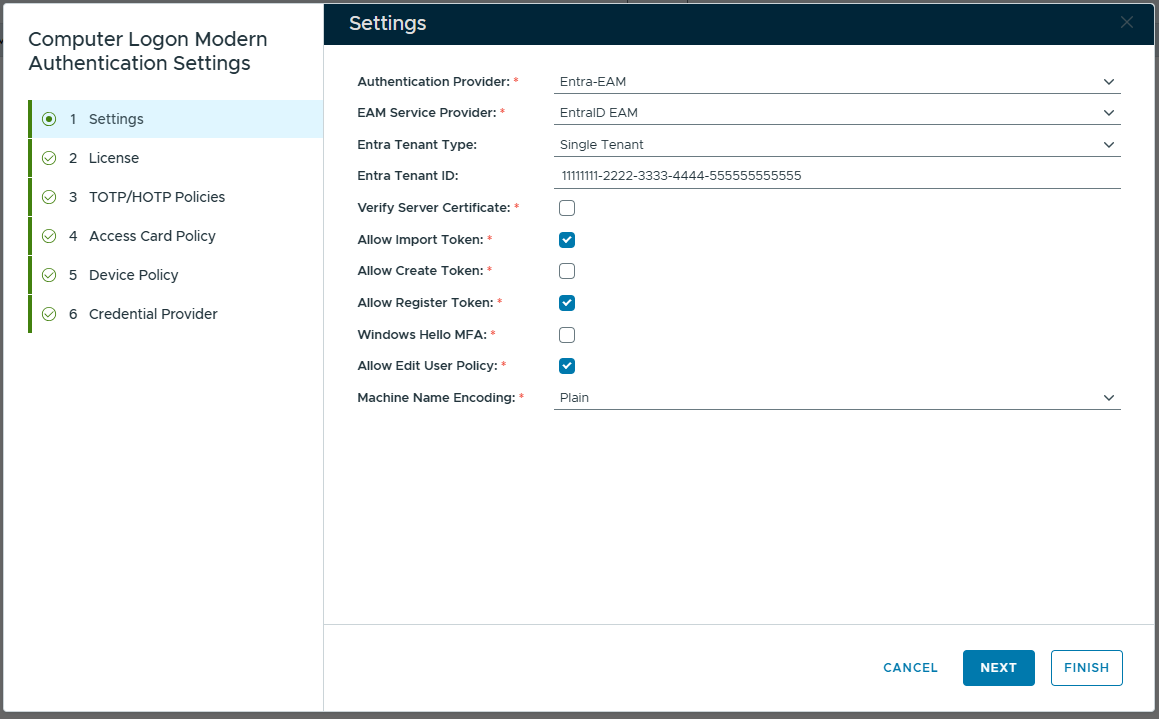
In the "Authentication Provider" box, select "Entra EAM"
In the "EAM Service Provider" box, select the newly created service provider for Entra EAM, e.g. EnraID EAM
In the "Entra Tenant Type" box, select the type of your Entra tenant, e.g. Single or Multiple
In the "Entra Tenant ID" box, enter the ID of your Entra tenent.
Click the "FINISH" button to save the settings.