Configuring the Security Fabric with SAML:Here we assume you have already set the appropriate Fabric Connector configurations. This guide will only explain how to configure the SAML SP and IDP settings.
| Section |
|---|
|
| Column |
|---|
Log in to the root FortiGate.
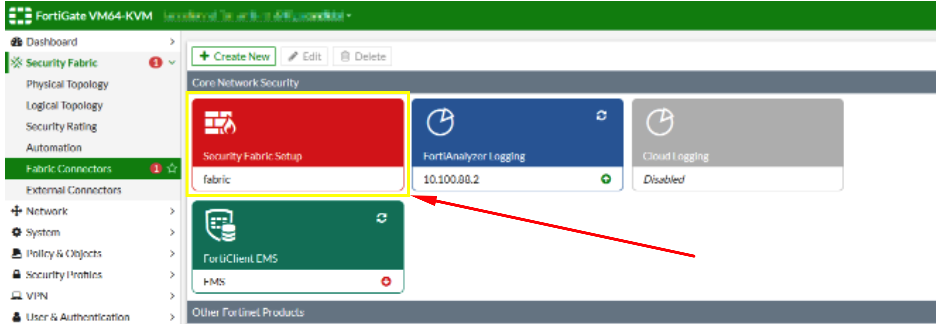
Go to Security Fabric > Fabric Connectors and double-click the Security Fabric Setup card.
|
| Column |
|---|
|
| Panel |
|---|
| borderColor | #9EBEE5 |
|---|
| bgColor | #f0f0f0 |
|---|
| borderWidth | 1px |
|---|
| 
|
|
|
...
| Section |
|---|
|
| Column |
|---|
In the Topology tree, hover over a FortiGate and click Configure.Fabric Connector Edit screen go down to where it says SAML Single Sign-On and click Advance Options
|
| Column |
|---|
|
| Panel |
|---|
| borderColor | #9EBEE5 |
|---|
| bgColor | #f0f0f0 |
|---|
| borderWidth | 1px |
|---|
|  Image Removed Image Removed
|
|
|
...
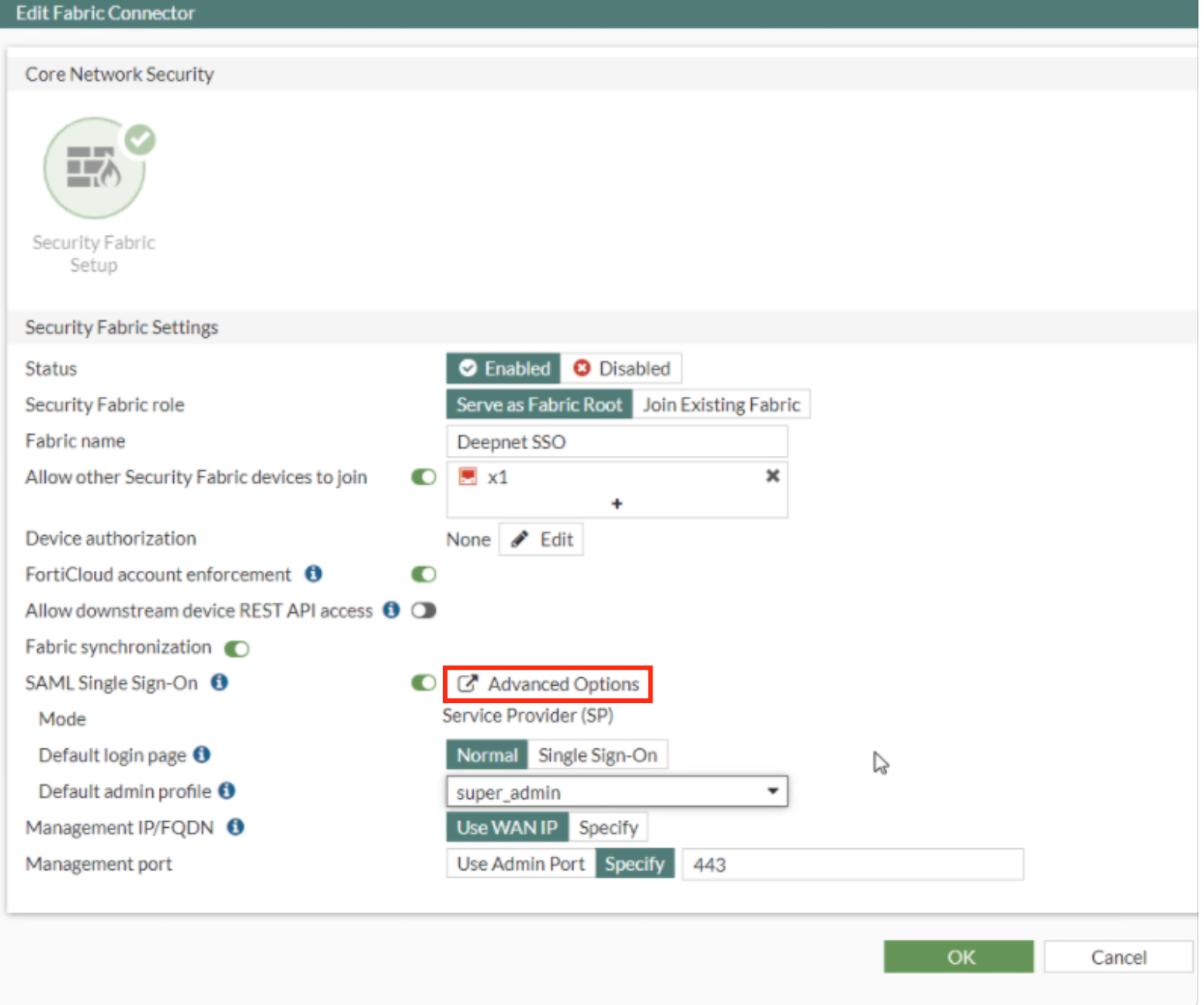 Image Added Image Added
|
|
|
| Section |
|---|
|
| Column |
|---|
In order to do this, you need to convert the 'crt' file that was downloaded in the previous section to a 'cer' file. To begin, Open the crt file and install the Certificate to your personal folder in Certificate manager | | Column |
|---|
| | Panel |
|---|
| borderColor | #9EBEE5 |
|---|
| bgColor | #f0f0f0 |
|---|
| borderWidth | 1px |
|---|
|  Image Removed Image Removed  Image Removed Image Removed
|
|
| Section |
|---|
|
the SAML SSO Window Specify the SP address. This is essentially the URL or the IP address of the Fortinet UI you wish to log onto.
Expand SP details | | Column |
|---|
Once installed the Certificate needs to be exported Export it as a Base-64 encoded X.509 (.CER) |
| Column |
|---|
|
| Panel |
|---|
| borderColor | #9EBEE5 |
|---|
| bgColor | #f0f0f0 |
|---|
| borderWidth | 1px |
|---|
|  Image Removed Image Removed  Image Removed Image Removed
|
|
|
You will also need to download the IdP Certificate
| Section |
|---|
|
| Column |
|---|
Upload the exported CER file. |
| Column |
|---|
| | Panel |
|---|
| borderColor | #9EBEE5 |
|---|
| bgColor | #f0f0f0 |
|---|
| borderWidth | 1px |
|---|
|  Image Removed Image Removed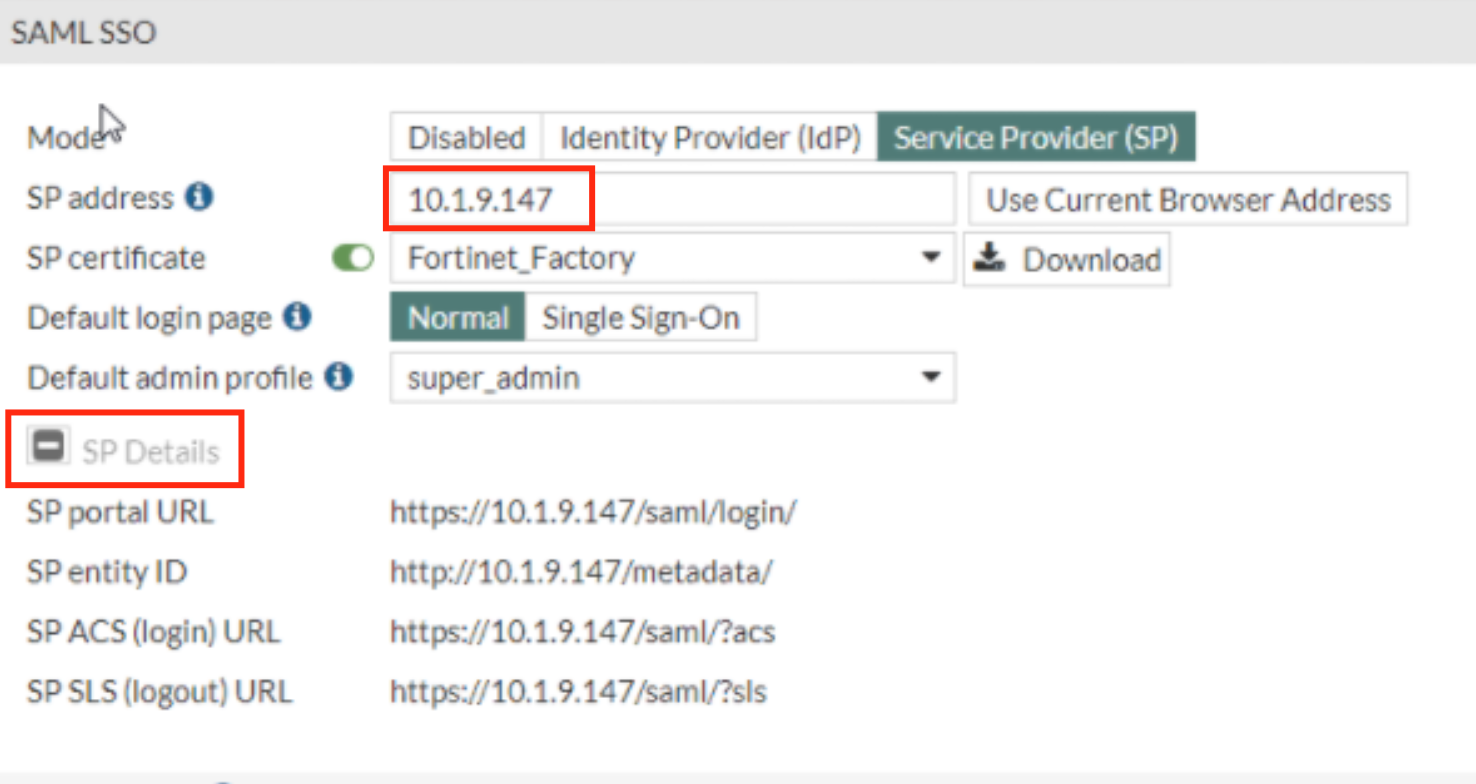 Image Added Image Added
|
|
|