There are 3 ways to get the QR code of a MobileID token
| Expand |
|---|
| title | Get QR Code from the Admin Console |
|---|
|
| Include Page |
|---|
| Get QR code from the Admin Console |
|---|
| Get QR code from the Admin Console |
|---|
|
|
| Expand |
|---|
| title | Get QR Code from the Service Console |
|---|
|
| Include Page |
|---|
| Get QR code from the Service Console |
|---|
| Get QR code from the Service Console |
|---|
|
|
| Expand |
|---|
| title | Get QR Code from email |
|---|
|
| Include Page |
|---|
| Get QR code from email |
|---|
| Get QR code from email |
|---|
|
|
Now, open the MobileID app on your smartphone
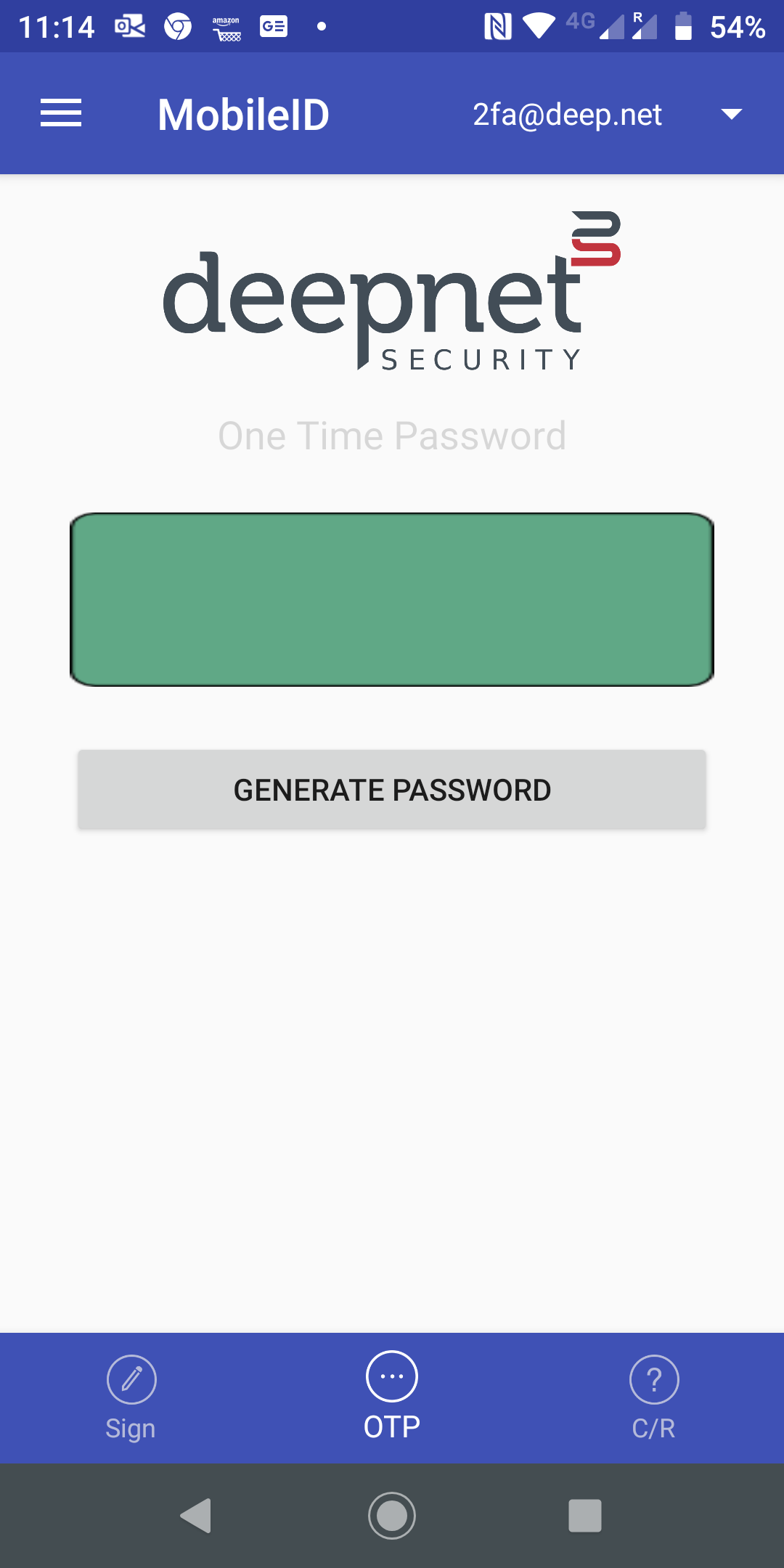 Image Added
click the menu icon on the top-left corner
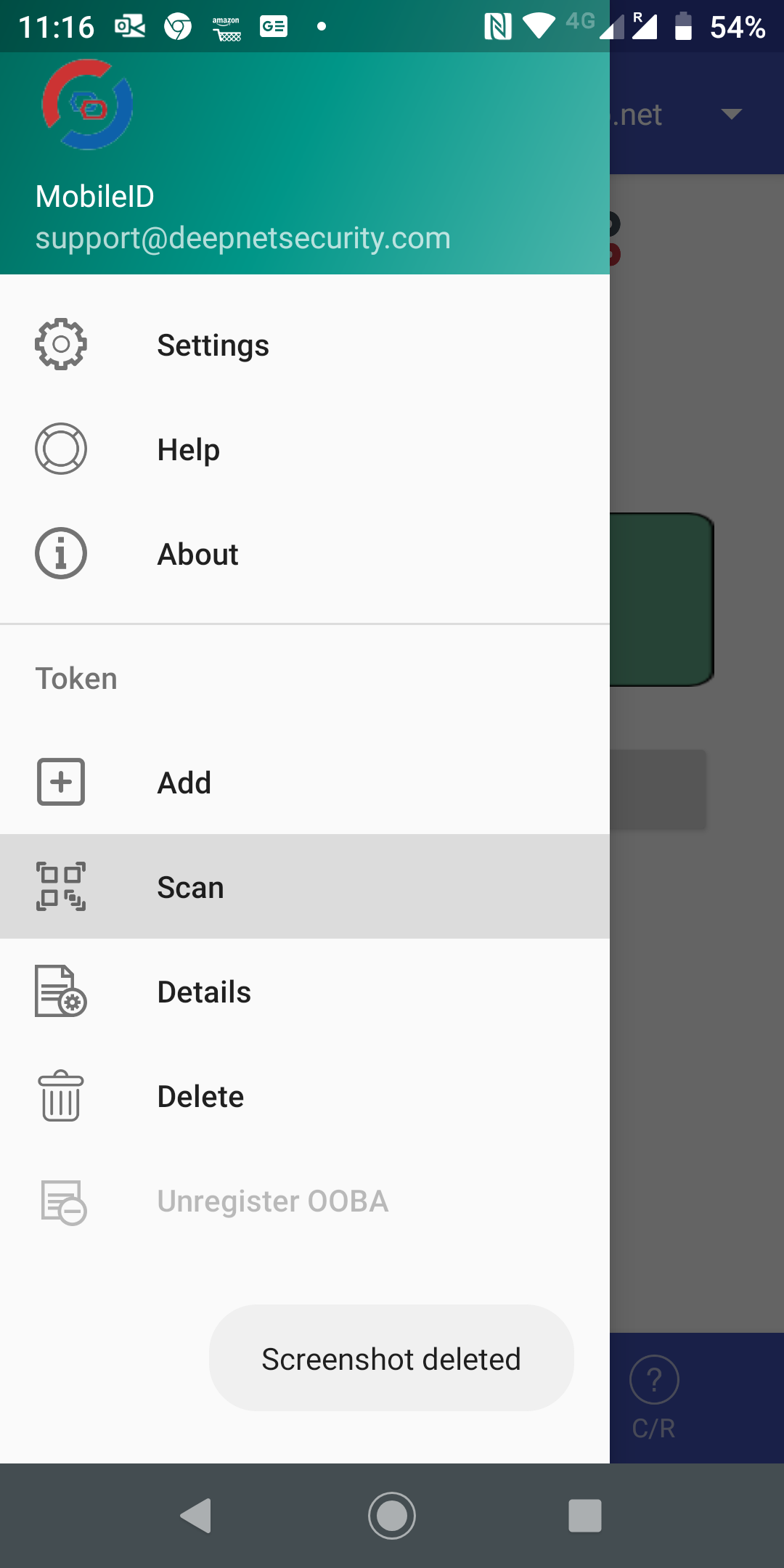 Image Added
select Scan to start the QR code
First, locate the MobileID token in the user's account
...
 Image Removed
Now, click the token's context menu icon "..." to bring up its context menu:
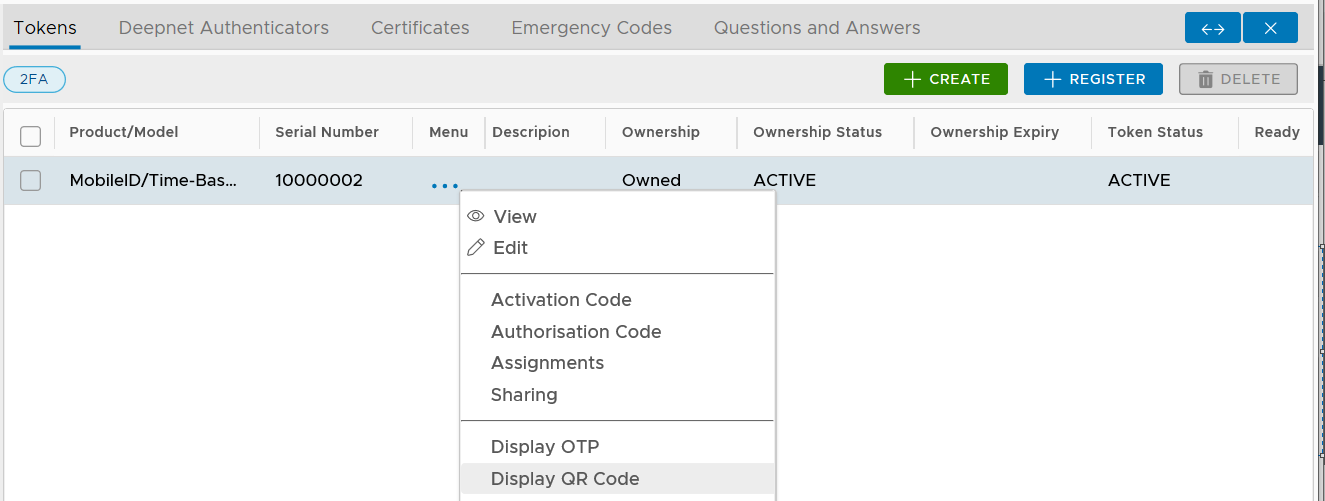 Image Removed
Select "Display QR Code"
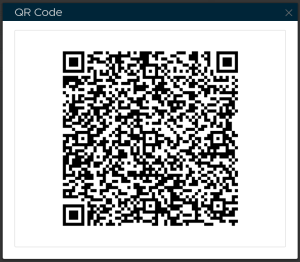 Image Removed