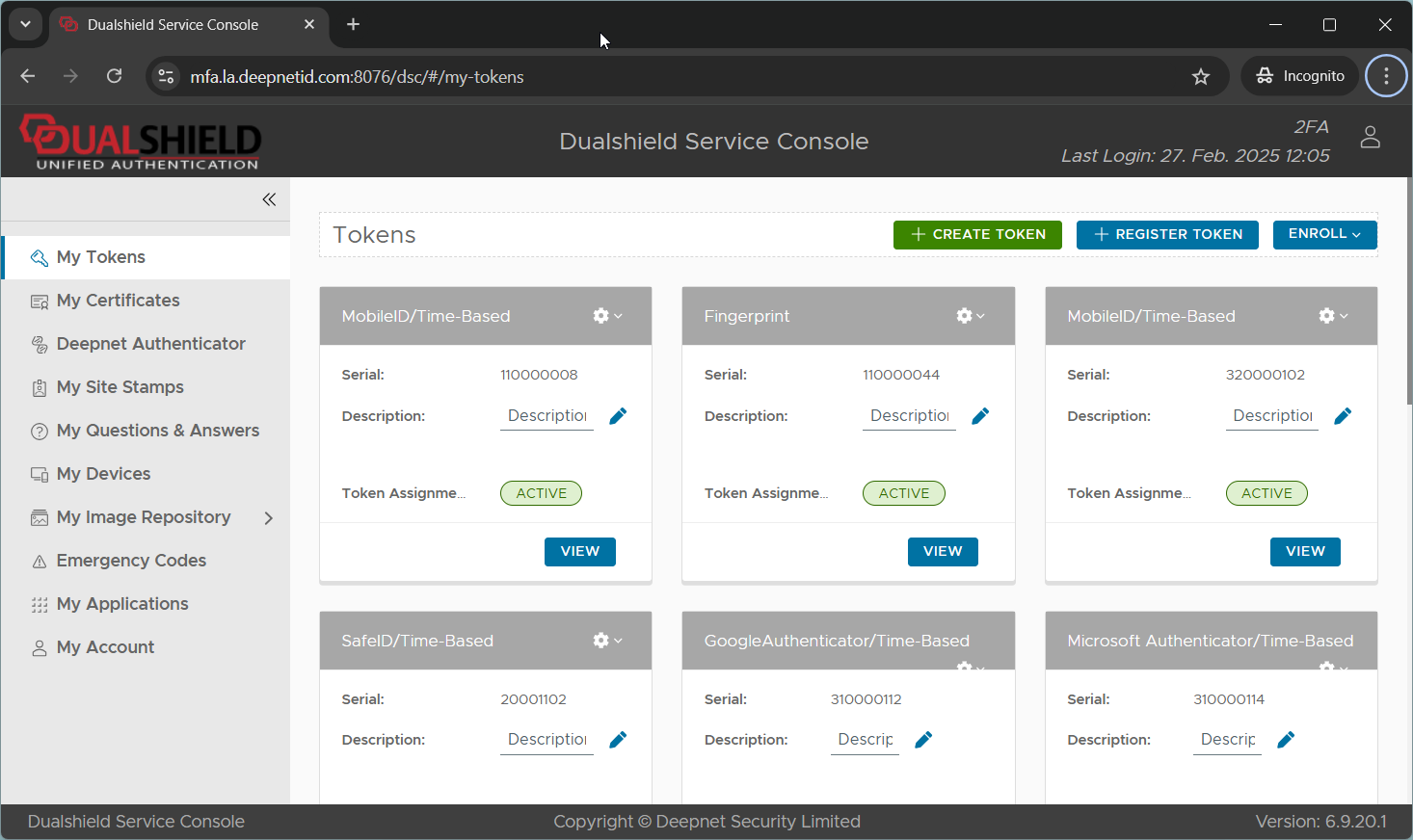
...
In this demo, we have set up a 2-step logon procedure. You can set up a logon procedure with 1 step only, if you like.
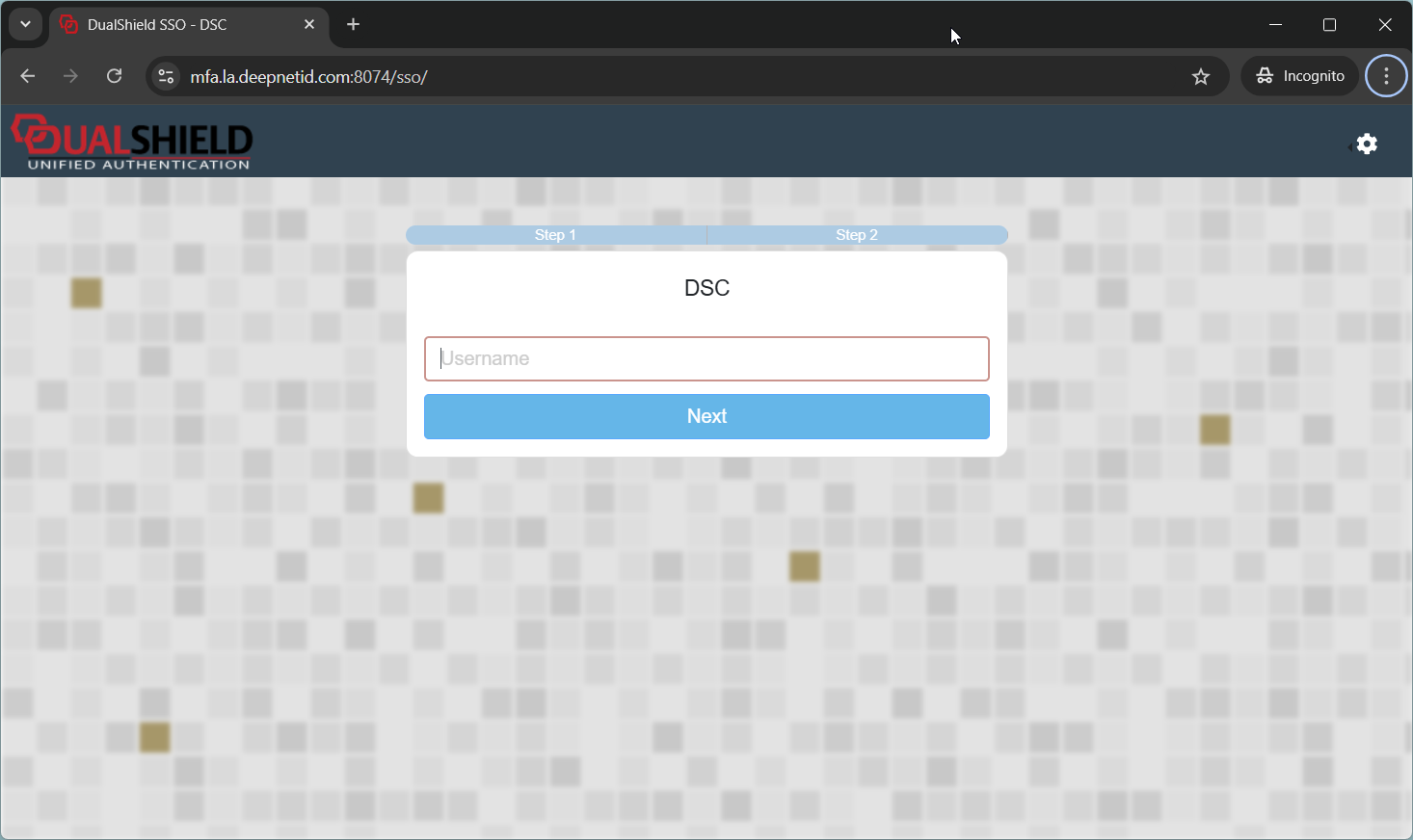
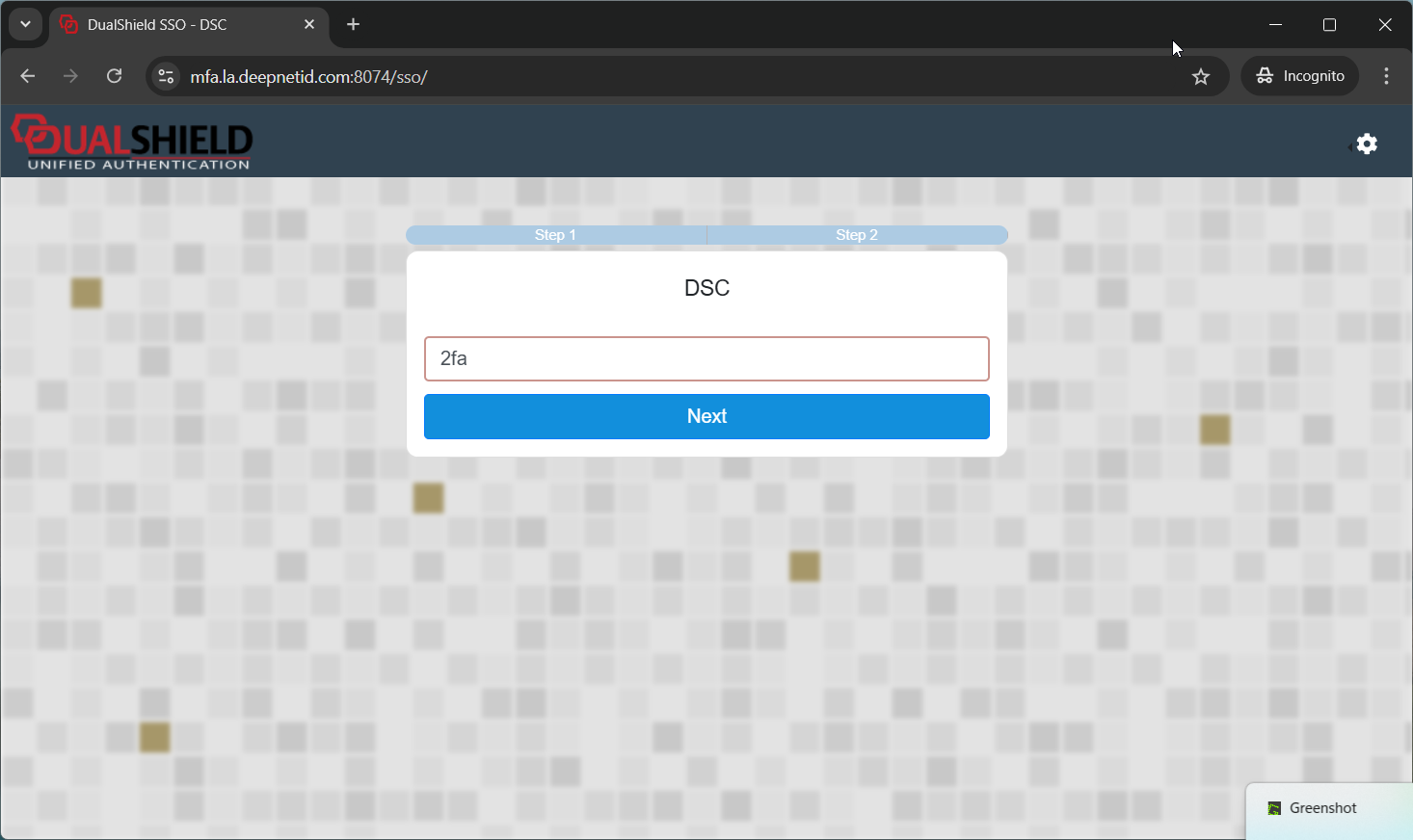
Enter the username, e.g. "2fa"
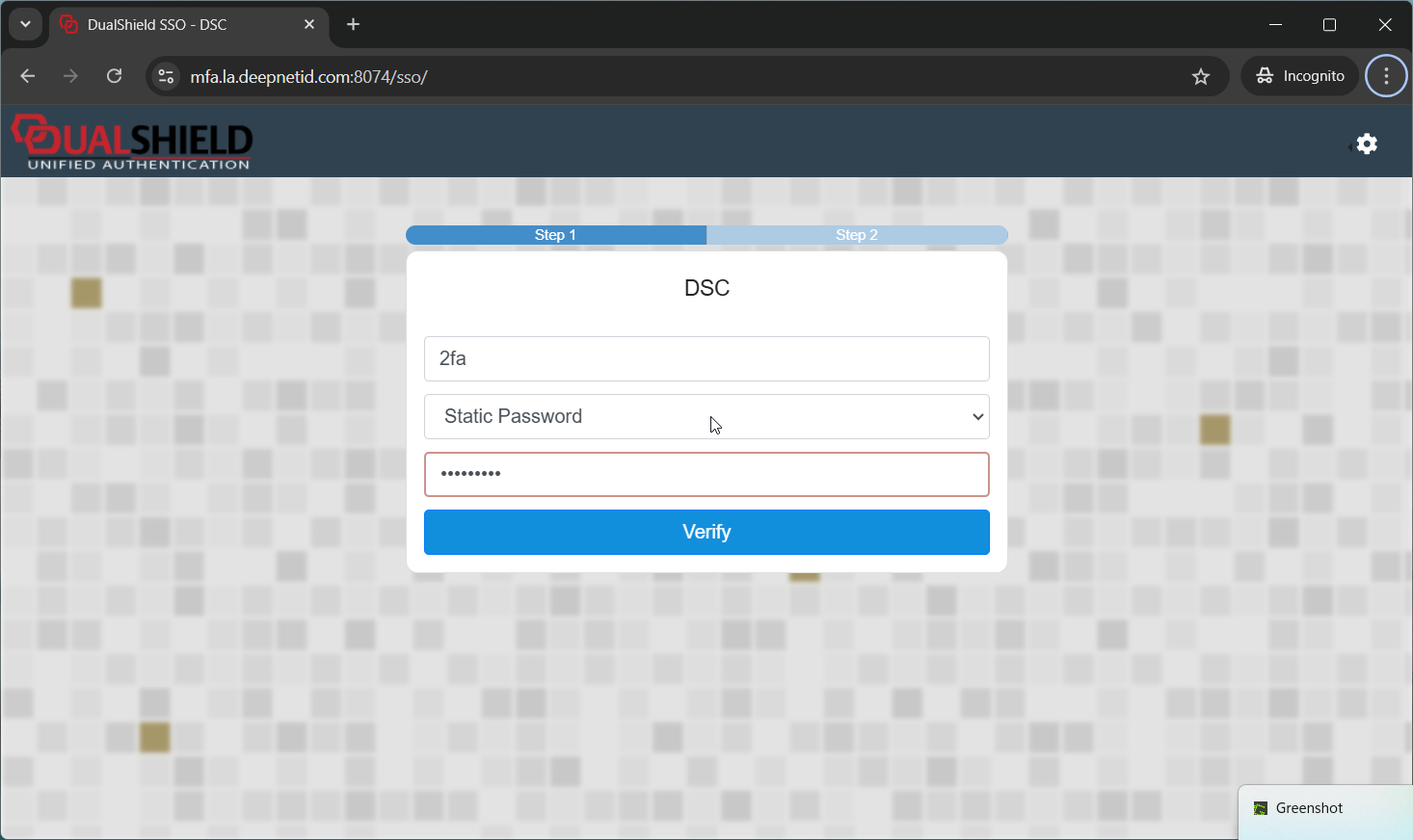
The first step is password verification.
The second step is FIDO2, aka, Passkey verification
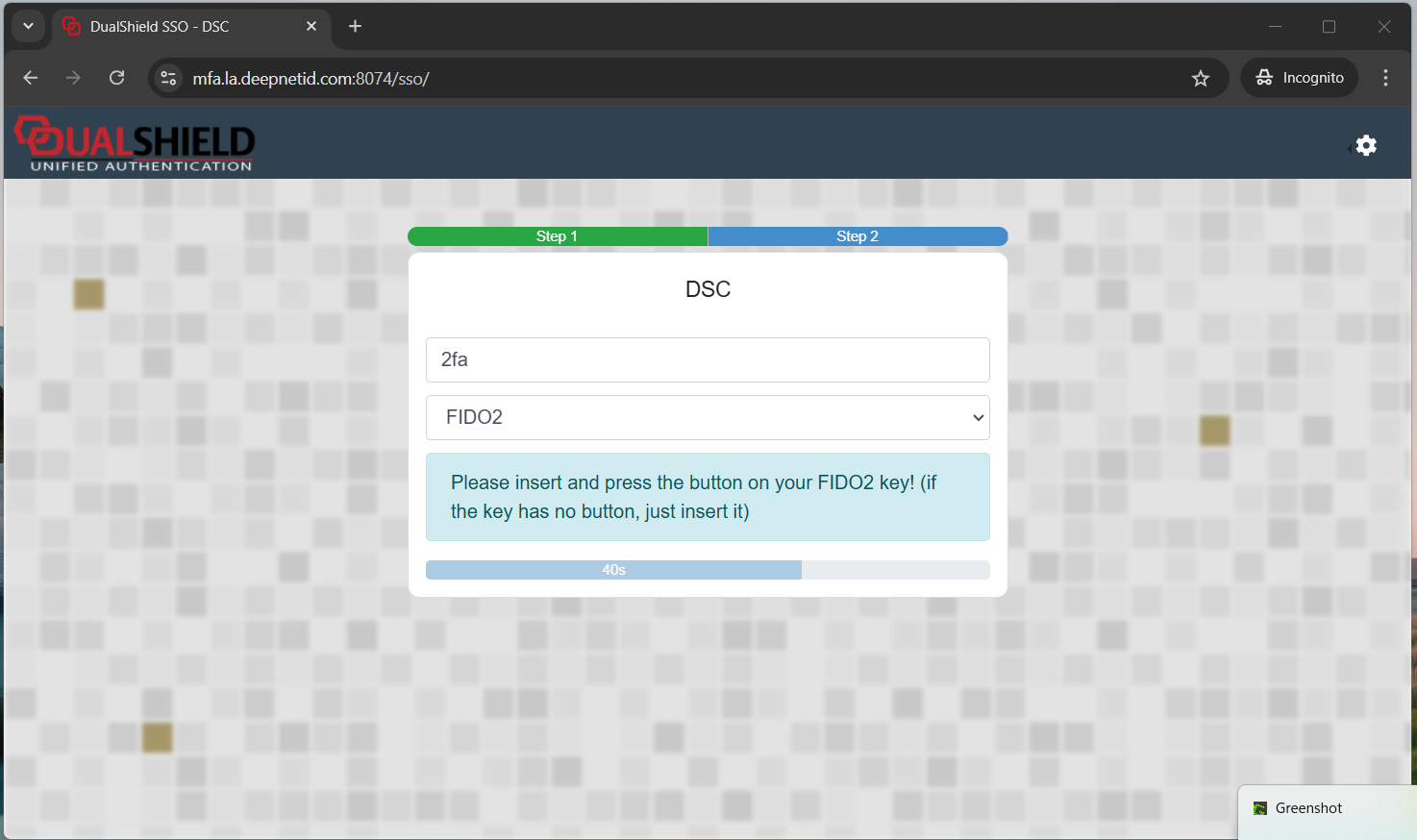
You will get the prompt below
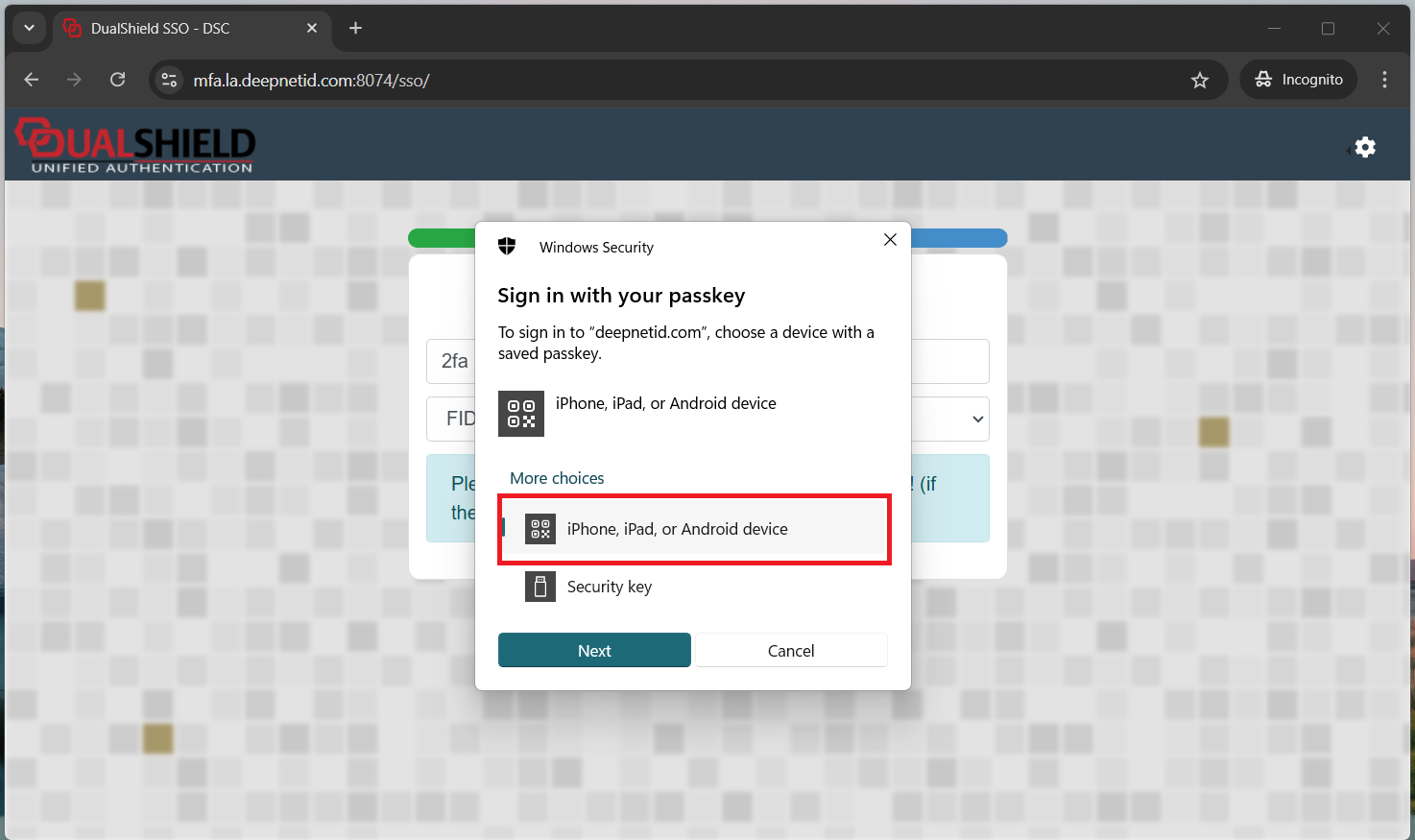
Select "iPhone, iPad, or Android device", then click "Next"
You will get a QR code displayed on the screen:
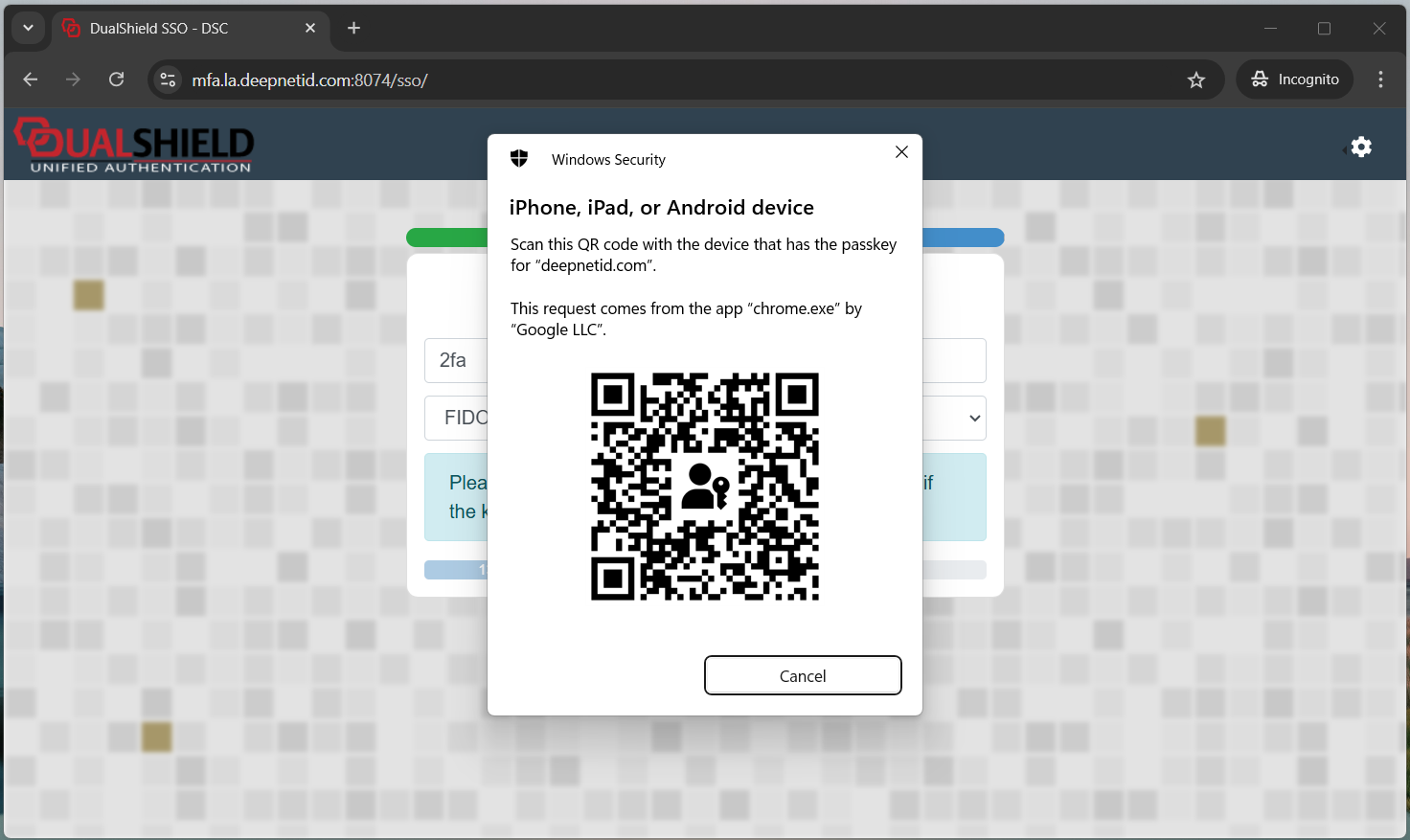
Use your phone to scan the QR code
If your phone is close to your PC, and both devices have the Bluetooth LE enabled, then they will be automatically connected
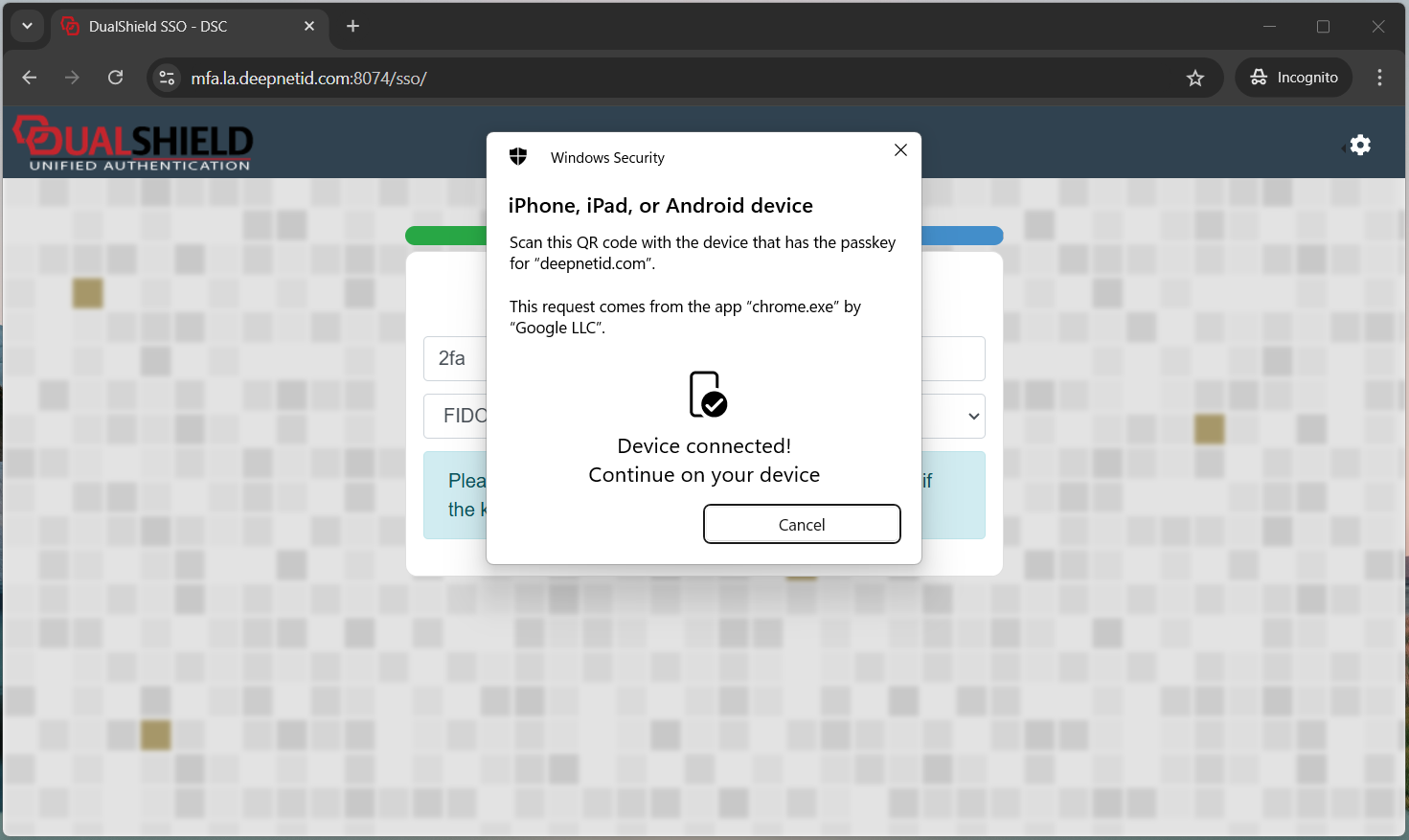
Now, on your phone, the Passkey verification window will pop up
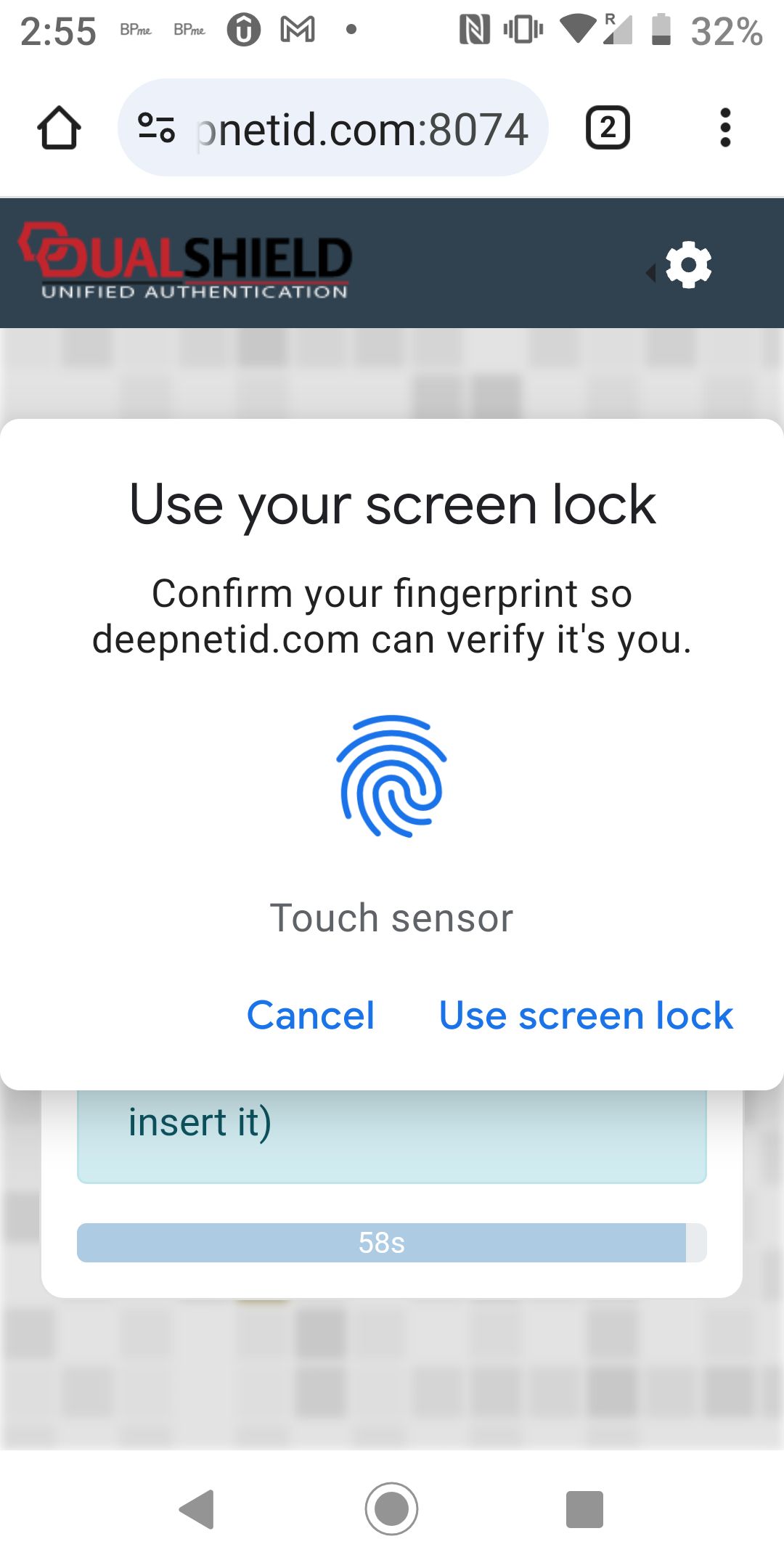
Place your finger on the phone's fingerprint reader
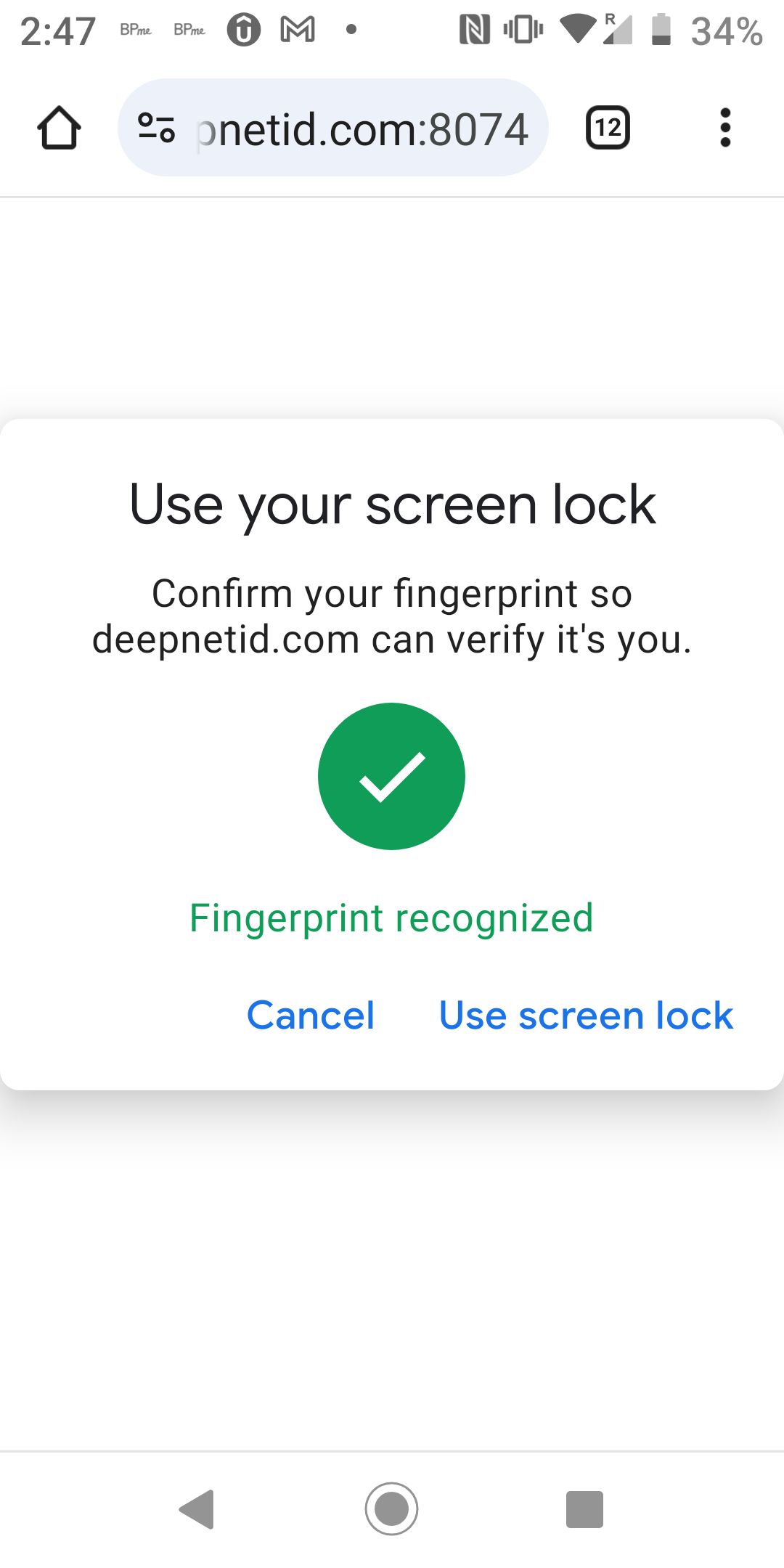
You are successfully logged in