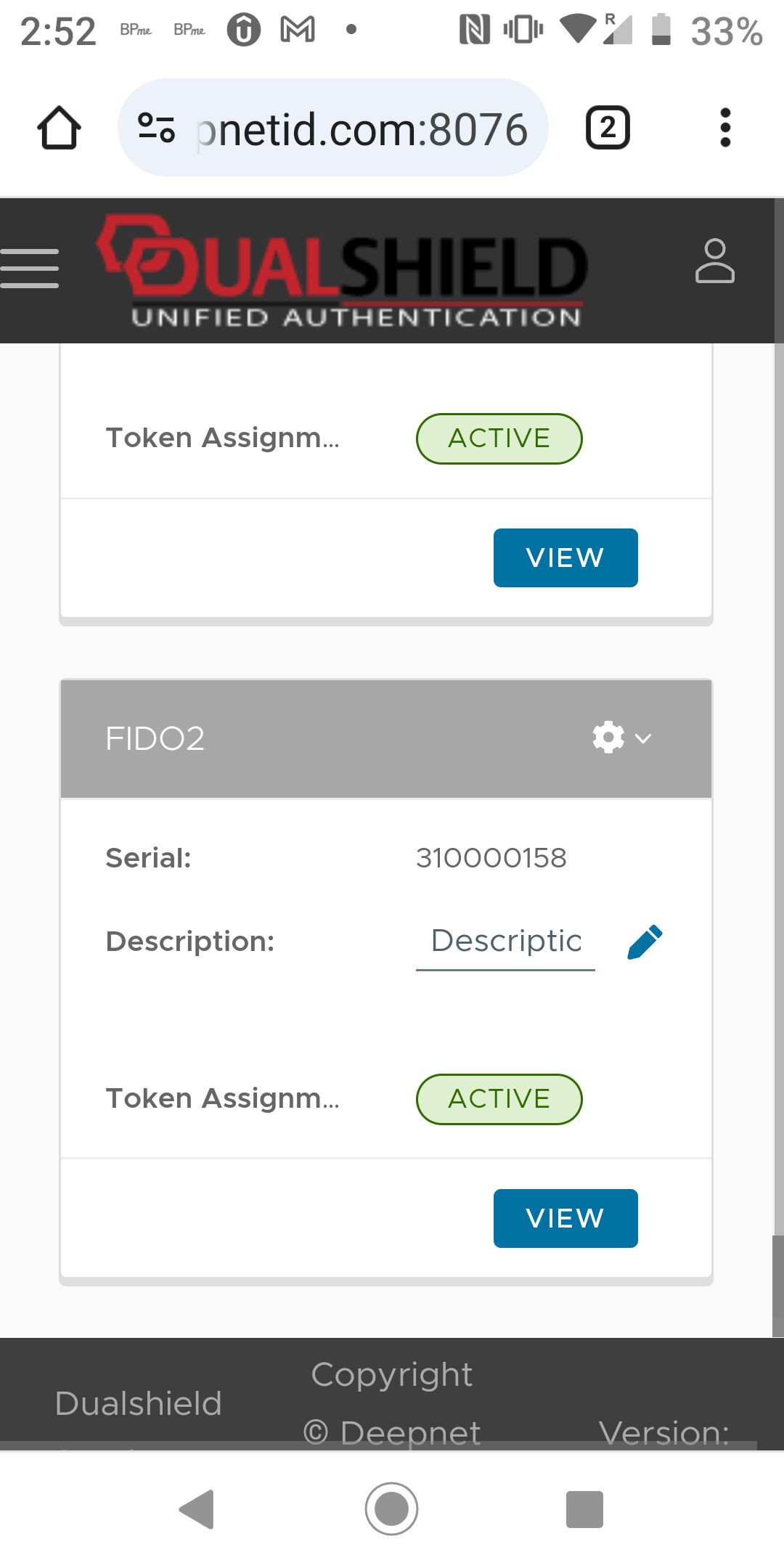
To enroll a mobile phone passkey into your account in a DualShield MFA server, simply launch the web browser on the mobile phone and visit the web application that is secured by DualShield MFA.
Please note the following:
1 - In this guide, we are using the DualShield Service Console (DSC) as an example. The process described in this guide applies to any web application secure by DualShield MFA.
2 - We have set up 2 steps in the DSC's logon procedure
- Step 1: Static Password
- Step 2: FIDO2
You do not have to set up 2 steps in your application. For instance, you can have only one step and the authenticator used in the step is FIDO2.
3 - In this example, we use a test user account called "2fa"
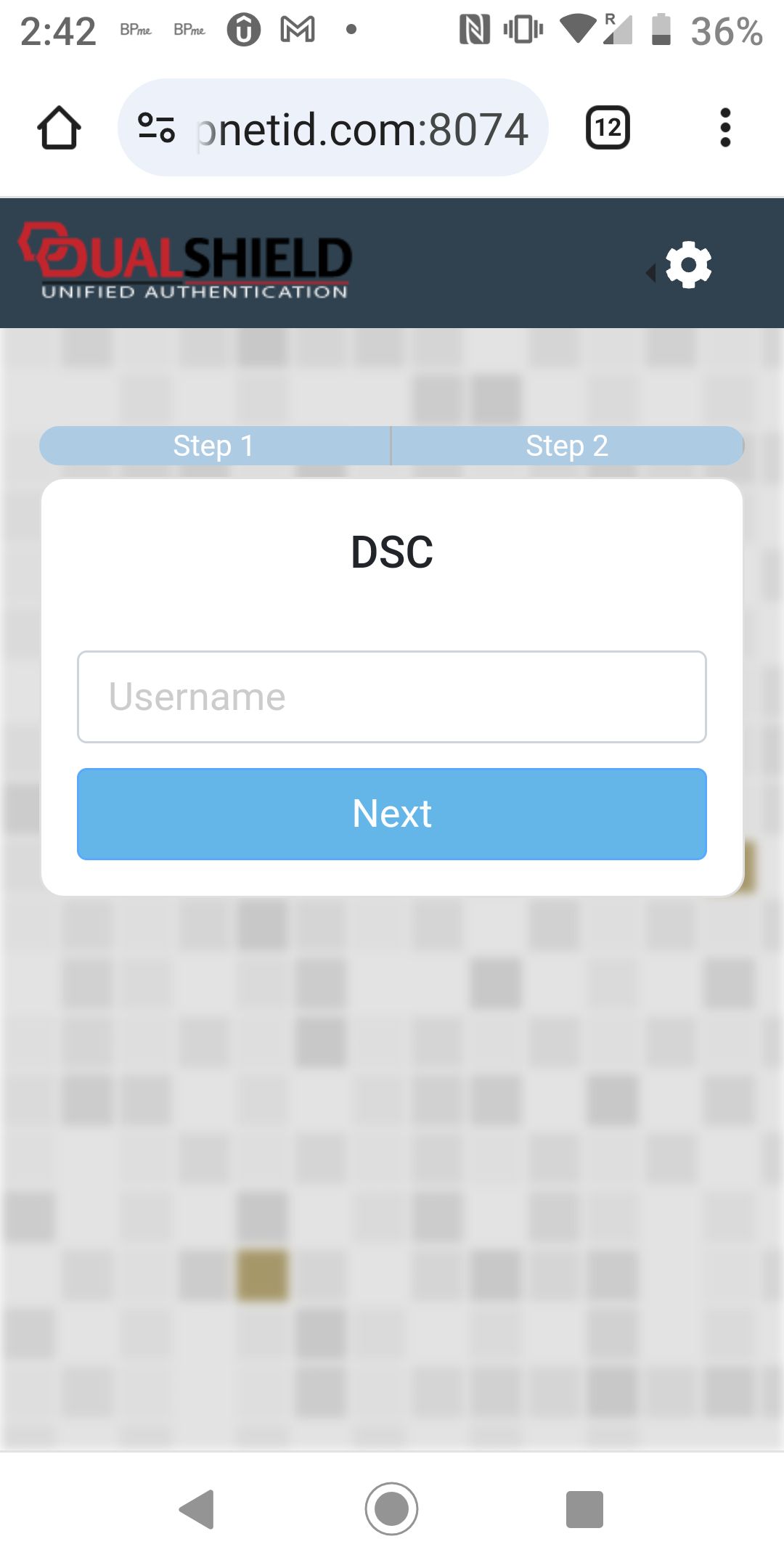
Enter the username, i.e. "2fa"
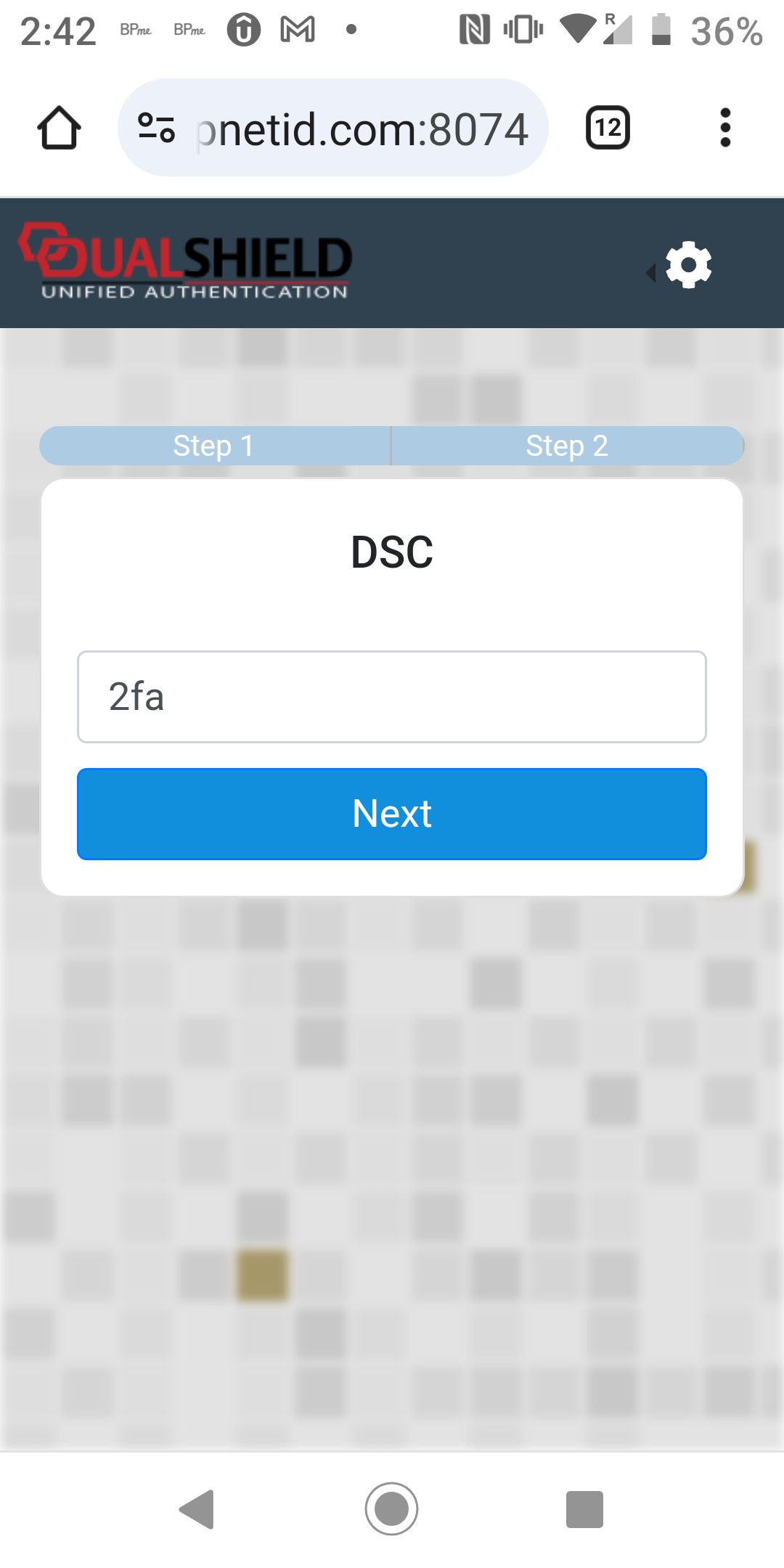
Click Next to continue
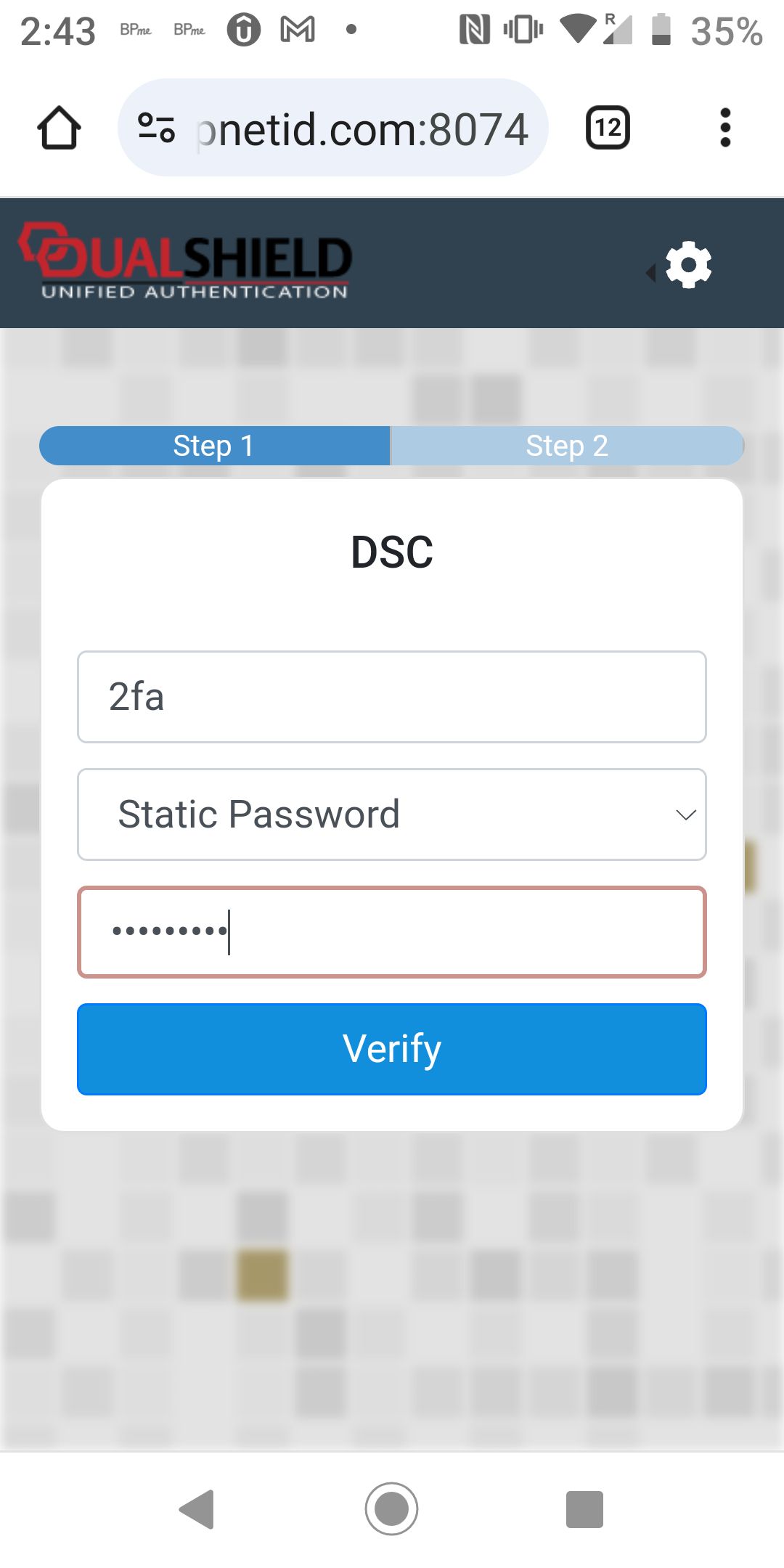
The first step is Static Password verification. Entere the user's password
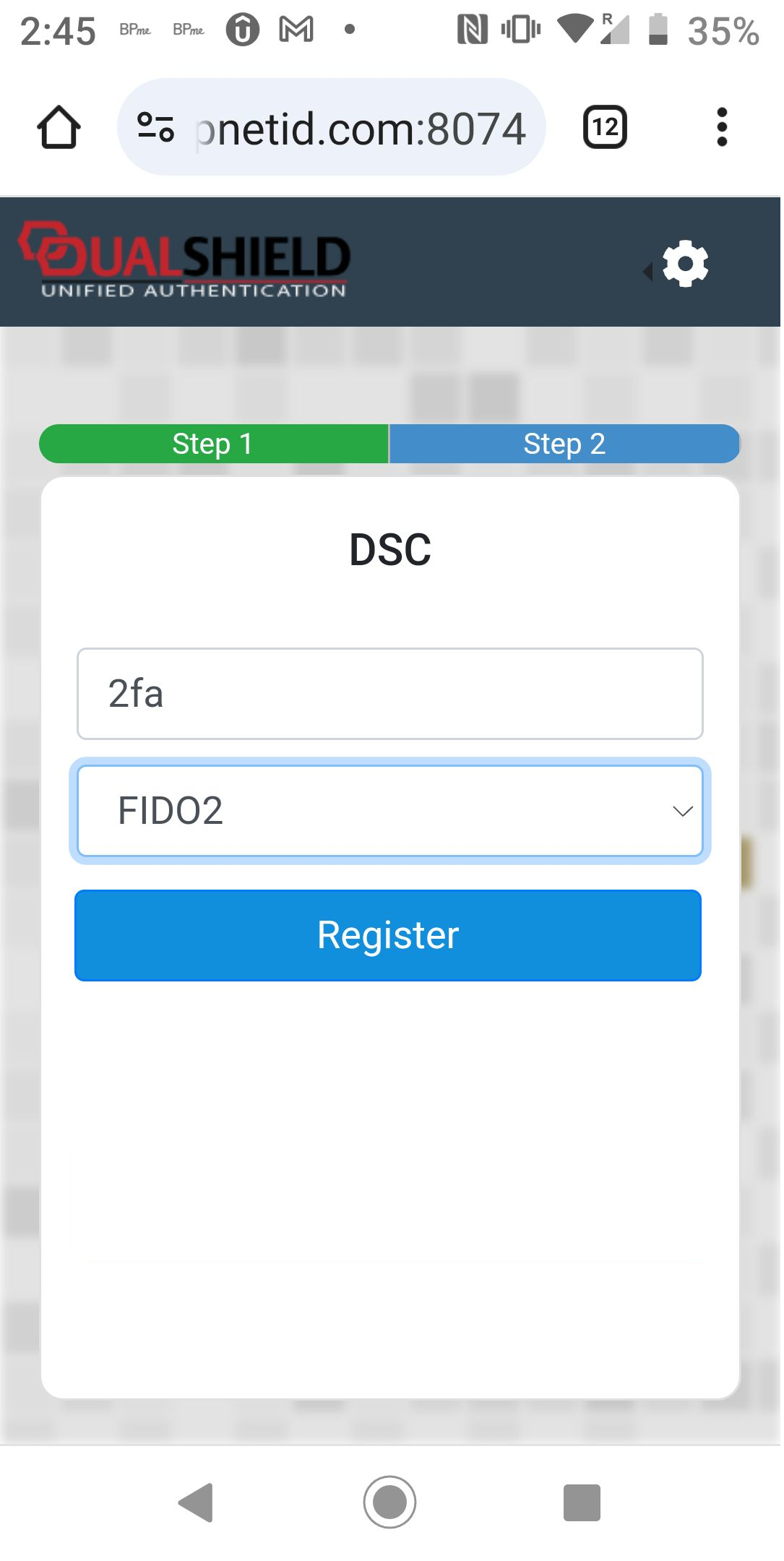
The second step is FIDO2 verification.
Click the "Register" button to register your phone
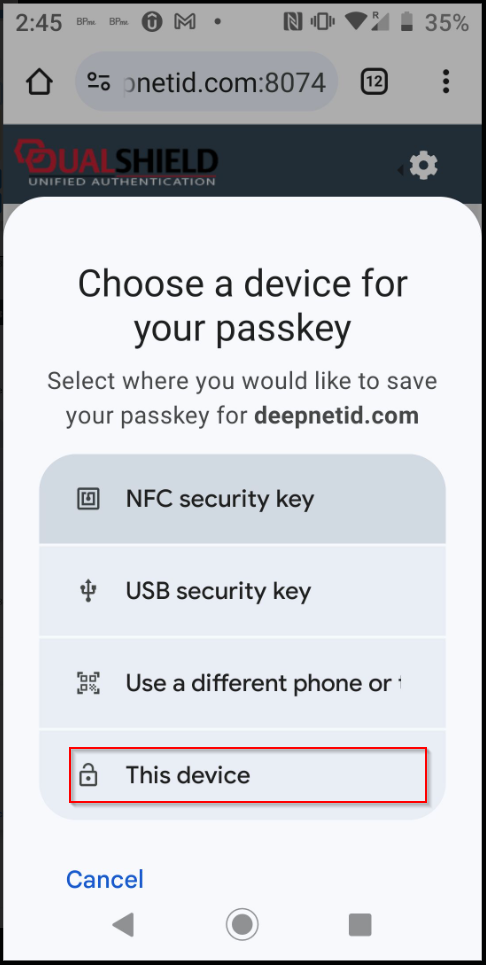
Select "This device"
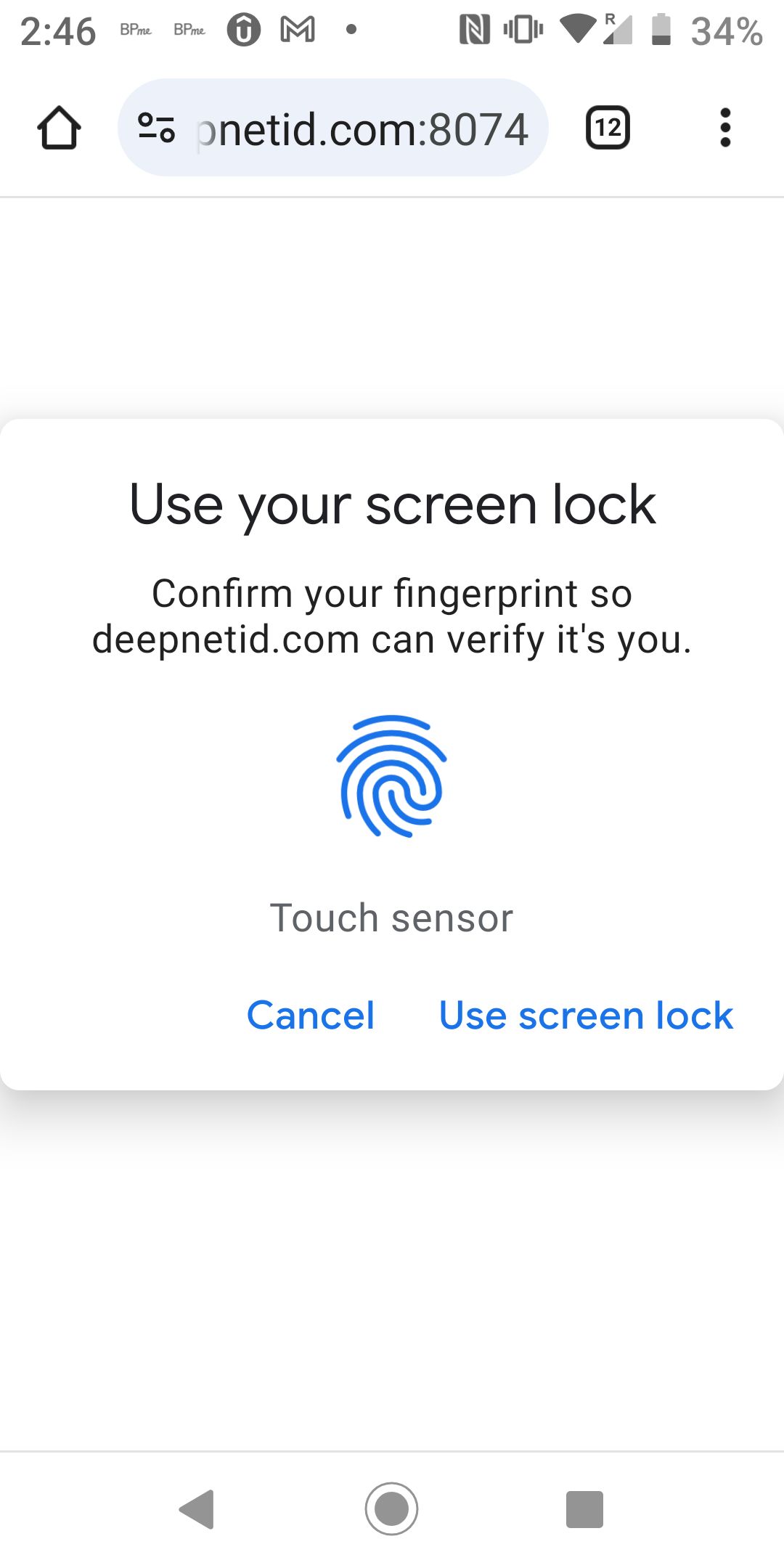
Touch the fingerprint reader on the phone
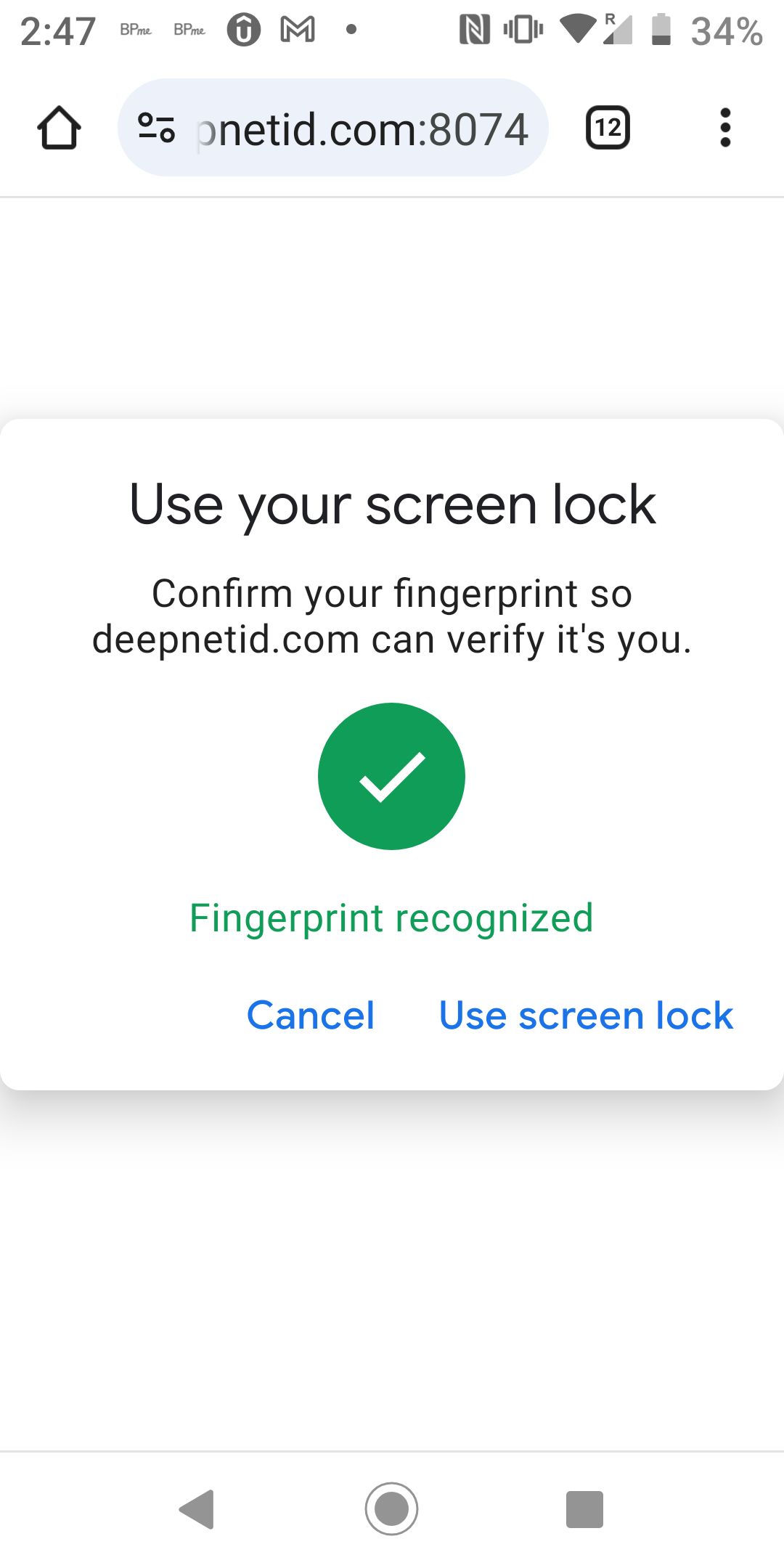
Your phone has been successfully registered as FIDO2 token in your account