...
Expand title Scan QR Code Before you scan the QR code please ensure that the clock on your computer is displaying the correct date and time.
You can scan the screen for a QR code, or load from a file.
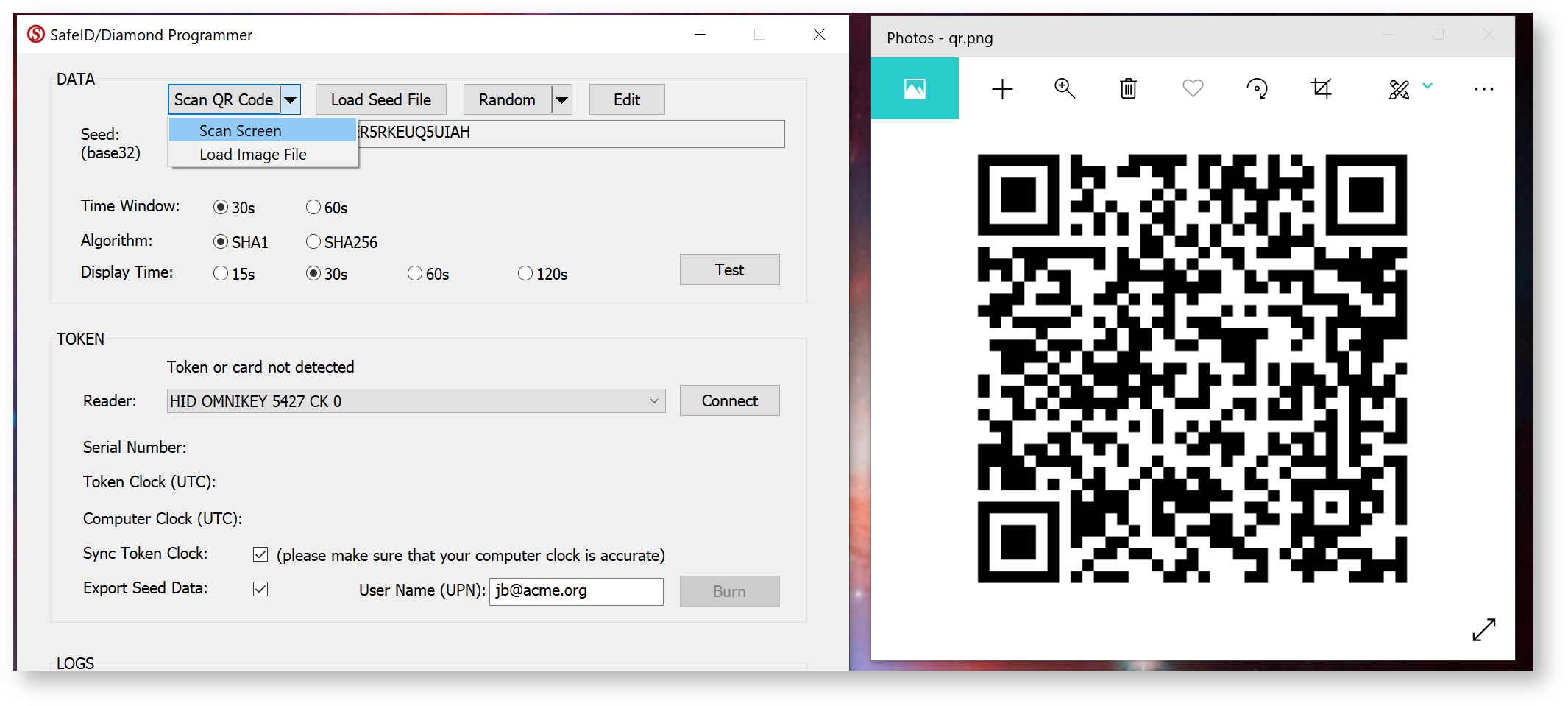
If you are scanning the barcode on the screen please ensure that the QR code is not obscured by other windows, and if you have more than one monitor please ensure that both the app and the QR code are displayed on the main display (display 1).
If you still have difficulty in scanning the QR code double check you only have the one instance of the app running, and that it is the latest version of the app. In most cases when there are issues with scanning of the QR code the most likely cause is the QR code contains the wrong data and may need to be regenerated. To test the QR code you could check that the code works correctly with the authenticator app it is intended for (e.g microsoft authenticator), and if this fails then you know that the QR code will need to be regenerated.
Another possibility is the QR code itself is of the wrong type. If you have tried all of the above methods to scan the barcode but still cannot extract the seed data then the follow guide may help you perform the task manually;
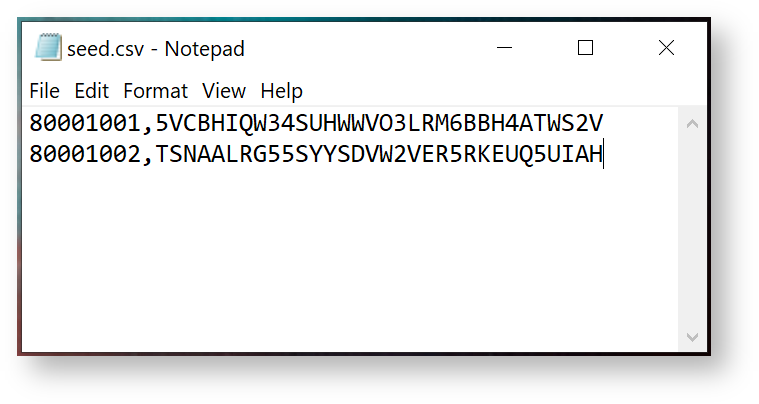
Expand title Load Seed File You can also load seed data directly from a file. The seed file must be in CSV format, containing 2 columns of data, i.e. Serial Number and Based32 encoded Secret Key.
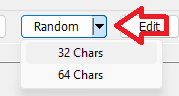
Expand title Randomly generated seeds You can generate randomised 32 and 64 character seeds by using the dropdown "Random" feature;
After selecting this option you will hear a beep, then a randomly generated base32 seed details be entered into the seed field;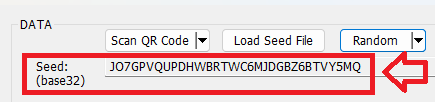
Expand title Manually copied Seed data may also by manually entered by clicking on the
 button.
(Before using this button it is recommended that you initially populate this field using the
 (see previous instructions) as this ensures the
  button will be properly enabled when the reader is connected)
Next click on the
 button, and replace the random generated seed with the seed that is to be sent to the token.
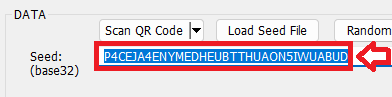
The seed data can now be manually entered (prompted seed (base32) on the windows app, and seed (hex) on the mobile apps)
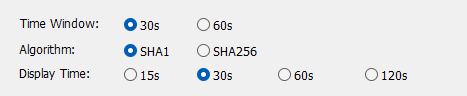
f the programmable token needs 30 second time windows apply the following settings;
If the programmable token needs 60 second time windows apply the following settings;
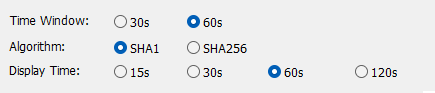
Once these settings have been made you will be ready to continue with programming the token.
...