...
Create a RADIUS logon procedure
- Login to the DualShield management console
- In the main menu, select “Authentication | Logon Procedure”
- Click the “Create” button on the toolbar
- Enter “Name” and select “RADIUS” as the Type
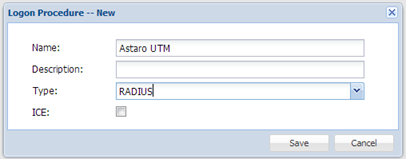

- Click “Save”
- Click the Context Menu icon of the newly create logon procedure, select “Logon Steps”

7. In the popup windows, click the
“Create”“Add” button on the toolbar

8. Select the desired authentication method, e.g. “Static Password + One-Time Password”

9. Click “Save”

Create a RADIUS application
- In the main menu, select “Authentication | Applications”
- Click the “Create” button on the toolbar
- Enter “Name”
- Select “Realm”
- Select the logon procedure that was just created
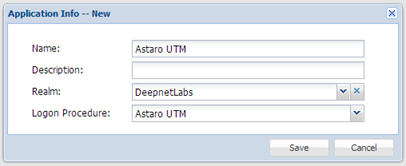

- Click “Save”
- Click the context menu of the newly created application, select “Agent”

8. Select the DualShield Radius server, e.g. ”Local Radius Server”

9. Click “Save”
10. Click the context menu of the newly created application, select “Self Test”
Register the
Astaro Security Gateway UTMSophos XG Firewall as a Radius client
- In the main menu, select “RADIUS | Clients”
- Click the “Register” “Create” button on the toolbar
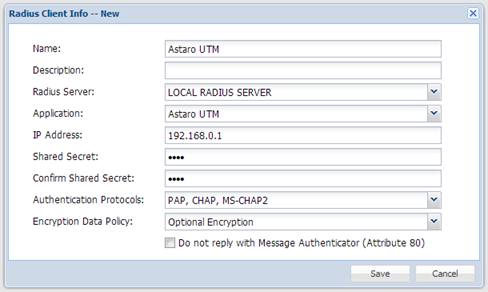
- Select the application that was created in the previous steps
- Enter Astaro Security Gateway UTM’s IP in the IP address
- Enter the Shared Secret which will be used in Astaro Security Gateway UTM.
- Complete as per the example screenshot below, selecting your DualShield Radius server and the Application you created in the previous step.

4. To add the IP address of your Sophos XG Firewall click on the cog wheel button to the right

5. Enter the IP address details, click "Add' then "Save".
6. Ensure the Shared Secret that you entered matches the one specified on the Sophos XG Firewall configuration
7. Click “Save”