...
| Section |
|---|
|
| Column |
|---|
Select the drop down menu corresponding to the Logon Procedure you will be using and click on Logon Steps. |
| Column |
|---|
|
| Panel |
|---|
| borderColor | #9EBEE5 |
|---|
| bgColor | #f0f0f0 |
|---|
| borderWidth | 1px |
|---|
| 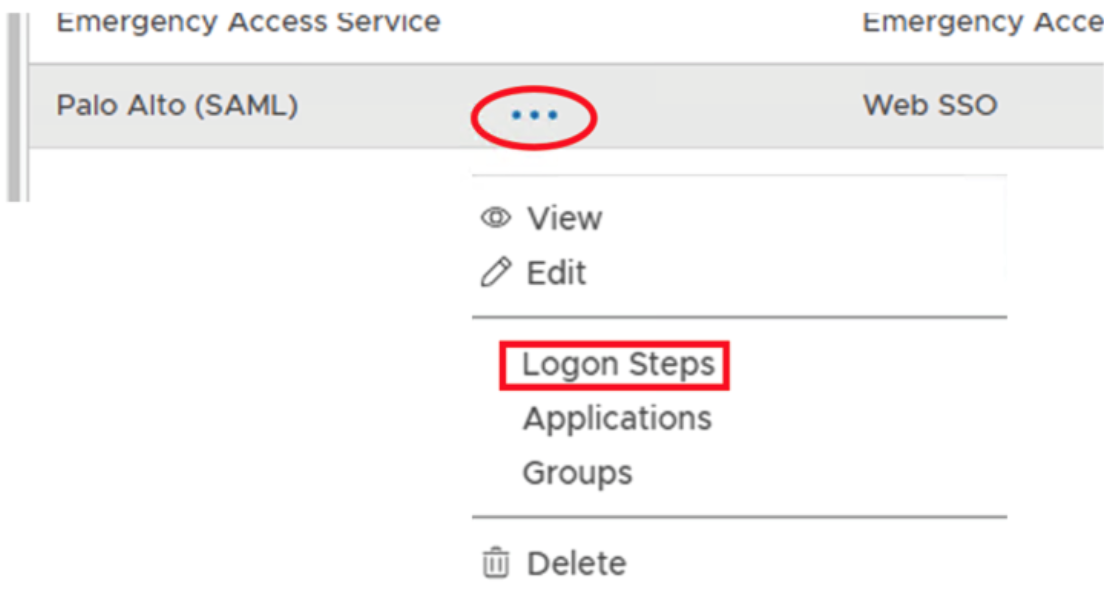 Image Removed Image Removed Image Added Image Added
|
|
|
In the Logon Steps Dialogue box, click the  button.
...
| Section |
|---|
|
| Column |
|---|
Select the drop down menu corresponding to the Application you will be using and click on Agents. |
| Column |
|---|
|
| Panel |
|---|
| borderColor | #9EBEE5 |
|---|
| bgColor | #f0f0f0 |
|---|
| borderWidth | 1px |
|---|
| 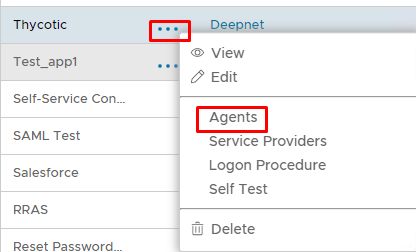 Image Removed Image Removed Image Added Image Added
|
|
|
| Section |
|---|
|
| Column |
|---|
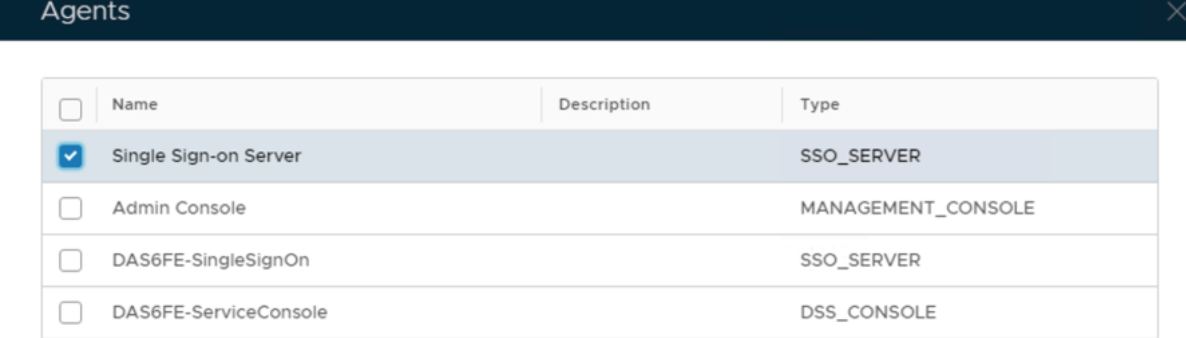
Tick the box of the SSO Server you will be using and click Save below. |
| Column |
|---|
|
| Panel |
|---|
| borderColor | #9EBEE5 |
|---|
| bgColor | #f0f0f0 |
|---|
| borderWidth | 1px |
|---|
| 
|
|
|
...