...
| Expand |
|---|
| title | Set up Offsite Windows Computer MFA Logon with Public DNS... |
|---|
|
| Include Page |
|---|
| Set up Offsite Computer MFA Logon with Public DNS |
|---|
| Set up Offsite Computer MFA Logon with Public DNS |
|---|
|
|
OtherwiseOtherwise, follow the guide below to set up offsite logon
| Expand |
|---|
| title | Set up Offsite Windows Computer MFA Logon with Public URL... |
|---|
|
| Include Page |
|---|
| Set up Offsite Computer MFA Logon with Public URL |
|---|
| Set up Offsite Computer MFA Logon with Public URL |
|---|
|
|
If you implement offsite Computer MFA logon with a public URL, then your users must make sure that they have completed an online MFA logon on their laptop computers before they take the laptop computers offsite. This is because the public URL of the logon agent has to be downloaded to the laptop computers, and download can only be carried out in an online MFA logon process.
Every time a user logs their computer into the domain network with MFA, the computer will sync with the MFA server and download the latest policies and settings including the Public URL of the logon agents. In other words, the public URL of the logon agents is automatically downloaded to the user's computer, as long as the user has carried out a successful online login on the computer.
Users can check the list of logon agents that have been set up on the computer by visiting the User Console at http://localhost:12845
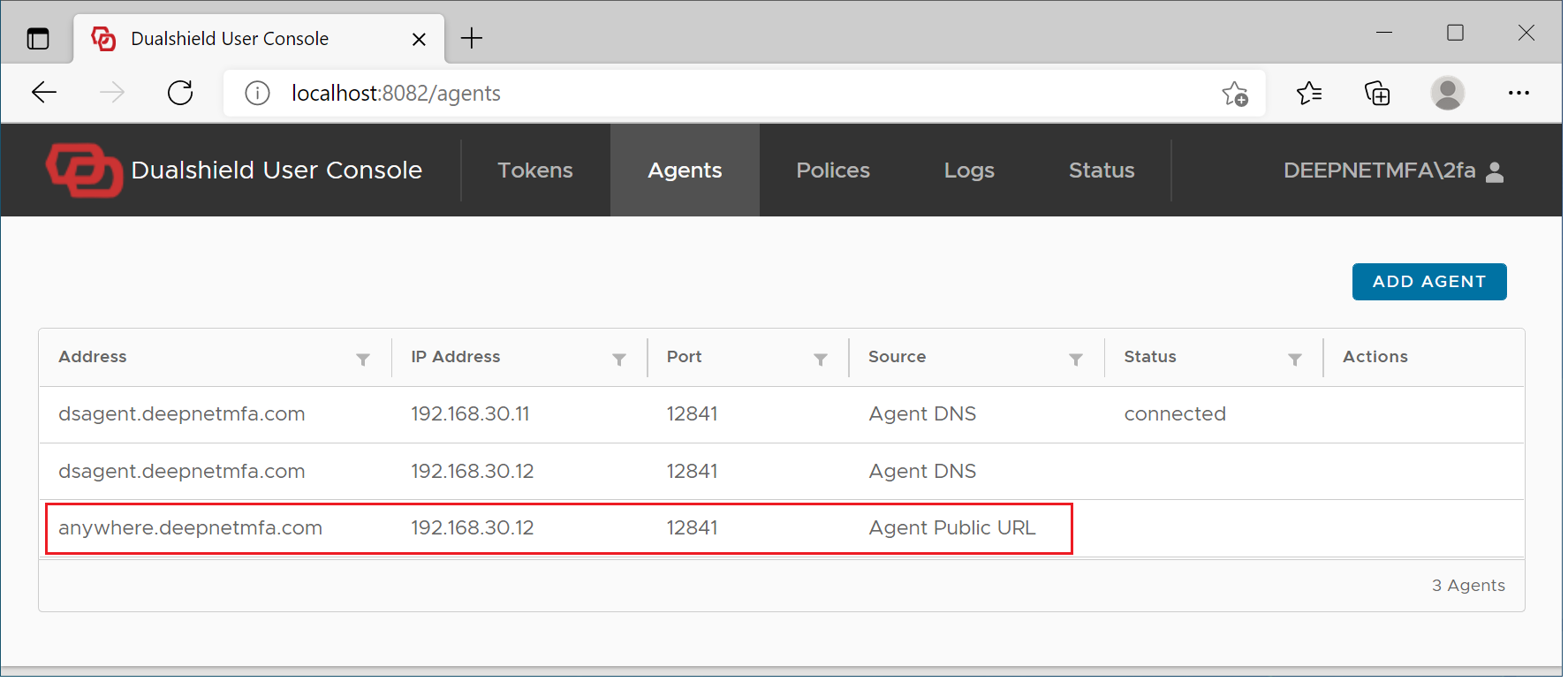 Image Added
If for some reason the public URL of the logon agents has not been downloaded to the user's computer automatically, then the user can also add manually the logon agent's public URL using the User Console.
| Expand |
|---|
| title | Set up Offsite Computer MFA Logon manually... |
|---|
|
| Include Page |
|---|
| Set up Offsite Computer MFA Logon Manually |
|---|
| Set up Offsite Computer MFA Logon Manually |
|---|
|
|