To use Registry Editor to turn on Windows automatic logon, follow these steps:
1. Run "Regedit" as administrator1. Click on Start and type Regedit, administrator privileges are required to run the Registry Editor. Alternatively use the Win+R Run dialog.
2. Navigate to the following registry key:
HKEY_LOCAL_MACHINE\SOFTWARE\Microsoft\Windows NT\CurrentVersion\Winlogon

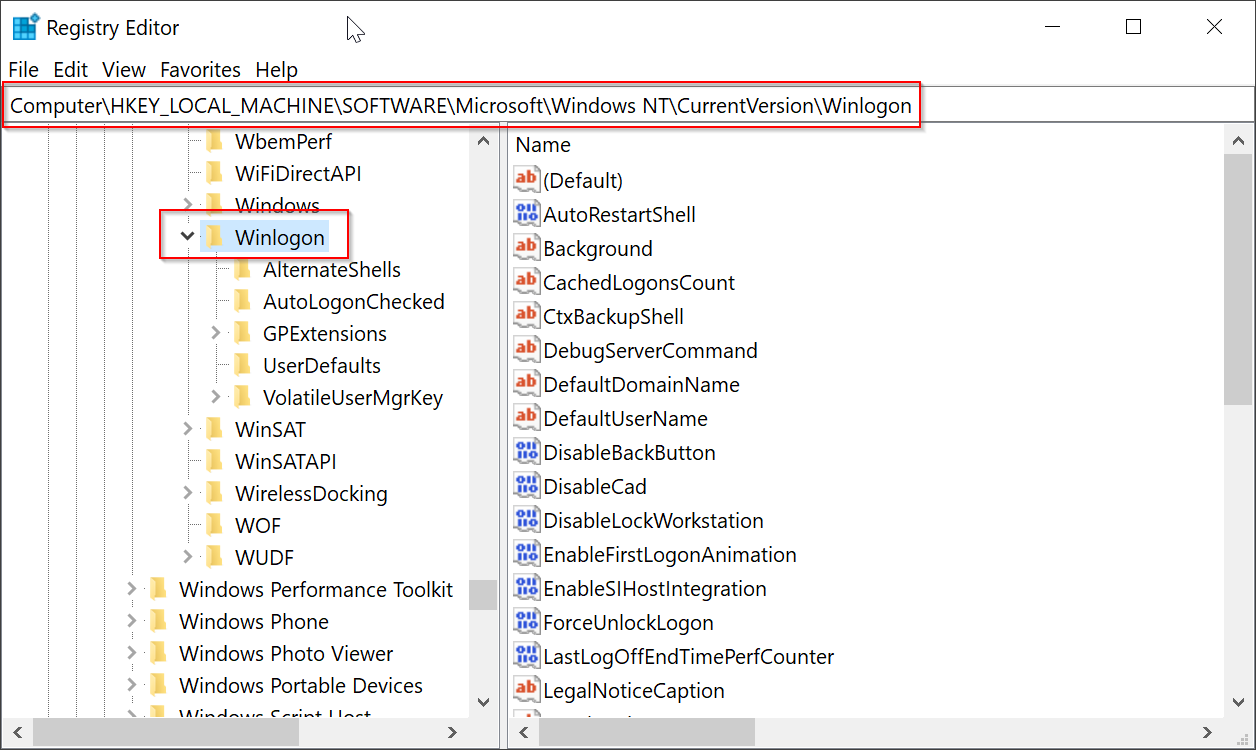
3. There are three main 4 registry values in the Winlogon key which that need editing or creating
- AutoAdminLogon
- DefaultUserName,
- DefaultPassword
- DefaultDomain
, a fourth if you want to log on via a domain. They are DefaultUserName, DefaultPassword, DefaultDomain and AutoAdminLogon. The AutoAdminLogon value will should already be present, but the others may or may not be depending on your system. If they are not there, add each one as needed.
Right click on Winlogon key > New > String Value and name it it DefaultUserName
Right click on Winlogon key > New > String Value and name it it DefaultPassword
(Optional) Right click on Winlogon key > New > String Value and name it it DefaultDomain

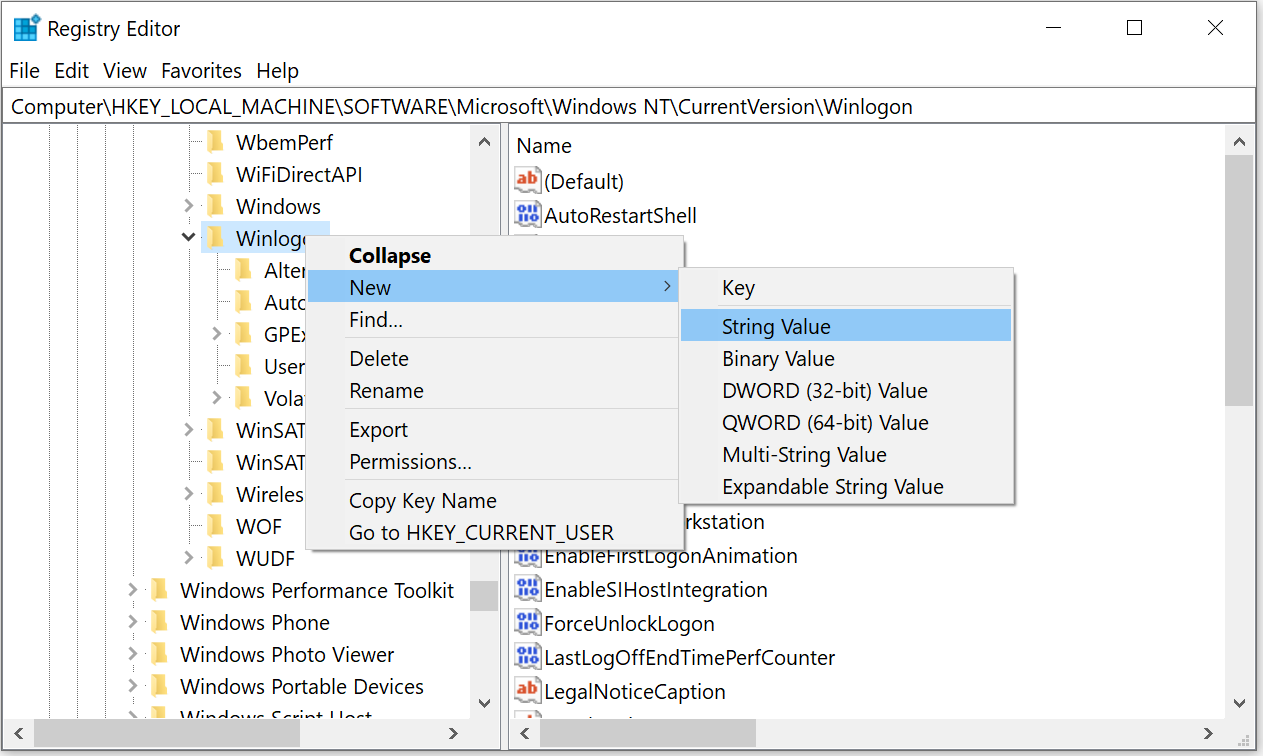
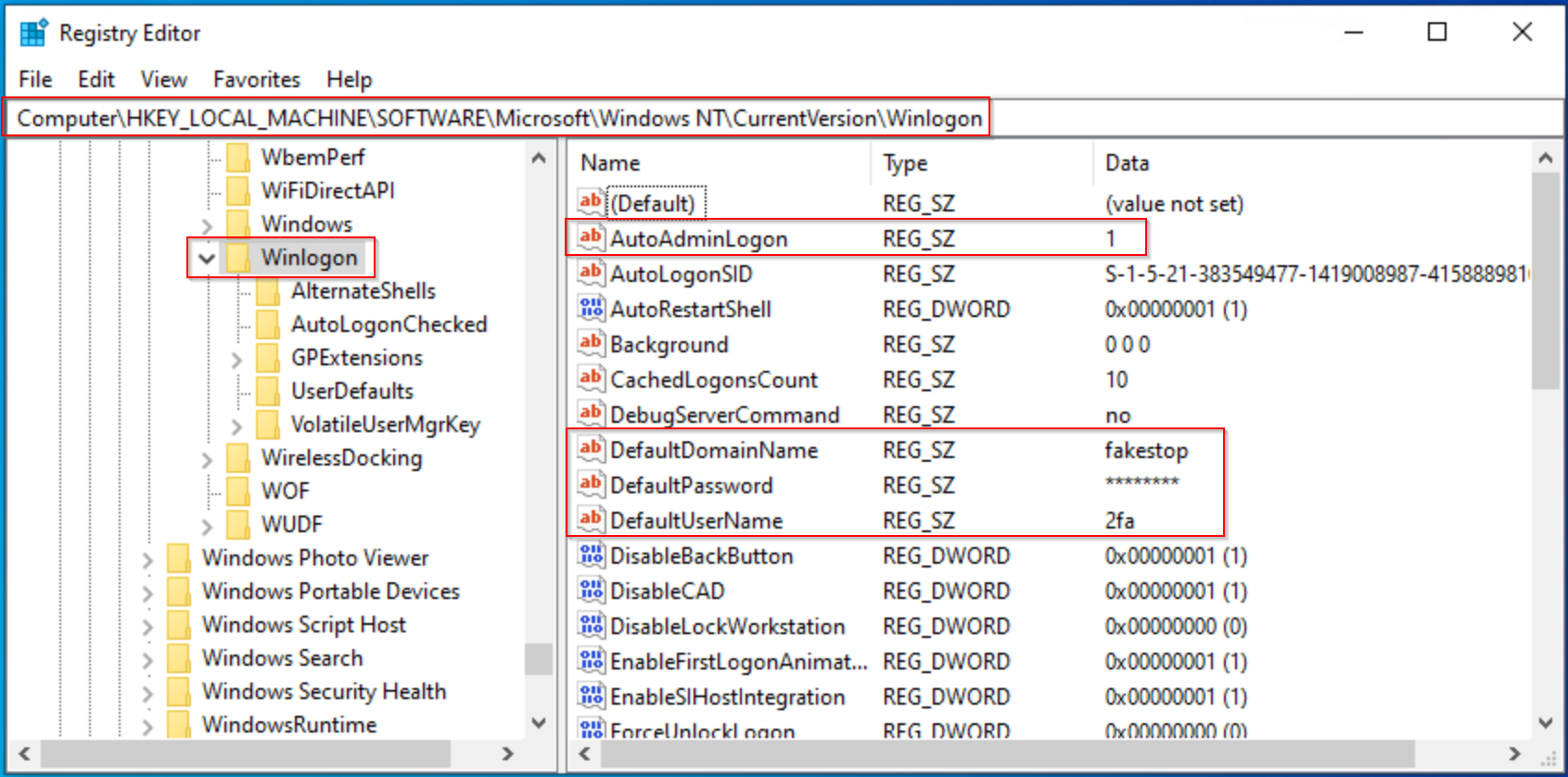
4. Once the required three or four values are present, double click on each one in turn and edit its Value data to match the user you want to set up as auto logon.
AutoAdminLogon – Enable or disable auto logon, enter 1 to enable, 0 to disable.
DefaultUserName – The name of the user to auto logon with.
DefaultPassword – The password of the above user.
DefaultDomain – (Optional) The domain to log onto, ignore if you’re not part of a domain.
AutoAdminLogon – Enable or disable auto logon, enter 1 to enable, 0 to disable.

Read More: https://www.raymond.cc/blog/auto-login-windows-xp-without-typing-password/5. Once you have completed entering the values, close the registry editor and restart to see if the changes have been successful. If they are, the specified user won’t be asked to log on.