This instruction is for installing a fresh new instance of the DualShield frontend server.
Table of Contents
Enable Agent Auto Registration
Installing a DualShield frontend server is like installing a DualShield agent, it requires Agent Auto Registration to be enabled.
| Include Page | ||||
|---|---|---|---|---|
|
Install Frontend Server
Execute "DualShieldSetup64-xxx.yyyy-signed.exe" (where xxx is the version number and yyyy the build number) to start installation:
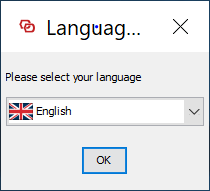
As of version 6.0.0, the language translation is still in progress. For now, please select "English".
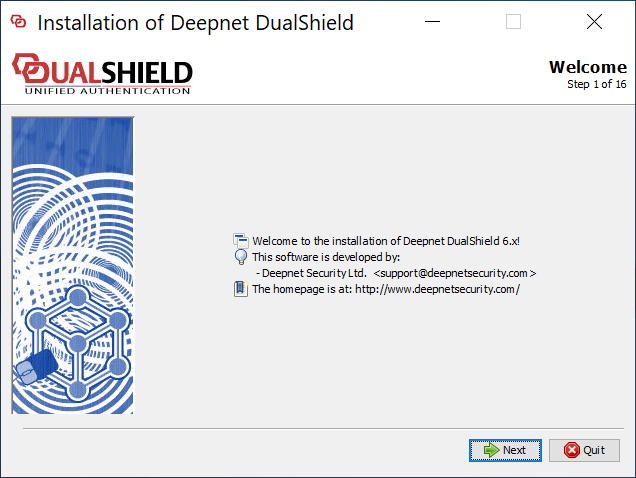
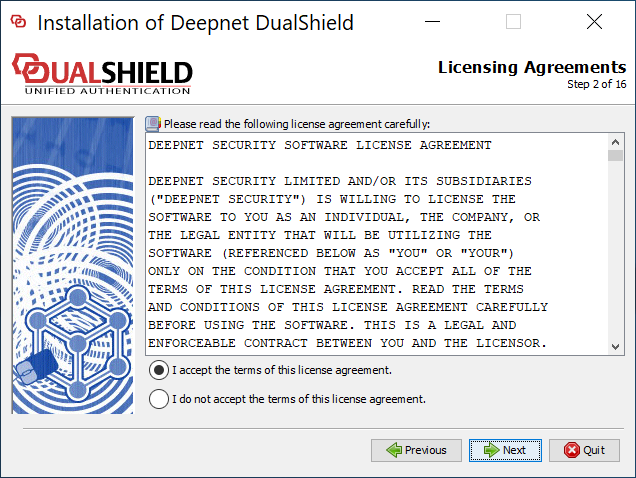
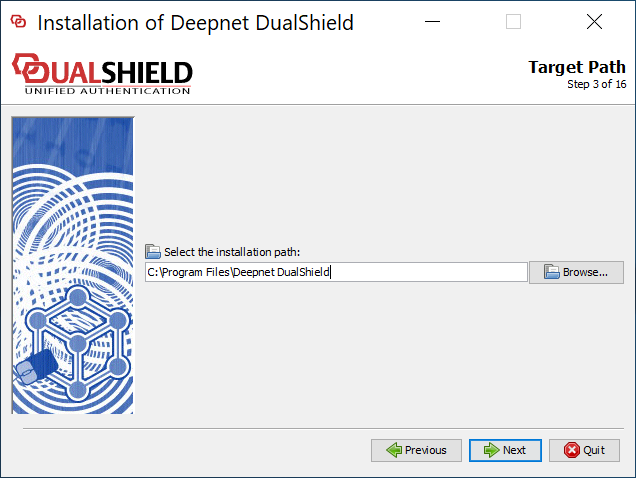
Please keep the installation path as suggested, unless the C drive does not exist or for some other reason.
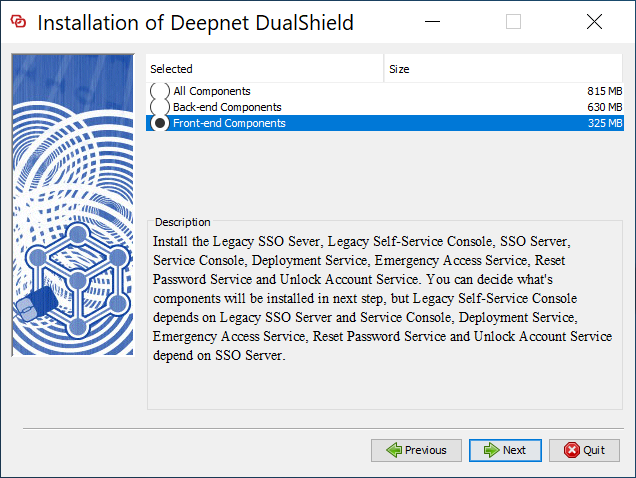
Select "Front-end Components"
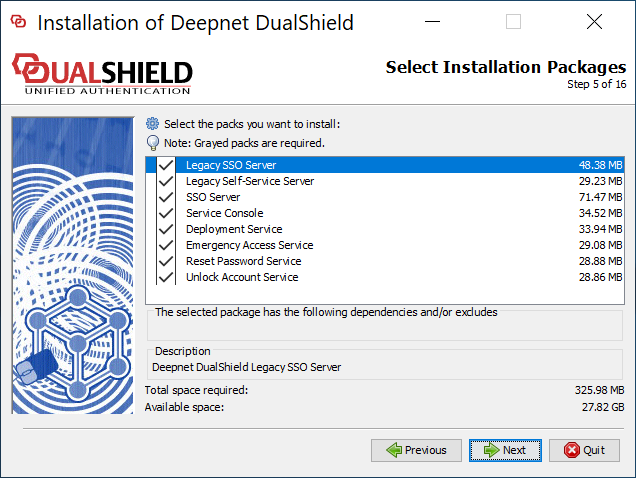
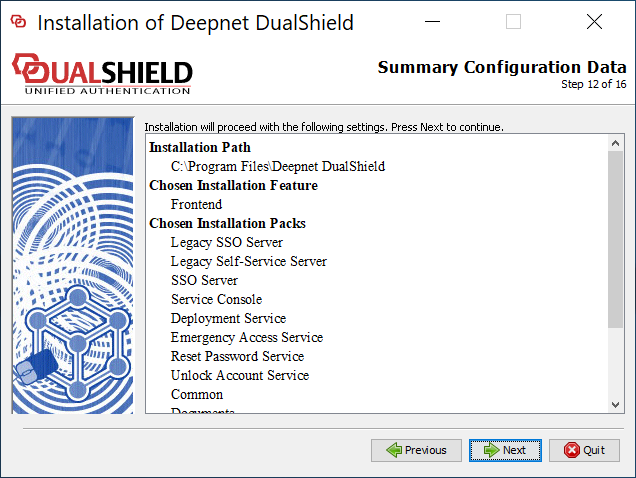
If you want to keep the legacy components, make sure that you select the following
- Legacy SSO Server
- Legacy Self-Service Server
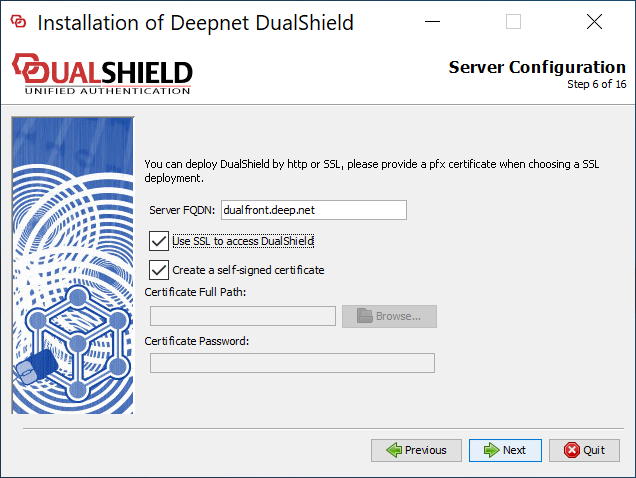
First, the frontend server must have a different FQDN from the backend server.
Secondly, if you are upgrading an old DualShield 5 frontend server to DualShield 6 by fresh installation, then you want to keep the FQDN the same as it currently is.
Thirdly, it is recommended that you provide a commercial SSL certificate for your DualShield frontend server as it is meant to be accessed by end-users from the Internet.
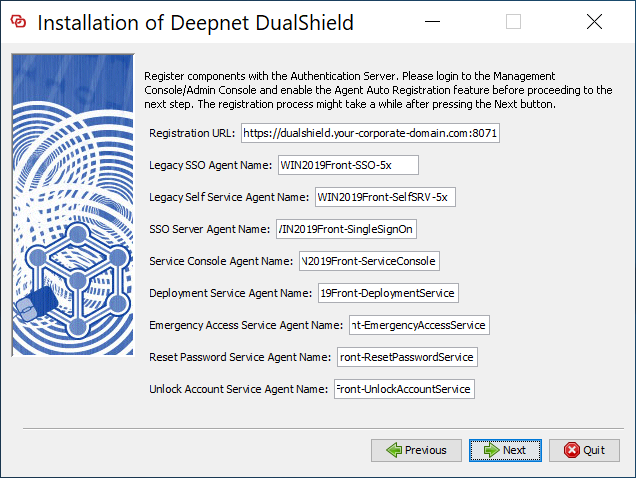
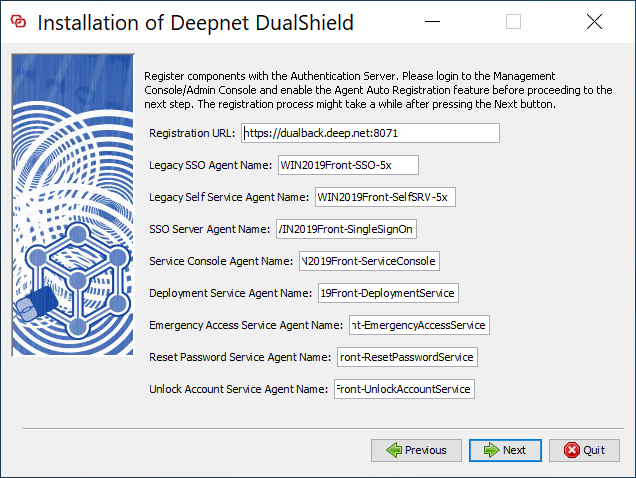
Change "dualshield.your-corporate-doamin.com" to the FQDN of your DualShield backend server, e.g. "dualback.deep.net"
Keep the rest of the fields as they are suggested, unless you have special reasons to change them.
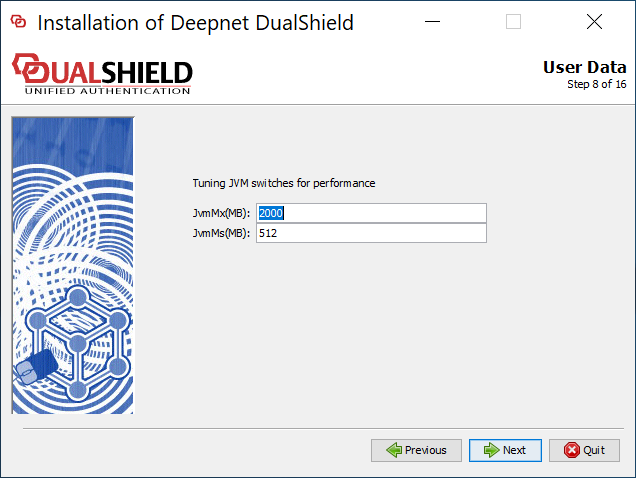
The frontend server is not as resource-demanding as the backend. The default values should be appropriate in most cases.
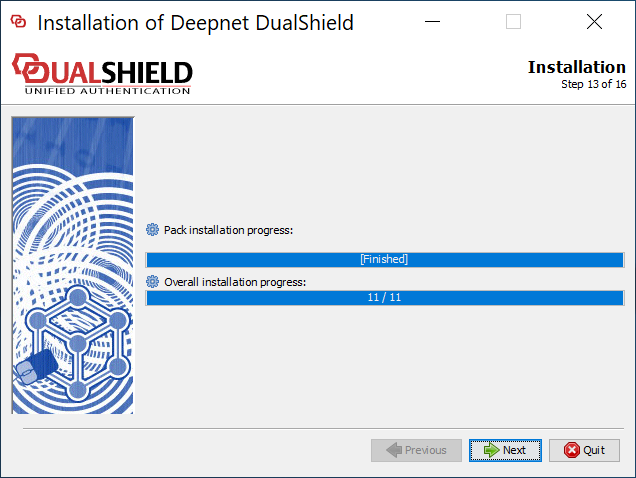
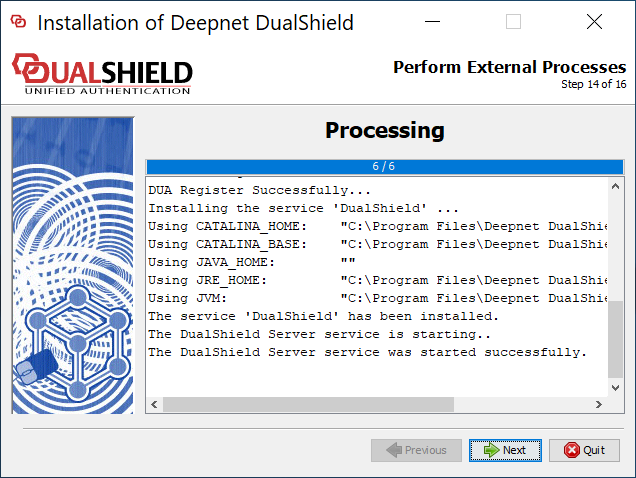
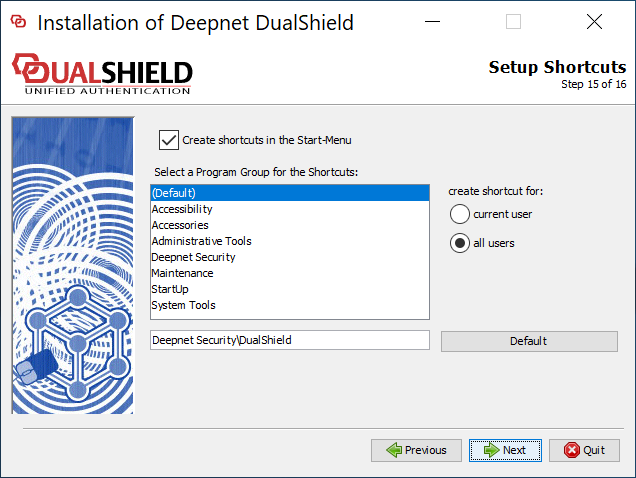
Wait for the DualShield server to be fully loaded
| Include Page | ||||
|---|---|---|---|---|
|