Token Secret File
To use the SafeID Help Desk application to generate TOTP codes, you must first import the tokens. SafeID Help Desk is compatible with the token secret CSV file format used by Entra ID.
...
- serial number
- secret key
- time interval
- manufacturer
- model
- as the example below shows.
Below is an example
|
The "secret key" must be encoded by BASE32 or HEX
Optionally, but recommended, the secret file should include a column named "upn" which represents the username of the token.
|
References
...
| title | Assign tokens using a text editor... |
|---|
...
| Info |
|---|
If you have not yet assigned tokens to users and do not want to do so at this stage, then you can continue to import tokens into the SafeID Help Desk application. Once tokens are imported into the application, you can easily enter the username of a token within the application. |
Import Tokens
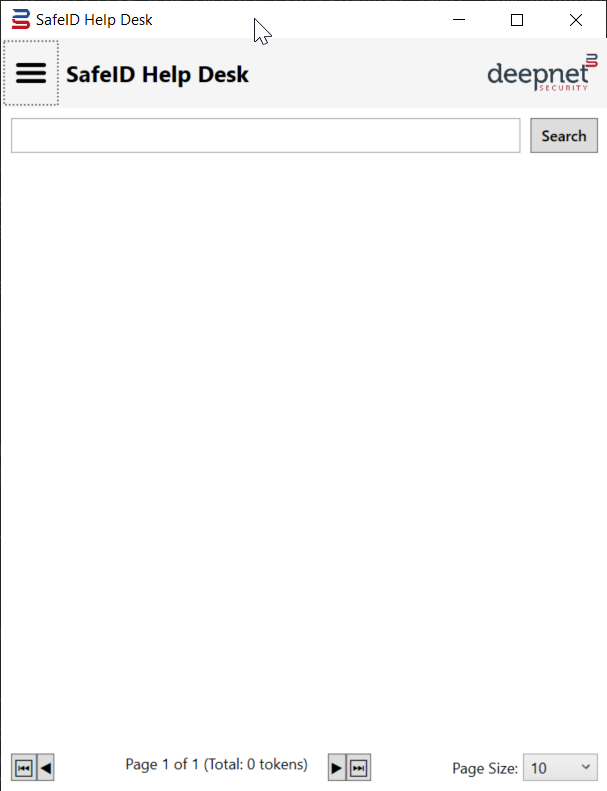
To import tokens, click the main menu icon 
Select "Import Tokens" from the main menu
At the prompt, select the token secret file
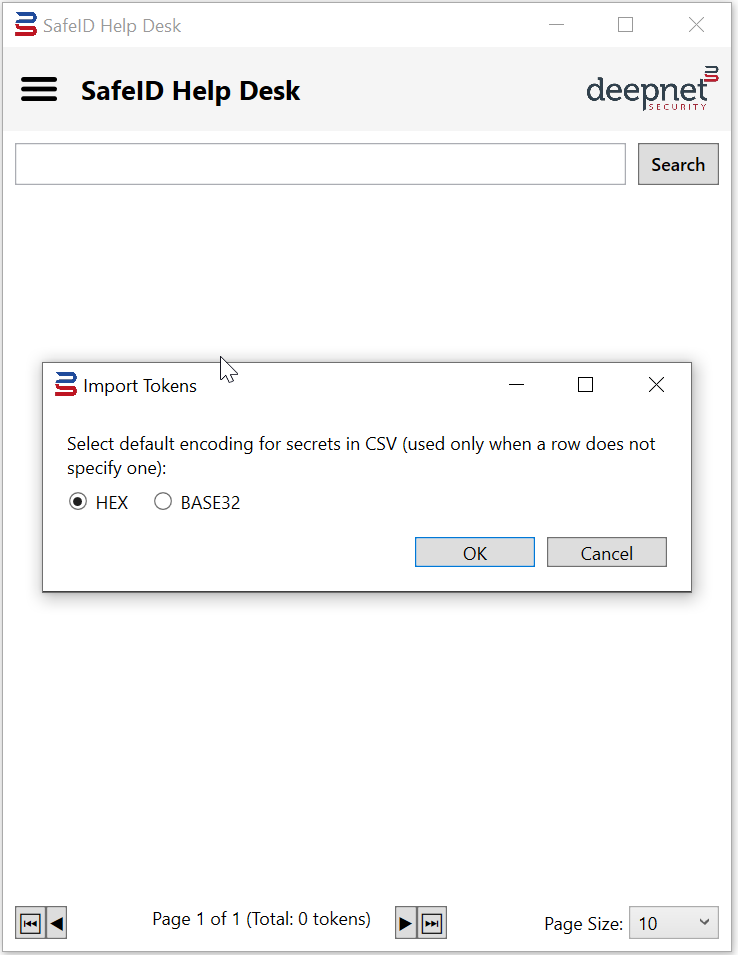
Select the correct encoding format of the secret key in the file, i.e. HEX or BASE32
Click OK to import tokens

...
| title | Assign tokens using the SafeID Enrollment Assistant |
|---|
...