It is possible to use Windows Logon to protect Network drive mapping The Computer Logon solution can be configured to secure access to mapped network drives with multi-factor authentication. ...See below:


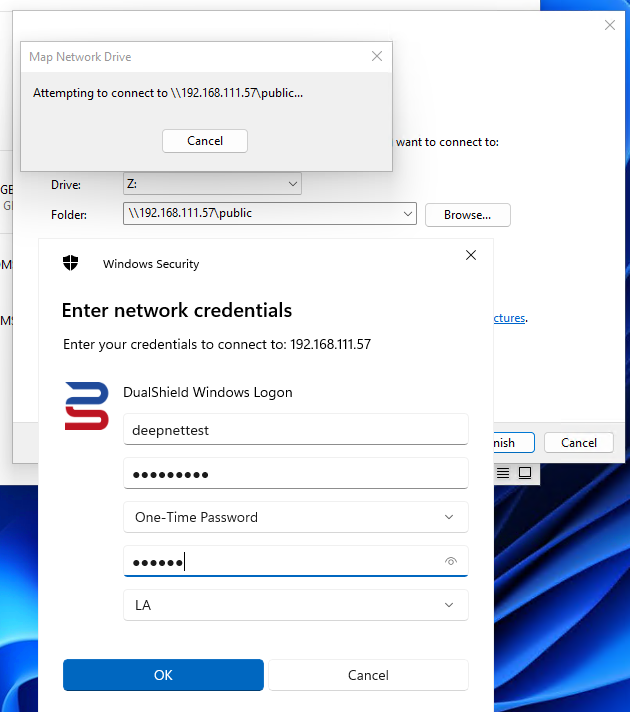
This guide assumes that logon to the end user's computer is already protected by the Windows Computer Logon Client.
The first step required is a modification to the Computer Logon registry key on the client computer, to control the behavior of the network drive mapping (NDM)
Open regedit and go to Computer\HKEY_LOCAL_MACHINE\SOFTWARE\Deepnet Security
Create a new sub-key called Computer Logon

Within the new key, add a DWORD value called MFAforNDM with the value of 1;

This change can be deployed through GPO: https://www.techcrafters.com/portal/en/kb/articles/how-to-add-edit-deploy-and-import-registry-keys-through-gpo#How_to_Add_Edit_a_Registry_Key_via_Group_Policy_Objects
The second step required is to access the to the DualShield Administration Console and modify the UAC settings found within the Computer Logon Client policy. Although strictly speaking UAC does not protect network drive mappings nor are you using Computer Logon software, some of the features in this policy do apply to the behavior of Windows Logon, therefore UAC authentication must be set :
Navigate to Shortcuts>Check Policies and search for the Compter Logon Client Policies.
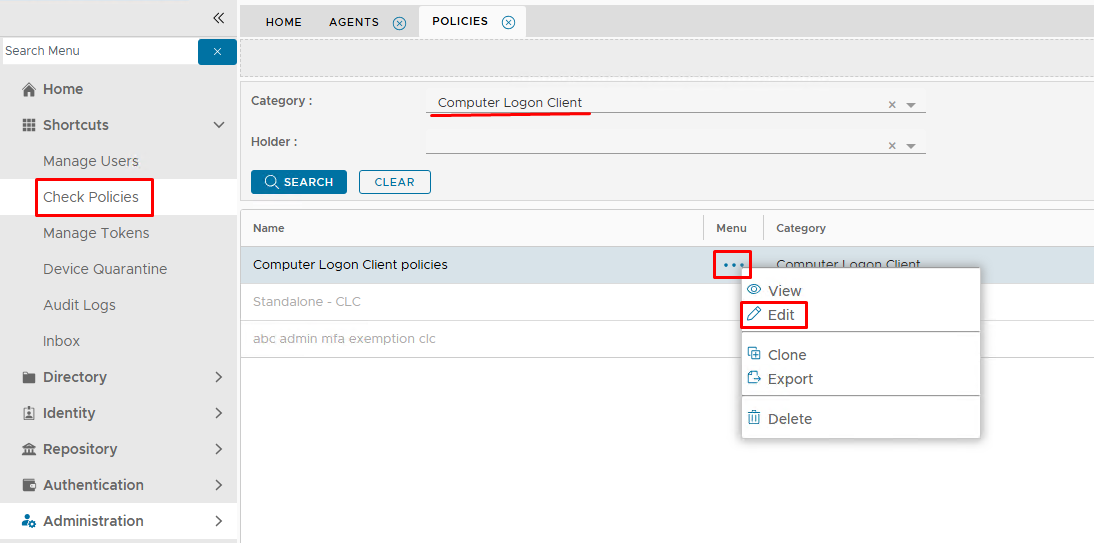
Edit the policy.
Expand the NAC tab and set Authentication to Multi-Factor Authentication for this to work..


Click Save
Sign out and then sign back in to the client machine, so that the new policy is picked upYou will most likely need to restart the client PC for this change to take effect.