Office 365 and Azure AD support several options for multi-factor authentication, including SMS message, Microsoft Authenticator app, and OATH hardware tokens. In In this article, we will provide detailed information about how to set up OATH hardware tokens with Azure MFA and how to use OATH hardware tokens them in Office 365 MFA login.
| Table of Contents | ||
|---|---|---|
|
Pre-Programmed Token vs Programmable Token
There are 2 types of OATH hardware tokens, pre-programmed and programmable tokens.
Pre-Programmed Tokens
Pre-programmed tokens are the tokens programmed at the factory by the manufacturer, and they can be used out of the box. Deepnet Security provides several pre-programmed OATH hardware tokens such as SafeID/Classic, SafeID/Enterprise, SafeID/Mini, etc.
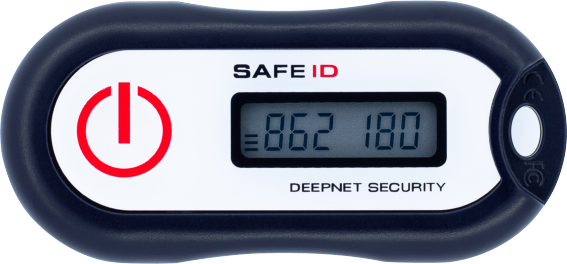
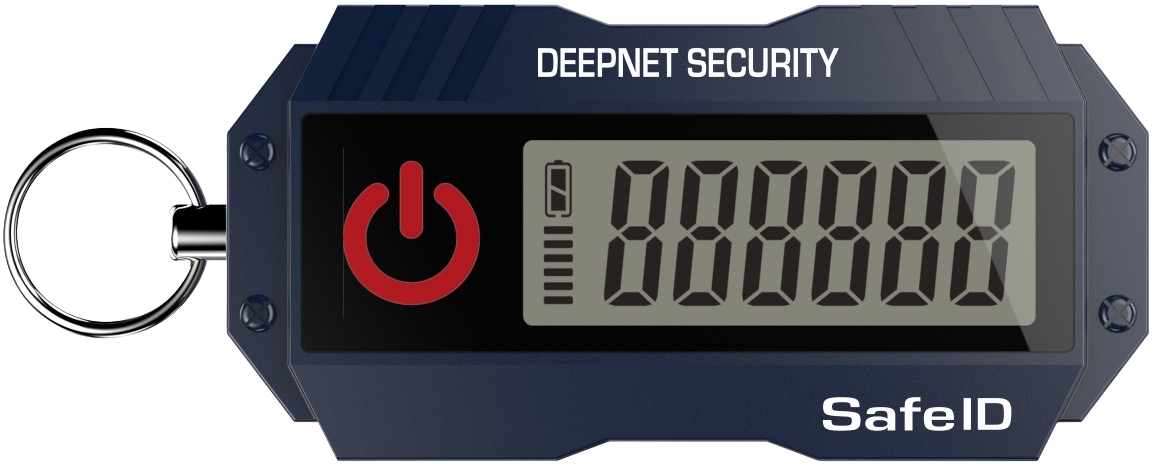
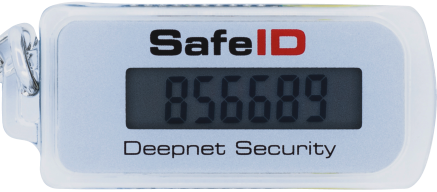
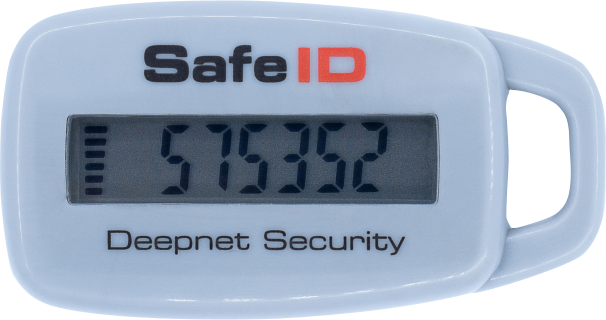
Click here to see the complete list of SafeID pre-programmed tokens.
Programmable Tokens
Programmable tokens are designed to be programmed by customers and users. Deepnet Security also provides several programmed programmable OATH hardware tokens such as SafeID/Diamond and , SafeID/Pro, SafeID/QRPinPad etc.
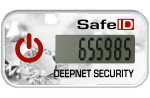
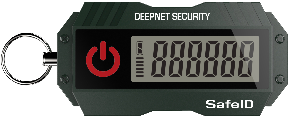
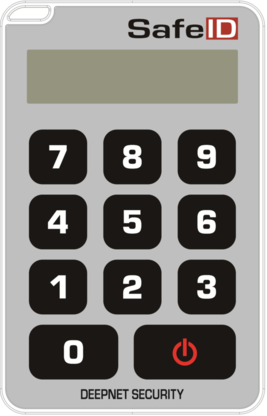
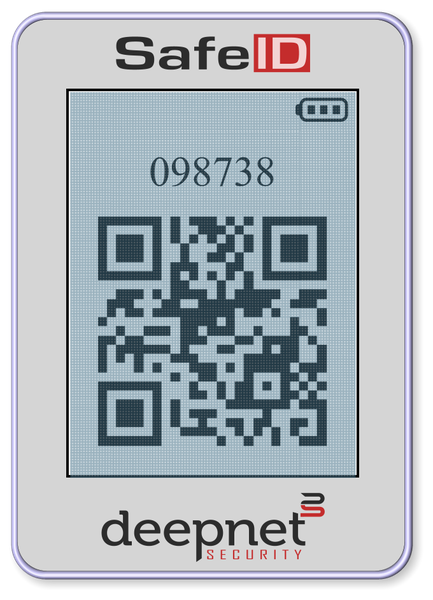
Click here to see the complete list of SafeID programmable tokens.
Azure AD Premium License vs Basic (Free) License
Azure AD has a Basic (Free) license and two Premium Licenses, P1 and P2. You have to select the right type of hardware token according to the type of Azure AD license that you have. If you have Azure AD Premium (P1 or P2) license, then the pre-programmed token would be the first choice for you. If you have the Azure AD Basic (Free) license, then you have to use the programmable token.
...
- If you have Office 365 E3/E5 subscription only, then you do not have an Azure AD premium license
- If you have Office 365 E3/E5 plus EMS (Enterprise Mobility & Security), then you have an Azure AD premium license
- If you have Microsoft 365 E3/E5, then you have an Azure AD premium license
| Office 365 | Office 365+EMS | Microsoft 365 | ||||
|---|---|---|---|---|---|---|
| E3 | E5 | E3 | E5 | E3 | E5 | |
| Azure AD Premium P1 | ✔ | ✔ | ||||
| Azure AD Premium P2 | ✔ | ✔ | ||||
If you are not sure which Azure AD license that you have, click here to find out.
Set up OATH pre-programmed hardware tokens with Azure MFA
...
| Expand | ||||
|---|---|---|---|---|
|
...
- Use Azure AD Portal
- Use SafeID Token Service
Azure AD Portal
...
|
...
|
Set up OATH programmable hardware tokens
...
with Azure MFA
| Expand | ||||||
|---|---|---|---|---|---|---|
|
Related Articles
- Assign tokens to users
- Upload tokens to Azure AD
- Activate Tokens
In step 1, you will need to edit the secret file of the hardware tokens with a text editor and assign all of your tokens to your users by adding the user's UPN against the token's serial number, one by one
In step 2, you will need to upload the secret file of the hardware tokens on to Azure AD
In step 3, you will need to activate tokens by providing a verification code from the token, one by one.
Click here for detailed instructions on how to set up pre-programmed hardware tokens with Azure AD
SafeID Token Service
As you will see, the facility provided by Azure AD is very basic and not flexible. It does not provide functions for you to quickly assign only one token to a user or to reassign a token, for instance. If you have a small number of hardware tokens to manage, then it is OK to use the Azure AD portal. However, if you have a large number of hardware tokens to manage, then we would recommend the SafeID Token Service
SafeID Token Service provides a Web-based GUI console that allows customers to manage the full life cycle of the SafeID token by simply pointing and clicking. You can assign, activate, deactivate, unassign, delete and replace a token, etc with one single click.
...