| Table of Contents |
|---|
It is assumed that the Astaro Security Gateway UTM is setup and operational. An existing domain user can authenticate using a Domain AD password and access applications, your users can access through IPSec VPN and/or SSL VPN using Domain accounts.
Register DualShield RADIUS Server
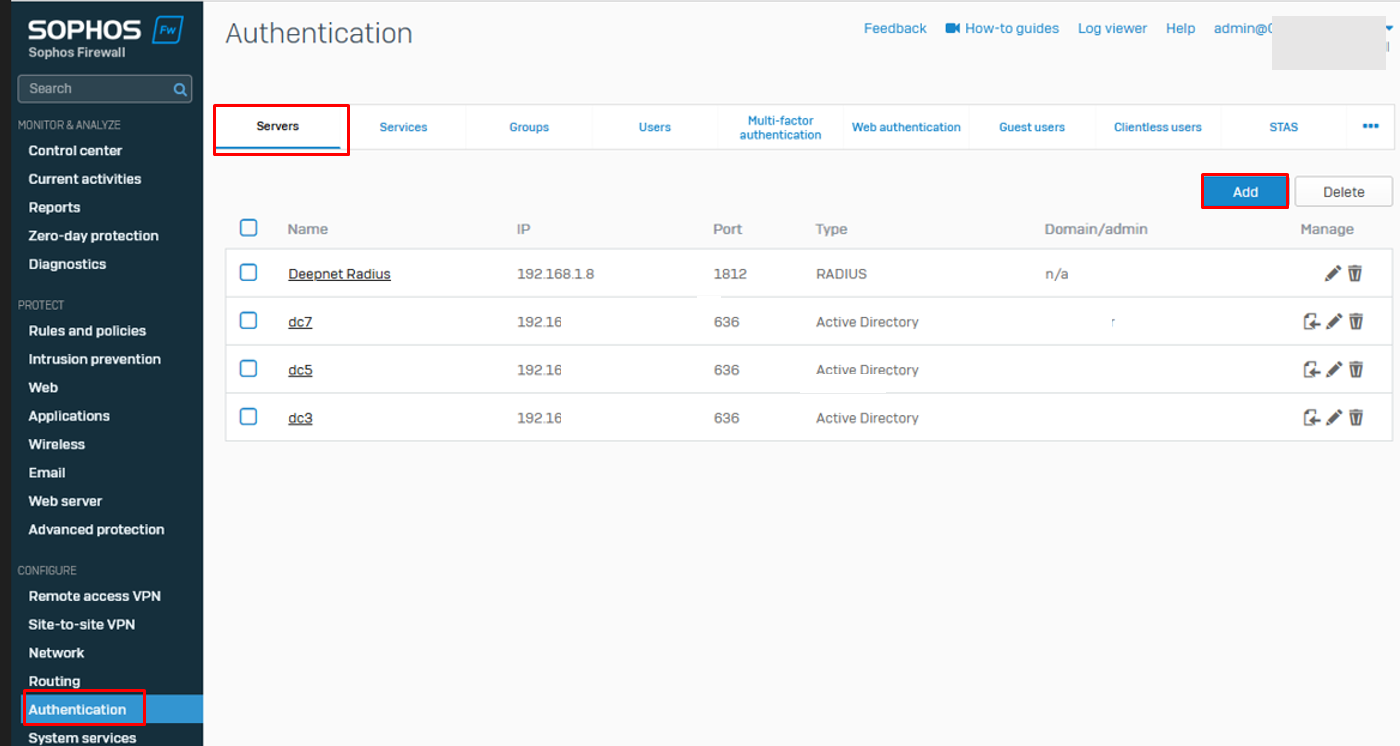
- Log in to the WebAdmin interface of the ASG via https://<YourAstaroUTMsIP>:4444Sophos XG
- Under "Configure" Select "Authentication" from the menu on the leftSelect “Definitions & Users -> Authentication Servers”
Select “Servers” Tab


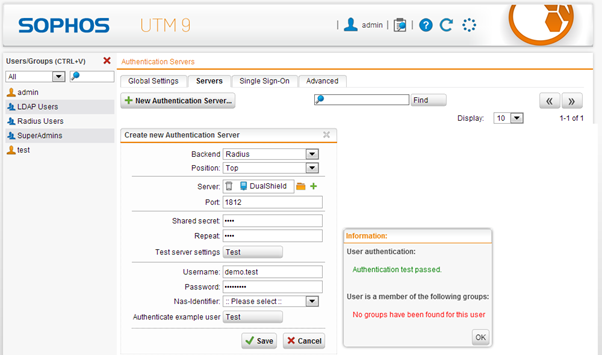
Enter a test Username and Password
Now, click “Authenticate example user”
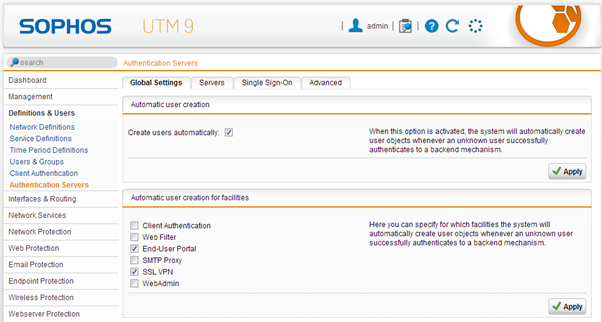
Enable Auto User creation for the RADIUS users
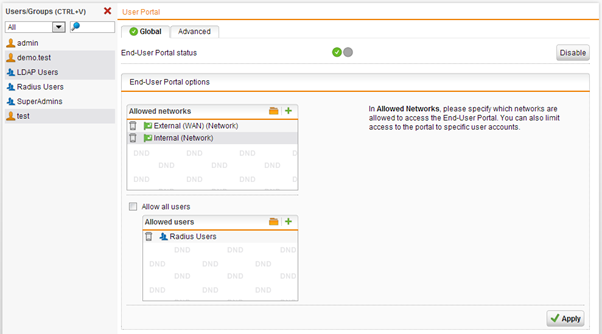
Allow RADIUS user to access the End-User Portal
In order to get their SSL VPN client and configuration, users have to initially log in to the End User portal. Make sure that RADIUS authenticated users are allowed to log in.
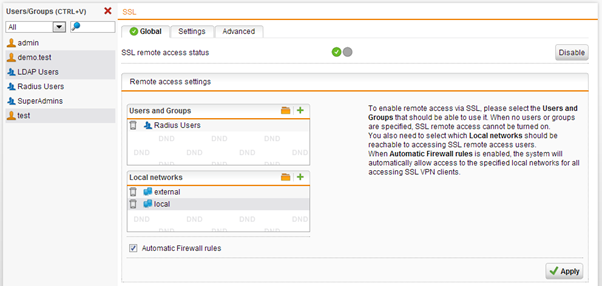
Allow RADIUS users to use the SSL VPN client
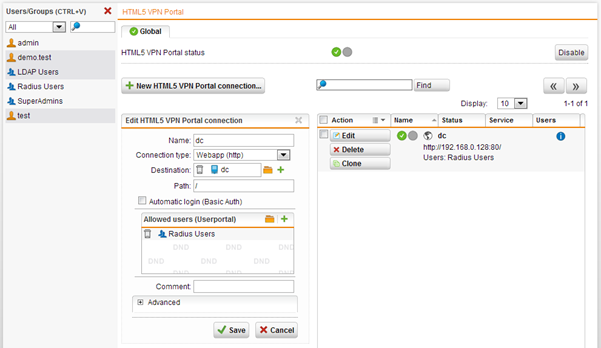
Allow RADIUS users to use the HTML5 VPN portal
4. Click "Add"
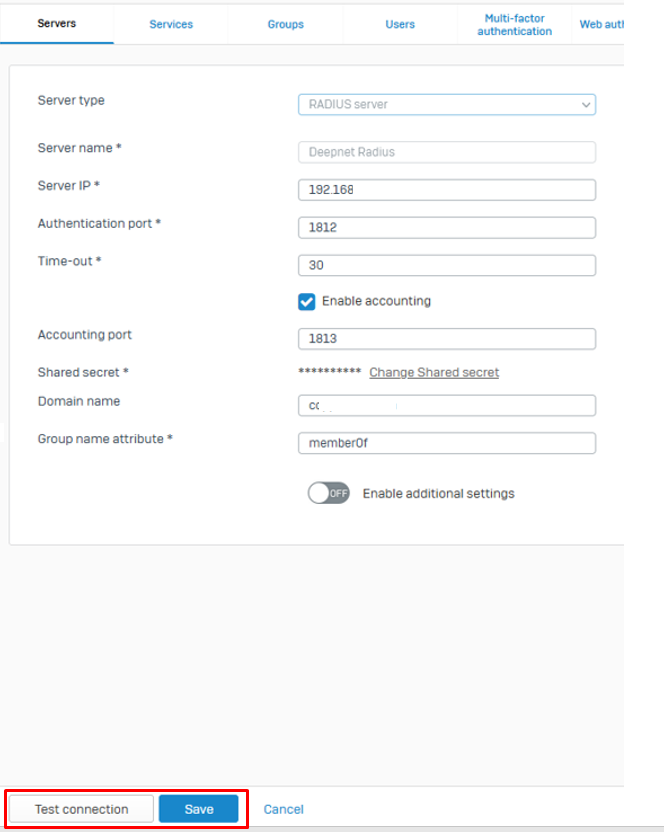
5. Configure as follows:
| Option | Value |
|---|---|
| Server Name: | Radius server |
| Server Name: | Friendly name |
| Server IP: | Radius Server IP |
| Authentication Port: | 1812 |
| Time-out: | 30 |
| Accounting port: | 1813 |
| Shared Secret: | This must match the one you specified under DualShield configuration |
| Domain name: | Enter your domain name |
| Group name attribute: | memberof |
6. Click "Test connection" and if successful click "Save"
7. Click on the "Services" tab
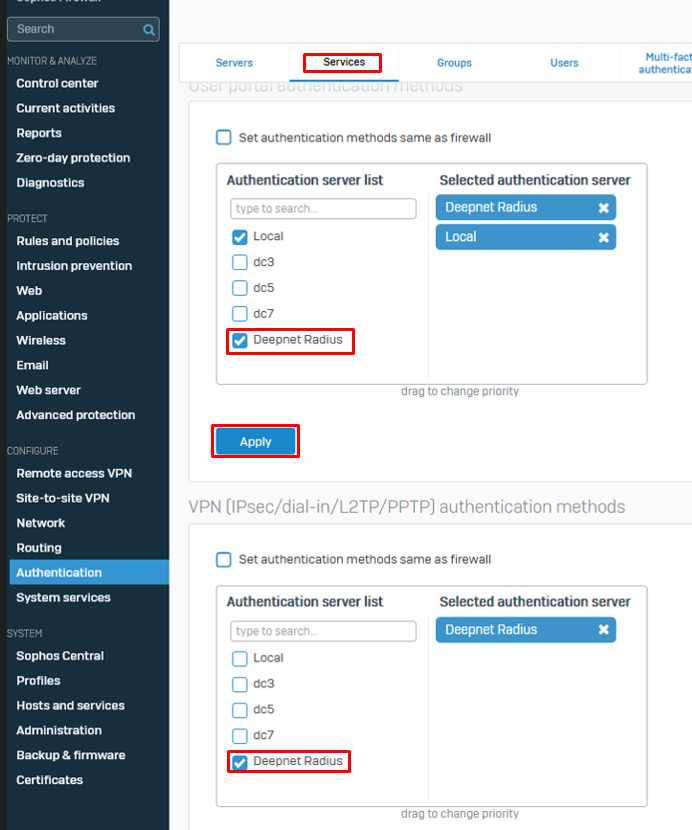
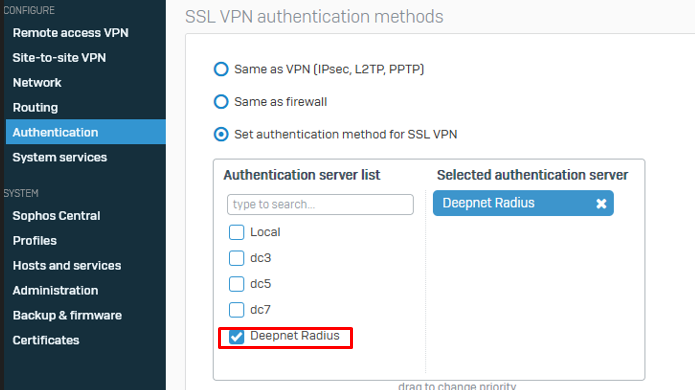
8. Enable and Apply the DualShield Radius server under User Portal and VPN and SSL VPN authentication methods
9. For SSL VPN, please make sure the option "Set authentication method for SSL VPN" is enabled.
10. Once the user authenticates a user account is created on Sophos XG itself. You can view them under the "Users" tab.
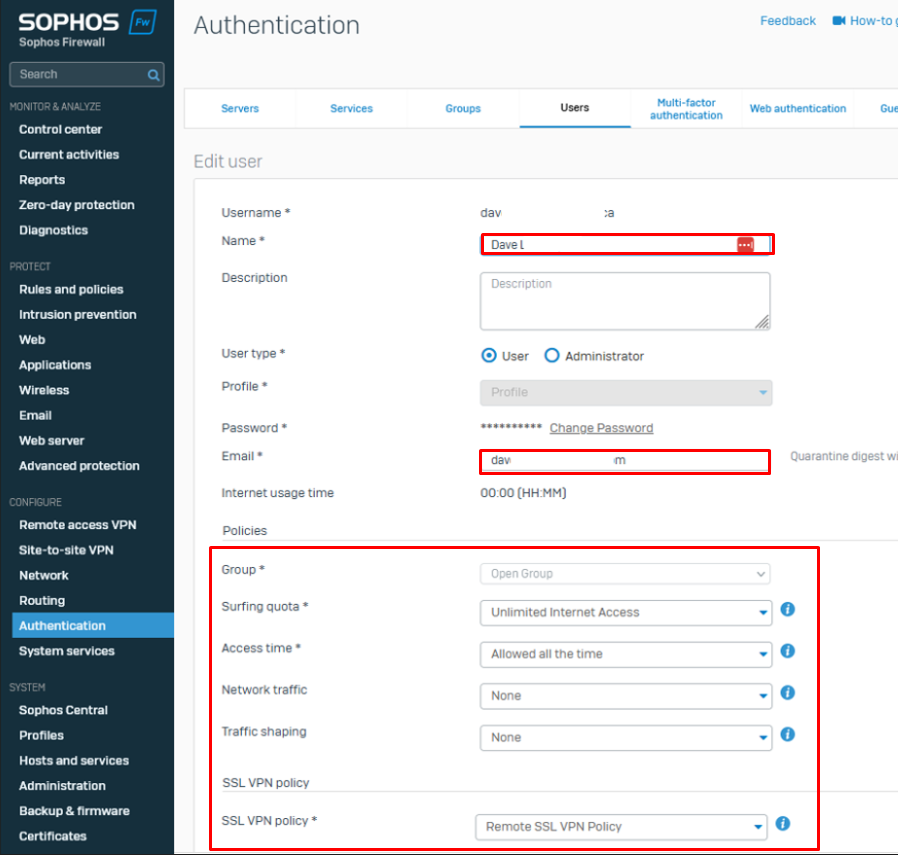
11. Once created you need to add a Name and Email for the user and set the Policies