To use keystroke Keystroke recognition, the system administrator must add the the System Administrator must add "Keystroke Biometrics" authenticator in to the Logon Step of the applicationcreated Application.
Log into in to the DualShield Management Administration Console, select . Select "Authentication | Logon ProcedureProcedures", and then add "Keystroke Biomeytrics to the logon procedure Biometrics" to the Logon Procedure of the Windows logon applicationApplication.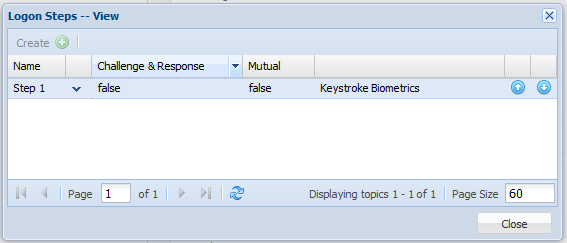

You will also need to customise the TypeSense policy Policy according to your needsrequirements. Select "Administration | Policies" then select "TypeSense/Password" from the Category list
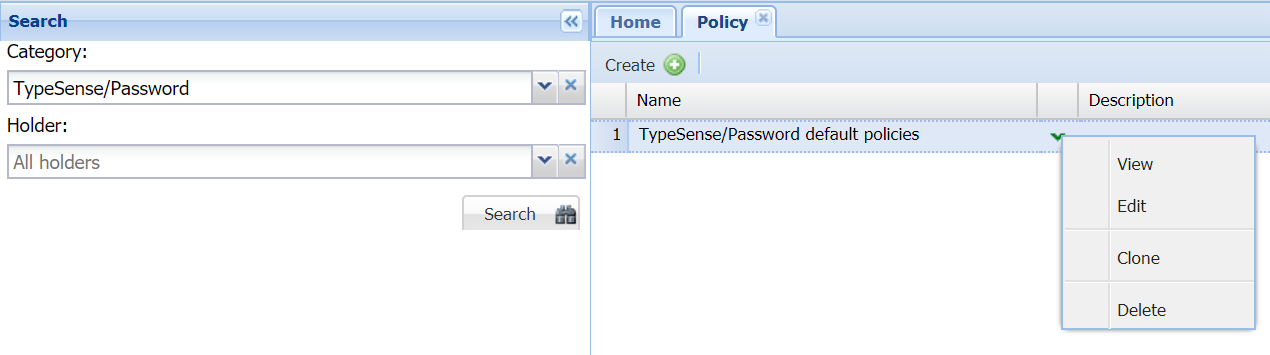
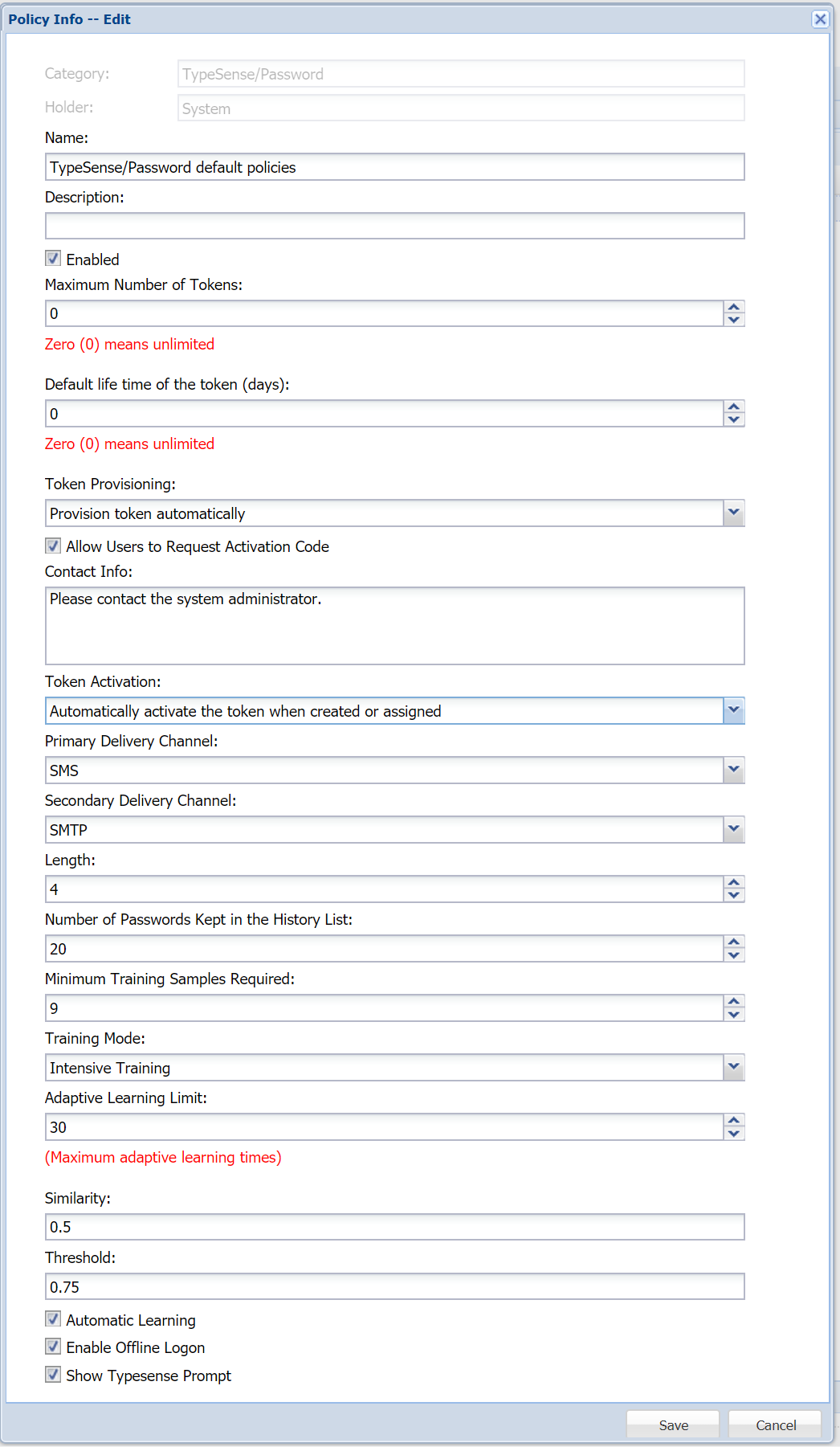

Select the context "..." menu of the Policy, then "EDIT" from the menu. A Policy window will appear, as follows:
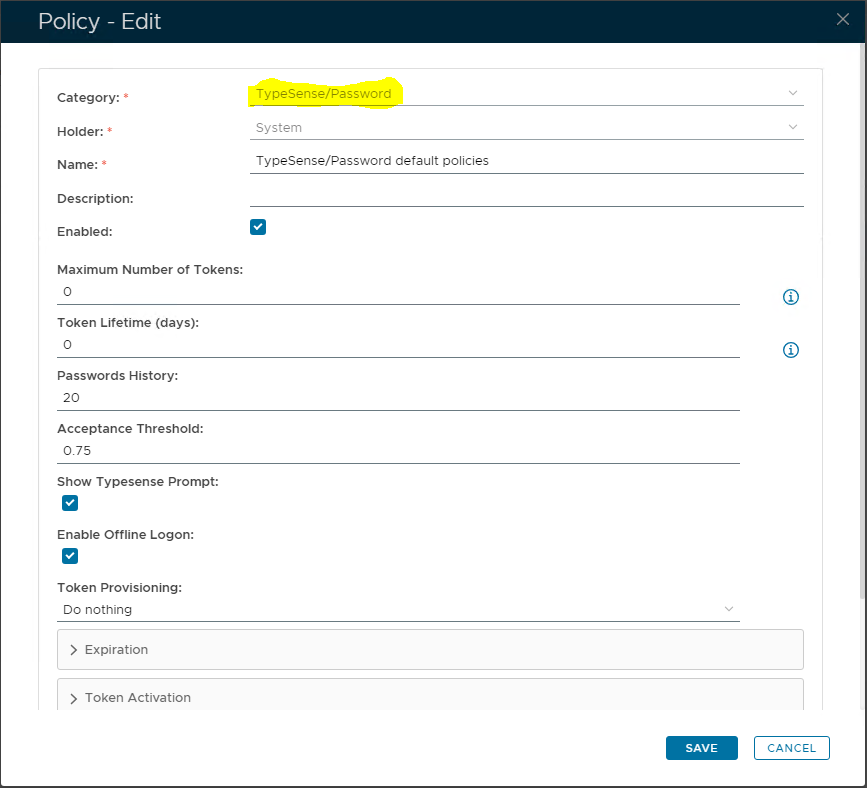
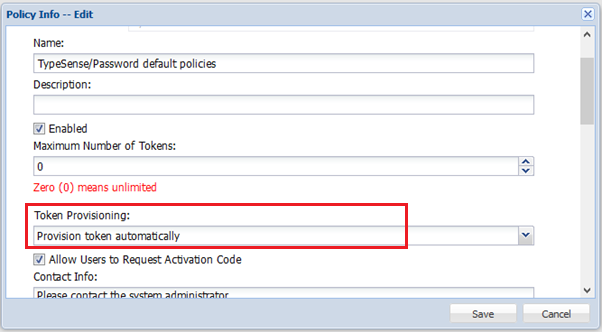
Edit the Policy settings here as necessary. With the primary options as followsCheck and set the following policy options:
- Token Provisioning
- Token Activation
- Minimum Training Samples Required
- Training Mode
Token ProvisioingProvisioning
A TypeSense token TypeSense token can be manually provisioned to for a user by the system administrator or System Administrator, alternatively automatically provisioned by the DualShield serverServer.
If you want token Tokens to be created automatically by DualShield Server, then set the Token Provisioning setting, as "Provision token automatically" .

| Expand | ||
|---|---|---|
| ||
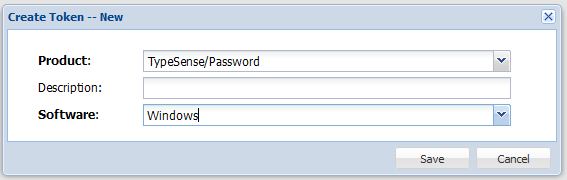
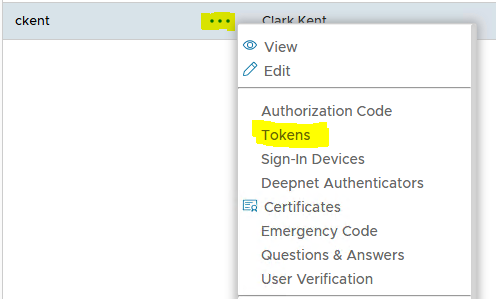
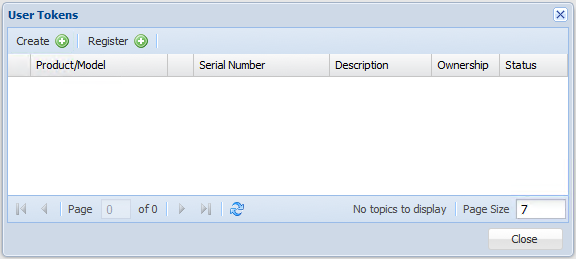
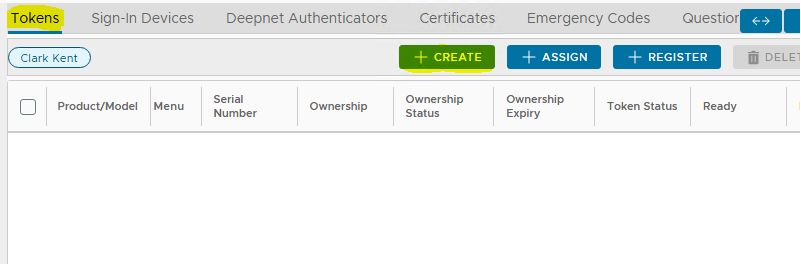
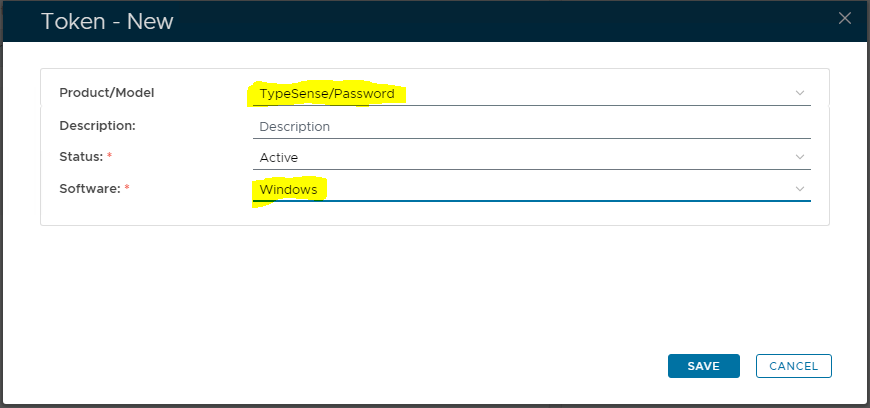
To manually provision a TypeSense token to a user, navigate to the user directory "Directory | Users" and locate the user. Click the context "..." menu of the user account, and select then "TokenTokens" in the context menu:
 .
|

Training Mode
There are two types of training modes:
...
In the Adaptive Learning mode, however, there is no training session. Instead, at the beginning the user will be allowed to logon without having to be verified by keystroke.
Meanwhile, the system will attempt to train the user's TypeSense token by learning from the user's typing at each logon until the user's TypeSense token is fully trained and ready.
Set Training Mode to "Intensive Training"
...