To set up MFA for OWA via WSFED, follow steps below
| Table of Contents |
|---|
Download DualShield Idp Signing Certificate
| Expand | ||||||
|---|---|---|---|---|---|---|
|
Download PowerShell
...
Scripts
Download this the following PowerShell scriptscripts:
and , save it in a folder on your Exchange server machine
Enable WS-Federation on OWA
Log on to Exchange server using domain admin credentials.
Run Run Exchange Management Shell as administrator
Run the following
...
script in the Exchange Management Shell
./setup-owa-mfa.ps1 -exchangeFQDN 'your Exchange FQDN' -dualshieldFQDN 'your DualShield SSO FQDN' -dualshieldPort 'your DualShield SSO Port' -idpCertFile 'your DualShield IdP cert file' -appname 'application name' -spname 'service provider name' |
Parameter | Remarks |
|---|---|
| -exchangeFQDN |
| the external full qualified domain name of your Exchange server, e.g. mail.acme.org | |
| -dualshieldFQDN | the external full qualified domain |
| name of your DualShield SSO server, e.g. dualshield.acme.org | |
| -dualshieldPort | the external port number of your DualShield SSO server, e.g. 8074 |
| -idpCertFile | the full path file name of your DualShield IdP certificate, e.g c:\certs\dualshieldidp.crt |
| -appname | the application name in DualShield for |
| OWA | |
| -spname | the service provider name in DualShield for |
| OWA |

Example:

Import IdP Certificate
If you have multiple Exchange servers, you do not need to run the PowerShell script "setup-owa-mfa.ps1" on all Exchange servers. You only need to run the PowerShell script on one of the Exchange server. The changes made by the PS will be automatically replicated to other Exchange servers, apart from the IdP certificate. However, you do need to run the second PowerShell script "import-idp-cert.ps1" on other Exchange servers.
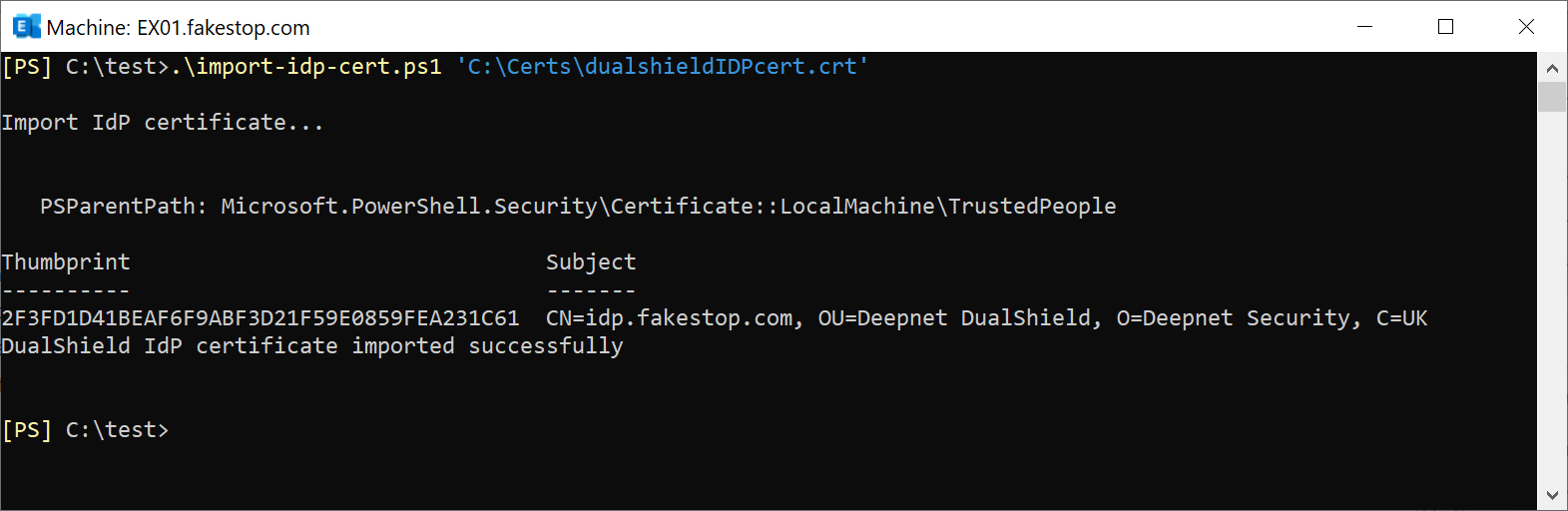 Example: