Open a web browser and go to the URL of your CompleteFTP site.
| Section |
|---|
|
| Column |
|---|
Click on the 'log in via' Button. (The name on the button should match the one set under the IDP list in the SAML configuration.)
|
| Column |
|---|
|
| Panel |
|---|
| borderColor | #9EBEE5 |
|---|
| bgColor | #f0f0f0 |
|---|
| borderWidth | 1px |
|---|
|  Image Added Image Added
|
|
|
You will be redirected to the DualShield SSO screen.
| Section |
|---|
|
| Column |
|---|
Enter your username and click Next. |
| Column |
|---|
|
| Panel |
|---|
| borderColor | #9EBEE5 |
|---|
| bgColor | #f0f0f0 |
|---|
| borderWidth | 1px |
|---|
| 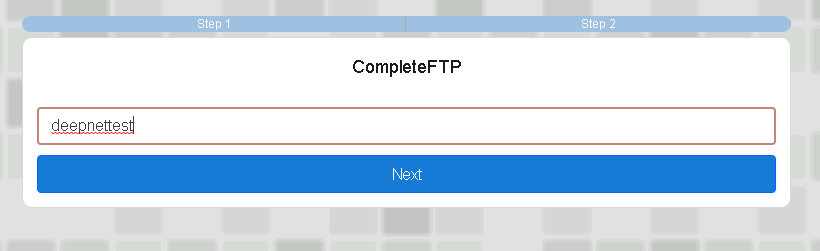 Image Added Image Added
|
|
|
| Section |
|---|
|
| Column |
|---|
You will be then prompted for the first factor of authentication which is your AD password
Please enter your AD password and click Verify. |
| Column |
|---|
|
| Panel |
|---|
| borderColor | #9EBEE5 |
|---|
| bgColor | #f0f0f0 |
|---|
| borderWidth | 1px |
|---|
| 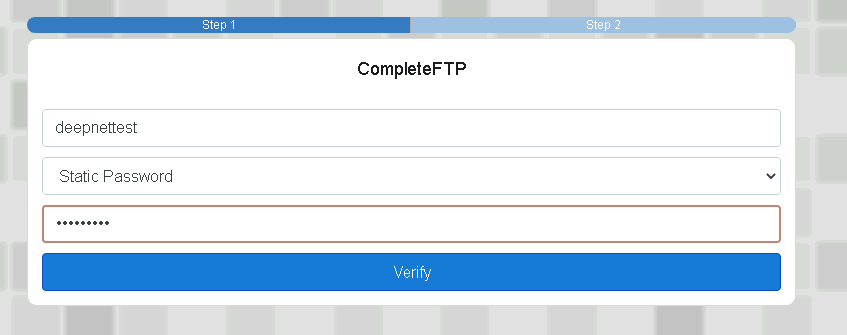 Image Added Image Added
|
|
|
| Section |
|---|
|
| Column |
|---|
You will then be prompted for the second factor of Authentication which in this case is your One-Time Password. Please enter the OTP and click Verify. |
| Column |
|---|
|
| Panel |
|---|
| borderColor | #9EBEE5 |
|---|
| bgColor | #f0f0f0 |
|---|
| borderWidth | 1px |
|---|
|  Image Added Image Added
|
|
|
| Section |
|---|
|
| Column |
|---|
If successful you will now be logged on to your CompleteFTP portal. |
| Column |
|---|
|
| Panel |
|---|
| borderColor | #9EBEE5 |
|---|
| bgColor | #f0f0f0 |
|---|
| borderWidth | 1px |
|---|
| 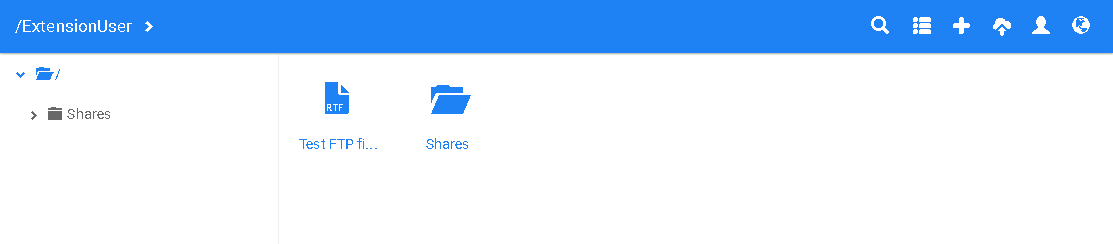 Image Added Image Added
|
|
|