- Log into Citrix Cloud
- Click on the menu icon on the top left.

3. Select Identity and Access Management from the drop down menu, that appears:

4. Click on the Ellipsis (…) next to SAML and click Connect from the drop -down option.

5. Open the IDP metadata file that was downloaded from DualShield


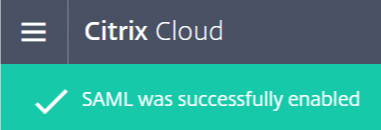
16. If successful you will see the following alert...
17. Click on the  icon
icon
18. Select Workspace Configuration from the menu.

19. Select Authentication

20. Change the Workspace Authentication to SAML

21. Tick I understand and click Confirm

22. Select Access

23. The Workspace URL is effectively the URL the end user will logon to, in order sign on via SAML and access their Workspace Desktop and Apps. You can edit the default URL here.
