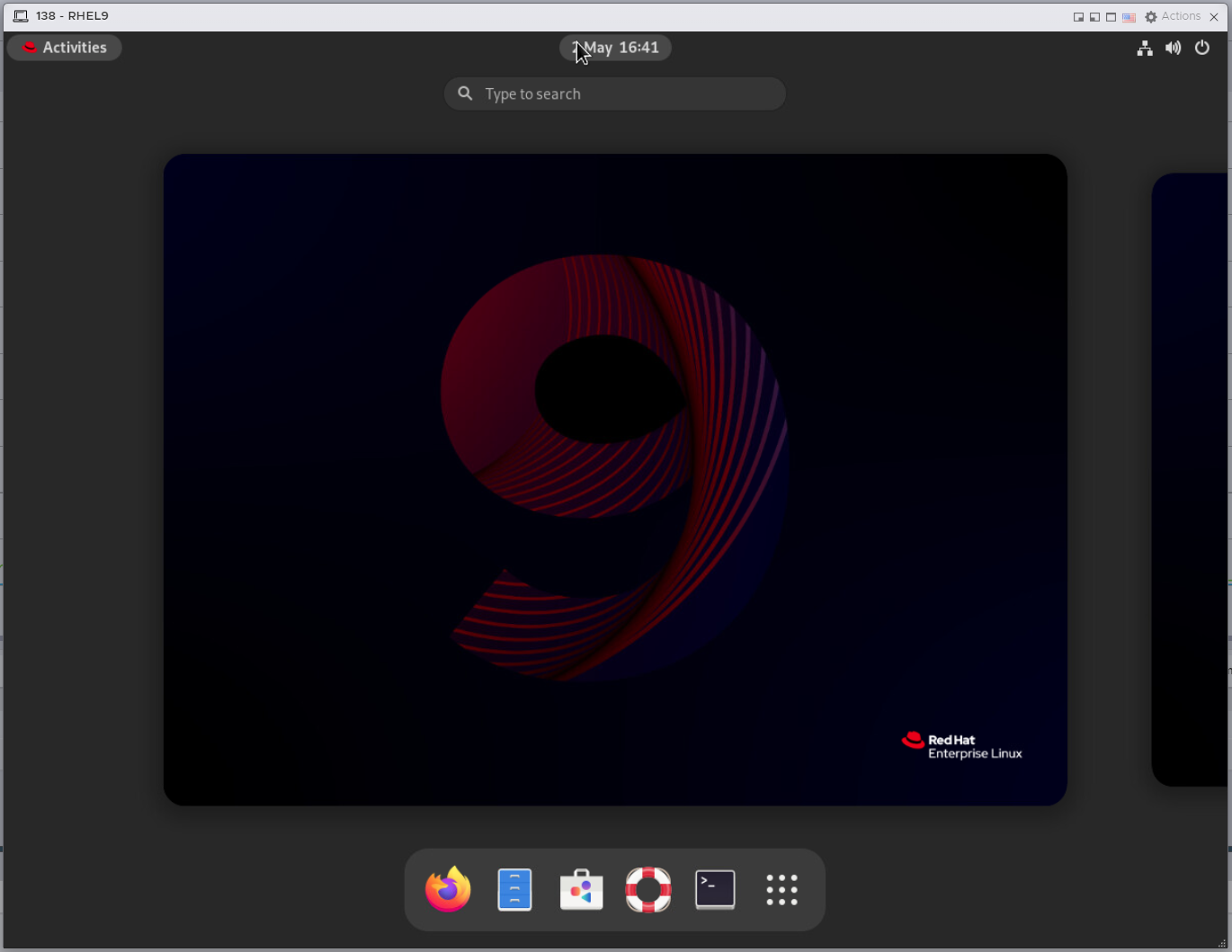
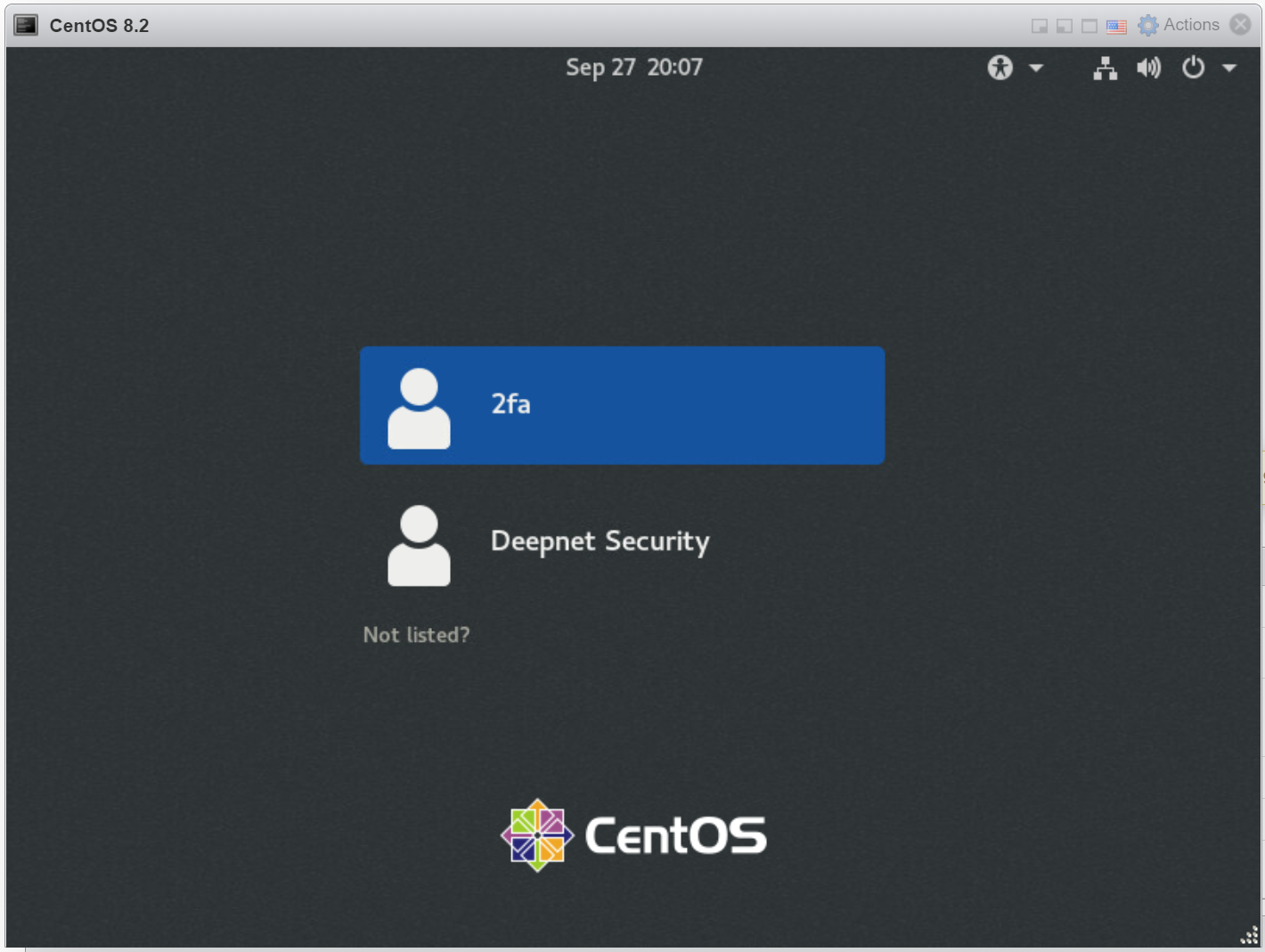
First, you'll
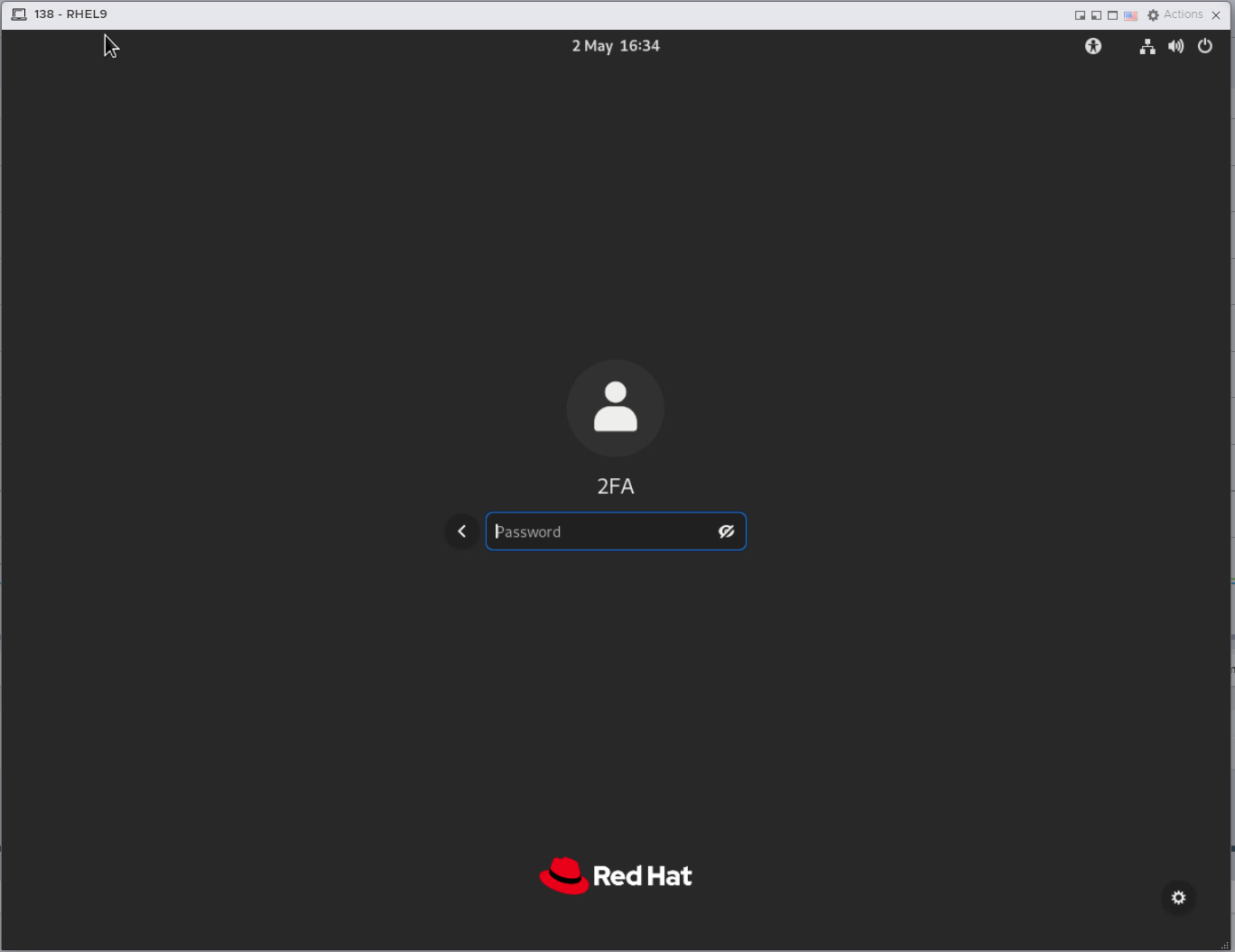
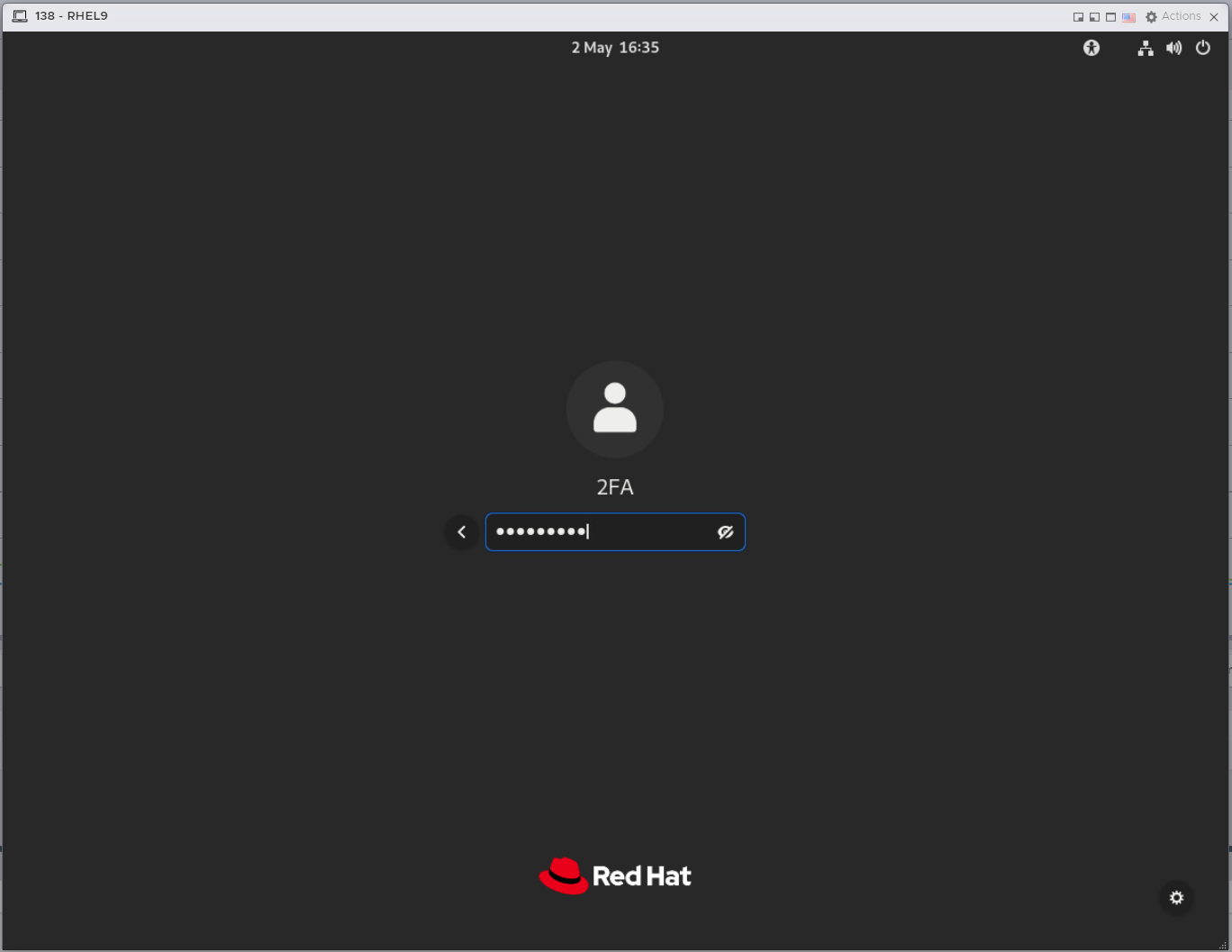
You will be prompted to enter your password:
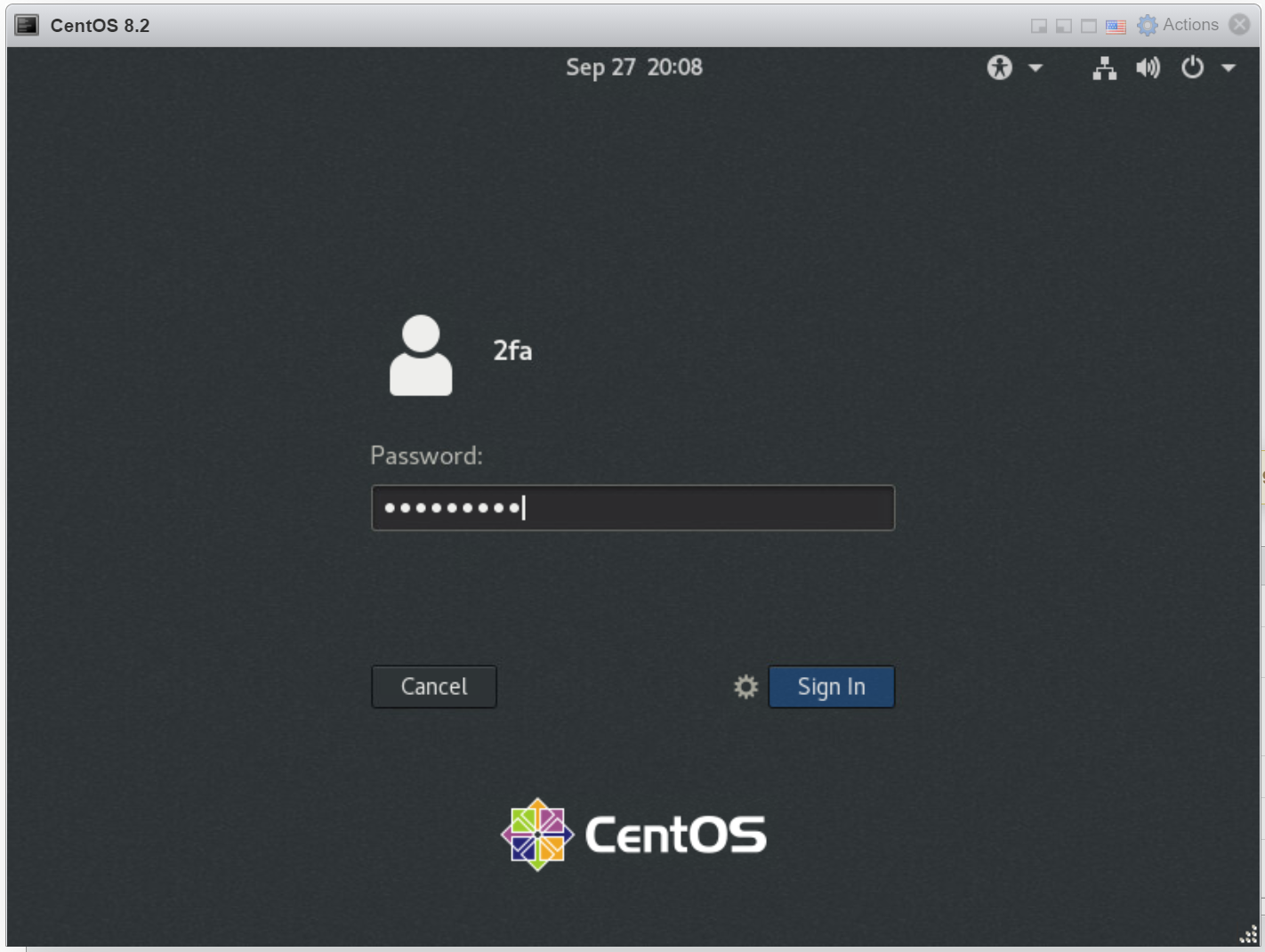
Enter your AD password, click "Sign In"
After the password has been verified successfully, you'll You will then be prompted to enter an one time passcode
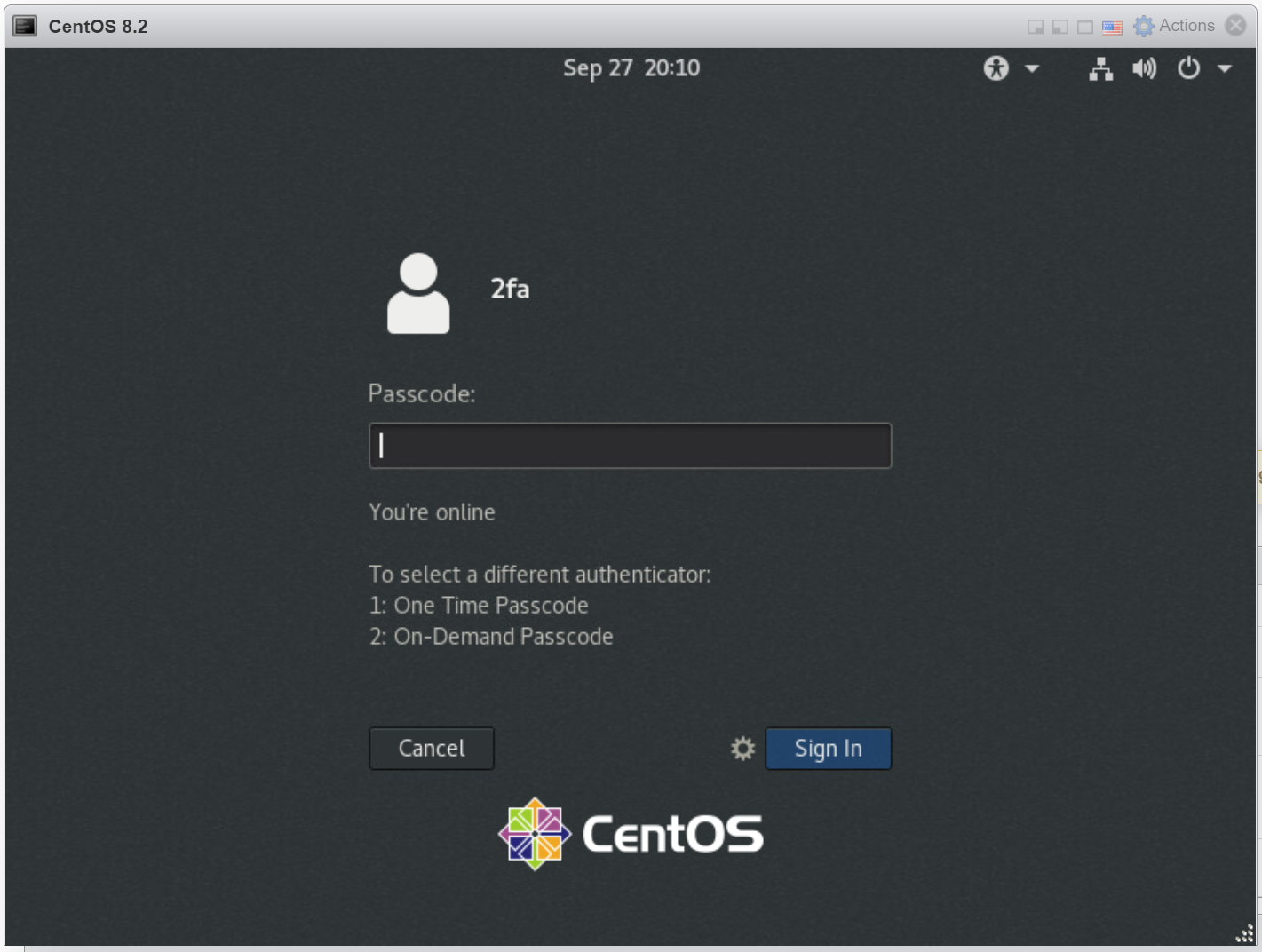
(Below the passcode box, a list of authenticators available to the user is listed. The first one in the list is the current authenticator)
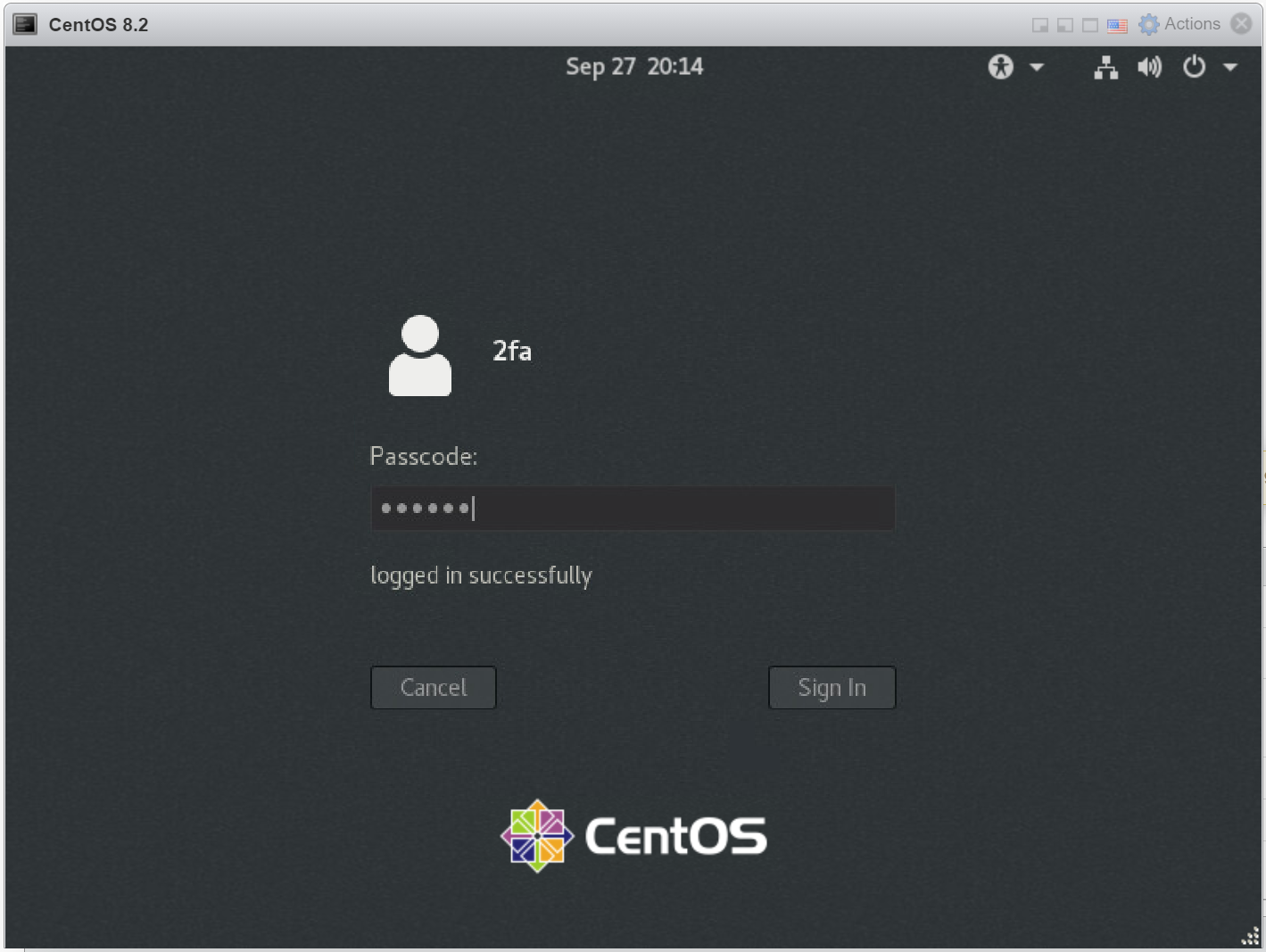
Enter a passcode generated from your OTP app or keyfob
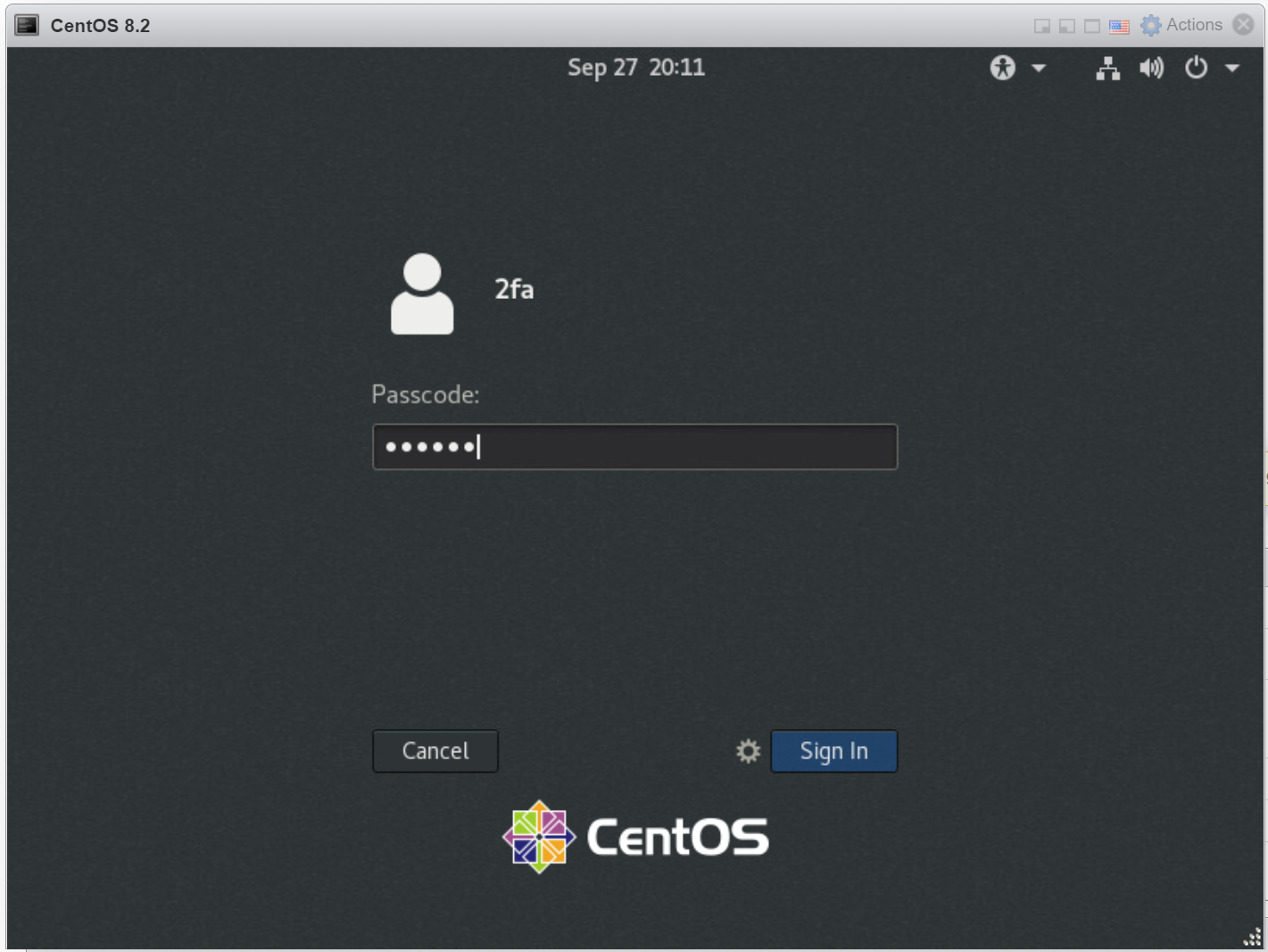
If the passcode entered is correct, you are logged in successfully
select an OOBA token:
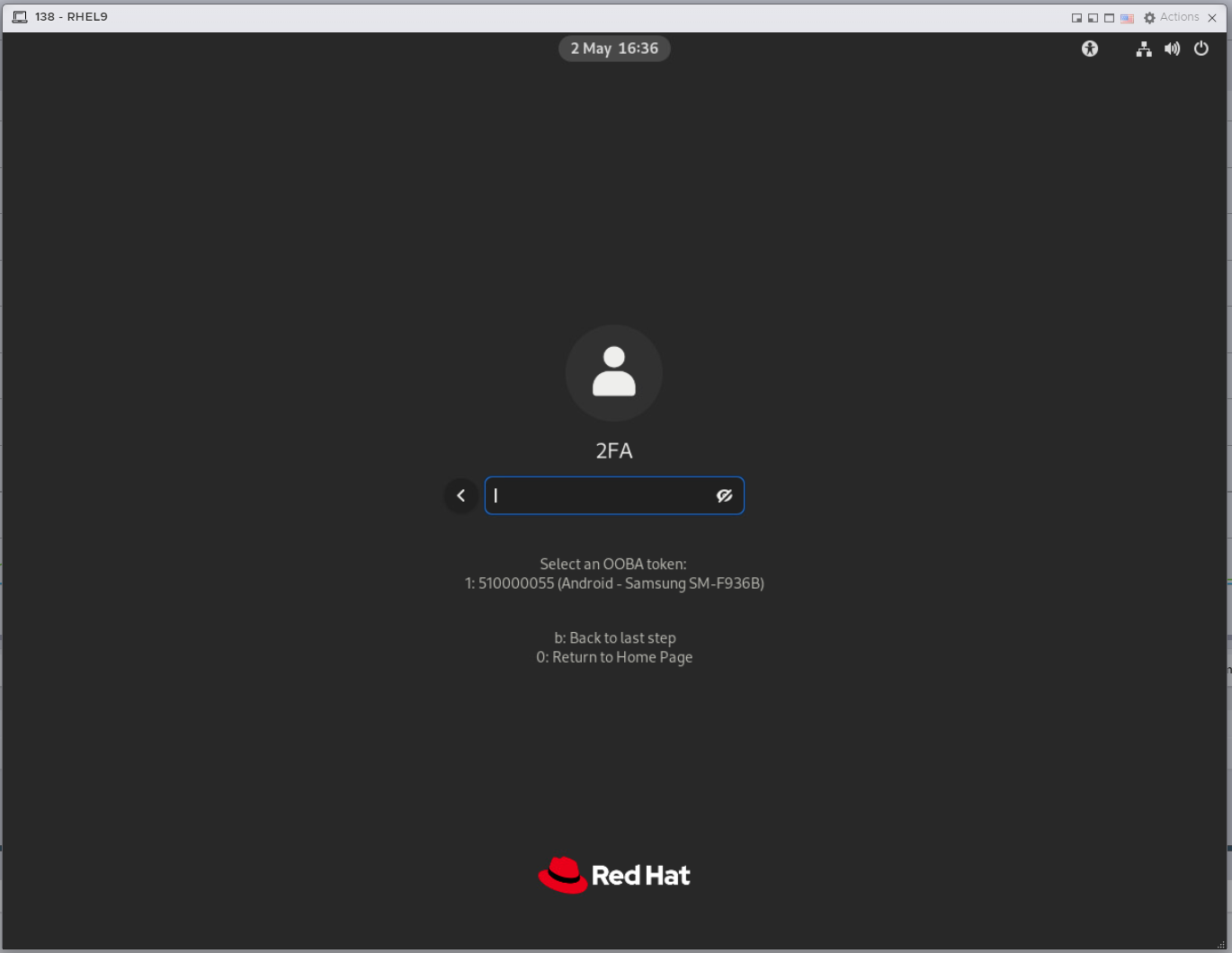
Enter "1" and press the Enter key to continue
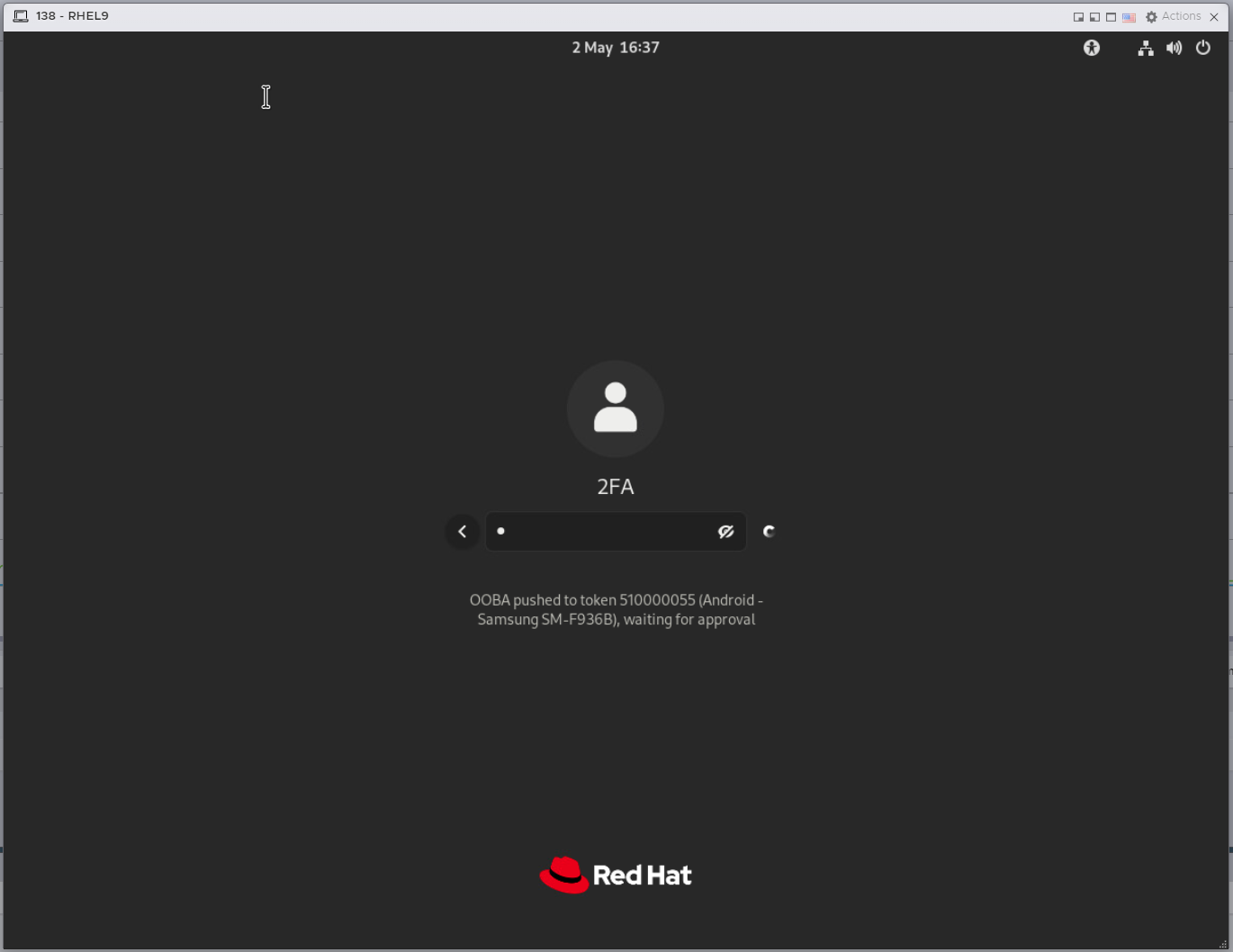
You should receive the OOBA push authentication request on your smartphone
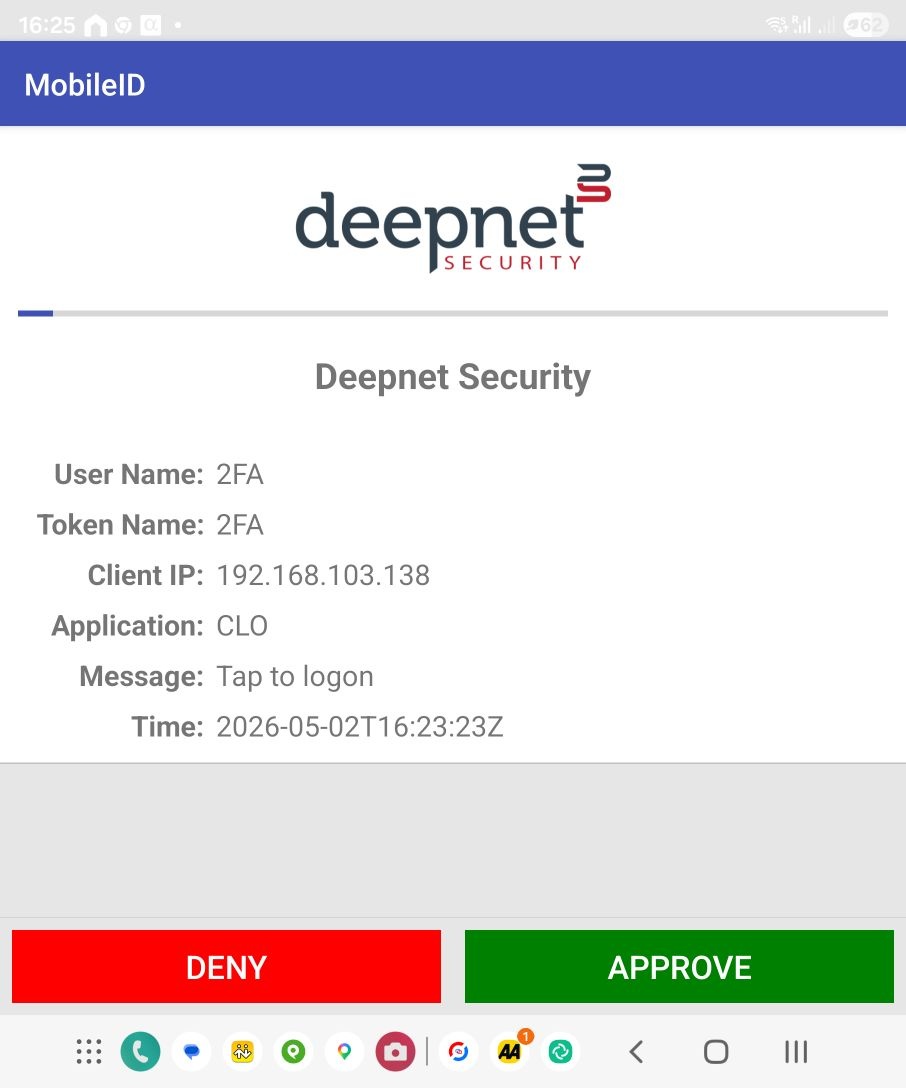
As soon as you approve the authentication request on your phone, you'll be signed in successfully: