| Table of Contents |
|---|
Create a RADIUS logon procedure
- Login to the DualShield Administration Console
- In the main menu, select "Authentication | > Logon Procedure"
- Click the "Create" button on the toolbar
- Enter a name and select "RADIUS " as the type
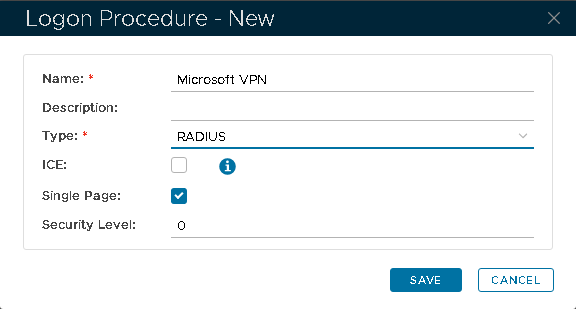
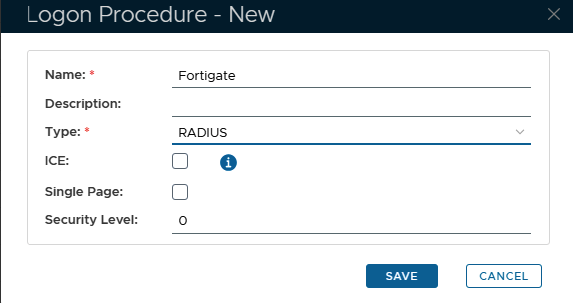
- Click "“Save"”
- Click the context menu Context Menu icon of the newly create created logon procedure, and select "Logon steps"
- In the popup window, click the "Add" button at the top. Select the "One-Time Password" as the first step
- select Logon Steps and a new section will be added to the page;
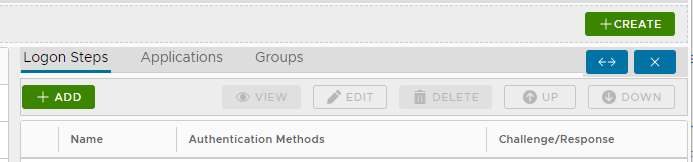
- To add a logon step, click on the
 button on the top left
 - Choose Static Password
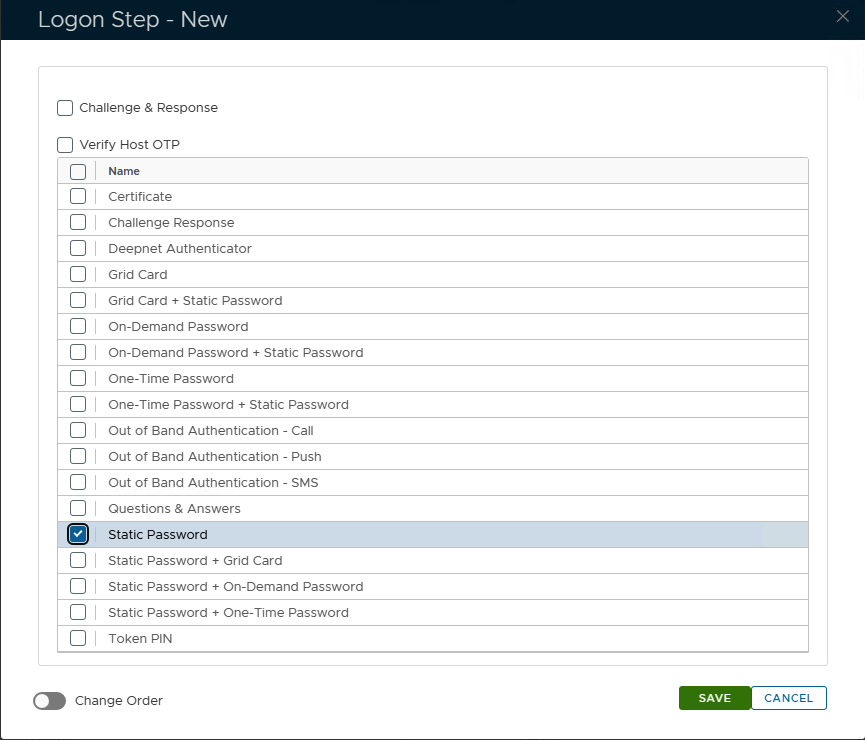
- Click Save
- Click Add
- Click "Save"
- Click "Add" again to add a second Logon Procedure
- Select OOBA Push as the second step
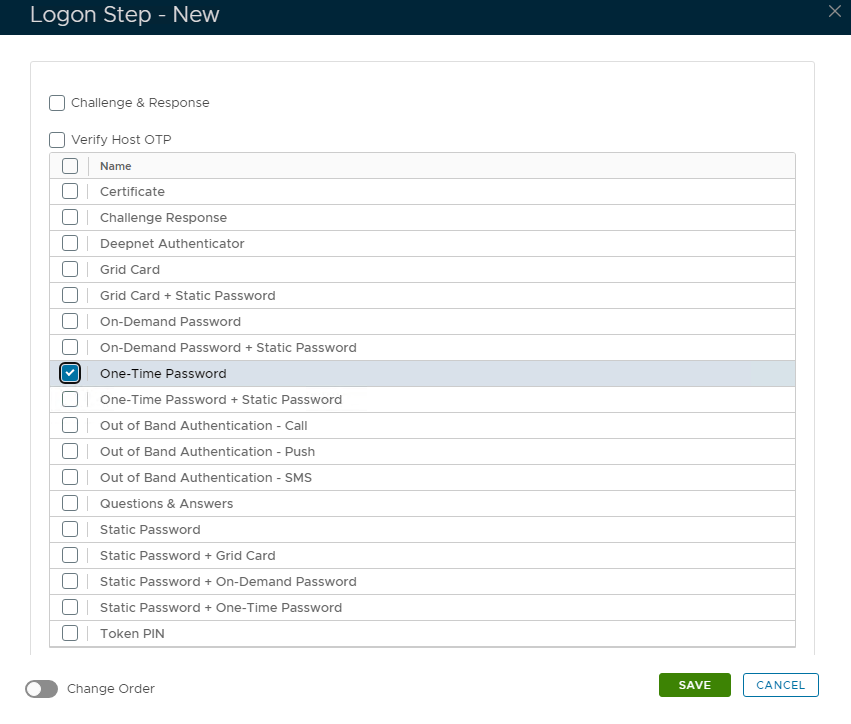
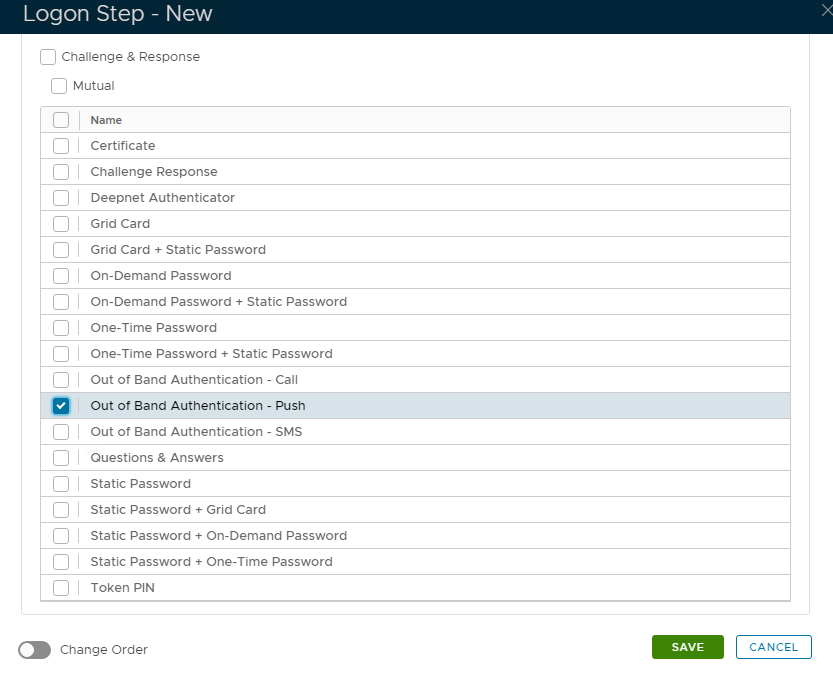
12. Click "Click Save"
Create a RADIUS application
- In the main menu, select "select Authentication | > Applications"
- Click the "the Create" button button on the toolbar
- Enter a name and select a realm
- Select the newly created logon procedure
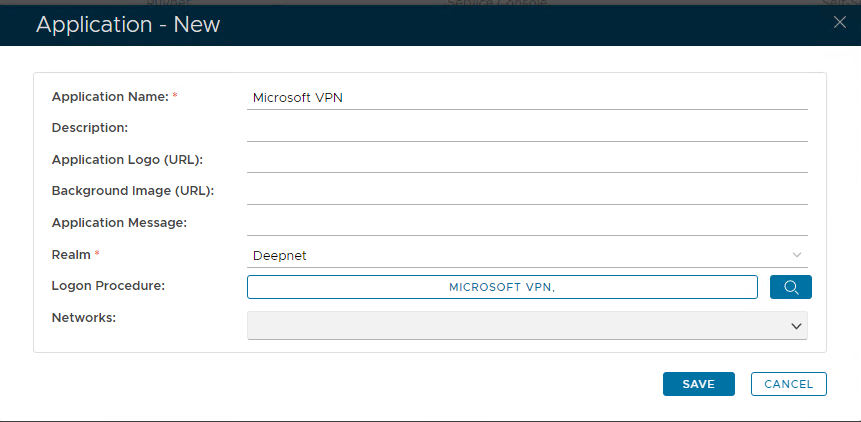
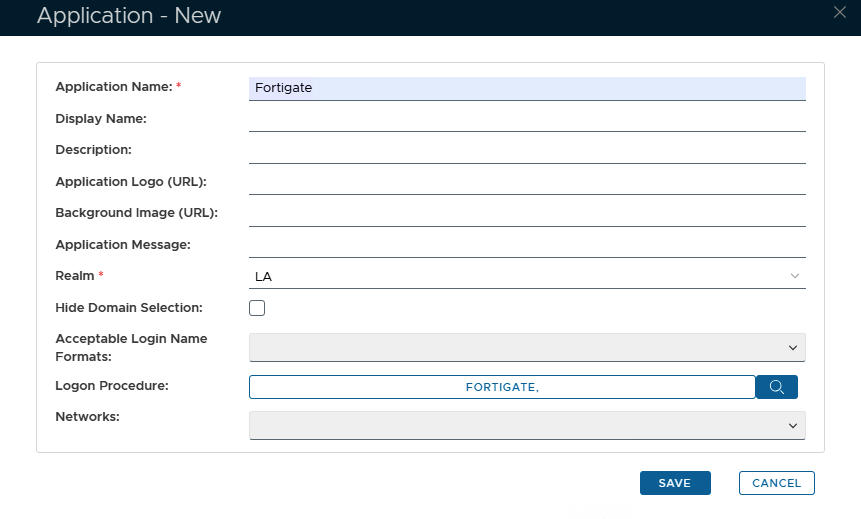
- Click "Click Save"
- Click the Context menu of the newly created application, select "select Agent" and and then select the Radius agent.
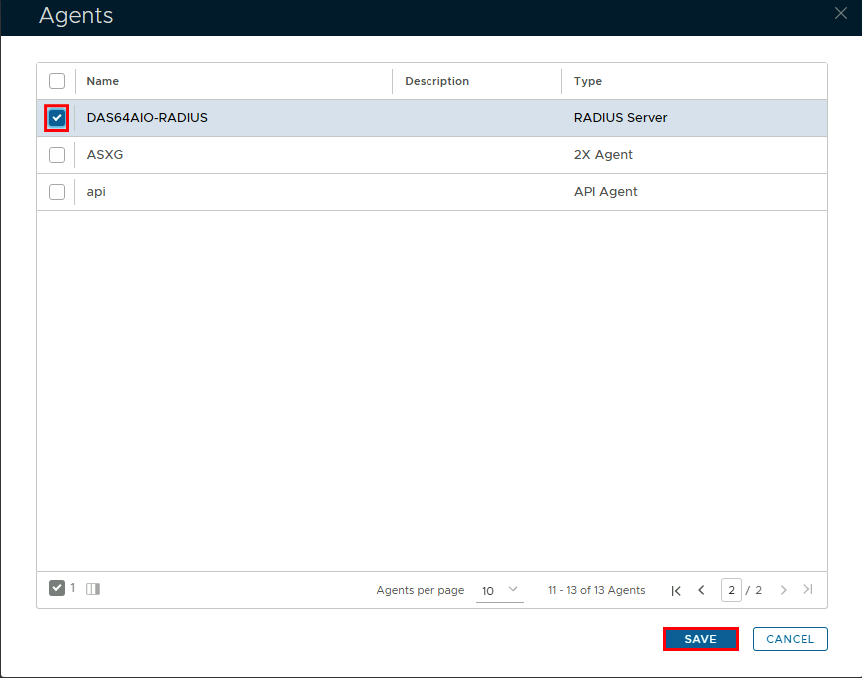
Click "Save" - Click Save
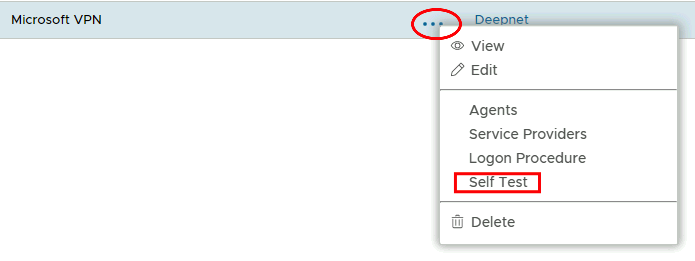
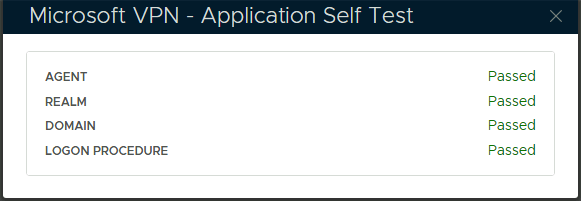
- Click on the corresponding Elipses ellipses and choose "Self Test" from from the menu.
Register
...
Fortigate as a Radius Client
- In the main menu, select "select RADIUS | > Client"
- Click the "Create" button on the top right.
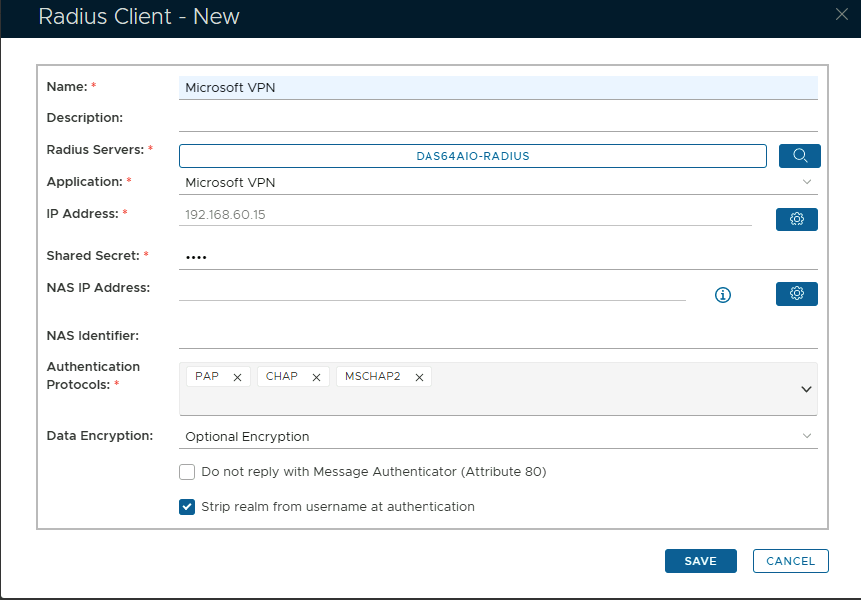
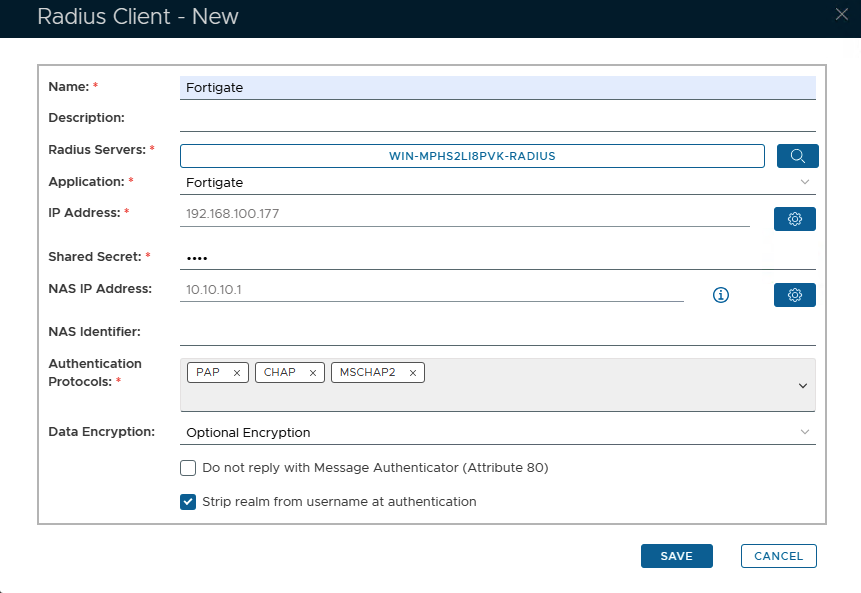
- Enter a friendly name
- Click on the magnifying glass and select the Radius Server
- Select the Application from the drop-down list.
- Click on the Cogwheel to the right to enter the IP address of the Network Policy Server Fortigate server and click "Add" then "Save"
- Enter the Shared Secret, which will be used in Network Policy ServerFortiGate's Radius Server configuration.
- Enter the NAS IP, which in this case will be the connection address used by FortiClient
- Select PAP, Chap & MSCHAP2 Select "PAP" "Chap" & "MSCHAP2" as the Authentication Protocols
- Click "Click Save"