...
| Section |
|---|
|
| Column |
|---|
Log on to the DualShield Administration Console and go to Authentication>Logon Procedure |
| Column |
|---|
|
| Panel |
|---|
| borderColor | #9EBEE5 |
|---|
| bgColor | #f0f0f0 |
|---|
| borderWidth | 1px |
|---|
|  Image Removed Image Removed Image Added Image Added
|
|
|
Click on Image Removed Image Added on the top right.
| Section |
|---|
|
| Column |
|---|
In the new Logon Procedure window, please enter the following information: | Option | Value |
|---|
| Name: | Enter a friendly name | | Type: | Web SSO |
Click: Save |
| Column |
|---|
|
| Panel |
|---|
| borderColor | #9EBEE5 |
|---|
| bgColor | #f0f0f0 |
|---|
| borderWidth | 1px |
|---|
| Image Removed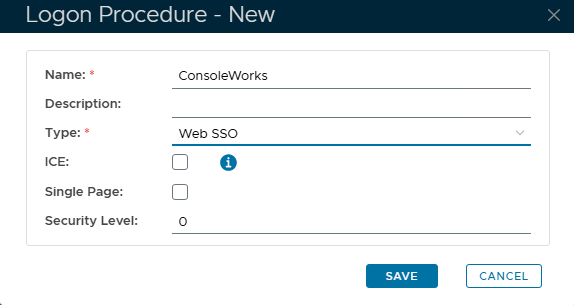 Image Added Image Added |
|
|
Add Logon Steps
| Section |
|---|
|
| Column |
|---|
Select the drop down menu corresponding to the Logon Procedure you will be using and click on Logon Steps. |
| Column |
|---|
|
| Panel |
|---|
| borderColor | #9EBEE5 |
|---|
| bgColor | #f0f0f0 |
|---|
| borderWidth | 1px |
|---|
| Image Removed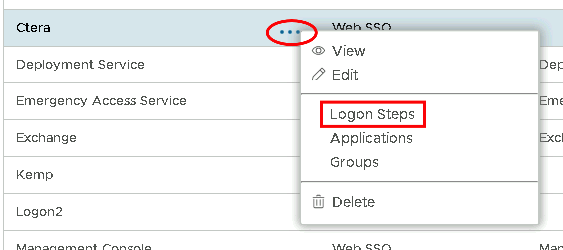 Image Added Image Added |
|
|
In the Logon Steps Dialogue box, click the Image Removed Image Added button.
| Section |
|---|
|
| Column |
|---|
Tick the desired authentication method, e.g. Static Password |
| Column |
|---|
|
| Panel |
|---|
| borderColor | #9EBEE5 |
|---|
| bgColor | #f0f0f0 |
|---|
| borderWidth | 1px |
|---|
| Image Removed Image Added Image Added |
|
|
Click Save.
Repeat to add extra steps.
| Section |
|---|
|
| Column |
|---|
| I have added two steps; Static Password and One-Time Password |
| Column |
|---|
|
| Panel |
|---|
| borderColor | #9EBEE5 |
|---|
| bgColor | #f0f0f0 |
|---|
| borderWidth | 1px |
|---|
| Image Removed Image Added Image Added |
|
|
Create an Application
| Section |
|---|
|
| Column |
|---|
Authentication> Applications |
| Column |
|---|
|
| Panel |
|---|
| borderColor | #9EBEE5 |
|---|
| bgColor | #f0f0f0 |
|---|
| borderWidth | 1px |
|---|
| Image Removed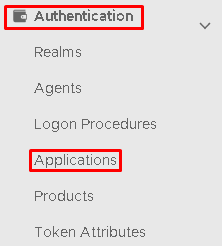 Image Added Image Added |
|
|
Click on Image RemovedImage Added on the top right.
...
| Section |
|---|
|
| Column |
|---|
In the new Application window, please enter the following information: | Option | Value |
|---|
| Name: | Enter a friendly name | | Realm: | Select your Realm | | Logon Procedure: | Select the Logon Procedure you had created in the previous step |
Click: Save |
| Column |
|---|
|
| Panel |
|---|
| borderColor | #9EBEE5 |
|---|
| bgColor | #f0f0f0 |
|---|
| borderWidth | 1px |
|---|
| Image Removed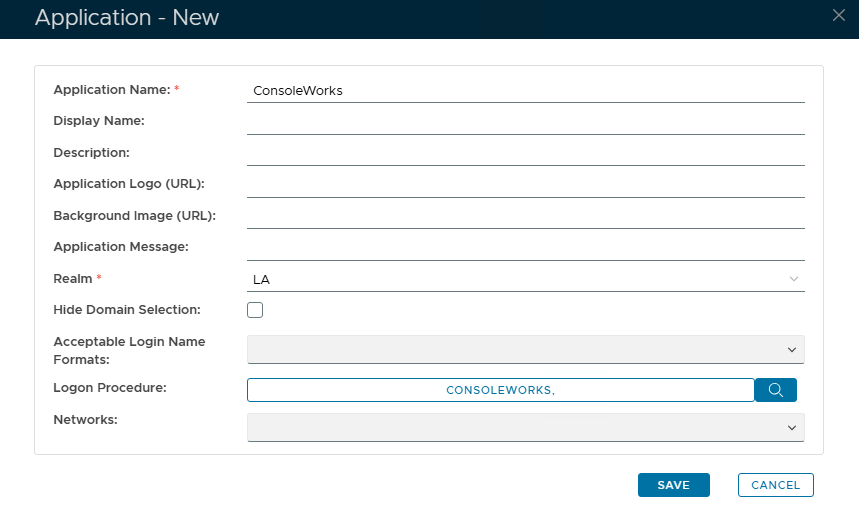 Image Added Image Added |
|
|
Bind the Application to an SSO Server Agent
...
| Section |
|---|
|
| Column |
|---|
Select the drop down menu corresponding to the Application you will be using and click on Agents. |
| Column |
|---|
|
| Panel |
|---|
| borderColor | #9EBEE5 |
|---|
| bgColor | #f0f0f0 |
|---|
| borderWidth | 1px |
|---|
| Image Removed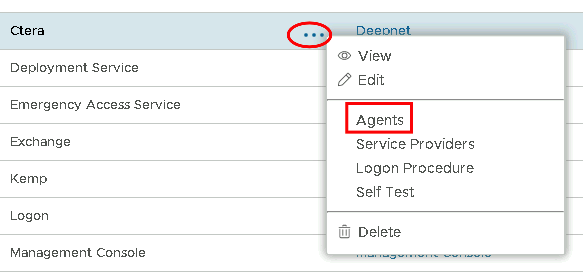 Image Added Image Added |
|
|
| Section |
|---|
|
| Column |
|---|
Tick the box of the SSO Server you will be using and click Save below. |
| Column |
|---|
|
| Panel |
|---|
| borderColor | #9EBEE5 |
|---|
| bgColor | #f0f0f0 |
|---|
| borderWidth | 1px |
|---|
| Image Removed Image Added Image Added |
|
|
Create a Service Provider Profile
...
| Section |
|---|
|
| Column |
|---|
Go to SSO>Service Providers |
| Column |
|---|
|
| Panel |
|---|
| borderColor | #9EBEE5 |
|---|
| bgColor | #f0f0f0 |
|---|
| borderWidth | 1px |
|---|
| Image Removed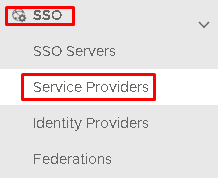 Image Added Image Added |
|
|
Click on Image RemovedImage Added on the top right.
...
| Section |
|---|
|
| Column |
|---|
Fill in the details as per screenshot on right and make sure you select SAML 2.0(Without Metadata) as Type.using the following values | Option | Value |
|---|
| Type: | OpenID Connect | | SSO Server: | Select the SSO server you applied as the aplication agent. (see above) | | Application: | Select the name of the Application from the drop down list | | Name | Type a frienly name to identify which application this Serrvice Provider will be associated with | | NameID Format | Keep as SAM Account Name |
|
| Column |
|---|
|
| Panel |
|---|
| borderColor | #9EBEE5 |
|---|
| bgColor | #f0f0f0 |
|---|
| borderWidth | 1px |
|---|
| Image Removed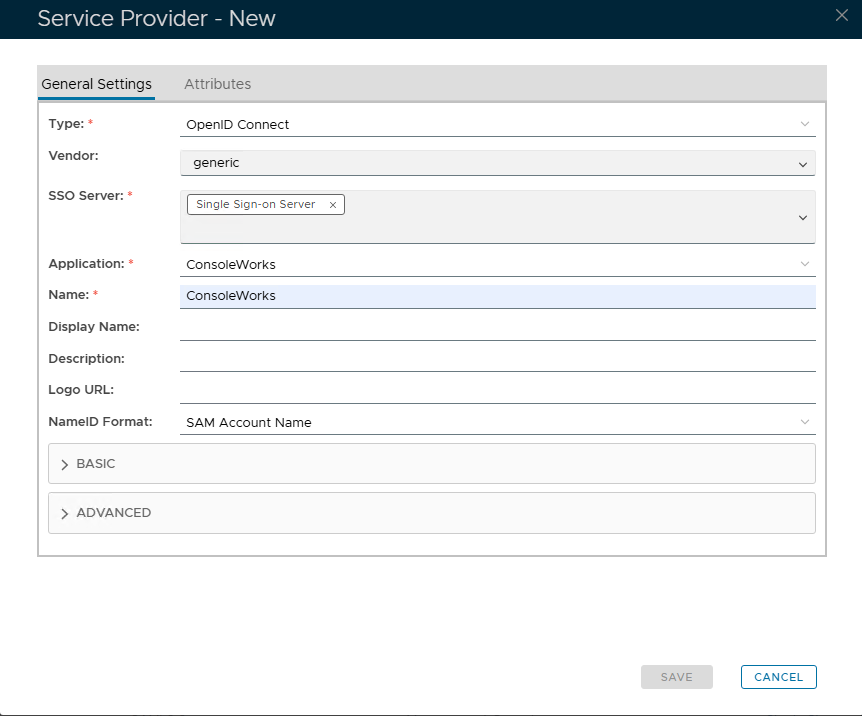 Image Added Image Added |
|
|
| Section |
|---|
|
| Column |
|---|
Now fill out Entity ID and ACS URLExpand the BASIC tab and set the values below, leaving the remainining default values. Entity IDprefixyourdomainname.comACS URL | | Post Logout Redirect URIs: | |
prefixyourdomainnamecom/ServicesPortal/saml *Replace the x.x.x.x with the IP of the ConsoleWorks server.  Image Added Scroll down to the next value Image Added Scroll down to the next value
|
| Column |
|---|
|
| Panel |
|---|
| borderColor | #9EBEE5 |
|---|
| bgColor | #f0f0f0 |
|---|
| borderWidth | 1px |
|---|
| Image Removed | 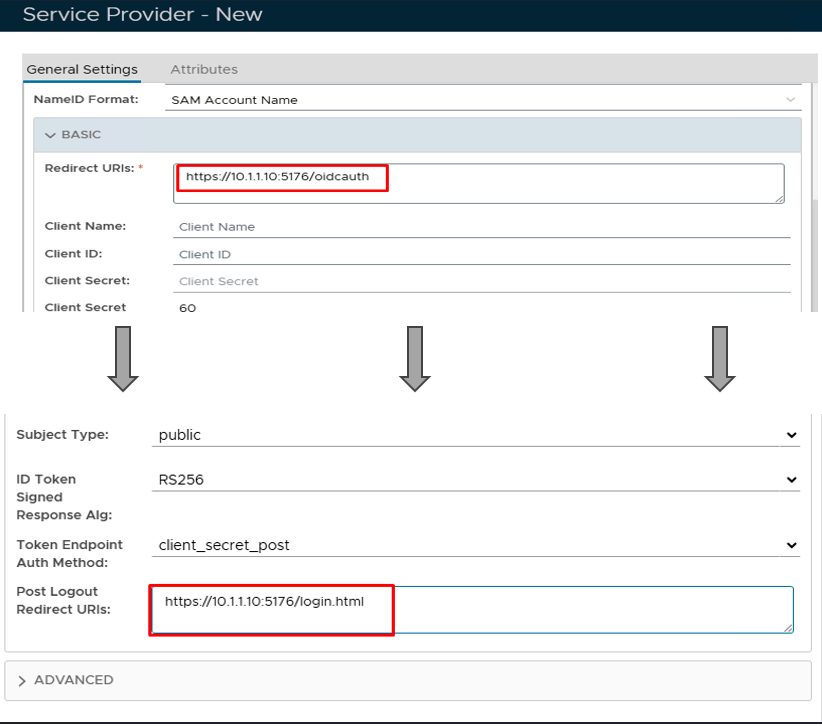 Image Added Image Added
|
|
|
Click Save.
Obtain the OIDC Authorization Endpoint URL
| Section |
|---|
|
| Column |
|---|
Go to SSO>SSO Servers |
| Column |
|---|
|
 Image Added Image Added
|
|
| Section |
|---|
|
| Column |
|---|
The completed Service Provider dialogue box will look like this:Select the drop down menu corresponding to the SSO server you will be using and click on Edit |
| Column |
|---|
|
| Panel |
|---|
| borderColor | #9EBEE5 |
|---|
| bgColor | #f0f0f0 |
|---|
| borderWidth | 1px |
|---|
| Image Removed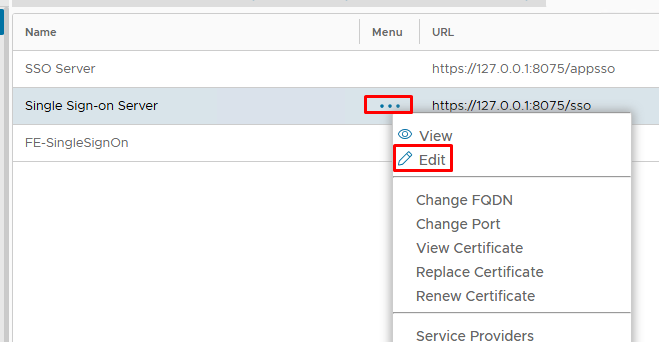 Image Added Image Added |
|
|
Click Save.
Download the IDP Metadata file.
...
|
| Column |
|---|
Click on the OpenID Connect tab and copy out the Discovery URL. If the URLs are not displaying click on the LOAD DEFAULT button first.
|
| Column |
|---|
|
| Panel |
|---|
| borderColor | #9EBEE5 |
|---|
| bgColor | #f0f0f0 |
|---|
| borderWidth | 1px |
|---|
| 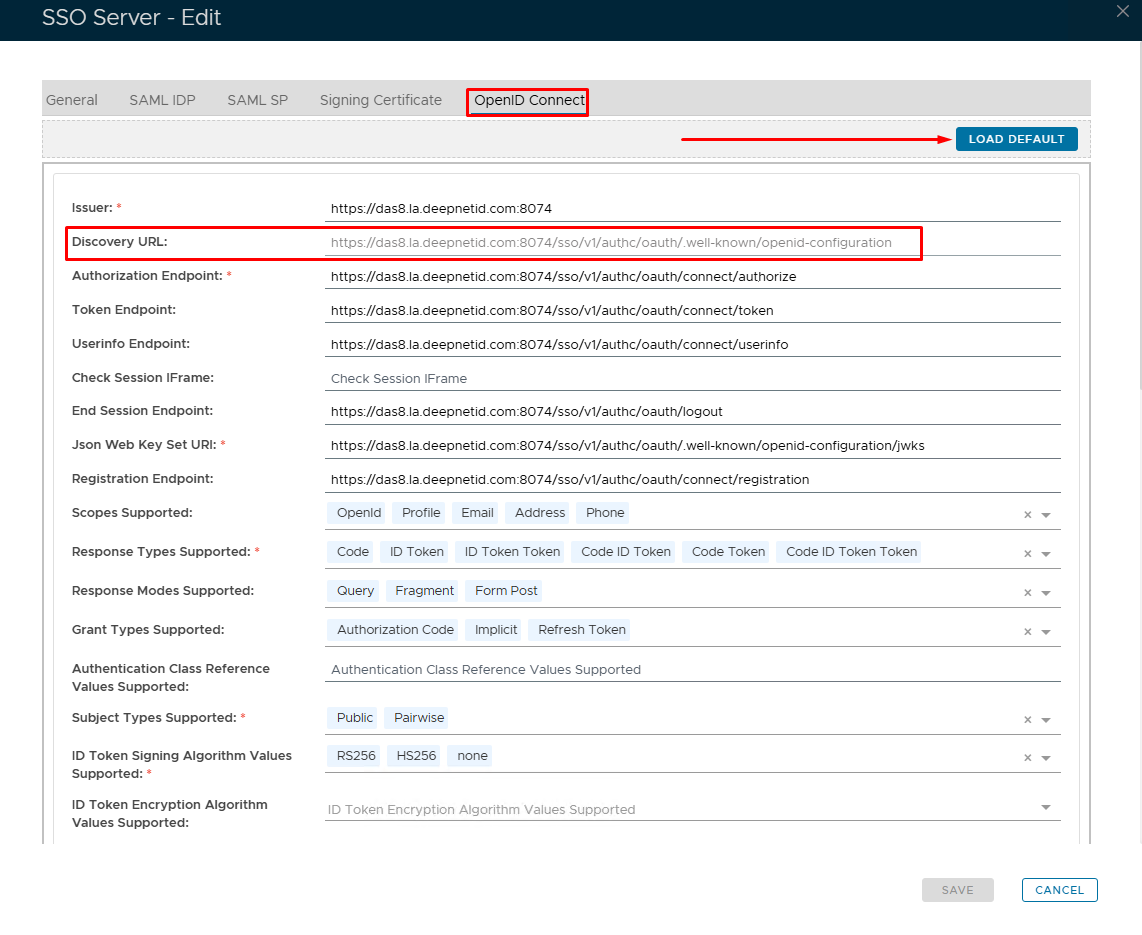 Image Added Image Added
|
|
|
Click Save.
Check the endpoint can be discovered on the ConsoleWorks server
| Column |
|---|
Go to SSO>SSO Servers |
...
...
| Section |
|---|
|
| Column |
|---|
Open a browser on the ConsoleWorks Server and paste in the Discovery URL. You should see something similar to the picture. If the URL cannot be reached, then you need to fix this first before moving on to the next section Select the drop down menu corresponding to the SSO server you will be using and click on Download IDP Metadata. |
| Column |
|---|
|
| Panel |
|---|
| borderColor | #9EBEE5 |
|---|
| bgColor | #f0f0f0 |
|---|
| borderWidth | 1px |
|---|
| Image Removed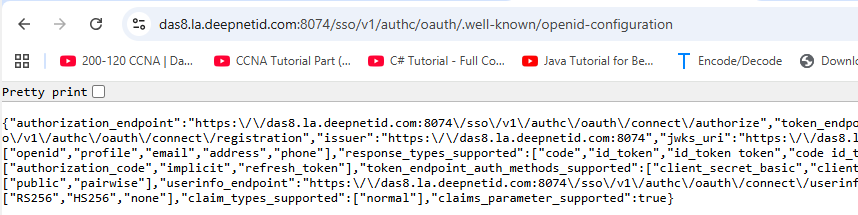 Image Added Image Added |
|
|