Introduction
Federated Single Sign-On (SSO) is a service that allows users to log in to multiple web applications across multiple domains using a single set of credentials. This is also known as Federated Identity Management (FIM).
Create a Federation
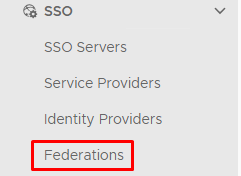
On the Dualshield Administration console go to SSO>Federations
Click  on the top right.
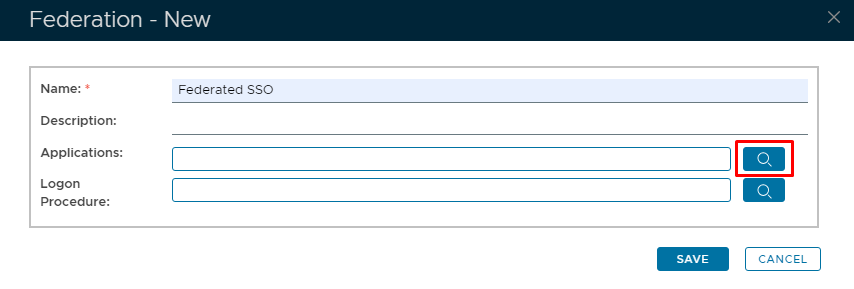
Specify a Name then add the web applications by clicking on the  right of the Applications box
Place a check in the corresponding box.
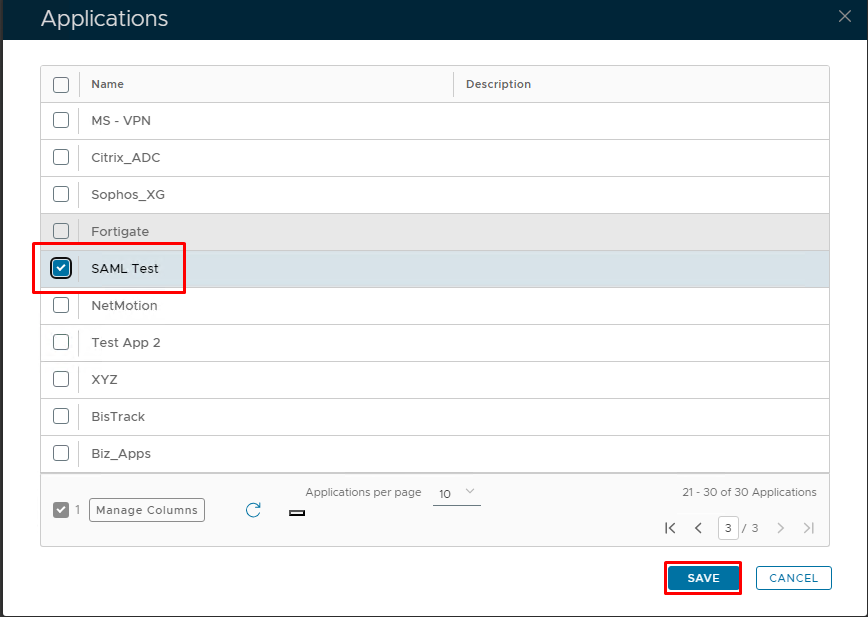
Add as many applications as you wish to include in the federated logon and click Save.
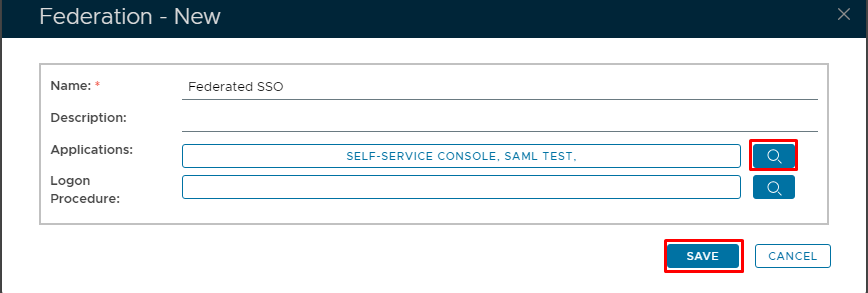
Optional Federation Logon Procedure
The Logon Procedure box is optional. If for example both Applications specified in the screenshot above have different logon procedures, only the logon procedure for the first application the end use logs into will be used.
However, some customers find that insecure and want a separate logon procedure for federated logon, To accomplish this, create a Logon procedure for Federation the same way as you would do for any new Application
Remember the Type of Logon Procedure will be Web SSO because these are web applications.
Once created you can apply it to the Federation you are building.
Add a Logon procedure by clicking to the right of the Logon Procedure box
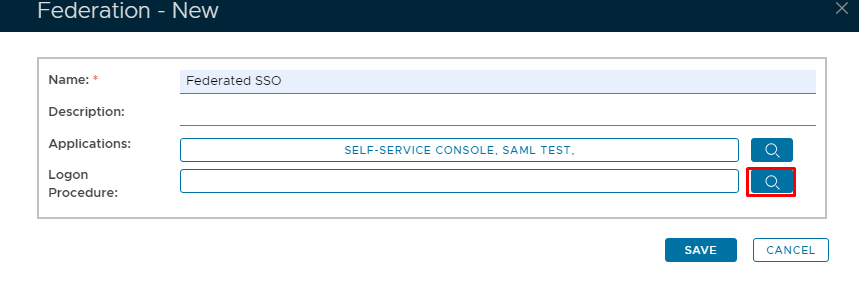
Select the Logon Procedure
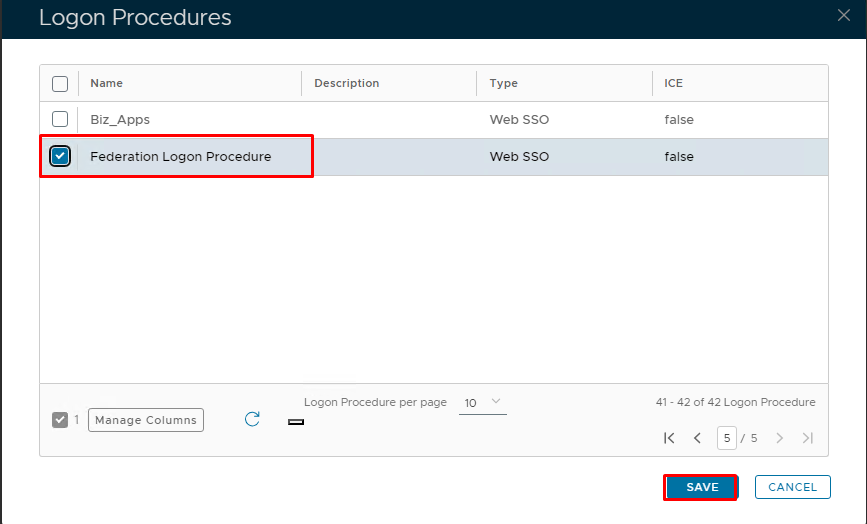
Click Save
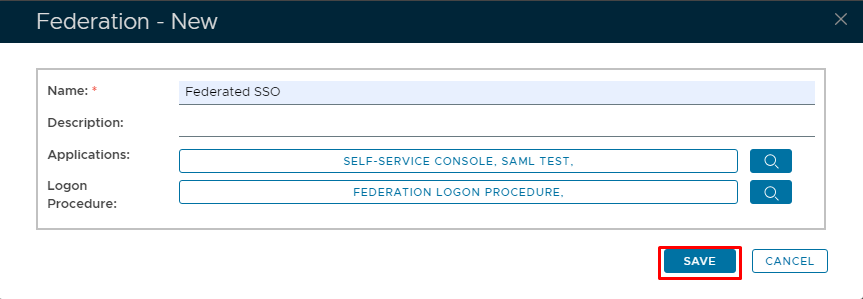
Once all finished, Click Save.
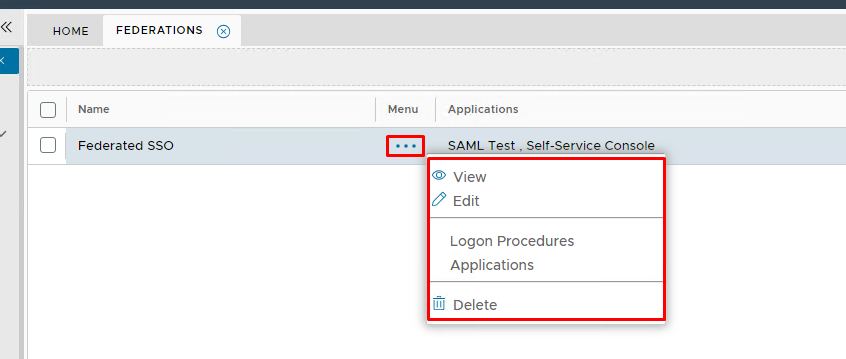
Once complete you will see the Federation added to the list.

View, Modify or Delete a Federation.
You can view modify or delete a federation at any time.