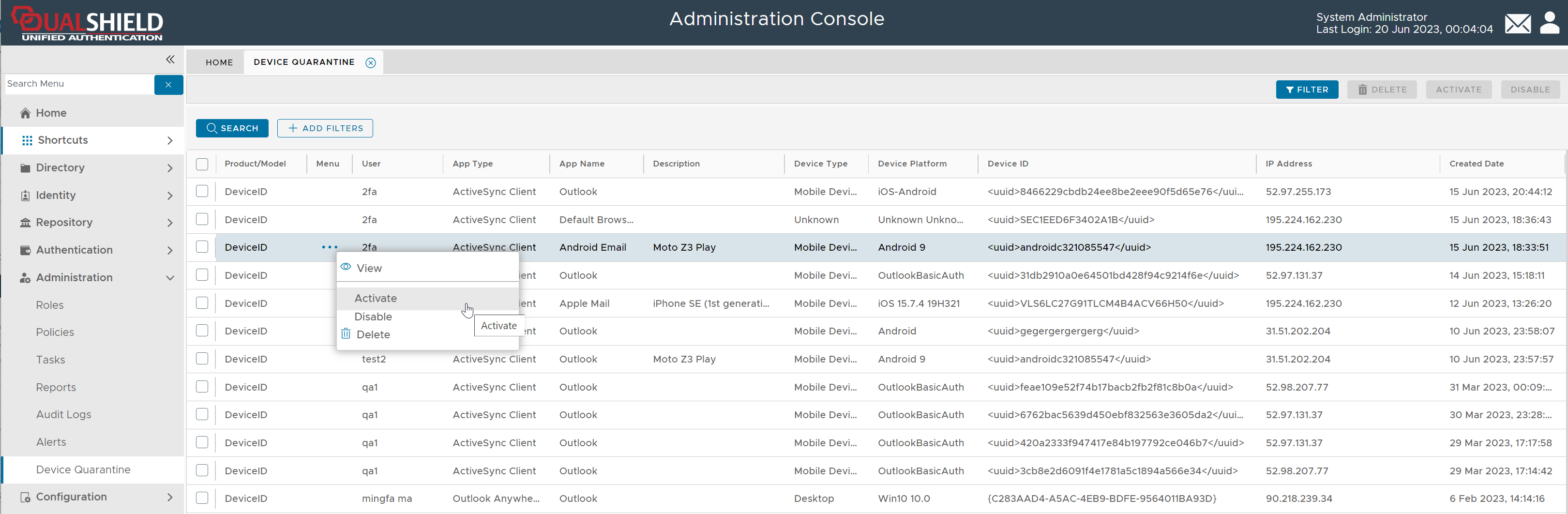
When a user attempts to log in to a service that is enabled with DeviceID authentication, after the user has been verified, the ID of the device will be automatically registered by the authentication server and put into quarantine.
Configure Policy Settings
| Expand | ||||||
|---|---|---|---|---|---|---|
|
Customize Message Template
If you want to give users a grace period immediately after the user's device is put in quarantine, then you need to customize the message template for the grace period.
| Expand | ||||||
|---|---|---|---|---|---|---|
|
Set up alert for DeviceID registration
| Expand | ||||||
|---|---|---|---|---|---|---|
|
Activate Device
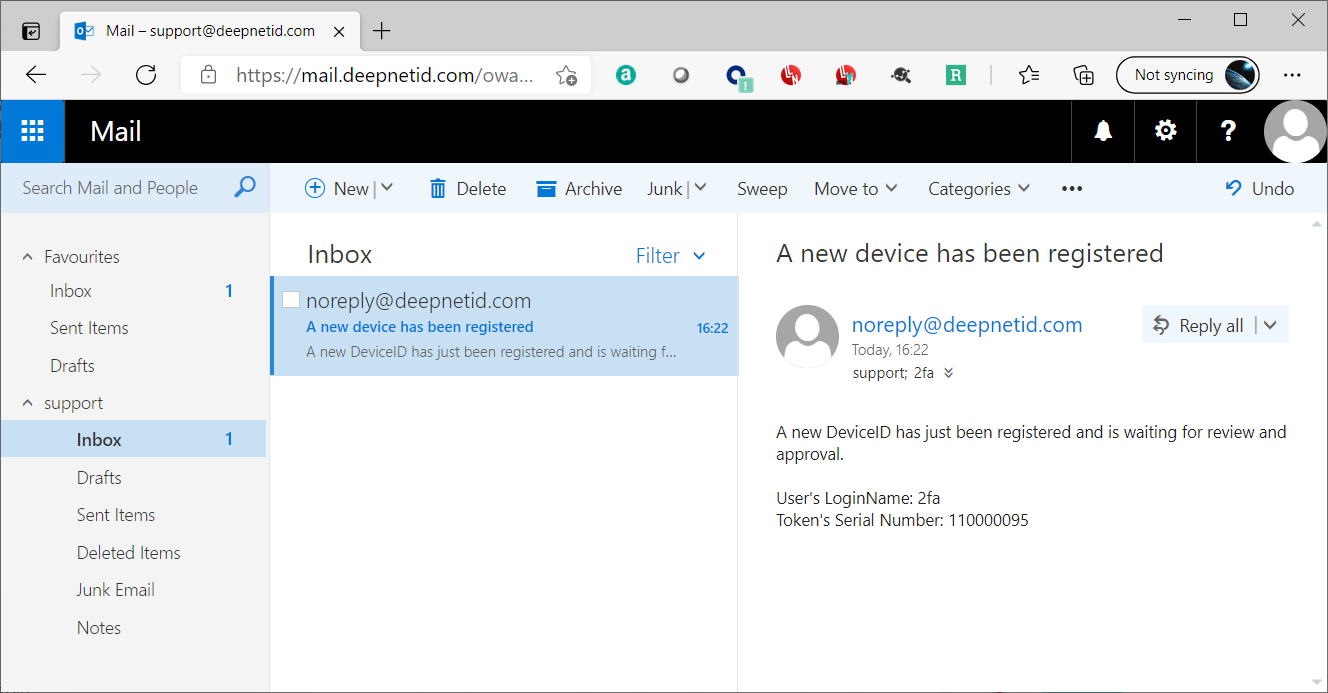
If you have set up the DeviceID registration alert, then you will receive an email or text message when a new device has been registered
In the Admin Console, navigate to Administration \ Device Quarantine
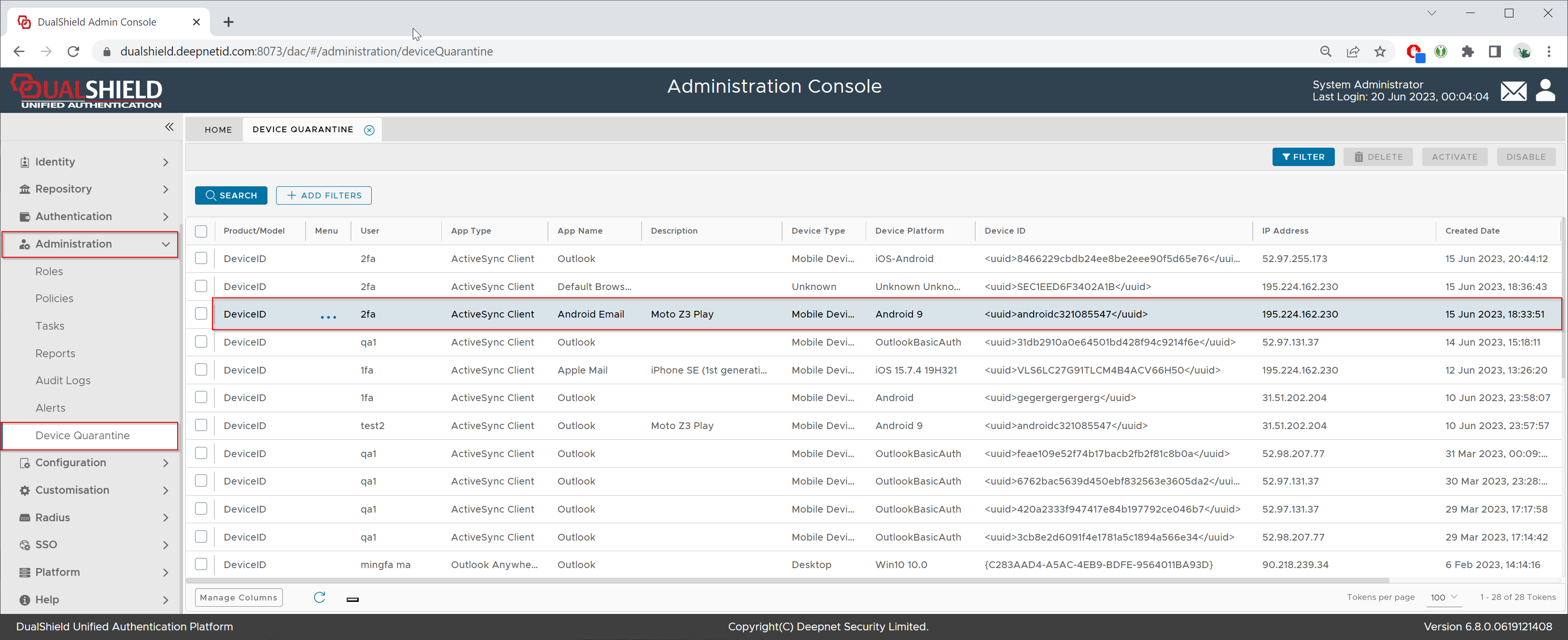
Click "..." to bring up the device's context menu

To view the device's properties, select "View" from the context menu

You can check the device type, OS, model etc. You can also check the device ID which is unique on every device.
| Expand | ||||||
|---|---|---|---|---|---|---|
| ||||||
|
To activate the device, select "Activate" from the context menu.