Open a web browser and go to the URL of your CompleteFTP site.
| Section |
|---|
|
| Column |
|---|
Click on the 'log in via' Button. (The name on the button should match the one set under the IDP list in the SAML configuration.)
|
| Column |
|---|
|
| Panel |
|---|
| borderColor | #9EBEE5 |
|---|
| bgColor | #f0f0f0 |
|---|
| borderWidth | 1px |
|---|
|  Image Added Image Added
|
|
|
Create a Service Provider Profile
| Section |
|---|
|
| Column |
|---|
Go to SSO>Service Providers |
| Column |
|---|
|
| Panel |
|---|
| borderColor | #9EBEE5 |
|---|
| bgColor | #f0f0f0 |
|---|
| borderWidth | 1px |
|---|
| 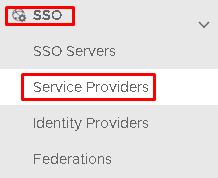 Image Added Image Added
|
|
|
Click on  Image Added on the top right.
| Section |
|---|
|
| Column |
|---|
Fill in the details as per screenshot on right and make sure you select SAML 2.0(Without Metadata) as Type.
Enter the EntityID, ACS and SLO information, noted from the SP Metadata file. Make sure both Sign on SAML Assertion and Add 'InResonse To' Attribute checkboxes are checked.
Click Save. |
| Column |
|---|
|
| Panel |
|---|
| borderColor | #9EBEE5 |
|---|
| bgColor | #f0f0f0 |
|---|
| borderWidth | 1px |
|---|
| 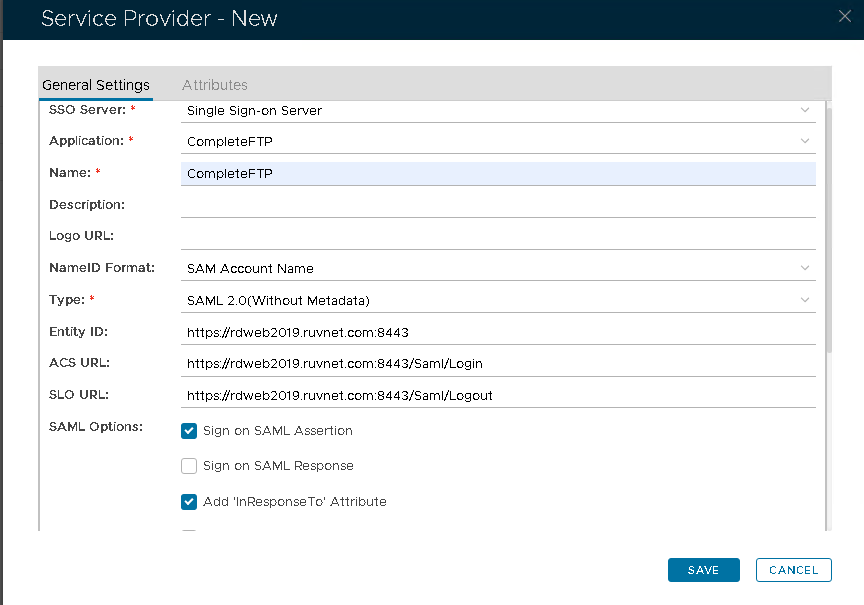 Image Added Image Added
|
|
|