For users who do not have access to the DualShield provisioning server and users who use MobileID with a third party authentication server such as Microsoft Azure MFA server, MobileID client software MobileID app provides another feature that allows users to install their tokens into the MobileID client app by manual entry.
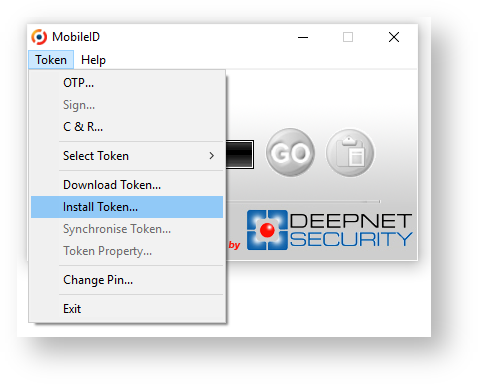
When Select the "Token | Install Token" option is selected the user is presented with the following window;
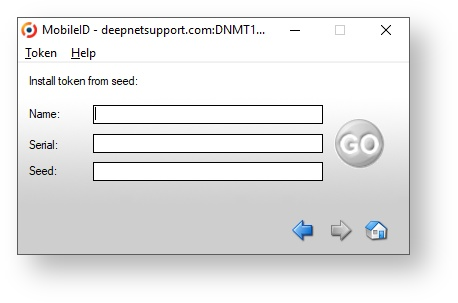
The “Name” field is for description only, provided by the user themselves.
The “Serial” and “Seed” values have to be provided by the system administrator.
If the customer is using MobileID with a third party authentication server, then the serial number & seed of the tokens will be provided to the customer by Deepnet Security in a CSV file.
If the customer is using MobileID with Deepnet DualShield authentication platform, then the serial number & seed of a token can be retrieved from the DualShield Management Console, as instructed below:
In the DualShield management console, navigate to the user account, open the context menu of the user account:
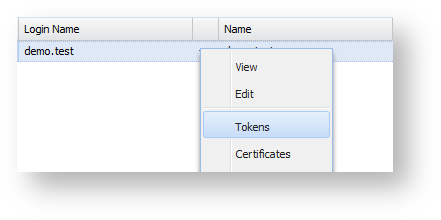
Select "Tokens", a list of the user's tokens will be displayed:
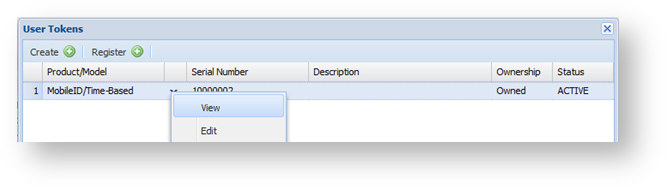
Select "View" or "Edit" to view or edit the token's properties:
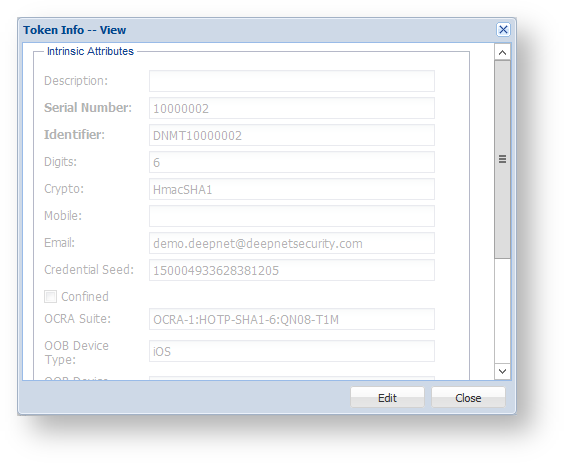
Copy the Serial Number and Credential Seed.
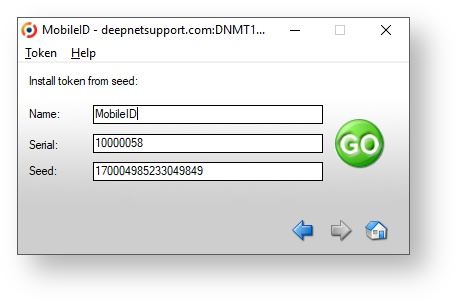
Finally, click the "Go" button to save the token.