...
| Table of Contents | ||||
|---|---|---|---|---|
|
Step 1 - Agent Console FQDN
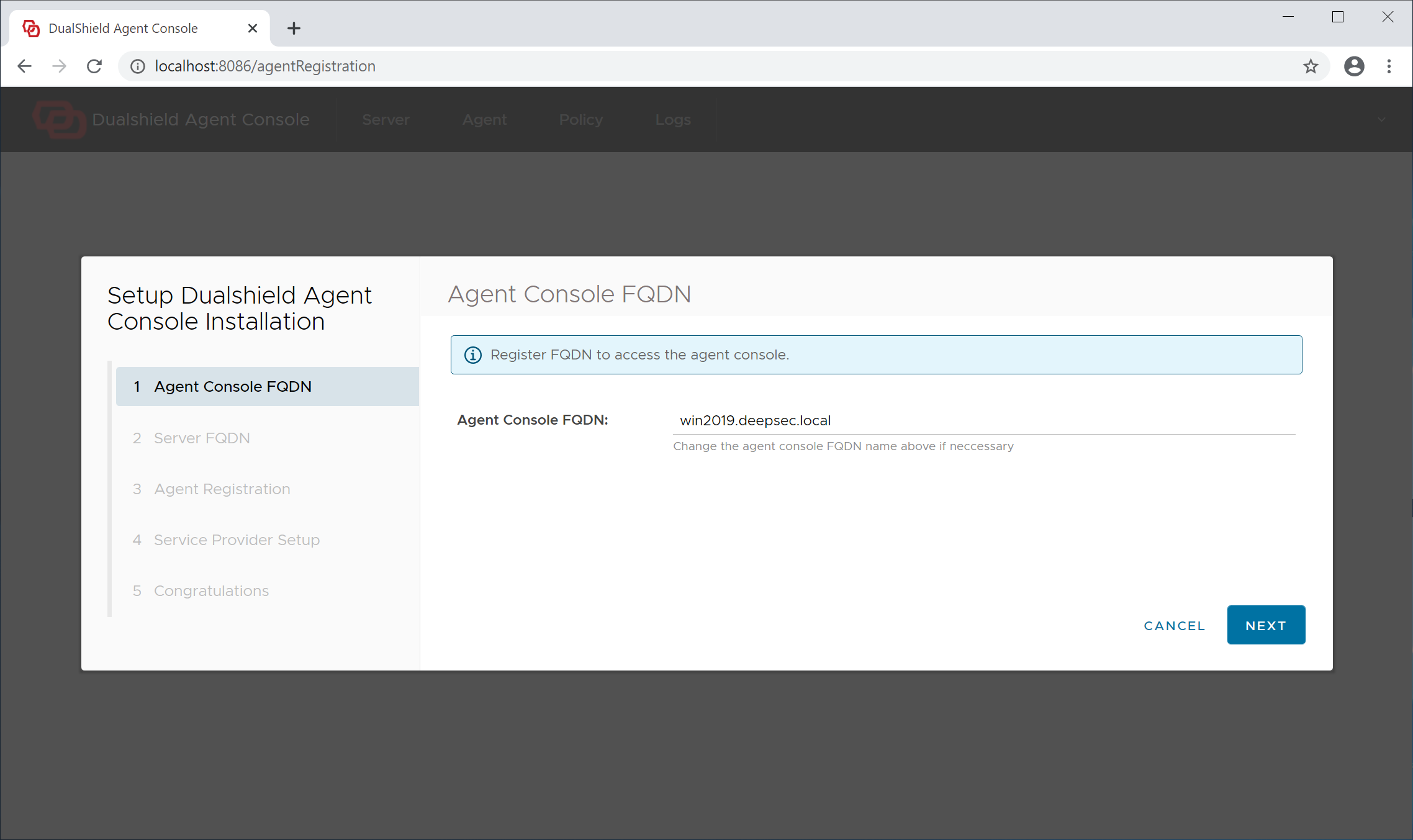
The admin console of the Logon Agent is a web portal, therefore it needs to have a hostname, or fully qualified domain name (FQDN). By default, the full computer name is suggested as the Agent's hostname.
Step 2 - Server FQDN
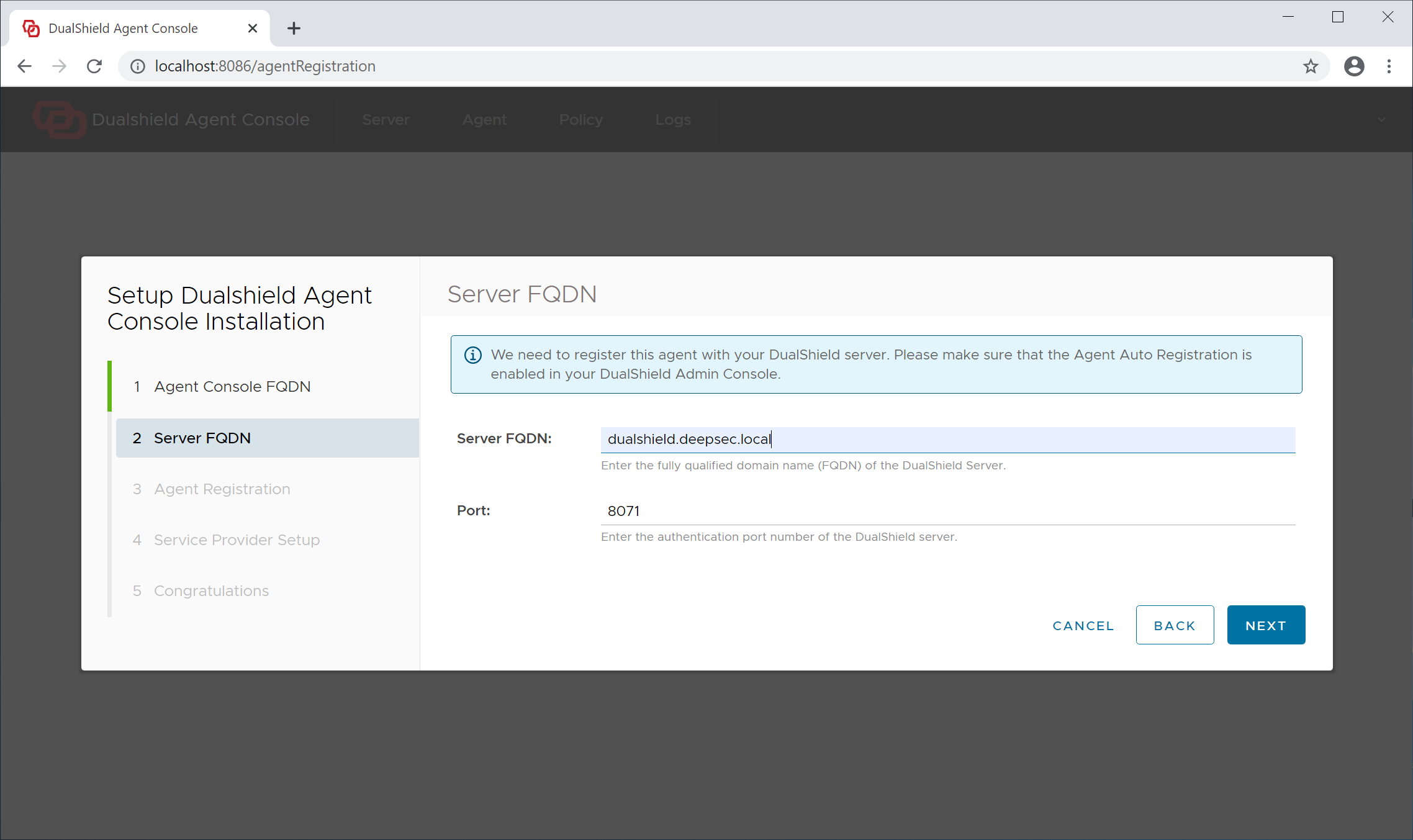
Server FQDN: Enter the FQDN of your DualShield authentication server
Click "Next" to continue
Step 3 - Agent Registration
In order to register the Logon Agent with the Authentication Server, we need to first enable the Agent Registration option.
...
Agent Name: A agent name is only used to describe the agent. If you are going to install multiple agents, make sure that you name each of the agent with a distinctive and easy to identify name.
Click "Next" to continue
Step 4 - Service Provider Setup
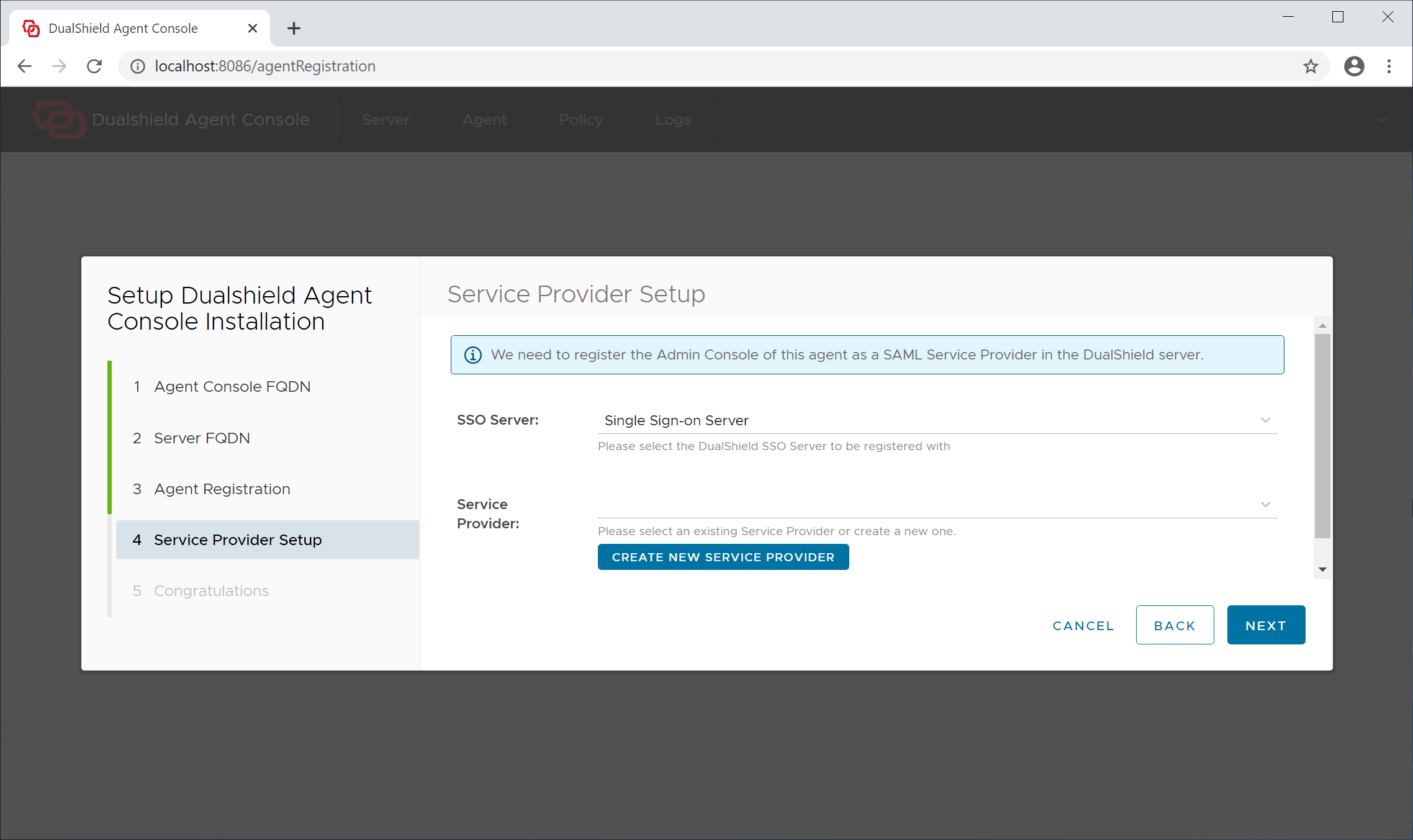
For security, the agent console will require user authentication, therefore it needs to be registered with your DualShield SSO as a service provider.
...
Now, click the "Create" button to create a new service provider for this agent
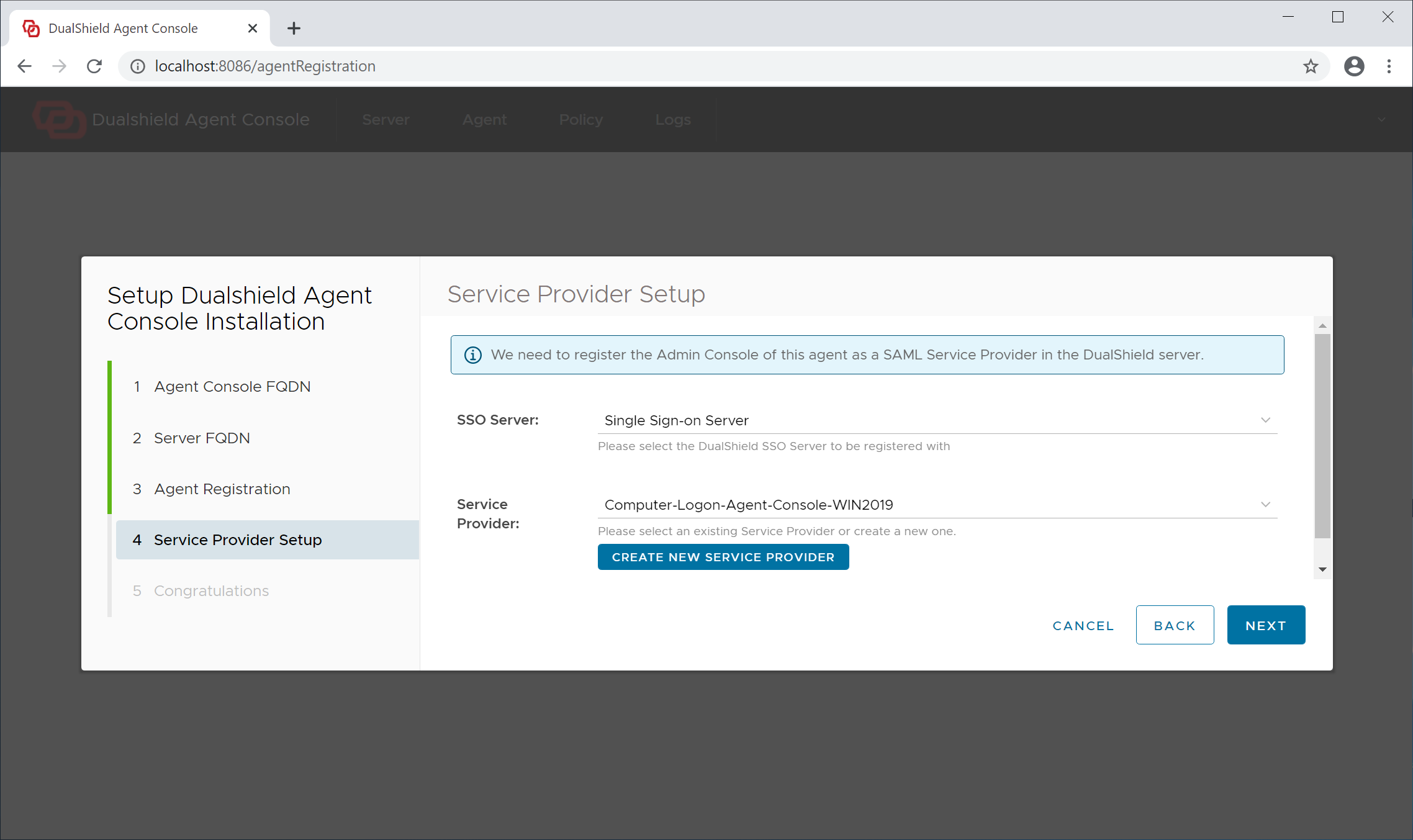
Click "Next" to continue
Step 5 - Completion
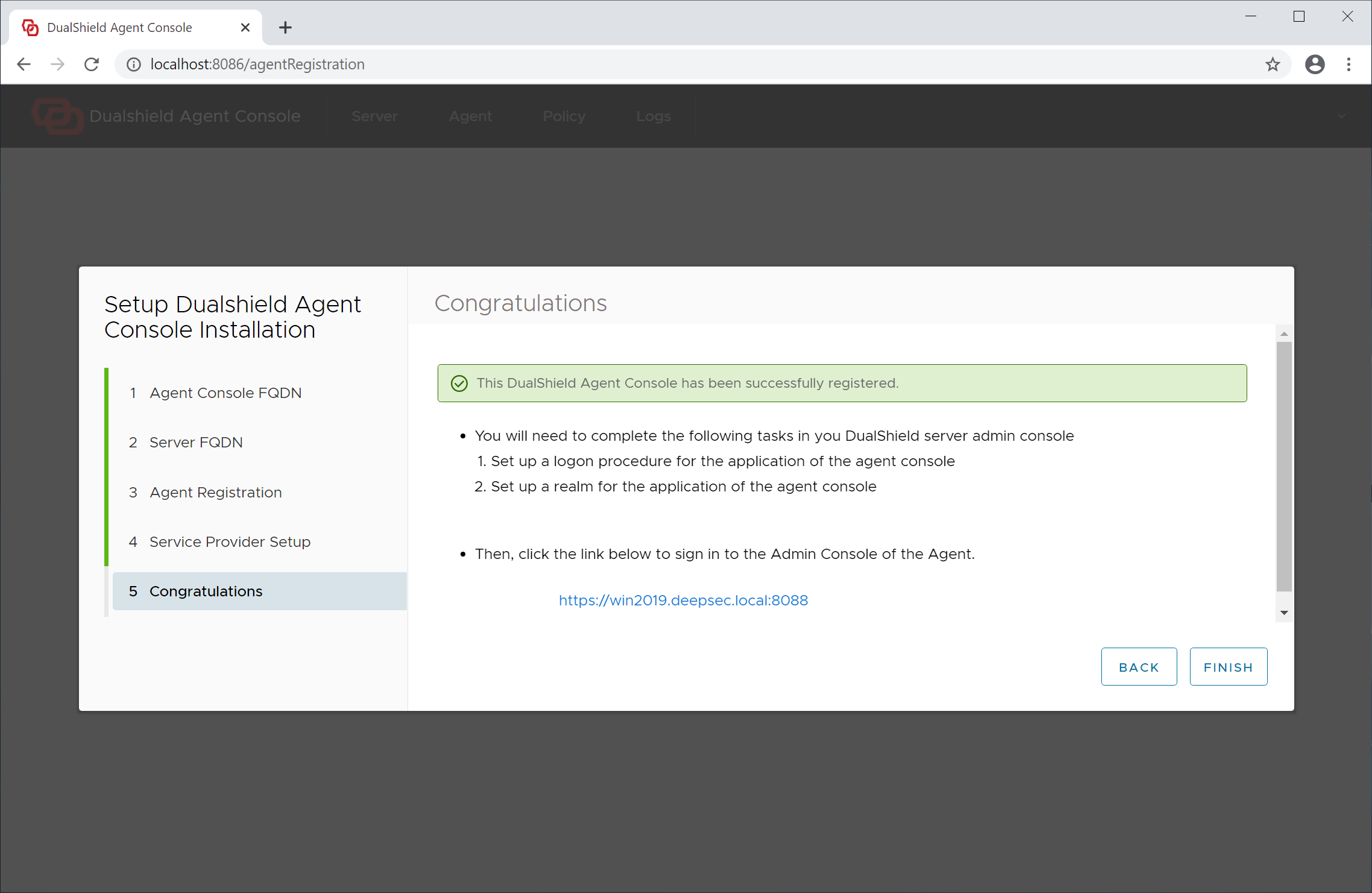
The agent has now been successfully registered.
Click "Finish" to continue. The admin console of the agent wil be launched
Step 6 - Set up Agent Application
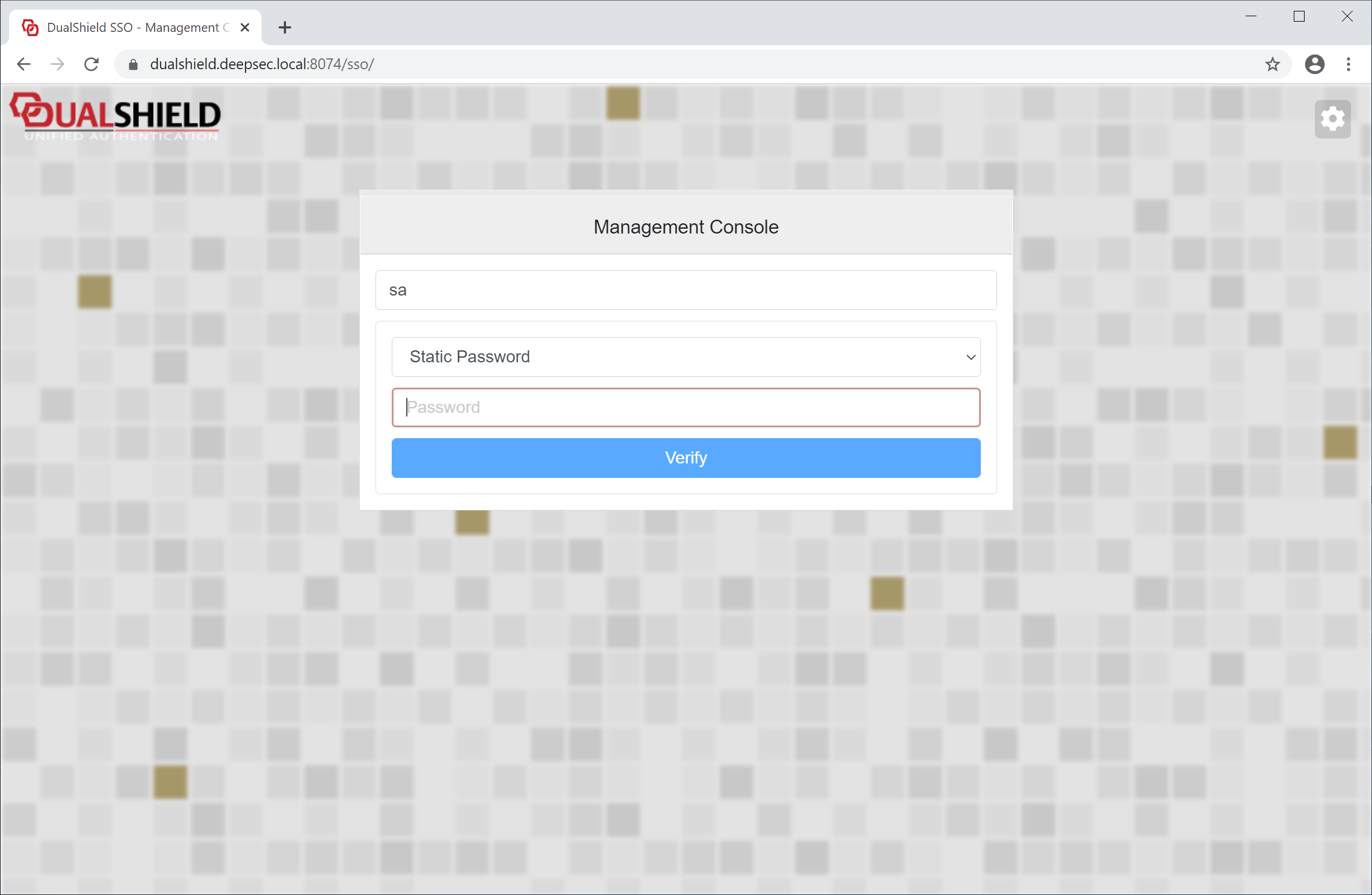
Sign into the admin console
...