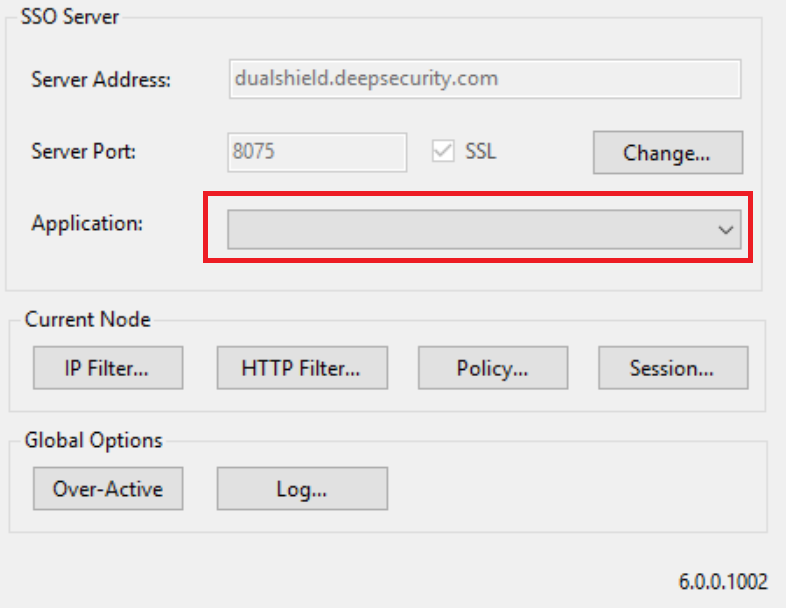
Prir to upgrading the IIS Agent in your Exchange servers or other Web servers, you must follow the steps below
1 - Log into your DualShield Admin Console
2 - Navigate to "Authentication | Applicatrions"

3 - Select an Exchange or Web application, e.g. Outlook Web Access. Click its context menu icon ...
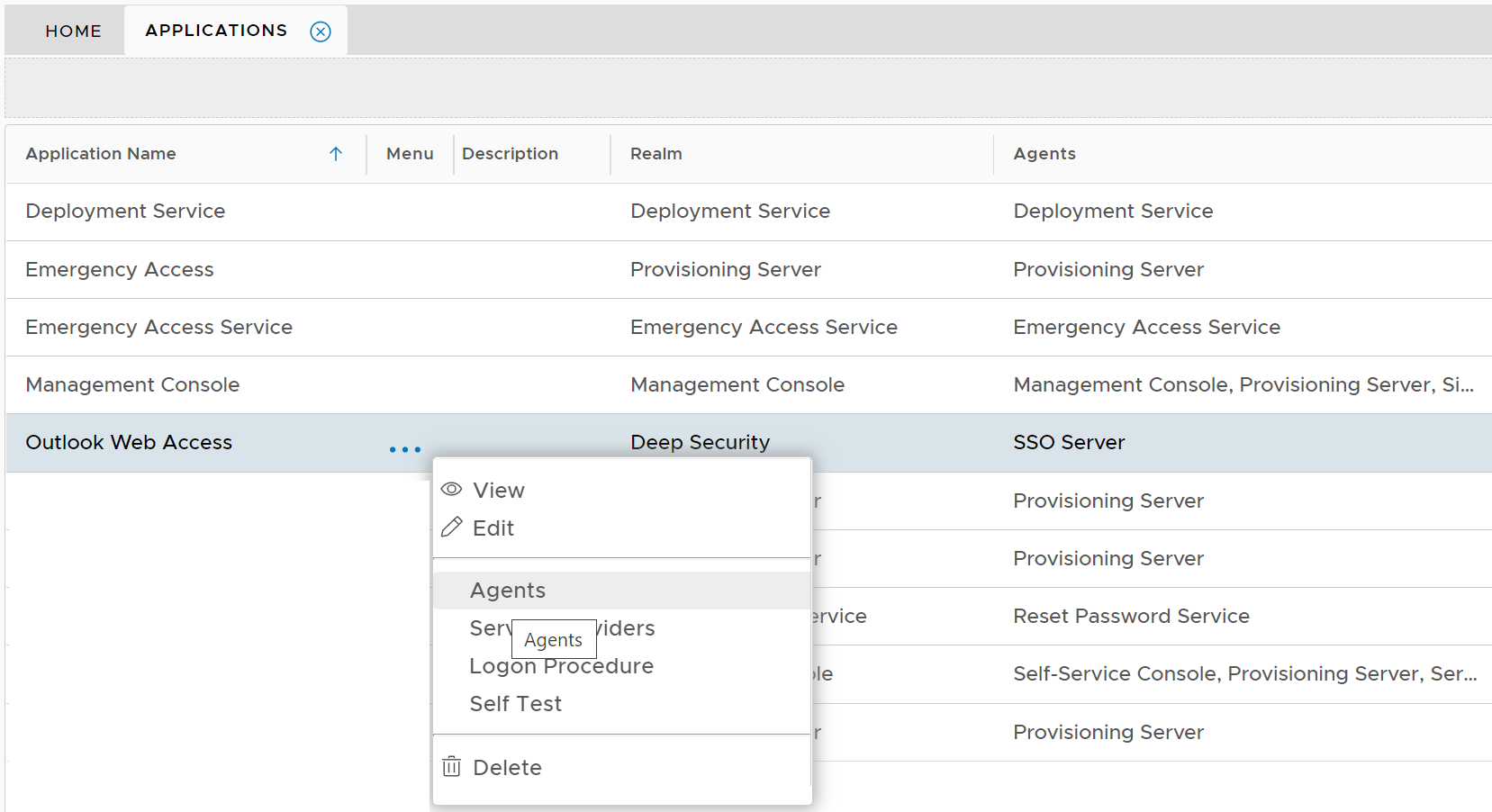
4 - Select "Agents"
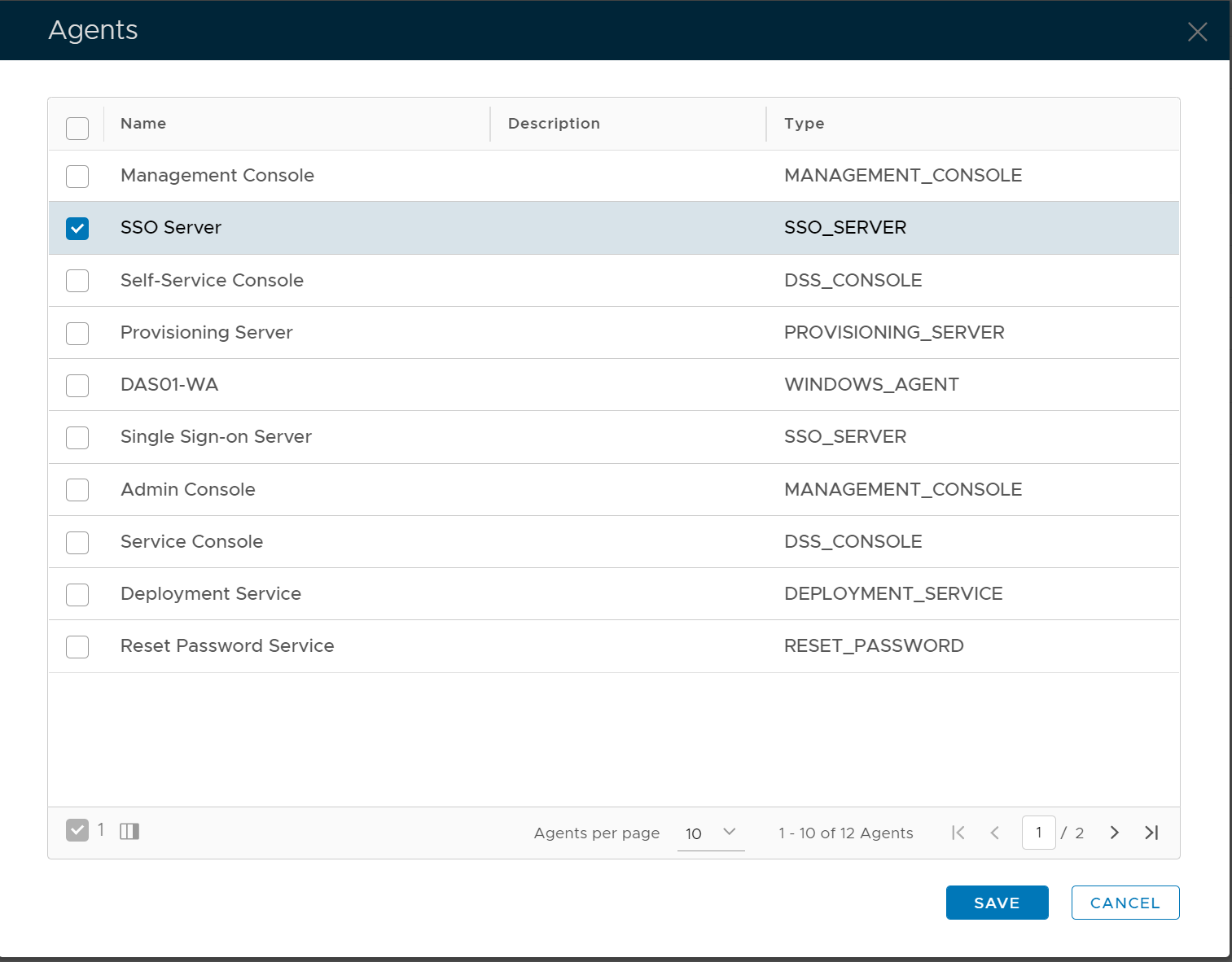
5 - Tick "Single Sign-on Server"
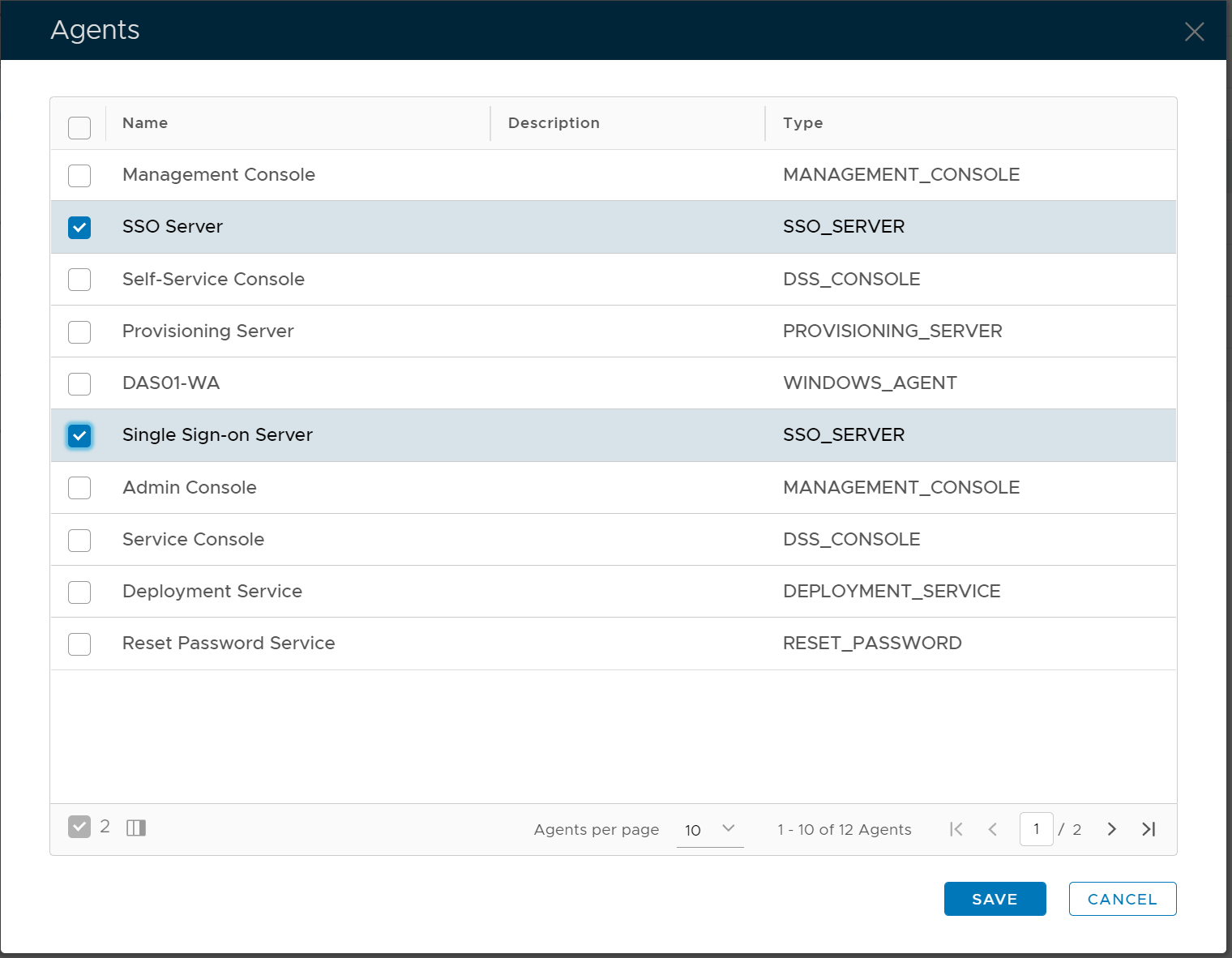
6 - Click "SAVE"
7 - Repeat Step 3 - 6 on every Exchange and Web applications.
8 - Now, you can proceeed to upgrade the IIS Agent.
Note: If you did not carry out the steps above prior to upgrading the IIS Agent from v5 to v6, then your IIS applications will cease to work and you will see the screen below when you log into the IIS Agent Console: