In order to import a certificate into Windows certificate store, you need to access it from the Microsoft Management Console (MMC).
First, you need to add the Certificates Snap-In into the MMC
| Expand |
|---|
| title | Add a MMC Certificate Snap-In |
|---|
|
| Include Page |
|---|
| How to add a MMC Snap-In for Managing Certificates |
|---|
| How to add a MMC Snap-In for Managing Certificates |
|---|
|
|
Then, you can import the CA certificate into the Root Certificate Stores.
| Section |
|---|
| Column |
|---|
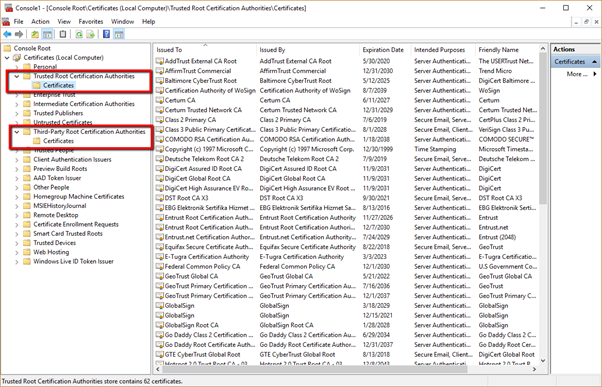
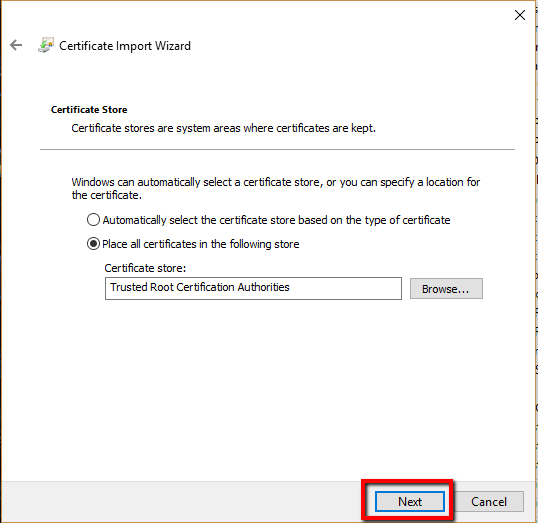
| There are two Root Certificate Stores in Windows systems, Trusted Root Certification Authorities and Third Party Root Certificate Authorities. Usually, you would import a CA certificate into the Trusted Root Certification Authorities. |
| Column |
|---|
| 
|
|
| Section |
|---|
| Column |
|---|
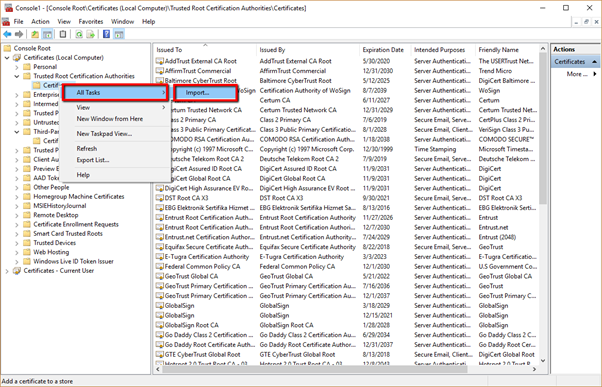
| Expand Trust Root Certification Authorities Right Click Certificates. Select All Tasks > Import |
| Column |
|---|
| 
|
|
| Section |
|---|
| Column |
|---|
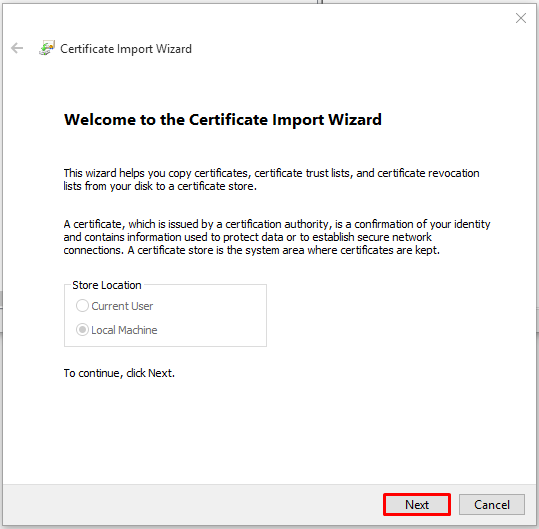
| In the Certificate Import Wizard click Next |
| Column |
|---|
| 
|
|
| Section |
|---|
| Column |
|---|
| 
|
|
| Section |
|---|
| Column |
|---|
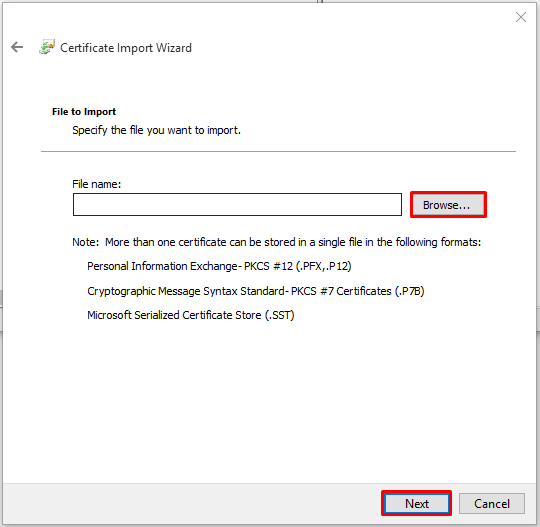
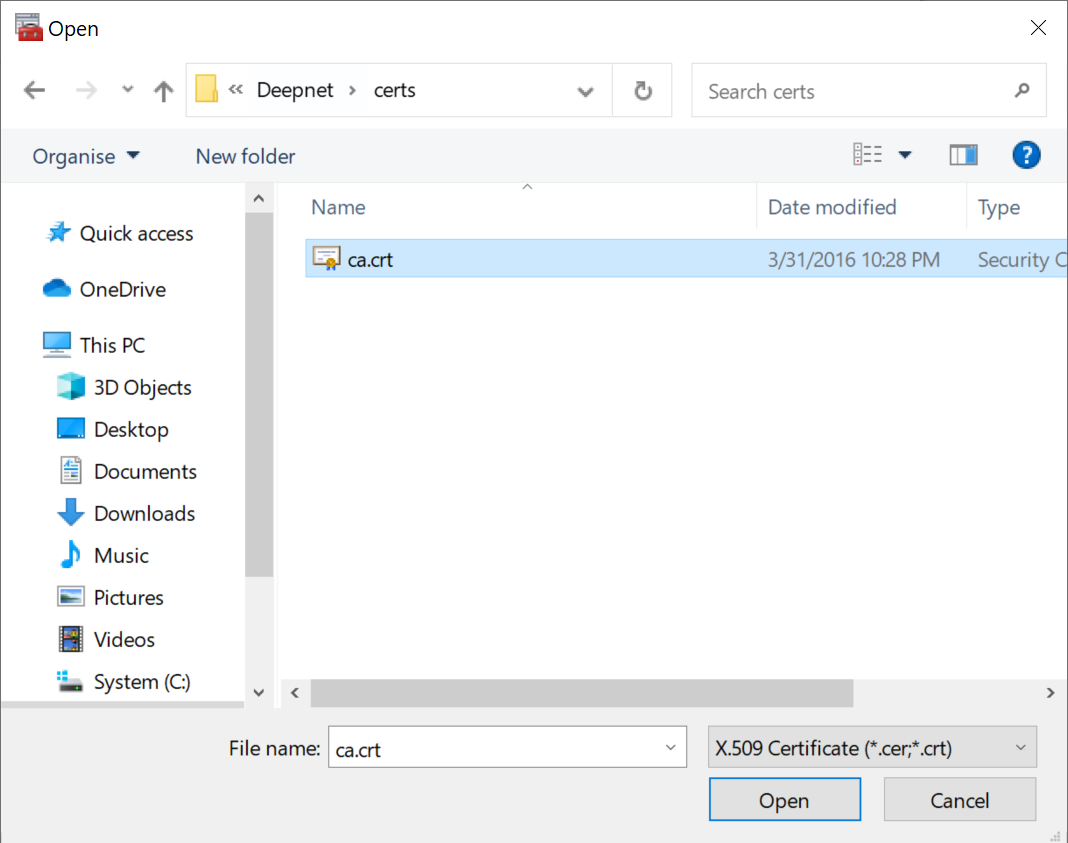
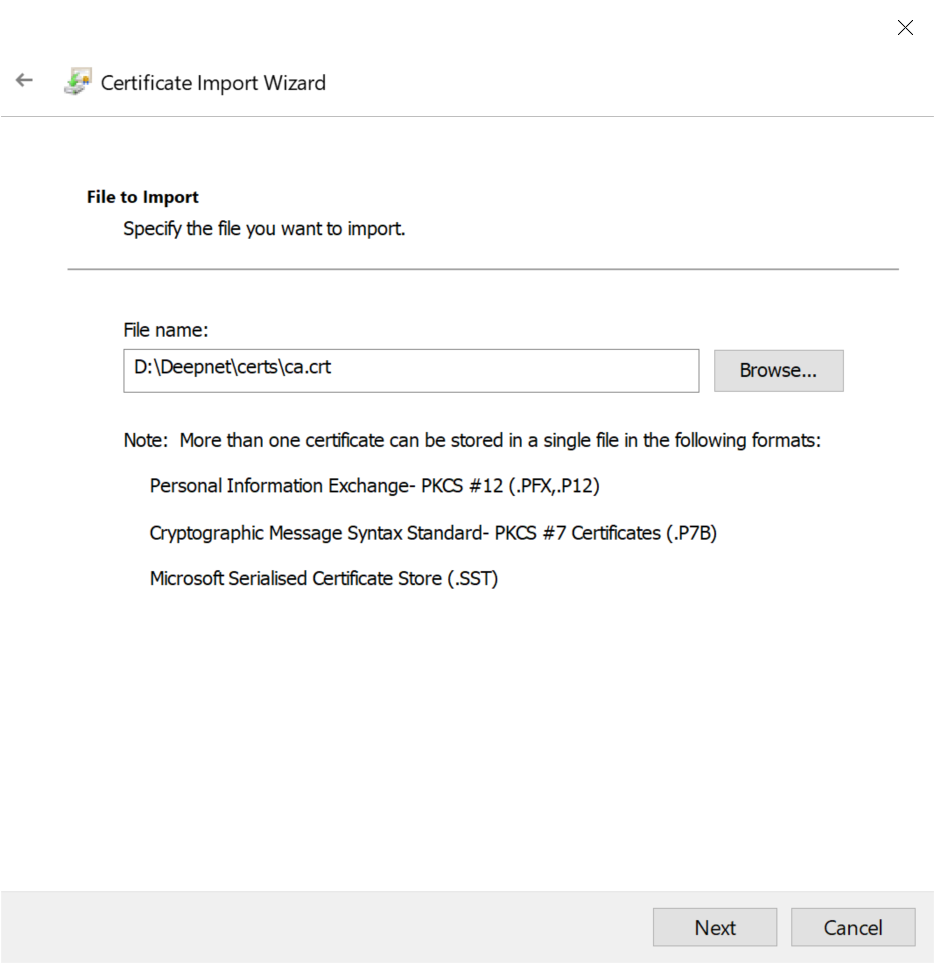
| Select the CA certificate file to be imported Click Open |
| Column |
|---|
| 
|
|
| Section |
|---|
| Column |
|---|
| 
|
|
| Section |
|---|
| Column |
|---|
| 
|
|
| Section |
|---|
| Column |
|---|
| 
|
|