User Access Management
You can invite users in your organization tenant to help manage the portal, and choose exactly what each user is allowed to do. This guide walks you through management of that access.
About 3 minutes | Administrator access needed | User Access
Before you start
- You're signed in to the admin portal.
- You know who you want to give access to, and what they'll need to do.
- That person already has an account in your organization.
Step 1: Open User Access
From the Dashboard, click User Access. This page lists everyone who currently has access, split into Groups and Users.
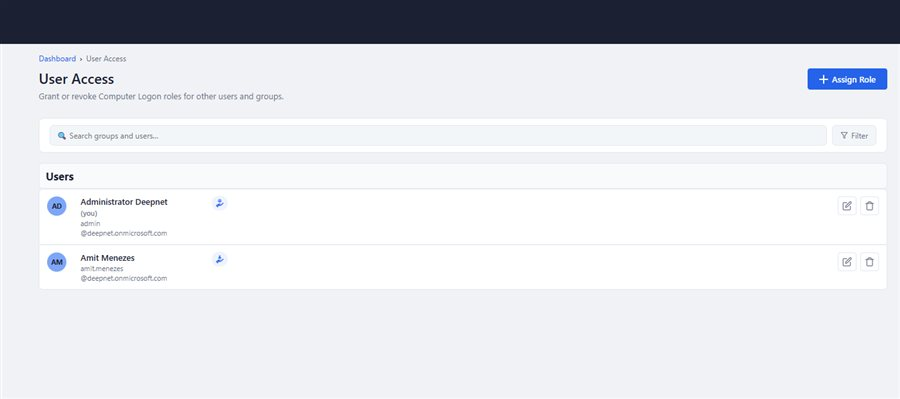
The User Access page
Step 2: Click "Assign Role" and find them
A window opens — step 1 of 2. Switch between the Groups and Users tabs, type a name into the search box, and click a result to select it. You can select more than one person or group at once. Click Continue →.
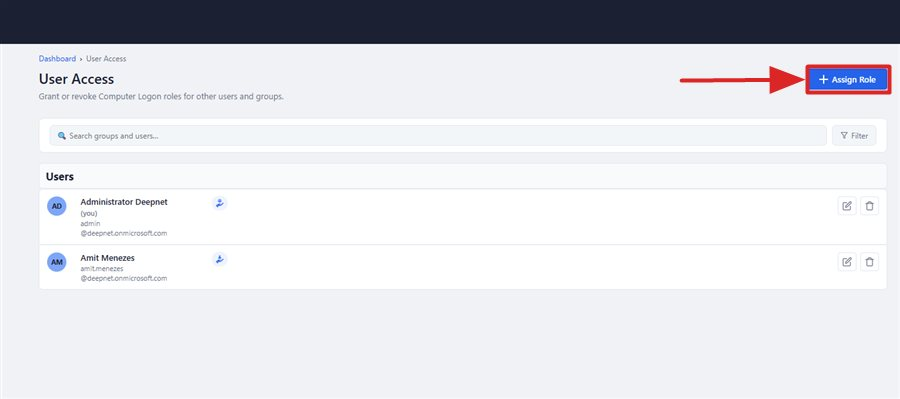
Click the highlighted "Assign Role" button
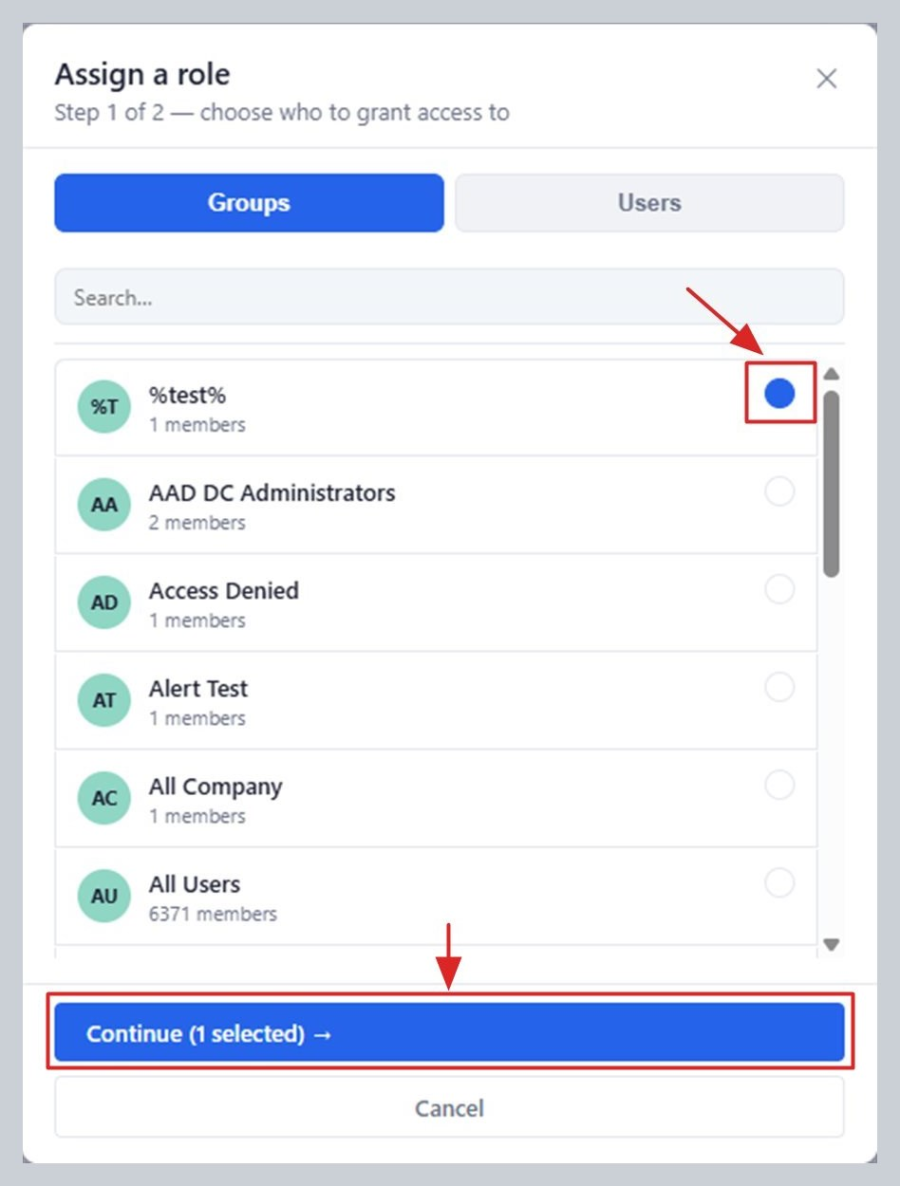
Select who to grant access to, then click "Continue →"
Step 3: Choose their level of access
Step 2 of 2 — tick one or more roles. Only give someone as much access as they actually need. There are two access portals provided by the portal — the Administration Portal and the self-service User Portal.
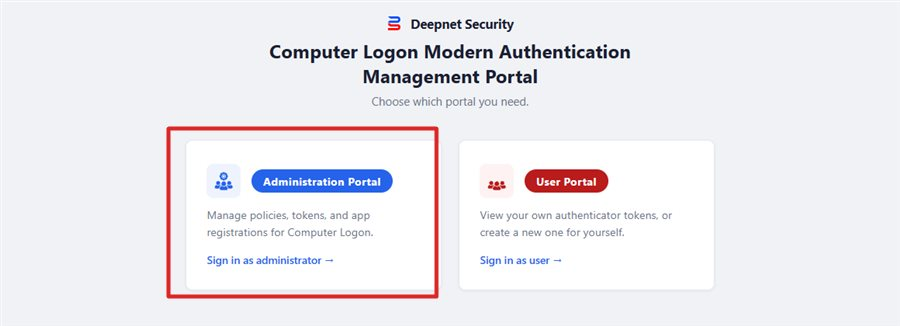
This is the Administration Portal
The Administration portal has the following access roles:
Policy Viewer
Can only view the policies and settings for Computer Logon.
Policy Administrator
Can view and edit the policies and settings for Computer Logon.
ℹ️ Already includes: Policy Viewer
Token Viewer
Can only view all the assigned managed tokens for Computer Logon in the tenant.

Token Administrator
Can create, assign, resync, and remove managed tokens for Computer Logon in the tenant.
ℹ️ Already includes: Token Viewer

Role Administrator
Grants the role holder the ability to grant and remove any Policy or Token roles it holds with other users.
ℹ️ Can only grant or remove a role with Role Administrator.
ℹ️ Can only be done to a user with matching Policy and Token management roles already held by the access granting/removing user.

Administrator
Can view and edit the policies and settings, create, assign, resync, and remove managed tokens, and grant and remove any role with other users for Computer Logon in the tenant.
ℹ️ Already includes: Policy Viewer, Policy Administrator, Token Viewer, Token Administrator, Role Administrator
ℹ️ You can tick more than one role for the same person — for example, both Policy Administrator and Token Administrator, if they need to manage both.
The self-service User Portal has its own access role, which is granted to users that hold the role.
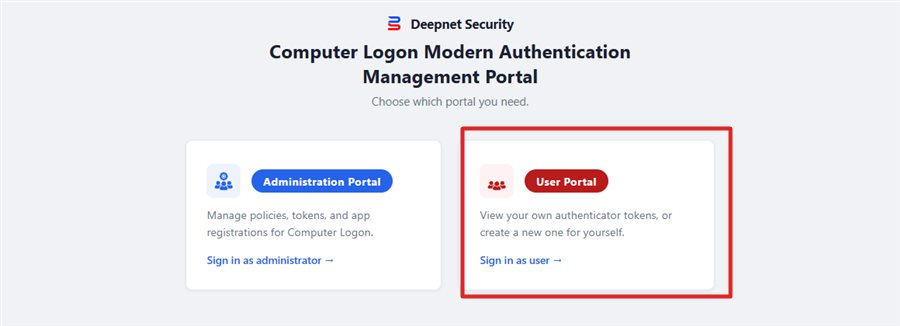
This is the self-service User Portal
The portal has the following access roles:

User Portal Access
Grants access to the holder to its own user self-service portal to manage their own tokens.
ℹ️ Only Administrators and Role Administrators can grant User Portal Access to other users.
ℹ️ The User Portal Access role is non-transferable.
⚠️ Note: A user without the User Portal Access role is not capable of accessing the User Portal. This is also the case for a user holding an Administrator role. The user must hold a User Portal Access role to access its own self-service User Portal.
Click Assign. That person (or everyone in the group) can now sign in to the portal themselves and use whatever you gave them access to — there's nothing else for them to set up.
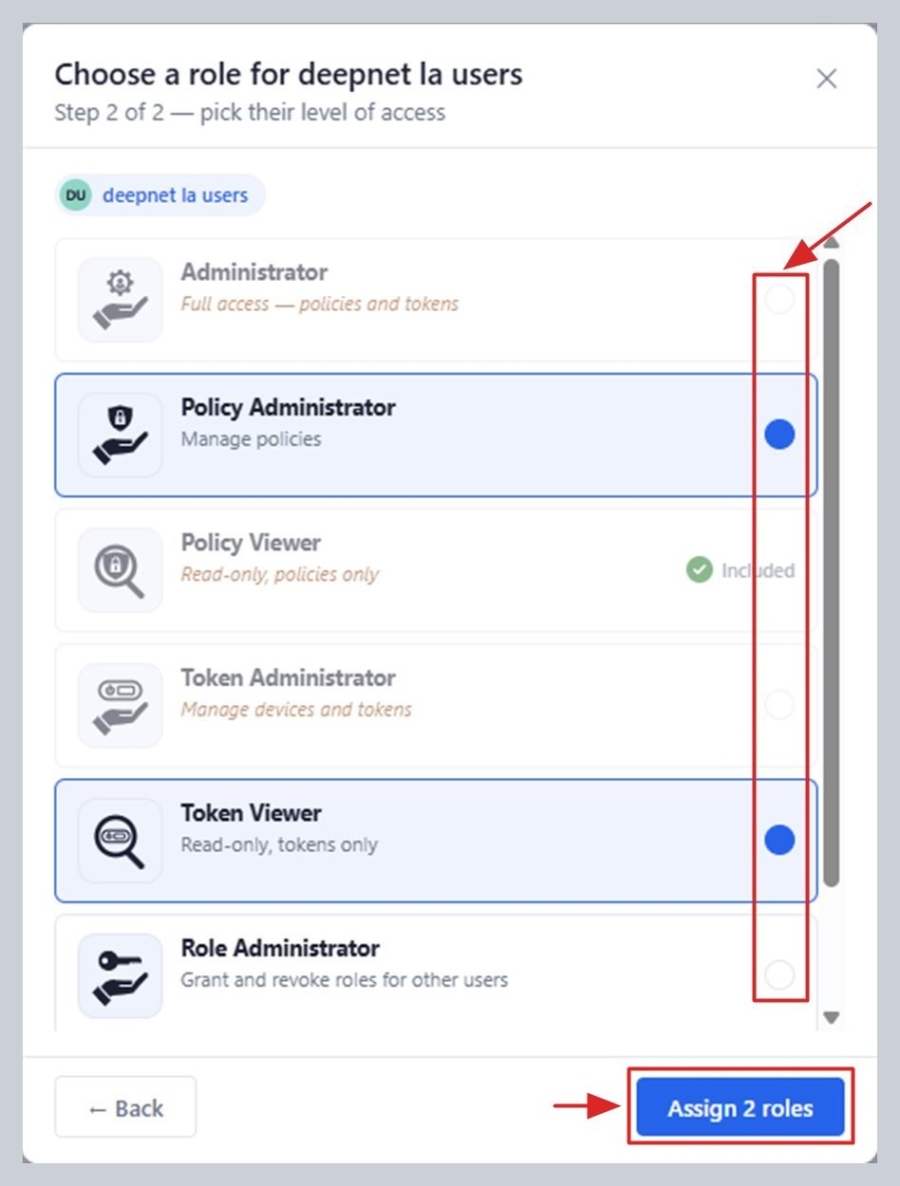
Tick a role, then click the highlighted "Assign"
Step 4: Change or remove access later
Back on the User Access page, each row has:
...
ℹ️ Can only grant or remove a role with Role Administrator. Can only be done to a user with matching Policy and Token management roles already held by the access granting/removing user.
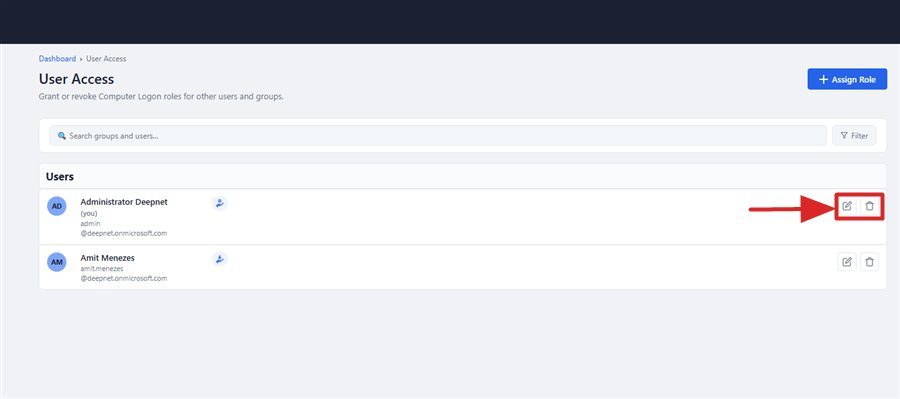
The Edit access and Delete icons on each row
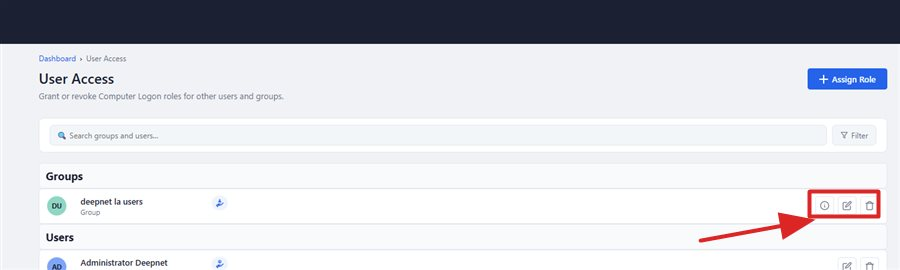
Groups and users are listed in their own sections, each with matching row actions
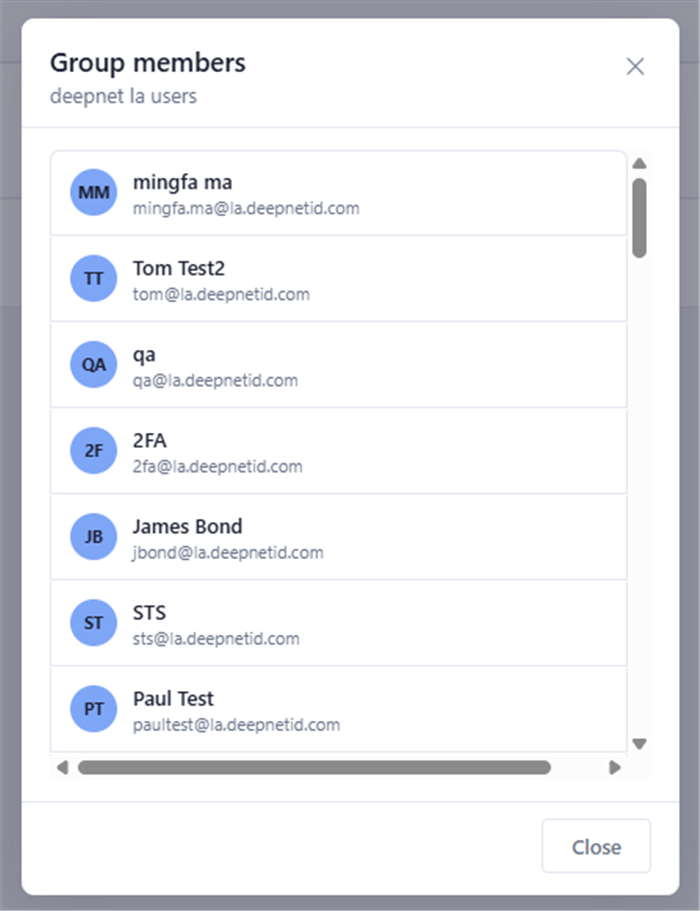
Clicking Info shows the group's real members
That's it
You've given someone access to the portal, with exactly the level of control you chose for them. Check back on the User Access page from time to time to make sure only the right people still have access.