...
Create a RADIUS application
- In the main menu, select "select Authentication | > Applications"
- Click the "the Create" button button on the toolbar
- Enter a name and select a realm
- Select the newly created logon procedure
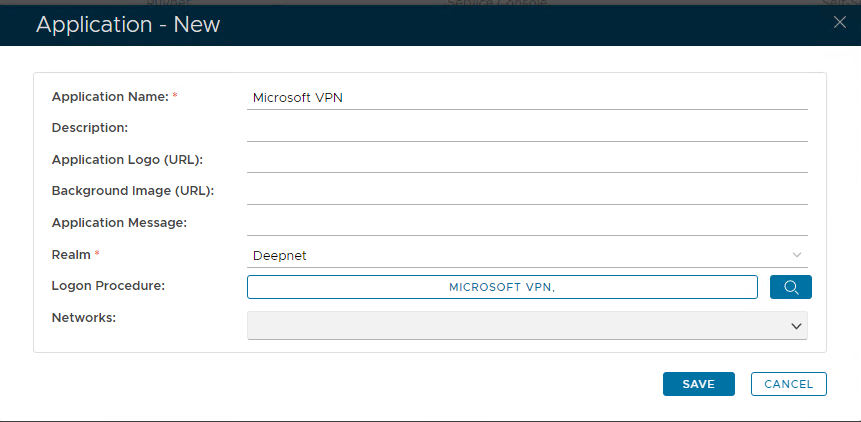
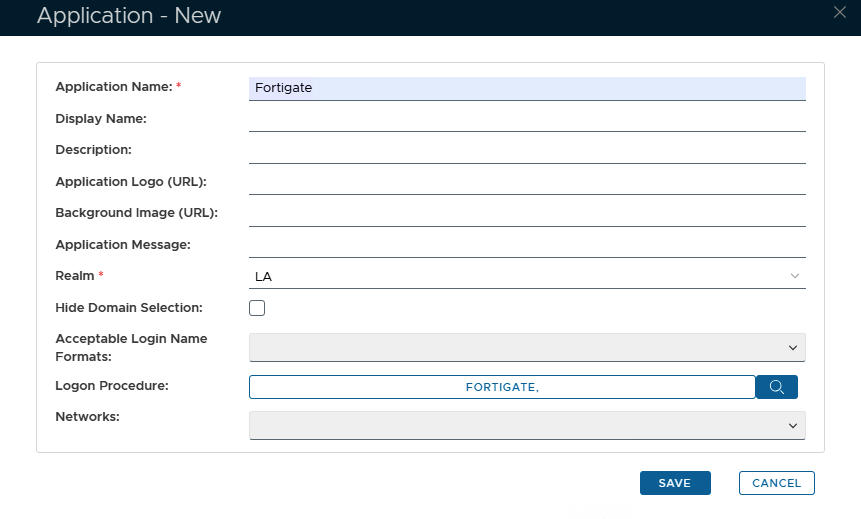
- Click "Click Save"
- Click the Context menu of the newly created application, select "select Agent" and and then select the Radius agent.
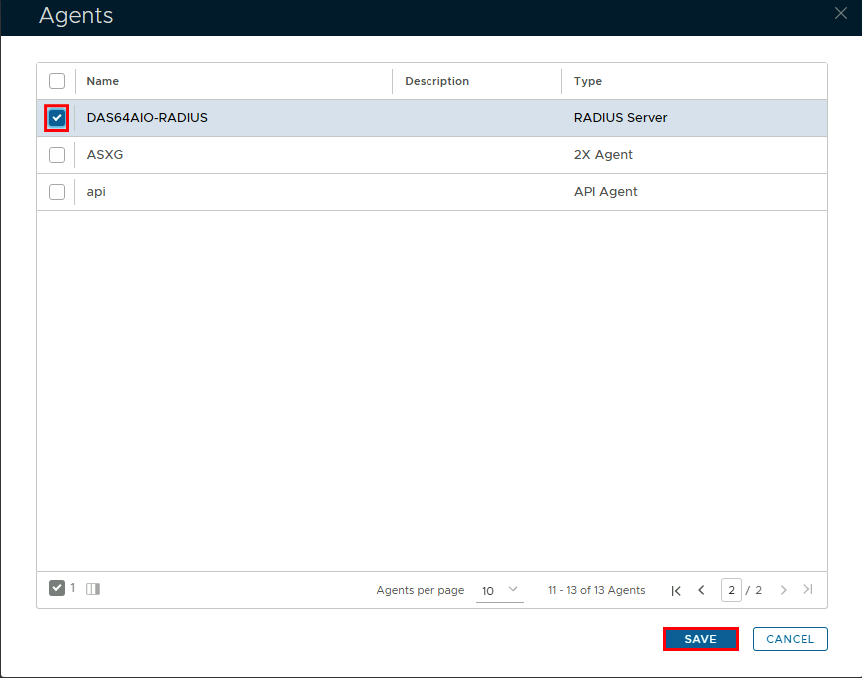
Click "Save" - Click Save
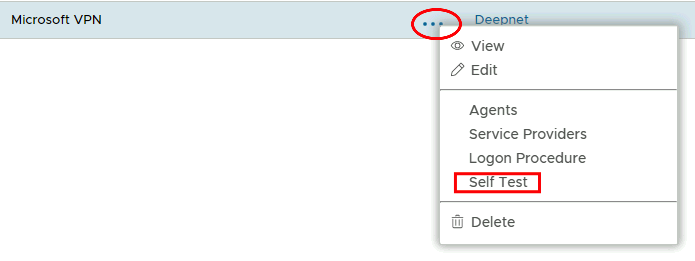
- Click on the corresponding Elipses and choose "choose Self Test" from from the menu.
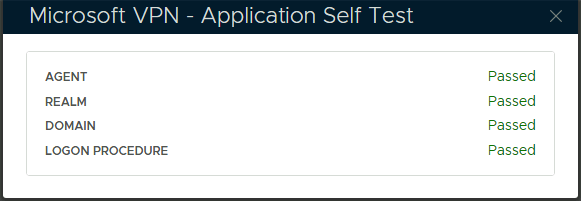
Register Network Policy Server as a Radius Client
- In the main menu, select "select RADIUS | > Client"
- Click the "Create" button on the top right.
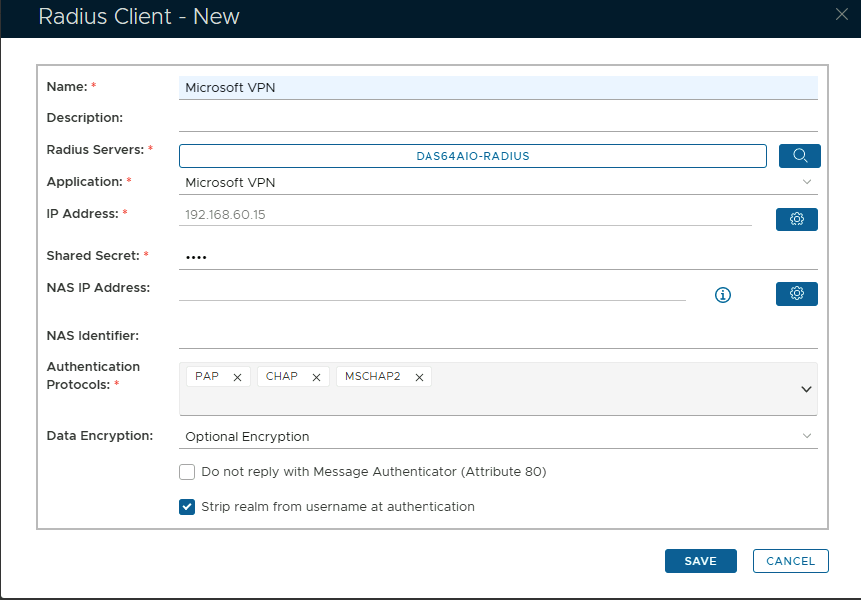
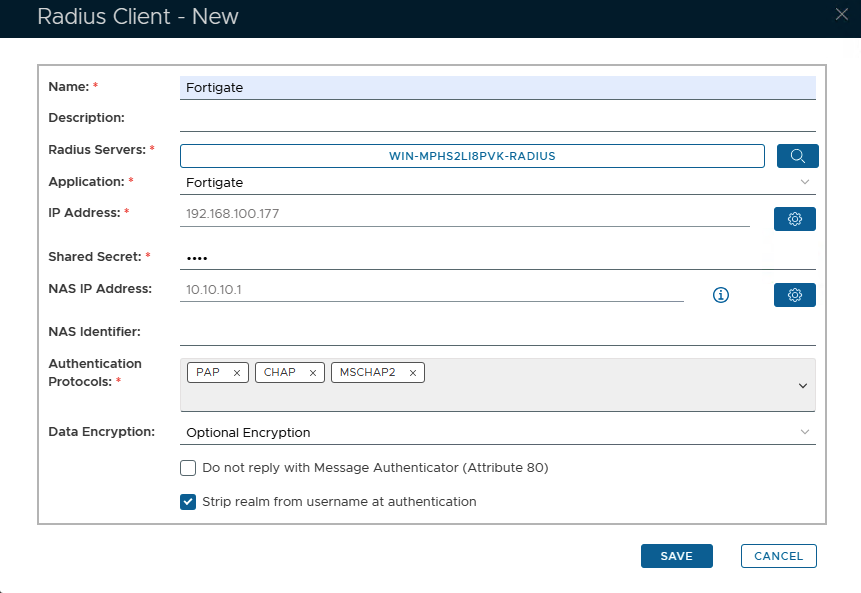
- Enter a friendly name
- Click on the magnifying glass and select the Radius Server
- Select the Application from the drop-down list.
- Click on the Cogwheel to the right to enter the IP address of the Network Policy Server and click "Add" then "Save"
- Enter the Shared Secret, which will be used in Network Policy ServerFortiGate's Radius Server configuration.
- Select PAP, Chap & MSCHAP2 Select "PAP" "Chap" & "MSCHAP2" as the Authentication Protocols
- Click "Click Save"