...
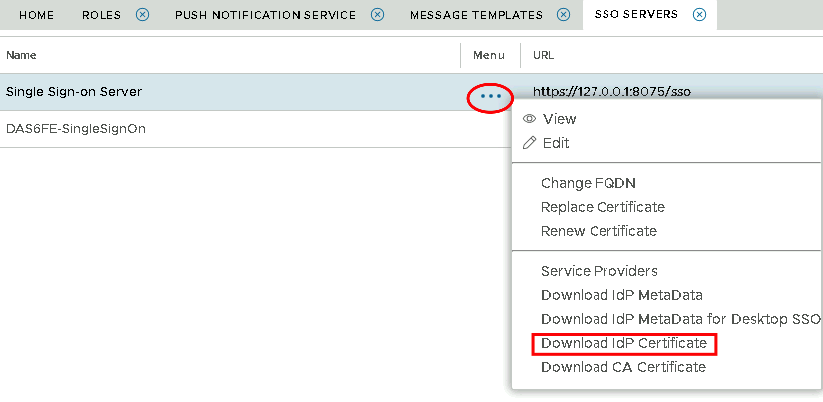
You will also need to download the IdP Certificate from the DualShield Administration Console
| Section |
|---|
|
| Column |
|---|
Select the drop down menu corresponding to the SSO server you will be using and click on Download IdP Certificate |
| Column |
|---|
|
| Panel |
|---|
| borderColor | #9EBEE5 |
|---|
| bgColor | #f0f0f0 |
|---|
| borderWidth | 1px |
|---|
| 
|
|
|
| Section |
|---|
|
In ConsoleWorks navigate to Security>Certificates>Import and follow the prompts to import the idp cert | Column |
|---|
|
| Panel |
|---|
| borderColor | #9EBEE5 |
|---|
| bgColor | #f0f0f0 |
|---|
| borderWidth | 1px |
|---|
| 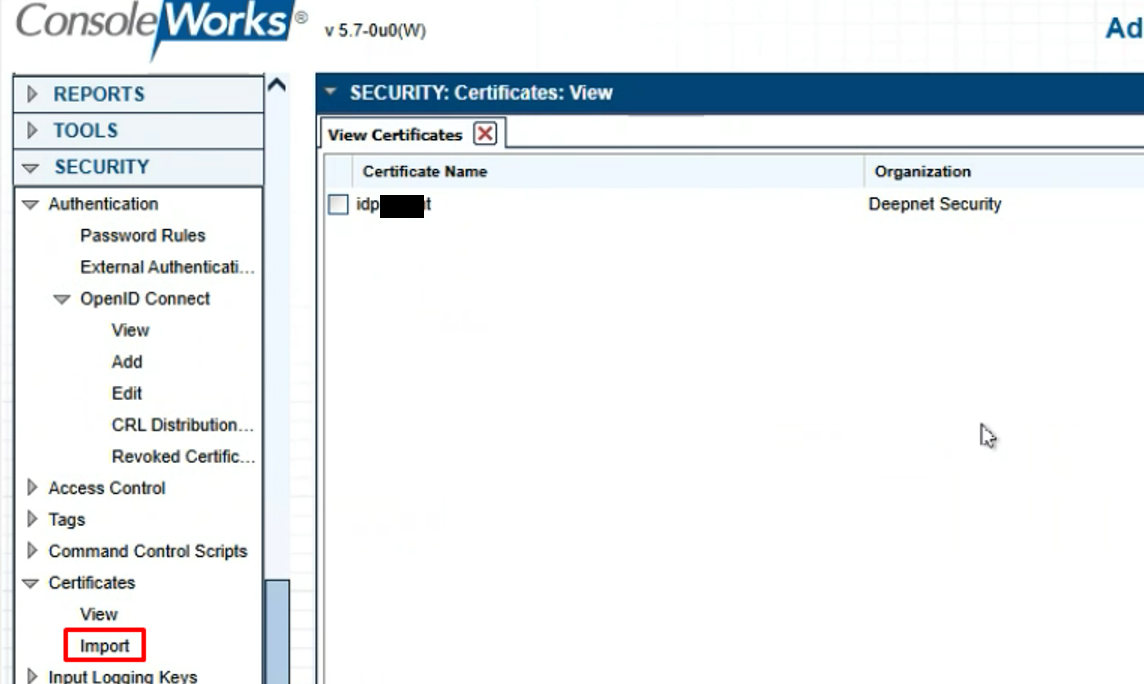 Image Added Image Added
|
|
|
Adding Users for OIDC authentication.
Please refer to ConsoleWorks own documentation for creating Users, templates and rules, however there are two ways this can be set up:
| Section |
|---|
|
| Column |
|---|
1) New User Template is created, so that users are automatically created when they first logon. |
| Column |
|---|
|
| Panel |
|---|
| borderColor | #9EBEE5 |
|---|
| bgColor | #f0f0f0 |
|---|
| borderWidth | 1px |
|---|
| 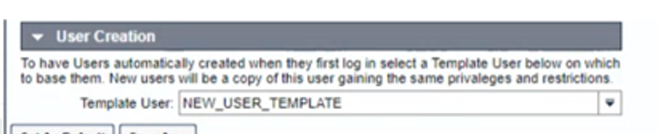 Image Added Image Added
|
|
|
| Section |
|---|
|
| Column |
|---|
2) If users already exist on ConsoleWorks then connection rules need to be setup so the users are authorized DualShield as the OIDC provider, (Please refer the ConsoleWorks support guides) The exisiting users will then be added here: |
| Column |
|---|
|
| Panel |
|---|
| borderColor | #9EBEE5 |
|---|
| bgColor | #f0f0f0 |
|---|
| borderWidth | 1px |
|---|
| 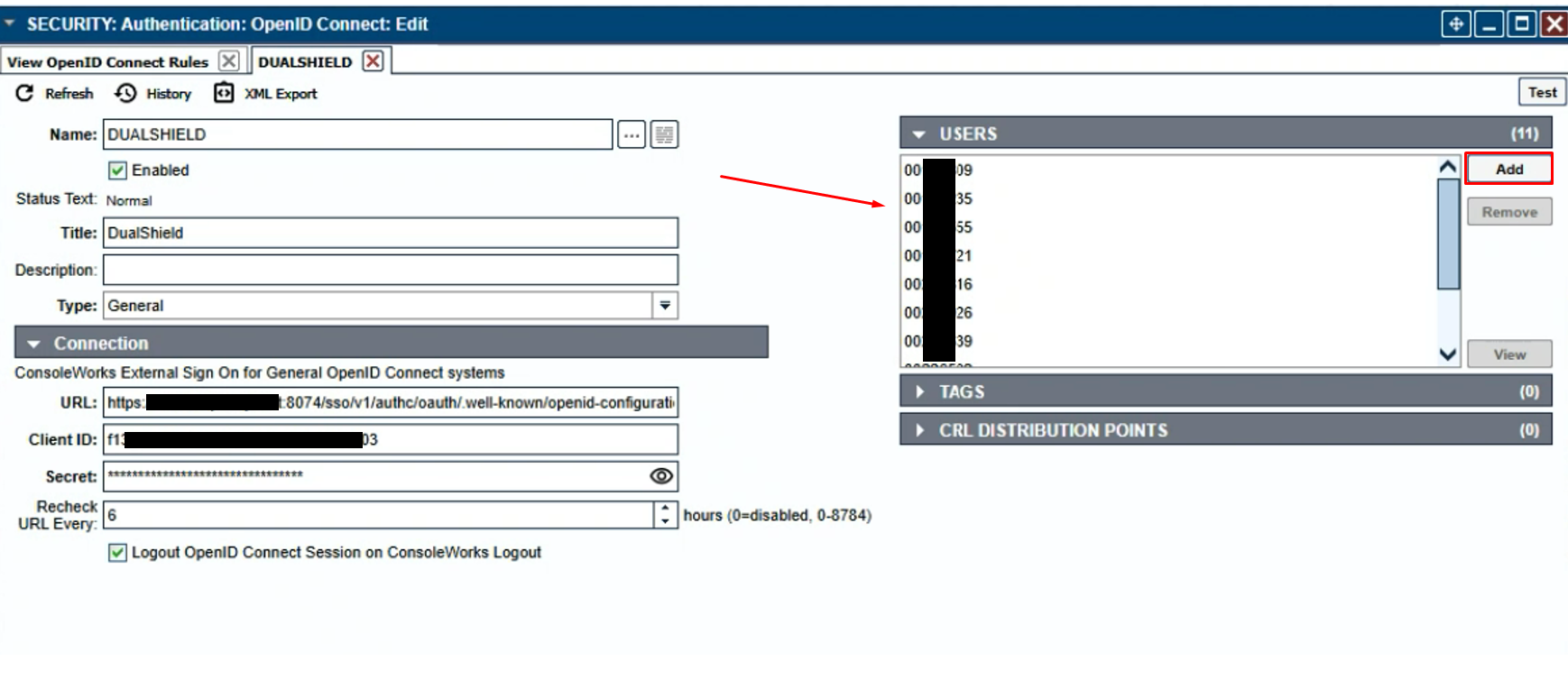 Image Added Image Added
|
|
|