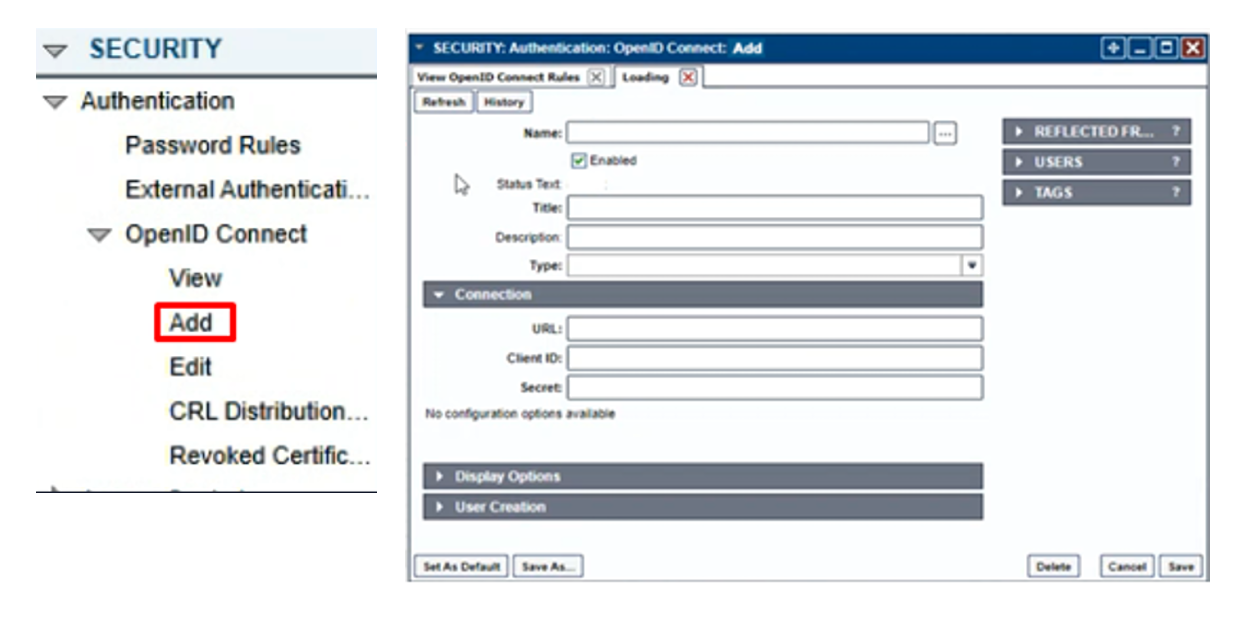
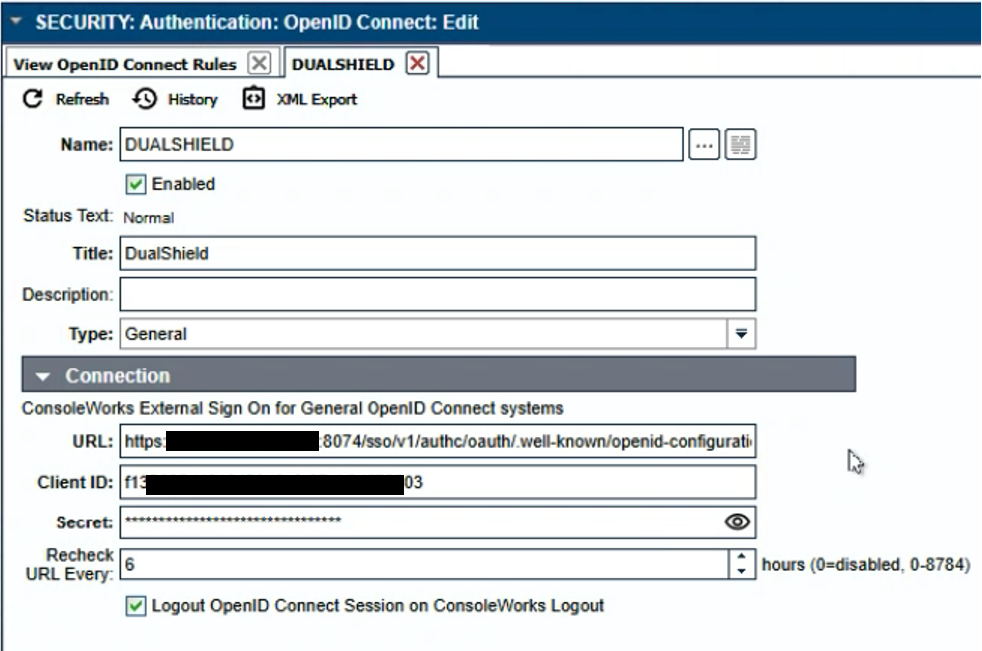
From the ConsoleWorks Navigation Window, select SECURITY > Authentication > OpenID Connect > Add.
Column
width
50%
Panel
borderColor
#9EBEE5
bgColor
#f0f0f0
borderWidth
1px
Section
border
true
Column
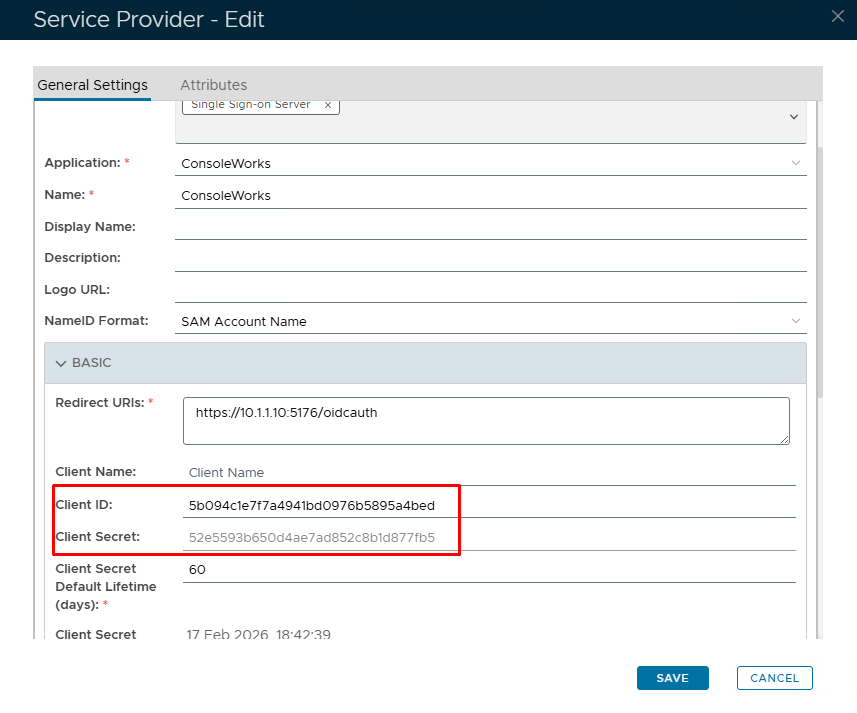
Go back to the DualShield Admin Console and go to SSO>Service providers. View or edit your OIDC service provider created in DualShield Configuration for ConsoleWorks
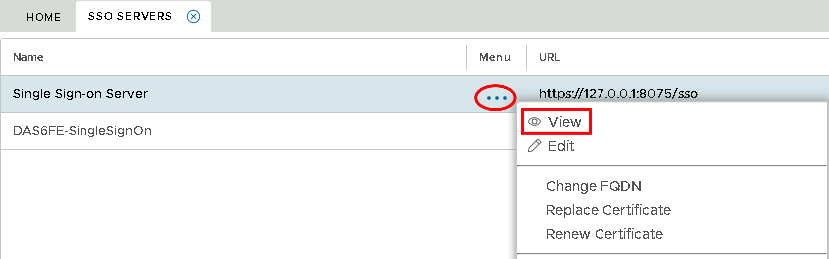
Expand the BASIC tab and copy out the Client ID and Client SecretSelect the drop down menu corresponding to the SSO server you will be using and click onView.
Paste in the Client ID you had copied from SSO>Service Providers (see above)
Client Secret
Paste in the Client Secret you had copied from SSO>Service Providers (see above)
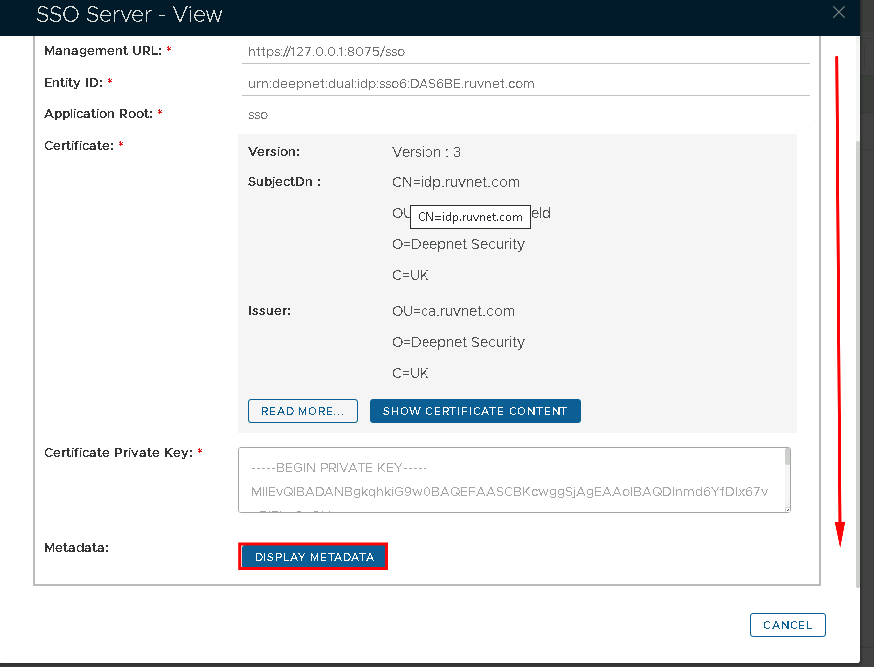
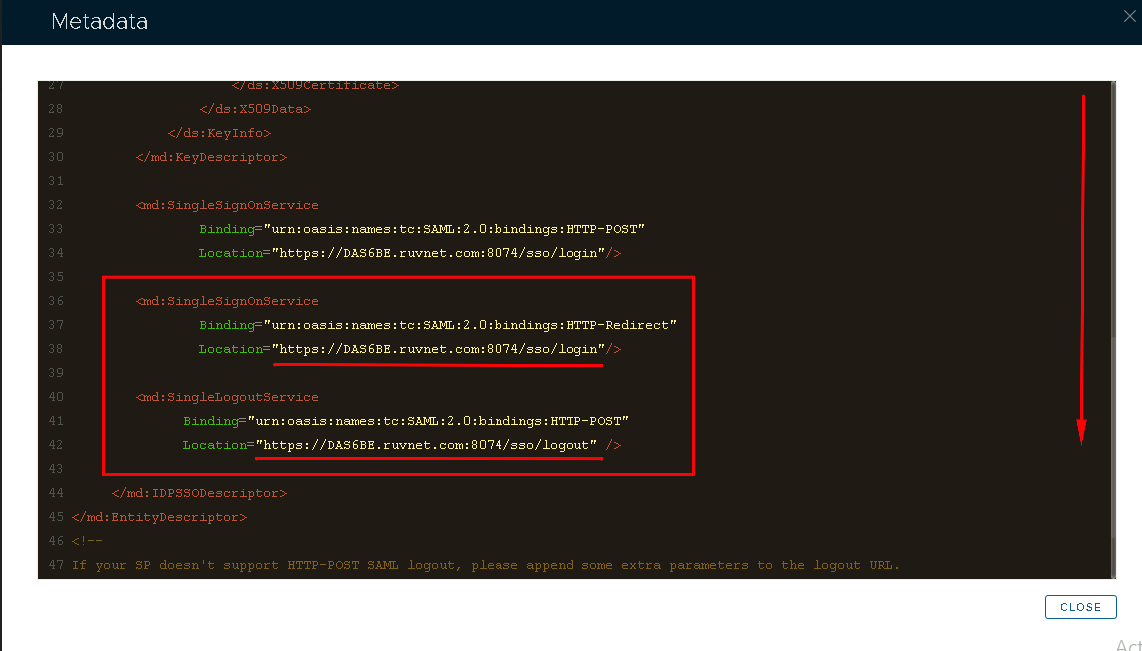
In the view screen scroll down and click on Display Metadata
Column
width
50%
Panel
borderColor
#9EBEE5
bgColor
#f0f0f0
borderWidth
1px
Image RemovedImage Added
Section
border
true
Column
Scroll down to where you can see the SingleSignOnService and SingleLogoutService URL. You may want to copy and past this somewhere, ready for the next section.