...
| Section |
|---|
|
| Column |
|---|
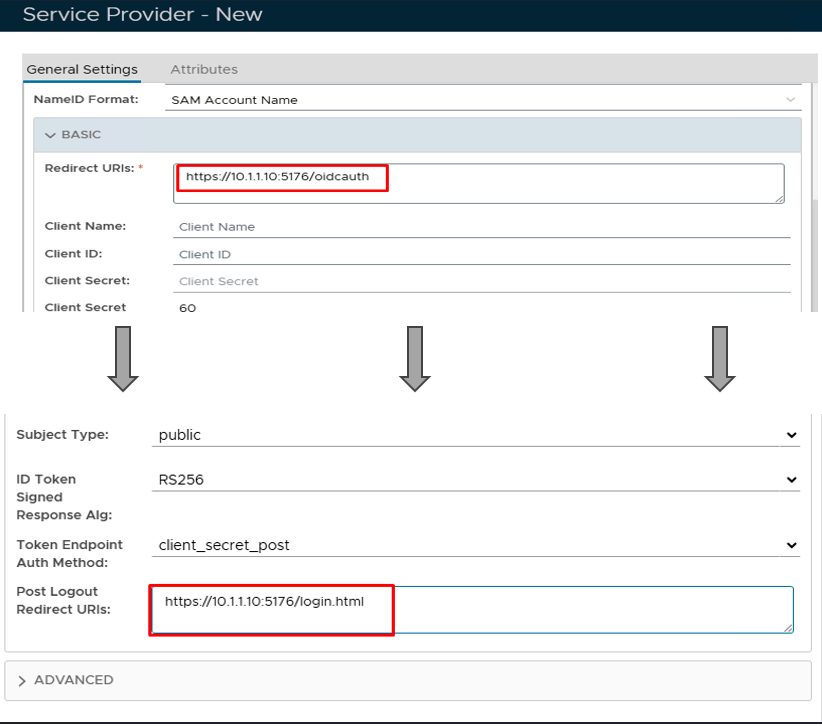
Expand the BASIC tab and set the values below, leaving the remainining default values. | Option | Value |
|---|
| Redirect URIs: | https://x.x.x.x:5176/oidcauth | | Post Logout Redirect URIs: | https://x.x.x.x:5176/login.html |
*Replace the x.x.x.x with the IP of the ConsoleWorks server.  Scroll down to the next value Scroll down to the next value
|
| Column |
|---|
|
| Panel |
|---|
| borderColor | #9EBEE5 |
|---|
| bgColor | #f0f0f0 |
|---|
| borderWidth | 1px |
|---|
| 
|
|
|
| Section |
|---|
|
| Column |
|---|
The completed Service Provider dialogue box will look like this: |
| Column |
|---|
|
| Panel |
|---|
| borderColor | #9EBEE5 |
|---|
| bgColor | #f0f0f0 |
|---|
| borderWidth | 1px |
|---|
|
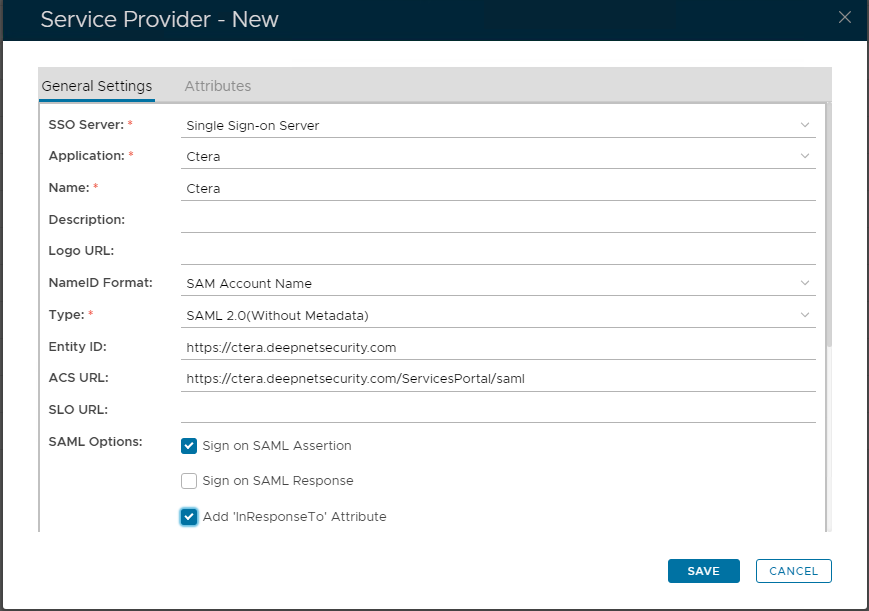 Image Removed Image Removed
|
|
Click Save.
...
Download the IDP Metadata file.Obtain the OIDC Authorization Endpoint URL
| Section |
|---|
|
| Column |
|---|
Go to SSO>SSO Servers |
| Column |
|---|
|

|
|
...
| Section |
|---|
|
| Column |
|---|
Select the drop down menu corresponding to the SSO server you will be using and click on Download IDP MetadataEdit |
| Column |
|---|
|
| Panel |
|---|
| borderColor | #9EBEE5 |
|---|
| bgColor | #f0f0f0 |
|---|
| borderWidth | 1px |
|---|
| 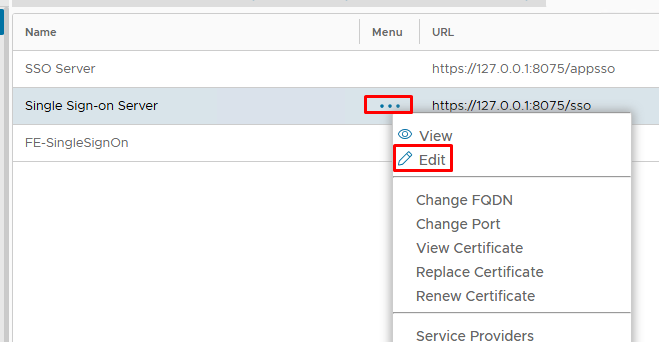 Image Added Image Added
|
|
|
| Section |
|---|
|
| Column |
|---|
Click on the OpenID Connect tab and copy out the Authorization Endpoint. If the URL's are not displaying click on the LOAD DEFAULT button first.
|
| Column |
|---|
|
| Panel |
|---|
| borderColor | #9EBEE5 |
|---|
| bgColor | #f0f0f0 |
|---|
| borderWidth | 1px |
|---|
| 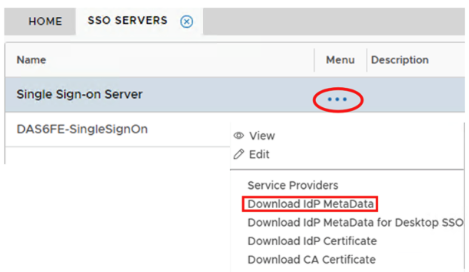 Image Removed Image Removed | 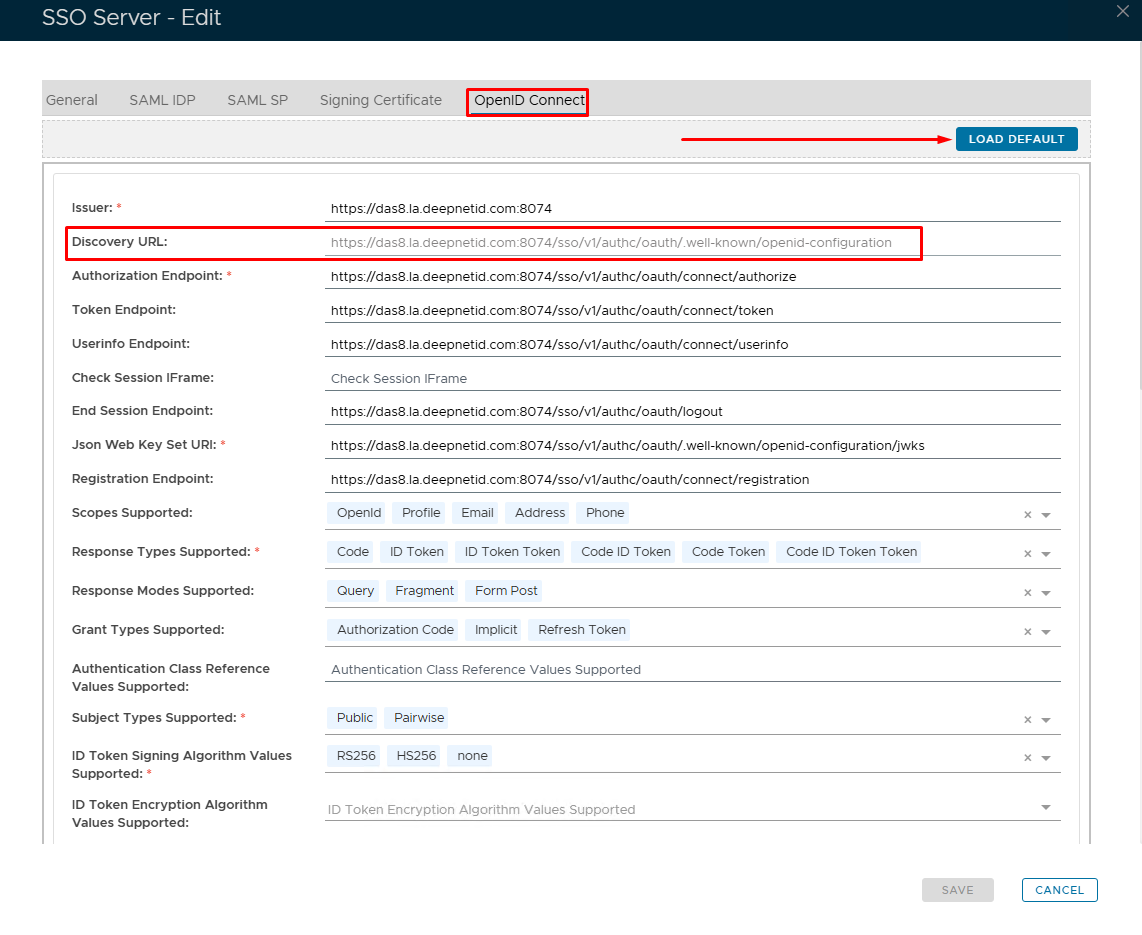 Image Added Image Added
|
|
|
Click Save.