...
Save the new Logon policy.
| Section |
|---|
|
| Column |
|---|
Click on  Image Added on the top right. Image Added on the top right. Set these Values in the Policy - New Window | Option | Value |
|---|
| Category: | | | Holder: | | | Domain: | Enter the virtual domain name | | Name: | Enter a user-friendly name | | Enabled: | True |
|
| Column |
|---|
|
| Panel |
|---|
| borderColor | #9EBEE5 |
|---|
| bgColor | #f0f0f0 |
|---|
| borderWidth | 1px |
|---|
|  Image Added Image Added
|
|
|
| Section |
|---|
|
| Column |
|---|
Expand General and check Enable MFA on local computer logon |
| Column |
|---|
|
| Panel |
|---|
| borderColor | #9EBEE5 |
|---|
| bgColor | #f0f0f0 |
|---|
| borderWidth | 1px |
|---|
|  Image Added Image Added
|
|
|
Save the new Computer Logon Client policy
Create an additional Computer Client Logon Policy which will exempt the Administrator account from MFA logon.
| Section |
|---|
|
| Column |
|---|
Click on Image Added on the top right. Set these Values in the Policy - New Window | Option | Value |
|---|
| Category: | | | Holder: | | | Domain: | Enter the virtual domain name | | User: | Enter the name of the account you wish to exempt (e.g Administrator) | | Name: | Enter a user-friendly name | | Enabled: | True |
|
| Column |
|---|
|
| Panel |
|---|
| borderColor | #9EBEE5 |
|---|
| bgColor | #f0f0f0 |
|---|
| borderWidth | 1px |
|---|
| 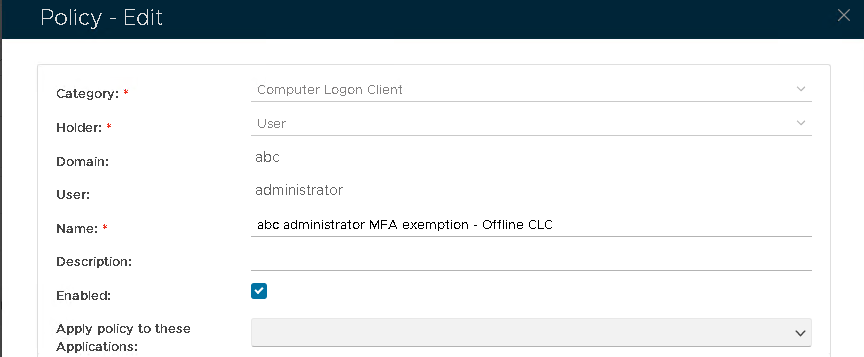 Image Added Image Added
|
|
|
| Section |
|---|
|
| Column |
|---|
Expand General. Leave all checkboxes blank. |
| Column |
|---|
|
| Panel |
|---|
| borderColor | #9EBEE5 |
|---|
| bgColor | #f0f0f0 |
|---|
| borderWidth | 1px |
|---|
|  Image Added Image Added
|
|
|
Save the new Computer Logon Client policy